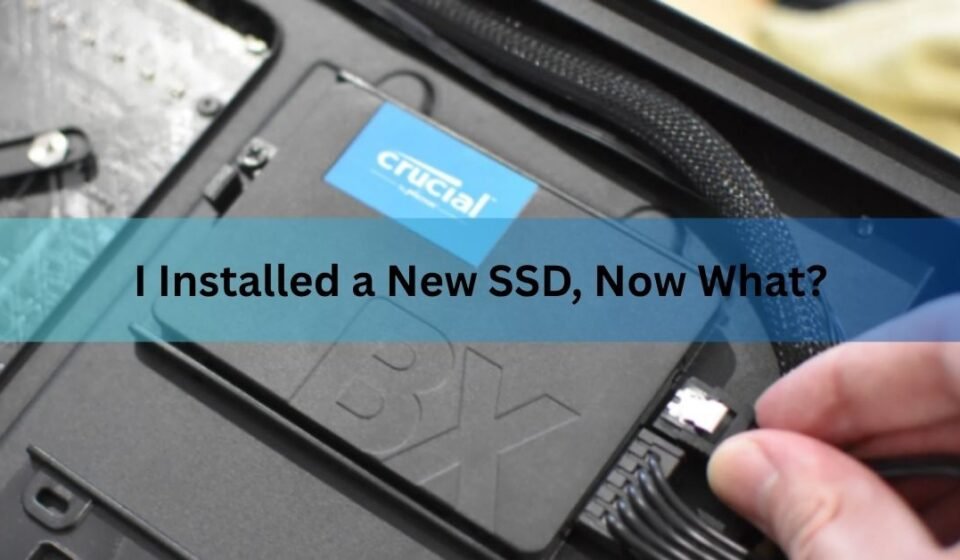

Once the SSD is physically in place, the next steps are: confirm Windows can see it, then either set it up as extra storage or make it the drive Windows boots from, turn on TRIM, and move your files across. Which path you take depends on whether this SSD is a second drive alongside your old one, or a replacement for it.
The steps below cover both cases, in the order most people need them.
Is my computer detecting the new SSD?
Open Device Manager (right click the Start button and pick it from the list) and expand Disk drives. Your new SSD should show up by its model name. If it is not there, restart your PC and check the BIOS or UEFI setup screen instead, since a drive that is missing in the BIOS is a connection problem, not a Windows problem.
For a desktop, this usually means the SATA or power cable has come loose, or an NVMe drive is not fully seated in its M.2 slot. For a laptop, it can also mean the M.2 slot you used does not support the type of SSD you bought (some slots are SATA only, others support NVMe). Reseat the drive, check the cable, and try again before assuming the SSD itself is faulty.

Once the BIOS sees it, Windows will too. If Device Manager shows the drive but File Explorer does not, that is normal for a brand new drive. It just has not been set up yet, which is the next step.
Do I need to initialize and format it?
Yes, if this SSD is going in as a second drive alongside your existing one. A new SSD has no partition and no file system, so Windows cannot store anything on it until you set one up.
- Right click the Start button and choose Disk Management.
- Windows may prompt you to initialize the disk automatically. Choose GPT if your system uses UEFI (most PCs built since around 2013), or MBR only if you are on an older BIOS-based system.
- Right click the box marked Unallocated next to your new drive and select New Simple Volume.
- Follow the wizard, assign a drive letter, and format it as NTFS with a quick format.
- The drive will then appear in File Explorer with its own letter, ready to use for programs, games, or files.
Microsoft’s own walkthrough for this process is in its Disk Management guide, which also covers what to do if the disk shows as offline or missing.
How do I make the new SSD my boot drive?
If you bought the SSD to replace your old hard drive or old SSD as the main drive, you have two options: clone your existing setup, or install Windows fresh.
Cloning copies your current drive, operating system, programs, and files included, onto the new SSD exactly as it is. Most SSD makers give away cloning software with their drives: Samsung has Samsung Magician, Crucial has Acronis True Image for Crucial, and Western Digital has Acronis True Image for Western Digital. Connect both drives to your PC at once (using a SATA-to-USB cable for a laptop with only one internal bay), run the tool, and choose your old drive as the source and the new SSD as the destination. When it finishes, go into the BIOS boot order and set the new SSD as the first boot device.
A fresh install skips the clone and puts a clean copy of Windows on the SSD instead. This is slower to set up again, since you will reinstall your programs by hand, but it avoids carrying over years of clutter, leftover drivers, and registry bloat from the old drive. Create a bootable USB using the Windows Media Creation Tool, boot from it, and pick the new SSD as the install location. Back up anything you need from the old drive first, since a fresh install does not preserve your files.
If you are not sure which to pick: clone if your current Windows setup runs well and you just want it faster, and go fresh if the old drive has years of accumulated junk or you have been meaning to start clean anyway.
Does it need special drivers or BIOS settings?
Most modern SSDs work with the drivers already built into Windows, so no separate installation is usually needed. Two settings are worth checking though.
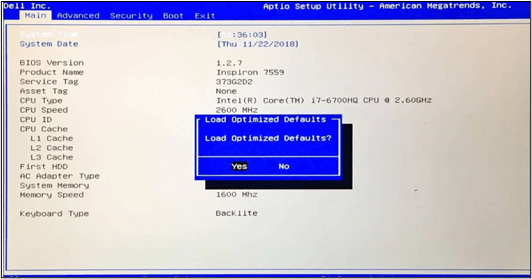
For a SATA SSD, confirm the BIOS storage controller is set to AHCI rather than IDE or legacy mode. AHCI lets the drive use its full feature set, including TRIM support. This is normally the default on any system built in the last decade, but it is worth a quick look if performance seems off.
For an NVMe SSD, Windows 10 and 11 include a native NVMe driver, so it will work as soon as it is detected. It is still worth checking your motherboard or laptop manufacturer’s support page for a chipset driver update, since a current chipset driver improves communication between the CPU and the drive controller.
How do I move my files and programs over?
If the SSD is a second drive, you can drag files across manually in File Explorer, or set new default save locations. To redirect where new downloads, documents, and pictures land, open Settings, go to System, then Storage, then Advanced storage settings and Where new content is saved, and point each category at the new drive.
Programs are trickier, since most do not run correctly if you just cut and paste their folder. For anything besides simple portable apps, reinstall it directly onto the new drive instead. For a boot drive replacement, cloning software (covered above) handles this automatically by copying everything over as one block.
Large game libraries are the one common exception, since most launchers (Steam, Epic, Battle.net) let you add the new SSD as an extra install location and move individual games to it without a full reinstall.
Is TRIM turned on, and why does it matter?
TRIM tells the SSD which blocks of data are no longer in use, so the drive can clear them in the background instead of scrambling to do it the moment you need to write new data. Windows 7 and later turn TRIM on automatically for SSDs, but it takes ten seconds to confirm.
- Open Command Prompt as administrator.
- Type fsutil behavior query DisableDeleteNotify and press Enter.
- A result of 0 means TRIM is enabled. A result of 1 means it is off, in which case run fsutil behavior set DisableDeleteNotify 0 to turn it back on.
Windows also runs a weekly background pass through the Optimize Drives tool, which retrims SSDs and defrags any mechanical hard drives on the same system, so there is nothing extra you need to schedule yourself once TRIM is confirmed on.
What else protects the drive’s lifespan?
A few habits matter more than any one setting.
- Never run a traditional defrag on the SSD. It adds wasted write cycles for no performance gain, since SSDs do not have the mechanical read heads that defragging was built for.
- Keep some space free. Once an SSD passes about 85 to 90 percent full, write speeds tend to drop, since the controller has fewer empty blocks to work with.
- Check for a firmware update once, right after setup, through the manufacturer’s own tool (Samsung Magician, Crucial Storage Executive, or similar). Firmware updates fix bugs that can affect both speed and reliability.
- Skip third-party SSD tweak or optimizer tools that promise to boost speed. Windows already manages TRIM, power states, and caching correctly on its own, and most of these tools do more harm than good.
What if the SSD still is not showing up?
If the drive is missing from both the BIOS and Device Manager, the cable or connection is the most likely cause. Reseat an NVMe drive fully into its slot and make sure the retention screw is tight, or reseat the SATA data and power cables and try a different SATA port on the motherboard.
If the BIOS sees the drive but Disk Management shows it as Not Initialized or Unknown, right click it in Disk Management and initialize it as described earlier. If it still fails to initialize, try a different cable or port before assuming the drive is faulty, since a bad cable produces the exact same symptom as a dead drive.
Frequently asked questions
Do I need to reinstall Windows after installing a new SSD?
Only if the SSD is replacing your boot drive and you choose not to clone it. Adding it as a second drive, or cloning your existing Windows setup onto it, both avoid a fresh install.
Can I use my old hard drive and the new SSD at the same time?
Yes. Most desktops and many laptops support more than one internal drive. Keep Windows and your main programs on the SSD for speed, and use the old drive for file storage or backups.
Why is my new SSD not showing up in File Explorer?
A brand new SSD has no partition yet, so it will not appear in File Explorer until it is initialized and formatted in Disk Management. If it is also missing from Device Manager, check the cable or slot connection first.
Does a new SSD need to be formatted before use?
Yes, unless it is being installed as the drive Windows itself is installed onto, in which case the Windows installer formats it automatically. A second drive needs to be initialized and formatted manually through Disk Management.
How do I know if TRIM is working on my SSD?
Run fsutil behavior query DisableDeleteNotify in an administrator Command Prompt. A result of 0 confirms TRIM is enabled, which is the default for SSDs on Windows 7 and later.
Conclusion
The order that works for almost every setup is: confirm the SSD is detected, initialize it if it is a second drive or clone/install Windows onto it if it is the new boot drive, check that TRIM is on, and move your files across. Once File Explorer shows the drive and your programs run from it, the SSD is fully set up and ready for normal daily use.
Related Post:
Can You Recover Data From an SSD? What Actually Works
How to Partition an SSD: Windows, Mac, and When to Skip It
What to Do After Installing a New SSD
SSD Showing as Unallocated? What It Means and How to Fix It Safely
How to Copy an SSD to a Larger SSD Without Reinstalling Windows