
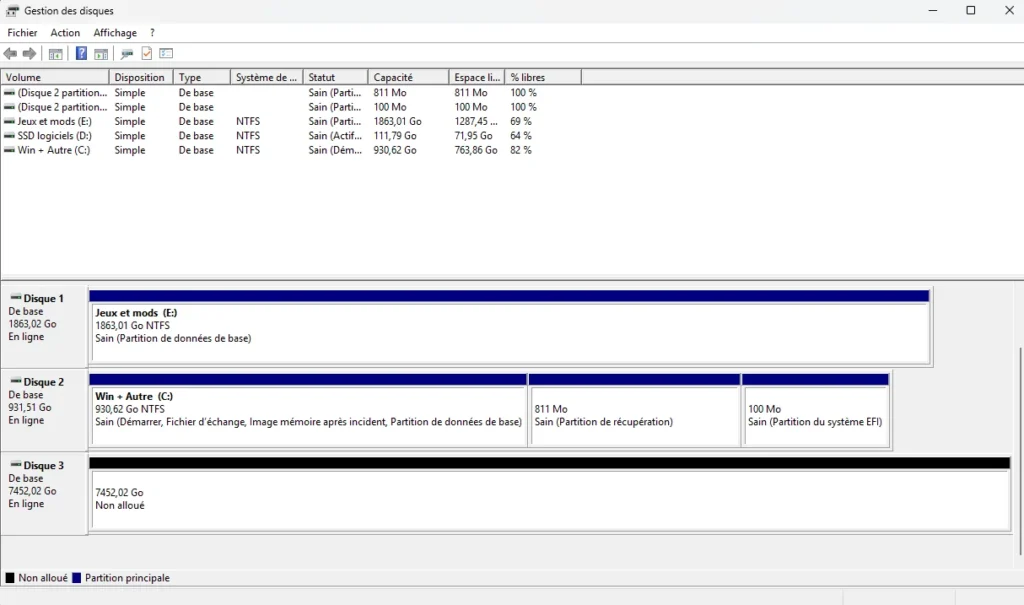
An unallocated SSD is a drive Windows can see but cannot use yet, because the space on it does not belong to any partition. In Disk Management it shows up as a solid black bar with no drive letter, and it will not appear in File Explorer at all. What you do next depends entirely on one thing: whether the drive is new and empty, or whether it used to hold files.
If the SSD is brand new or you do not care about anything on it, the fix takes about a minute. You create a volume and you are done. If the drive was working fine and suddenly went unallocated with your data on it, slow down. The wrong click here can turn a recoverable problem into permanent loss. This guide walks both paths.
What does “unallocated” mean on an SSD?
Unallocated space is storage that has no partition and no file system on it. A file system, like NTFS or exFAT, is the filing structure Windows uses to keep track of where your files sit. Without it, Windows has nowhere to write data and no way to read anything back, so it treats the whole area as empty room waiting to be set up.
Think of the SSD as a warehouse. The drive itself is the building, with all its square footage intact. A partition is the floor plan that tells you where the shelves go and what is stored where. Unallocated means the building stands, but the floor plan is gone. The shelves and boxes might still be inside, or the space might be genuinely bare. That difference is the whole story.
Key point: unallocated does not always mean your files are erased. On a drive that recently held data, the files often still sit on the platters of flash. Windows just lost the map to them.
First, figure out which situation you are in
Before you touch anything, match what you see on screen to one of the rows below. The right first move is different for each one, and getting this wrong is how people lose data they could have saved.
| What you see in Disk Management | What it usually means | Your first move |
| A brand-new SSD, one solid black bar, no drive letter | The drive left the factory without a partition | Create a new volume (safe, no data at risk) |
| A drive that worked yesterday, now black and empty | The partition table was lost or damaged | Stop. Recover data before touching it |
| A slice of black space next to a working partition | Cloning or shrinking left space behind | Extend the neighbouring partition or make a new one |
| Drive shows the right size but says “RAW” not unallocated | The file system is corrupt, partition still exists | Run recovery, then repair or reformat |
The second row is the dangerous one. If a drive that worked yesterday is now black and empty, your files are probably still there, but every write to that drive lowers your odds of getting them back. Do not create a volume, do not format, do not initialize. Jump to the recovery steps further down.
Why did my SSD suddenly go unallocated?
A drive does not lose its partition for no reason. Knowing the cause helps you judge whether the fix is simple or whether the hardware itself is failing. These are the usual triggers.
- A deleted or damaged partition table. The partition table is the index that lists every partition on the drive. If it gets wiped or corrupted, Windows can no longer find the partitions even though the data behind them is intact.
- A cloning or migration that went wrong. Moving Windows to a new SSD is a common cause. If the clone fails partway, or copies the source layout onto a larger target, you can end up with leftover unallocated space or a drive that will not mount.
- Sudden power loss or an unsafe eject. Pulling an external SSD without ejecting it, or a power cut mid-write, can corrupt the partition structure while the drive was updating it.
- A brand-new drive that was never set up. SSDs often ship with no partition. This is not a fault. The drive is simply blank and waiting for you to create one.
- Malware. A few nasty strains target the master boot record or partition table directly, though this is rarer than the causes above.
- A dying controller or failing flash. The controller is the small chip that manages the SSD. When it starts to fail, a healthy drive can flip to unallocated and sometimes report the wrong size.
On motherboards where several drives go unallocated at once, and keep doing it after every restart, the cause is often the storage controller or a loose connection rather than any single drive. Swapping the SATA cable or moving the drive to a different port is worth trying before you write anything off.
If the SSD had important data: recover it first
This is the most important section in the guide. If the drive held files you want back, your only job right now is to get them off before you change anything on the disk. Creating a volume or formatting will overwrite the exact structures that recovery tools rely on.
Warning: internal SSDs use a feature called TRIM, which quietly wipes deleted data blocks in the background to keep the drive fast. Formatting an SSD fires a TRIM command that can erase your data for good, often within seconds. This is why recovery on SSDs is time-sensitive and why you must recover before you format, never after.
Here is the safe order to follow:
- Stop using the drive completely. Do not save anything to it, do not run a format, do not initialize it if Windows asks. Every write reduces what you can recover.
- Install your recovery tool on a different drive. Never install it onto the unallocated SSD you are trying to save, or you may overwrite the very files you want.
- Try to rebuild the partition rather than carve out files. If the partition table is the only thing that broke, restoring it can bring the drive back exactly as it was, with folders and file names intact.
- If that fails, scan for individual files. A file-carving tool reads the raw drive block by block and pulls out recognisable files, though usually without their original names or folders.
- Save recovered files to a separate, healthy drive. Only once your data is safe somewhere else should you go on to repair or reformat the SSD.
For rebuilding a lost partition, the free open-source tool TestDisk is the standard choice. It analyses the drive, searches for partitions that vanished from the table, and can rewrite the table so Windows sees the drive normally again. Its companion tool, PhotoRec, handles the file-by-file carving if the partition itself cannot be saved. Run either one as an administrator, and always let it copy recovered data to a different disk.
If the drive is making clicking or grinding noises, or it does not show up in Disk Management or the BIOS at all, stop the DIY attempts. Those are signs of physical failure, and a professional recovery service gives you the best chance of getting anything back.
How to fix a new or empty unallocated SSD
If the drive is new, or you have already recovered everything you need, making it usable is quick. You create a partition and format it, and Windows gives it a drive letter. All of this happens in Disk Management, the built-in Windows tool for managing drives.
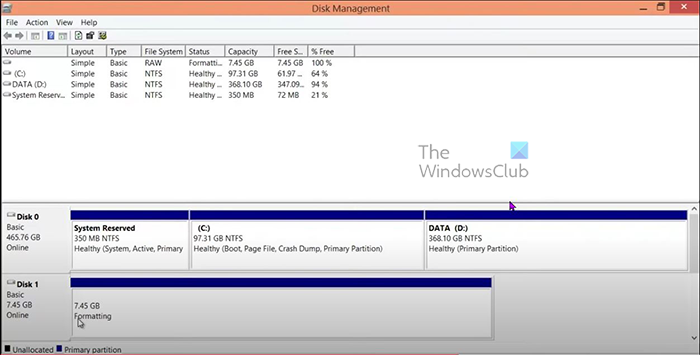
The official steps in the Microsoft Disk Management documentation are these:
- Right-click the Start button and choose Disk Management (or press Windows + R, type diskmgmt.msc, and press Enter).
- If a brand-new SSD prompts you to initialize it, choose GPT for any modern drive, then continue. MBR is only needed for very old systems.
- Find your SSD in the lower panel. Right-click the black bar marked Unallocated and choose New Simple Volume.
- Click Next, then accept the default size to use the whole drive as one partition (or enter a smaller number if you want more than one).
- Assign a drive letter that is not already in use, and click Next.
- Choose NTFS as the file system for a Windows drive, keep Perform a quick format ticked, give it a label if you like, and click Next.
- Review the summary and click Finish. The bar turns blue, the SSD gets its letter, and it now appears in File Explorer.
You can read Microsoft’s full walkthrough on its Disk Management documentation if you want the detail on partition styles and formatting options. For most people, the defaults above are exactly right.
How to reclaim a small unallocated slice
Sometimes only part of an SSD is unallocated, sitting as a black strip right next to a working partition. This is common after cloning a smaller drive onto a larger one, where the extra room never got claimed. You have two clean options.
The first is to make that space its own separate drive, using the New Simple Volume steps above. The second, and usually the better one, is to fold the space into the partition beside it so you get one bigger drive instead of two smaller ones.
- Open Disk Management.
- Right-click the partition you want to grow (the unallocated space must sit directly to its right) and choose Extend Volume.
- Follow the wizard, accept the amount of space offered, and click Finish. The partition swallows the free space with no data loss.
If Extend Volume is greyed out, the unallocated space is not next to the partition you picked, or the partition uses a file system that does not support extending. In that case, creating a separate volume is the simpler route.
When the SSD is the problem, not the partition
Most unallocated drives are a software issue you can fix in minutes. But if the same drive keeps going unallocated, or a format only works for a while before it reverts, the drive itself may be on the way out. A few checks tell you which side of the line you are on.
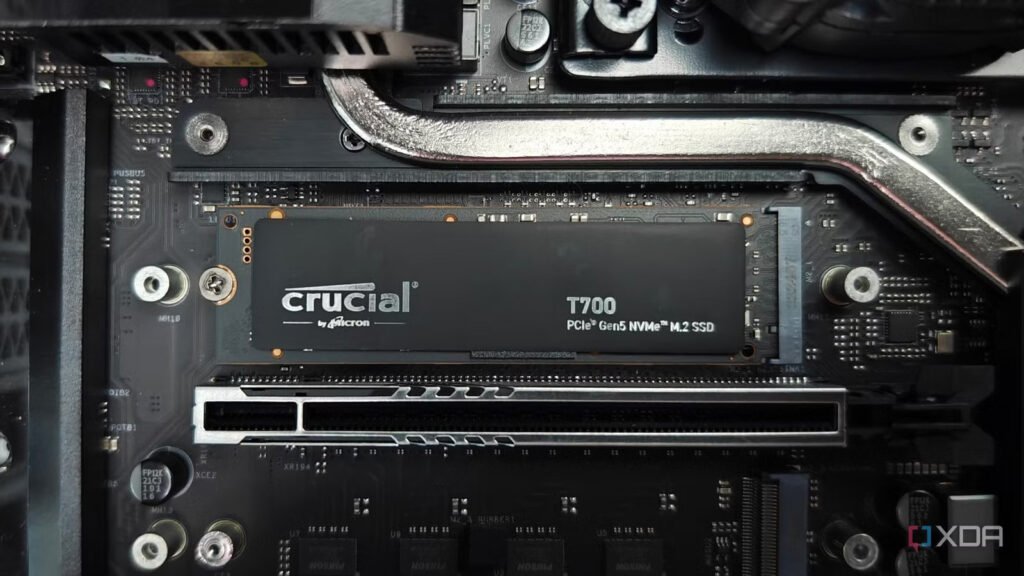
- Run the maker’s own tool. Samsung, WD, Crucial and others provide free health apps that read the drive’s SMART data and flag wear or errors the drive is reporting about itself.
- Watch for the wrong capacity. A drive that shows a size much smaller or larger than it should, alongside the unallocated status, often points to a controller fault.
- Test it in another port or PC. If the drive behaves on one machine and misbehaves on another, the problem may be the port, cable, or an external enclosure rather than the SSD.
- Check for a firmware update. Some drives have known bugs that a firmware update fixes. The maker’s tool will tell you if one is available.
If the drive fails its own health check, or the maker’s tool cannot even see it, replacing the SSD is the sensible move. No amount of partitioning fixes failing hardware, and trusting important data to a drive that keeps dropping its partition is asking for trouble.
How to stop it happening again
A little care keeps a healthy SSD from surprising you. None of this is complicated, and it saves the panic of finding a black bar where your data used to be.
- Always eject external drives before you unplug them, so Windows can finish any pending writes.
- Keep a backup of anything you cannot afford to lose. An unallocated scare is far less stressful when the files also live somewhere else.
- Do not fill an SSD to the brim. Leaving some free space, roughly ten to twenty percent, helps the drive stay fast and manage wear.
- Use a reliable cloning tool and verify the result before you wipe the old drive, so a failed clone never leaves you empty-handed.
- Keep your drive firmware and Windows up to date, since fixes for known drive bugs arrive that way.
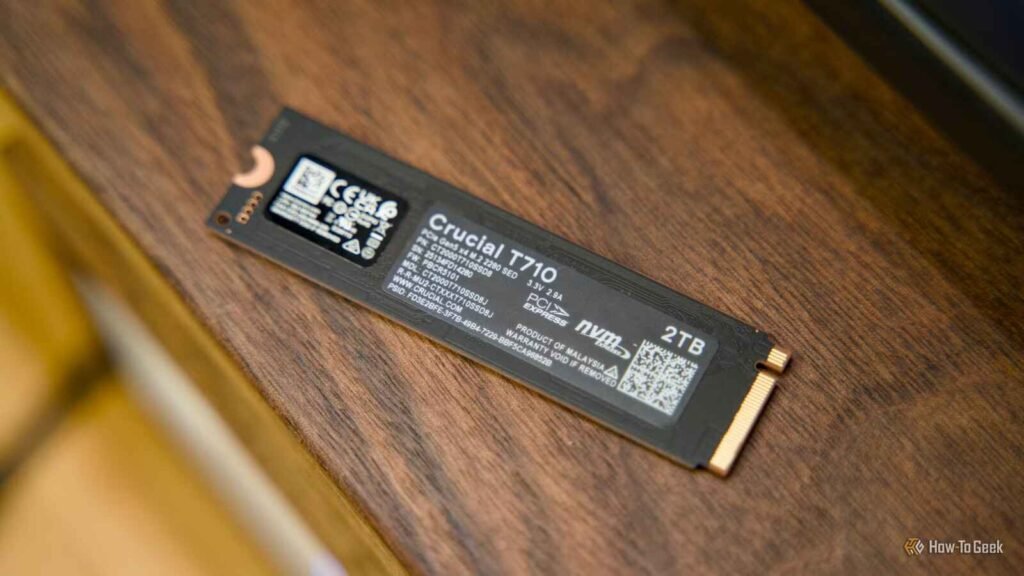
On modern SSDs you do not need to deliberately leave a chunk unallocated for performance. Today’s drives set aside their own hidden reserve of space and manage it automatically, so you can partition the whole drive and simply avoid filling it right to the top.
Frequently asked questions
Does unallocated mean my SSD data is gone?
Not necessarily. On a drive that recently held files, the data often still exists and Windows has only lost the partition that pointed to it. Recover it with partition-recovery software before you create a volume or format, as those steps overwrite it.
How do I fix an unallocated SSD without losing data?
Do not format or create a volume yet. Use a tool like TestDisk to rebuild the lost partition, or carve out individual files to a separate drive. Only reformat the SSD after your important files are safely copied elsewhere.
Why is my brand-new SSD showing as unallocated?
New SSDs usually ship with no partition, so unallocated is normal, not a fault. Open Disk Management, initialize the drive as GPT if asked, then right-click the space and choose New Simple Volume to make it usable.
Can I recover an SSD partition for free?
Yes. TestDisk from CGSecurity is free and open source, and it can rebuild lost or damaged partition tables so Windows sees the drive again. Its companion PhotoRec recovers individual files when the partition cannot be saved.
Why does my SSD keep going unallocated after I fix it?
Repeated unallocation points to hardware rather than software: a failing controller, a loose cable, or a bad port or enclosure. Test the drive on another machine, run the maker’s health tool, and replace the SSD if it fails its own check.
Conclusion
An unallocated SSD is a drive with no usable partition, and the fix hinges on one question. If it is new or empty, open Disk Management, create a new simple volume, format it as NTFS, and it is ready in a minute. If it held data, recover that data first with a tool like TestDisk before you format, because formatting an SSD can erase your files for good. Sort out which case you are in, act in that order, and a healthy drive comes back working with your files intact.
Related Post:
How to Tell What SSD You Have (Windows and Mac)
Macrium Reflect “Data Error (Cyclic Redundancy Check)” on an SSD: What It Means and How to Fix It
What to Do After Installing a New SSD
How to Tell If Your SSD Is Failing: 7 Warning Signs and How to Check
How to Clone an SSD to a Bigger SSD (2026): A Step-by-Step Guide