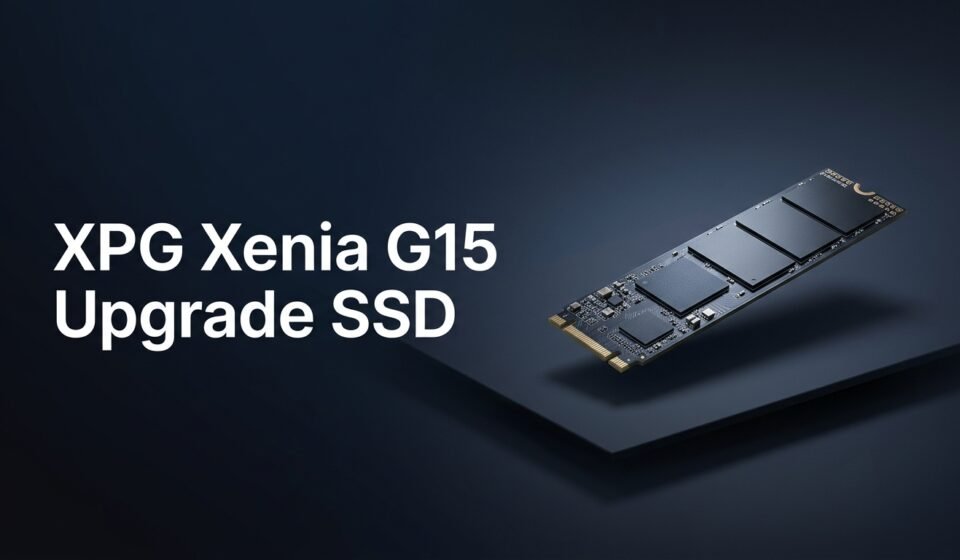

If your games take forever to load or your storage bar is always in the red, a XPG Xenia G15 upgrade SSD project is one of the fastest ways to breathe new life into your laptop. This gaming machine was built with expansion in mind, and swapping or adding a drive is easier than most people expect.
In this guide, you’ll learn exactly which slots your laptop has, which drives are compatible, what tools you need, and how to install everything safely without voiding your warranty or losing your files.
Whether you’re adding extra storage for a growing game library or replacing a slow drive with something faster, this walkthrough covers every step in plain, simple language.
Why You Might Need an XPG Xenia G15 Upgrade for Storage
Modern AAA games routinely take up 80–150GB of space. A single-drive laptop fills up fast, especially if you also store photos, videos, or work files on it.
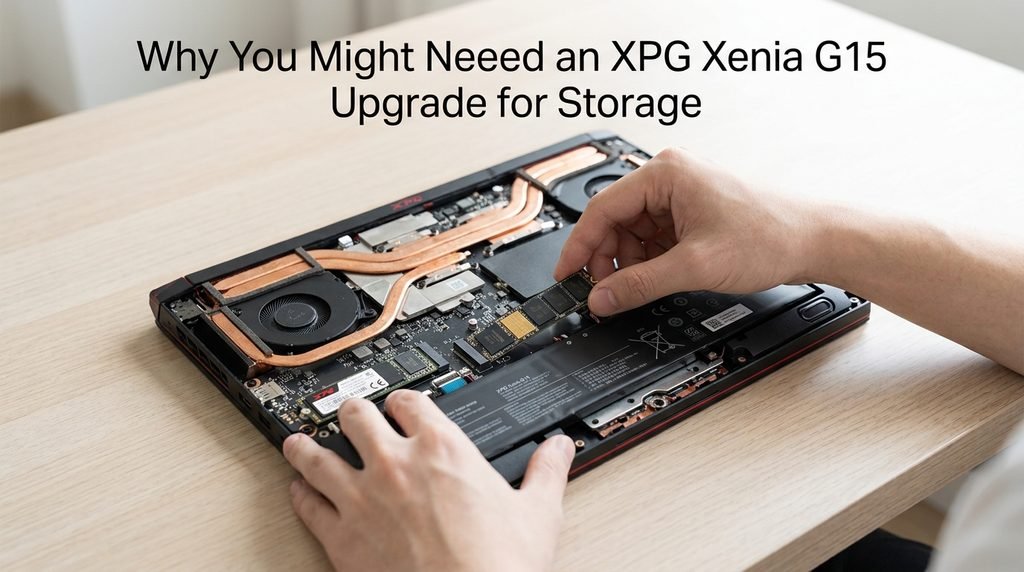
Here are the most common reasons gamers look into a XPG Xenia G15 upgrade SSD project:
- Running out of space for new game installs
- Wanting faster load times with a PCIe Gen4 drive
- Adding a second drive for backups or media
- Replacing a failing or aging factory SSD
- Preparing the laptop for content creation or streaming work
Unlike many ultra-thin laptops that solder storage directly to the motherboard, the Xenia G15 uses removable M.2 modules. That means you’re not stuck with whatever capacity you bought on day one.
This flexibility is one of the main reasons XPG’s gaming laptops are popular with budget-conscious gamers who plan to upgrade later rather than overspend upfront.
XPG Xenia G15 Storage Slots Explained
Before buying anything, it helps to understand what’s actually inside the chassis. Depending on the exact generation of your Xenia G15, the laptop ships with either two or three M.2 2280 slots.
The 2024 XENIA 15G model, for example, includes a total of three SSD slots, with the primary drive using a PCIe Gen4x4 interface capable of very high read and write speeds. Each additional slot can typically support drives up to 8TB, meaning a fully loaded system could theoretically reach well over 20TB of combined storage.
Earlier Xenia 15 generations shipped with two M.2 slots instead of three, with one slot pre-populated and the second left open for expansion. Some of these earlier boards also mix slot types, so one bay may support PCIe4 drives while the other is limited to PCIe3 or SATA-based modules.
Because slot configuration varies by year and SKU, it’s worth checking your exact model number before ordering a drive. XPG’s own support page lists compatible SSD and RAM options for each specific laptop revision.
Best SSDs for an XPG Xenia G15 Upgrade
Not every M.2 drive on the market will perform equally well in this laptop. To get the most out of your XPG Xenia G15 upgrade SSD project, match the drive to the slot’s actual interface speed.
What to Check Before Buying
- Form factor: Confirm it’s M.2 2280 (the standard 80mm length)
- Interface: PCIe Gen4x4 NVMe for the primary slot, PCIe3 or SATA for secondary slots on older units
- Capacity: 1TB is a comfortable sweet spot; 2TB or higher suits large game libraries
- DRAM cache: Drives with onboard DRAM tend to sustain performance better under heavy load
Popular Drive Options
ADATA‘s own LEGEND and GAMMIX series are a natural fit since they’re already used as factory drives in Xenia models. Popular third-party alternatives include Samsung’s 990 Pro line, WD Black SN850X, and Crucial’s T-series drives, all of which offer strong sustained speeds for gaming workloads.
Reading independent benchmark comparisons before buying can save you from paying extra for speed you won’t actually notice in day-to-day gaming.
Tools You Need Before You Start
Good news: this isn’t a complicated repair. Most people can complete a XPG Xenia G15 upgrade SSD installation with basic tools they already own or can buy cheaply.
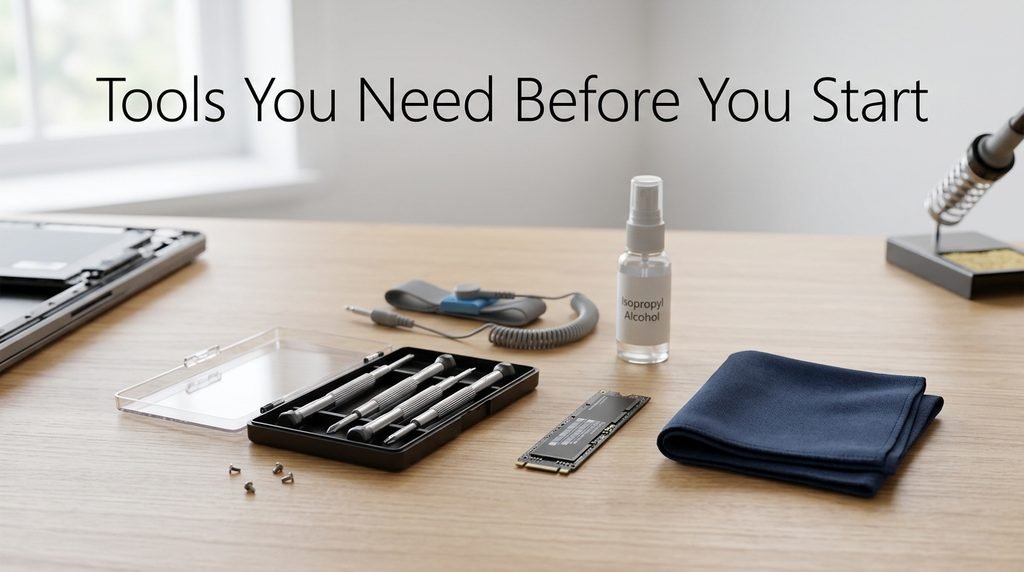
You’ll need:
- A Phillips #0 or P20 screwdriver
- A plastic pry tool or old credit card
- A small container to hold screws
- An anti-static wrist strap (optional but recommended)
- Your new M.2 SSD
- A USB enclosure or SATA-to-USB cable (only if cloning your old drive)
Set aside about 30–45 minutes for the full process, including backup time. Working on a flat, well-lit surface makes it much easier to keep track of small screws.
XPG Xenia G15 Upgrade SSD: Step-by-Step Installation Guide
Once you have your drive and tools ready, follow these seven steps carefully. Each one builds on the last, so don’t skip ahead.
Step 1: Back Up Your Data
Before touching any hardware, back up anything important. Use an external drive or cloud storage to protect documents, save files, and game progress in case anything goes wrong during the swap.
Step 2: Power Down and Unplug Everything
Shut the laptop down completely, unplug the charger, and remove any connected peripherals. Press and hold the power button for about 10 seconds to discharge any remaining static electricity in the system.
Step 3: Remove the Bottom Panel
Flip the laptop over and remove all the screws along the bottom edge, keeping them organized so you can match them back to their original holes later. Gently work a plastic pry tool around the seam to release the clips, then lift the panel off carefully.
Step 4: Locate the Spare M.2 Slot
Inside, you’ll see the RAM modules, Wi-Fi card, and one or more M.2 slots. Identify which slot is empty or which one holds the drive you’re replacing — labels are sometimes printed directly on the motherboard near each slot.
Step 5: Install the New SSD
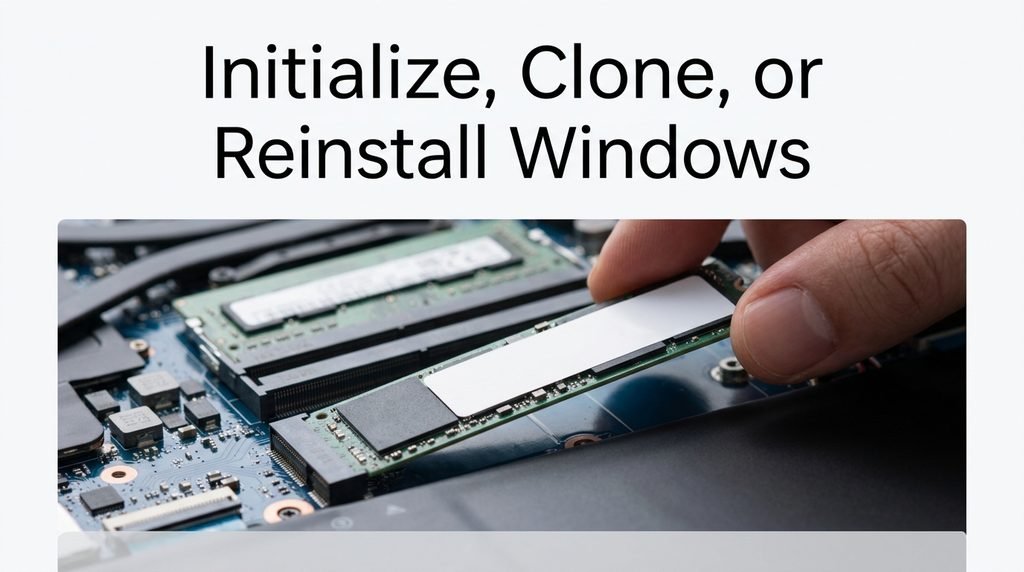
Insert the new drive into the slot at a slight angle, matching the notch on the connector. Press it down gently until it sits flat, then secure it with the small mounting screw. Avoid forcing it — if it doesn’t slide in smoothly, double-check the orientation.
Step 6: Reassemble and Power On
Replace the bottom panel and reinstall all the screws in their original positions. Reconnect the charger and power the laptop on to confirm it boots normally before doing anything else.
Step 7: Initialize, Clone, or Reinstall Windows
Head into Windows Disk Management (or your BIOS) to confirm the new drive is detected. From here you can initialize it as extra storage, clone your existing setup onto it, or do a clean Windows installation if it’s replacing your primary drive.
Cloning vs. Fresh Windows Install
Once your new SSD is physically installed, you have two main paths forward, and the right one depends on whether you’re adding storage or replacing your boot drive.
Cloning copies everything — operating system, apps, and files — from your old drive to the new one. It’s the faster option if you’re replacing your primary drive and don’t want to reinstall software from scratch. Most SSD manufacturers offer free cloning software with their drives.
A fresh install wipes the slate clean with a new copy of Windows. It takes longer to set up but often results in a snappier, clutter-free system, especially if your old drive had accumulated years of background bloat.
If you’re simply adding a second drive for extra storage, neither option applies — just initialize it as a new volume and start moving files or installing games directly onto it.
Troubleshooting Common SSD Upgrade Issues
Even careful installations occasionally hit snags. Here are the most common problems and quick fixes.
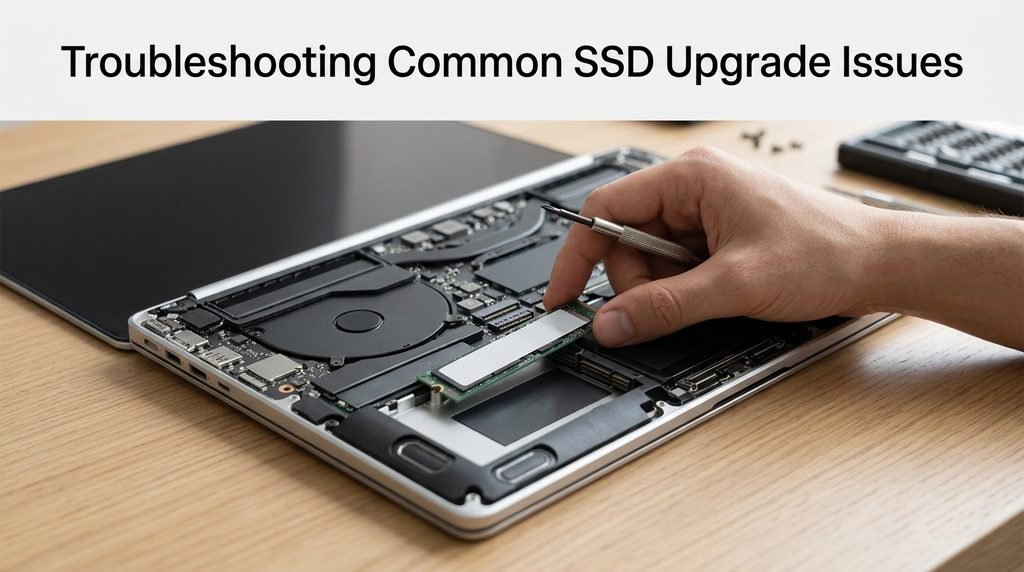
Drive not detected: Reopen the laptop and reseat the SSD, making sure it’s fully inserted and the mounting screw is tight. Also check BIOS settings to confirm the slot hasn’t been disabled.
Laptop won’t boot after cloning: This usually means the boot partition wasn’t set correctly. Re-run the cloning software’s boot repair tool, or check that the new drive is selected as the primary boot device in BIOS.
Slower speeds than expected: Confirm the drive is seated in a slot that actually supports its interface speed. A Gen4 drive in a Gen3-only slot will be bottlenecked no matter how fast the drive itself is rated.
Overheating warnings: Some M.2 slots run warmer under sustained load. If temperatures spike, consider a drive with better thermal throttling management or add a thin thermal pad if your chassis design allows it.
Tips to Maximize Your New SSD’s Performance
Getting the hardware installed is only half the job. A few small habits help your new drive perform at its best for years.
- Keep at least 10–15% of the drive free for optimal performance
- Enable TRIM in Windows to maintain long-term speed
- Update your SSD’s firmware periodically through the manufacturer’s tool
- Avoid running disk defragmentation on SSDs — it’s unnecessary and adds wear
- Monitor drive health with free tools like CrystalDiskInfo
Following these basics ensures your XPG Xenia G15 upgrade SSD investment keeps performing like new, even after months of heavy gaming sessions.
FAQs
Does upgrading the SSD void my warranty?
Generally no, since XPG designs these laptops with user-accessible storage bays. However, always check your specific region’s warranty terms, as policies can vary.
Can I use any M.2 SSD, or does it have to be XPG-branded?
Any compatible M.2 2280 NVMe or SATA drive that matches your slot’s interface will work. XPG-branded drives simply guarantee tested compatibility.
How many SSDs can the Xenia G15 hold?
Depending on the model year, it supports either two or three M.2 slots, with some configurations supporting up to 24TB combined across all bays.
Do I need to reinstall Windows after adding a second drive?
No — if you’re only adding extra storage rather than replacing your boot drive, Windows will simply recognize the new drive once initialized.
Is it safe to do this upgrade myself?
Yes, as long as you follow proper anti-static precautions and handle components gently. It’s one of the more beginner-friendly laptop upgrades available.
Final Thoughts
A XPG Xenia G15 upgrade SSD project is one of the most cost-effective ways to extend the life and performance of your gaming laptop. With multiple accessible M.2 slots, straightforward disassembly, and wide compatibility with third-party drives, it’s a task most users can complete in under an hour.
Take your time during disassembly, double-check drive compatibility before buying, and always back up your data first. Once installed, your new SSD should deliver faster load times, smoother multitasking, and plenty of room for your growing game library.
Related Post:
How Is SSD Calculated? The Full Formula, Explained Step by Step
2230 vs 2280 SSD: Which Size Fits Your Device (and Is One Faster?)
1TB vs 2TB SSD: Which One Do You Actually Need?