
A computer that won’t recognize an SSD is almost never a sign the drive is dead. In most cases it comes down to one of three things: a loose or wrong connection, a drive that Windows hasn’t been told to use yet, or a BIOS setting that keeps it hidden. The good news is you can check all three in a few minutes, and the fix is usually free.
The trick is to stop guessing and work in order. Below, you’ll first find out where your drive is dropping out of view, then run only the checks that matter for your case. Let’s get the drive back.
First, work out where the drive disappears
Before you touch a single setting, answer one question: how far does your SSD get before it vanishes? This one answer cuts your work in half.
There are two layers your drive has to pass through. The first is your BIOS (also called UEFI), the basic firmware on your motherboard that wakes up your hardware before Windows loads. The second is Windows itself. A drive can be invisible at either layer, and the fix is completely different depending on which.
- Not in the BIOS: the problem is physical or firmware-level. Think cables, ports, the slot, or BIOS settings. Windows can’t see what the BIOS can’t see.
- In the BIOS but not in Windows: the hardware is fine. The drive just needs setting up, a drive letter, a driver, or a file-system repair.
| Quick test: Restart, press the BIOS key as the logo appears (usually Del, F2, F10, or F12), and look in the storage or boot section for your drive’s model name. If it’s listed, your hardware works. If it’s not, start with the physical checks below. |
Start with the physical connection
If the BIOS doesn’t see the drive, a poor connection is the most common reason, even when you’re sure the cable is fine. Loose connectors are easy to miss and don’t always look wrong. Power the PC down fully and unplug it from the wall before opening the case.
What you check depends on your drive type:
- 2.5-inch SATA SSD: This drive uses two cables, a thin data cable and a wider power cable. Reseat both ends of the SATA data cable and make sure the power lead from the supply is firmly clicked in. A drive with power but no data cable (or the reverse) won’t appear.
- M.2 SSD (the gum-stick shape): This slots straight into the motherboard, held down by one small screw. Unscrew it, pull the drive out, blow out any dust, and press it back in firmly before tightening. Poor contact in the slot is a frequent cause of an M.2 drive not being detected.
Two quick wins while you’re in there. First, swap the SATA data cable for a known-good one, since a folded or pinched cable can break inside the insulation while looking perfectly normal on the outside. Second, plug the SATA drive into a different port on the motherboard. If a port has failed, a new one brings the drive straight back.
Crucial’s own desktop SSD support page suggests trying a different colored SATA port if your board has them, and confirming the old drive still works in the same cable and port so you know the cable and port are good.
Check whether the BIOS sees the drive
Now go back into the BIOS and look properly. Restart, tap your BIOS key, and find the storage list. Many boards have a simple summary screen plus an advanced mode, so dig into the advanced storage section rather than trusting the front page.
If your drive’s model name appears, good. Your hardware is healthy and you can skip ahead to the Windows section. If it still doesn’t appear after reseating everything, work through these:
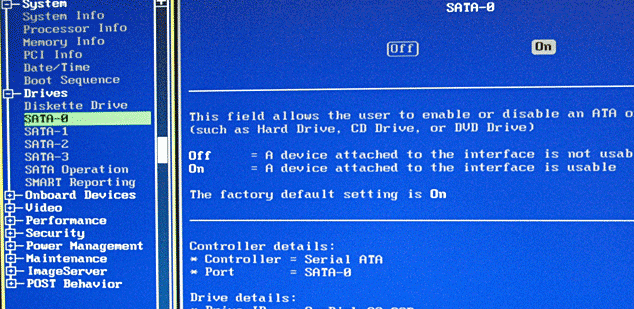
- Load BIOS defaults. A wrong setting from a past tweak can hide a drive. Resetting to factory defaults is safe and clears odd configurations.
- Check the SATA mode. Set the SATA controller to AHCI. An older IDE or a misconfigured RAID mode can stop a modern SSD from showing up cleanly.
- Try the drive in another machine. Pop your SSD into a friend’s PC, or use a cheap USB-to-SATA adapter or an M.2 enclosure. If it appears there, your motherboard, port, or cable is the culprit, not the drive. If it appears nowhere, the fault is in the drive.
| Why this matters: if your BIOS can’t detect the SSD, no software and no recovery tool will see it either. The drive is electronically invisible to the system, so there’s no point trying Windows fixes until the BIOS finds it. |
The drive shows in BIOS but not in Windows
This is the most common version of the problem, and the most fixable. The hardware works, so the drive just needs a bit of setup inside Windows. Open Disk Management to start: press Windows + X and choose Disk Management.
Once it’s open, look in the lower panel, not just the top list. Your drive may be sitting there in one of a few states, and each points to a different fix. A brand-new drive behaves differently from one that suddenly vanished, so the next two sections split along those lines.
New SSD: initialize and format it
A new SSD has never been set up, so Windows won’t show it in File Explorer until you prepare it. In Disk Management, an unprepared drive shows up at the bottom marked Not Initialized, or as a black bar labeled Unallocated.
Here’s the full setup, in order:
- Right-click the disk (where it says Disk 1, Disk 2, and so on) and choose Initialize Disk.
- Pick GPT for any modern PC. Only choose MBR for very old systems.
- Right-click the unallocated space and choose New Simple Volume.
- Follow the wizard, pick NTFS as the file system, and assign a drive letter.
After that, the drive appears in File Explorer ready to use. Microsoft has a plain-language walkthrough on its initialize a new disk page if you want to follow along with screenshots.
| Heads up: formatting writes a fresh file system to the drive. On a brand-new SSD that’s exactly what you want. Never format a drive that already holds files you need. |
Existing SSD that vanished: assign a letter or repair the file system
If a drive that used to work has dropped out of File Explorer, do not initialize or format it. That would wipe your data. Your drive is likely intact and just needs a smaller fix.
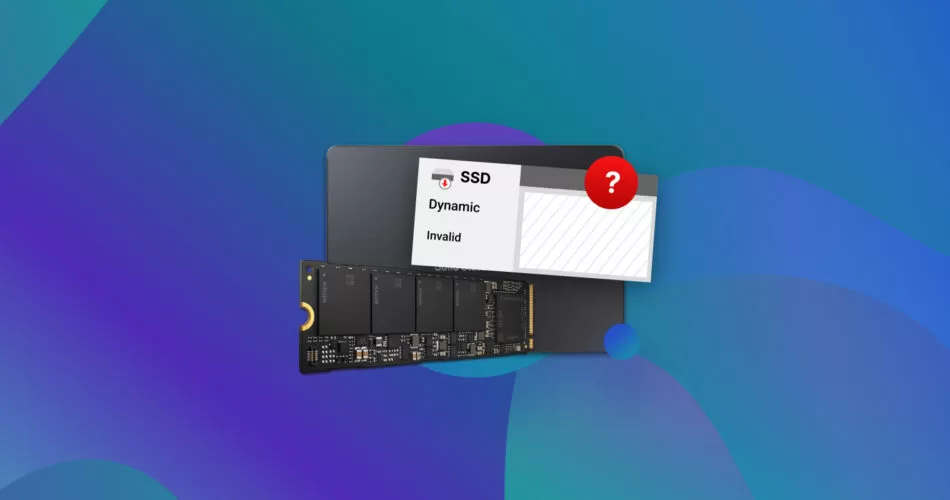
Check its state in Disk Management and match it to one of these:
It has a volume but no drive letter. Windows can’t show a drive with no letter. Right-click the volume, choose Change Drive Letter and Paths, click Add, and pick any free letter. It should appear in File Explorer right away.
It says Offline. Right-click the disk and choose Online.
The space reads RAW or Unallocated where data used to be. This points to a damaged file system, like a book that lost its table of contents. The chapters are still there, but the system can’t find them. Before doing anything that writes to the drive, copy off anything important, ideally using recovery software while the data is still readable.
A damaged file system is also why a drive can flicker in and out, or trigger errors like a stop screen during boot. If the drive keeps dropping after it’s been recognized, treat the data as fragile and back it up first, then worry about repairing the drive.
Update the storage driver and BIOS
Sometimes the drive is visible in the BIOS, even visible in Device Manager, yet still won’t show in Disk Management or File Explorer. When that happens, an out-of-date or mismatched storage driver is often the reason, because the driver Windows is using doesn’t get along with the drive.
Refresh the driver like this:
- Press Windows + X and open Device Manager.
- Expand Disk drives, right-click your SSD, and choose Update driver, then Search automatically.
- If that does nothing, expand the storage controllers section, right-click the controller, and update or uninstall it. After a restart, Windows reinstalls it automatically.
- Still nothing? In Device Manager, choose Action, then Scan for hardware changes, to force Windows to look again.
A BIOS update is the next step, and it matters most for newer NVMe and M.2 drives sitting on older motherboards. Older firmware often can’t recognize drive models that came out after the board did. Download the latest BIOS from your motherboard maker’s support page and follow their instructions carefully, since a botched BIOS flash can harm the board. Do it only if the earlier steps haven’t worked.
The M.2 and SATA port trap that catches almost everyone
Here’s a cause that everyday users almost never know about, and it explains a lot of mysterious cases. On many motherboards, certain M.2 slots and certain SATA ports share the same internal lanes. Plug a drive into one, and the board automatically switches off the other to share its limited bandwidth.
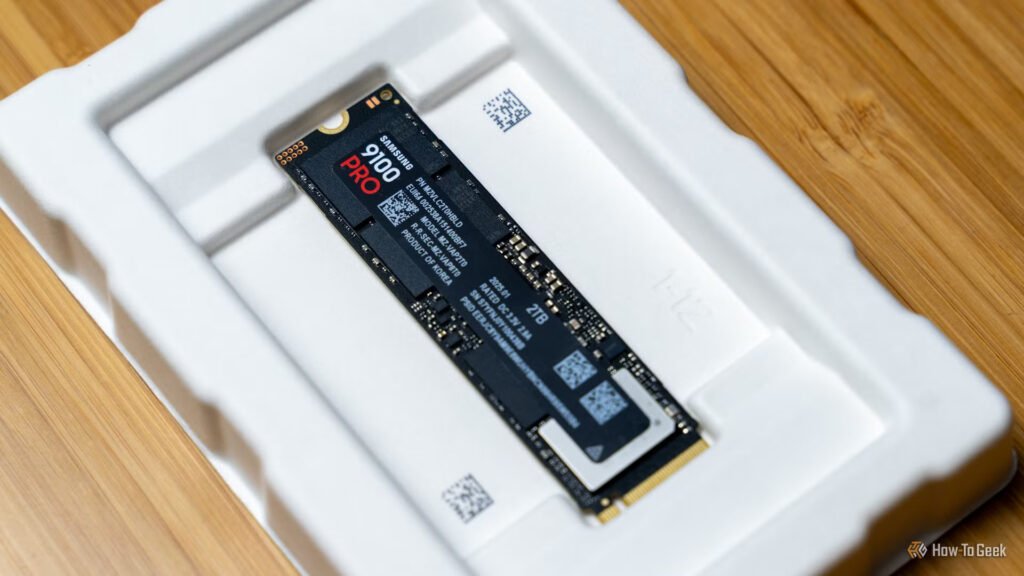
In plain terms: your motherboard has a fixed amount of internal wiring. M.2 NVMe drives are fast and use more of it, so the board often turns off specific SATA ports when you fill a shared M.2 slot. This is by design, not a fault.
It shows up in two annoying ways:
- You add an M.2 drive and a SATA drive disappears. The SATA drive is plugged into a port the new M.2 slot just disabled.
- You add a SATA drive and your M.2 drive vanishes. On some boards the sharing runs the other way too.
The fix is refreshingly low-tech: read your motherboard manual. It lists exactly which slots and ports share lanes, with notes like “if M.2_2 is in use, SATA ports 5 and 6 are disabled.” Then simply move your SATA cable to a port that isn’t shared. On many boards the primary M.2 slot connects straight to the processor and never disables anything, so that’s often the safest slot for your main drive.
| Before you blame the drive: if an SSD disappeared right after you installed another drive, this lane-sharing trap is the first thing to check. The vanished drive is almost certainly fine. |
External and USB SSD checks
If your missing drive is an external or USB SSD, the checks shift slightly toward the connection itself. Windows normally picks up an external drive the moment you plug it in, so when it doesn’t, run through these:
- Try a different USB port, ideally one directly on the PC rather than through a hub or dock. A weak or shared port is a common offender.
- Swap the cable. USB-C and micro-USB cables fail quietly, and some cheaper cables carry power but not data.
- Plug it into another computer entirely. If it works there, the problem is your original PC’s port or settings.
Open Disk Management and check for the same things as an internal drive: a missing letter, an offline state, or a need to be initialized if the drive is new.
One more for external drives that came from a Mac or Linux machine: they may be formatted in a file system Windows doesn’t read normally, so the drive shows as unallocated. If it holds nothing you need, reformatting to NTFS or exFAT in Windows makes it usable. If it holds files, read them on the original system first.
When the drive is genuinely dead
Most of the time one of the steps above brings the drive back. But if you’ve confirmed the basics and the drive still won’t appear, it may have a real hardware failure. The clearest test is the one mentioned earlier: put the SSD in another computer or an external enclosure.
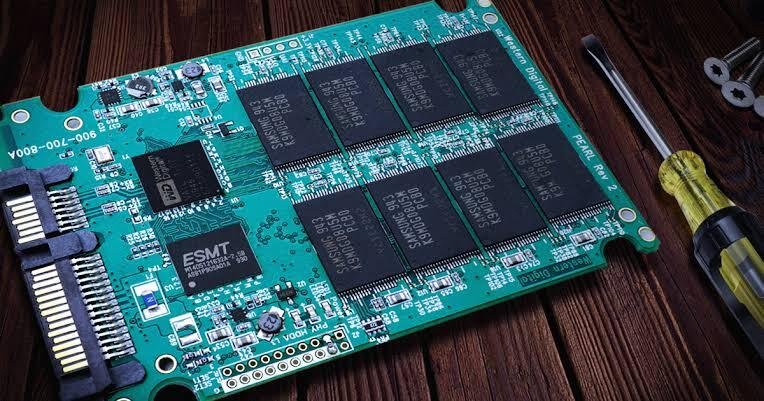
If the drive doesn’t show up in any computer, on any port, with a known-good cable, the fault is almost certainly inside the drive itself. At that point, repeatedly powering it on can make things worse, since each power cycle risks deepening an electronic fault or corrupting the firmware further.
If the drive held important data and now won’t appear anywhere, stop trying to force it. Continued attempts can turn a recoverable situation into a permanent loss. A professional data recovery service can often read drives that are electronically failing, using tools and clean-room conditions you can’t replicate at home. If the data doesn’t matter, a drive that’s dead in every machine is simply due for a warranty claim or replacement.
Frequently asked questions
Why does my SSD show in the BIOS but not in Windows?
The hardware works, so the drive just needs setup. In Disk Management, initialize and format it if it’s new, or assign a drive letter if it’s an existing drive with none. An outdated storage driver can also cause this, so update it in Device Manager.
Do I need to initialize a brand-new SSD before it shows up?
Yes. A new SSD won’t appear in File Explorer until it’s set up. Open Disk Management, right-click the disk, choose Initialize Disk, pick GPT, then create a new volume and format it as NTFS. Only do this on new drives, never on one holding data.
My SSD disappeared right after I installed another drive. Why?
Your motherboard likely shares lanes between an M.2 slot and certain SATA ports, so filling one disables the other. Check your motherboard manual for which ports share lanes, then move the affected SATA cable to a port that isn’t shared.
Can I recover data from an SSD the computer won’t recognize?
If the drive is detected but unreadable, recovery software can often pull files off before you repair it. If it’s invisible in the BIOS on every computer, stop powering it on and use a professional service, as further attempts can cause permanent loss.
How do I know if my SSD is actually dead?
Test it in another computer or an external enclosure with a known-good cable. If it doesn’t appear in any machine, on any port, the drive itself has almost certainly failed and should be replaced or claimed under warranty.
Conclusion
Start by finding where your SSD disappears. If the BIOS can’t see it, the fix is physical: reseat cables, try another port or slot, and rule out the lane-sharing trap. If the BIOS sees it but Windows doesn’t, set it up in Disk Management by initializing a new drive or assigning a letter to an old one, and refresh the storage driver if needed. A good result is the drive showing in File Explorer, ready to use, without spending a cent. Genuine drive death is the rare exception, not the rule.
Related Post:
How to Put an SSD in a Desktop: Complete Step-by-Step Guide
Why Is My SSD Showing Less Space Than It Has?
BIOS Not Seeing Your SSD? Here’s How to Get It Detected Again
What Is an External SSD? A Plain-English Guide to Portable Solid-State Storage
USB Flash Drive as an SSD: What You Can Do and Where It Falls Short