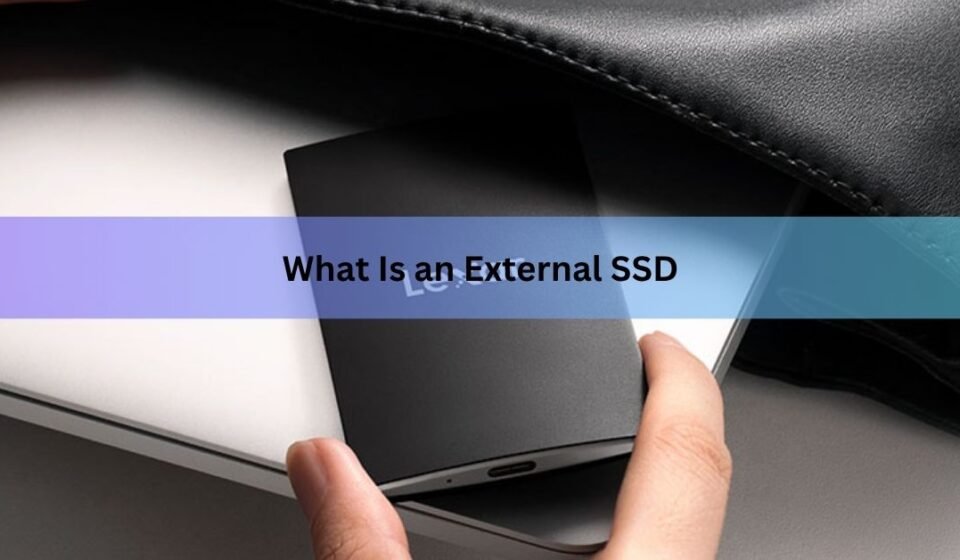

An external SSD is a small storage drive you plug into a computer, phone, or games console with a cable. Inside it there are no moving parts, just flash memory chips, which is why it reads and writes files far faster than a normal external hard drive and survives being knocked off a desk.
The name is a little redundant. SSD stands for solid state drive, so “external SSD drive” technically says “drive” twice. Nobody minds. What people usually want to know is what the thing does, how fast it really is, and whether it’s worth the extra money over a cheap spinning hard drive. Here’s the full picture.
How does an external SSD work?
It’s an SSD in a protective shell with a USB port on the outside. Three parts do the work.
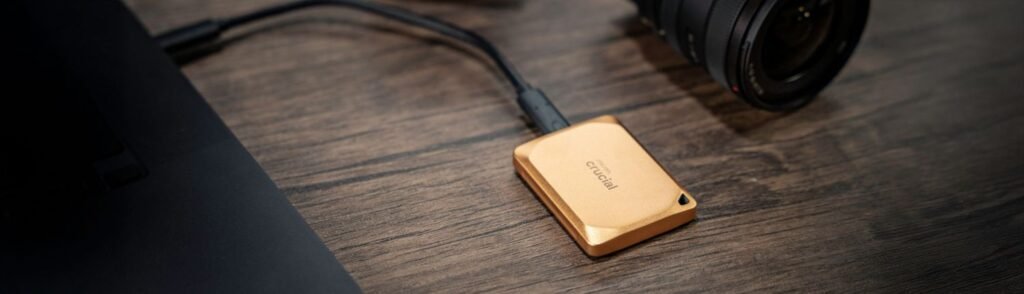
The flash memory holds your data. It stores information as an electrical charge in tiny cells, and it keeps that charge even when the drive is unplugged. A controller chip decides where each file goes, spreads writes evenly so no single area wears out early, and cleans up deleted data in the background. Then a bridge chip translates between the drive’s internal language and the USB connection your computer speaks.
That bridge is the part most people never think about, and it’s often what limits speed. A drive can have very fast flash inside and still be held back by a slow bridge or a slow port on your laptop.
Because nothing spins or moves, the drive is silent, runs on low power drawn straight from the USB cable, and doesn’t care much if you drop it.
External SSD vs external hard drive: what’s the real difference?
An external hard drive stores data on spinning metal platters with a read head hovering over them, like a tiny record player. An external SSD has no platters and no head. That one design difference explains everything else.
| External SSD | External hard drive | |
|---|---|---|
| Typical speed | 500 to 2,000 MB/s | 100 to 160 MB/s |
| Moving parts | None | Spinning platters, moving head |
| Drop survival | Good, often rated for 2 to 3 metres | Poor, especially while running |
| Noise | Silent | Faint clicking and whirring |
| Size | Roughly a credit card | Roughly a paperback book |
| Cost per terabyte | High | Low |
| Best for | Working files, editing, speed | Bulk archives, long-term backup |
In everyday terms: copying a 50GB folder of video takes about a minute on a mid-range external SSD and closer to eight or nine minutes on a portable hard drive. The gap gets wider with lots of small files, where hard drives slow to a crawl and SSDs barely notice.
Hard drives still win on price per terabyte, and that gap has grown wider through 2026 because of a global shortage of flash memory. A 1TB portable SSD that sold for under $100 in 2024 often sits between $150 and $190 now. If you just need somewhere to park 8TB of old photos you rarely touch, a hard drive is still the sensible buy.
How fast is an external SSD really?
Speed depends on three things: the drive, the port you plug it into, and the cable. The slowest of the three wins, always.
USB naming is a mess, so the industry now labels ports and drives by plain speed instead. Here’s what those numbers mean in practice.
| Label on the box | Real-world speed | What it suits |
|---|---|---|
| USB 5Gbps | Around 450 MB/s | Documents, photo backups |
| USB 10Gbps | Around 1,000 MB/s | The everyday sweet spot |
| USB 20Gbps | Around 2,000 MB/s | 4K video, big project folders |
| USB 40Gbps | Around 3,800 MB/s | 8K footage, heavy pro work |
There’s a trap worth knowing about. A 20Gbps drive plugged into a Thunderbolt 4 or USB4 port usually drops back to 10Gbps, because those ports never supported the twin-lane trick that 20Gbps drives rely on. Faster port, slower result. If you own a 20Gbps drive, it needs a port that specifically says 20Gbps to hit its rated speed.
Cables matter just as much. The short cable in the box is rated for the drive’s full speed. A random USB-C cable from a drawer might be a charging-only cable that caps you at 60 MB/s. The USB Implementers Forum publishes its certified logo guidelines showing the speed marks that appear on certified cables and packaging, which is the only reliable way to tell them apart by sight.
One more thing about advertised numbers. Most drives use a fast write buffer that fills up during long transfers. A drive rated at 2,000 MB/s might hold that pace for the first 100GB or so, then settle to a slower steady rate. For normal use you’ll never see it. For dumping a full memory card of footage, you will.
Quick rule: match the drive to the slowest port you’ll actually use it with. Paying for 40Gbps when your laptop only offers 10Gbps buys you nothing today.
What do people use external SSDs for?
External SSDs are commonly used for fast file storage, backups, gaming, video editing, and transferring large amounts of data.
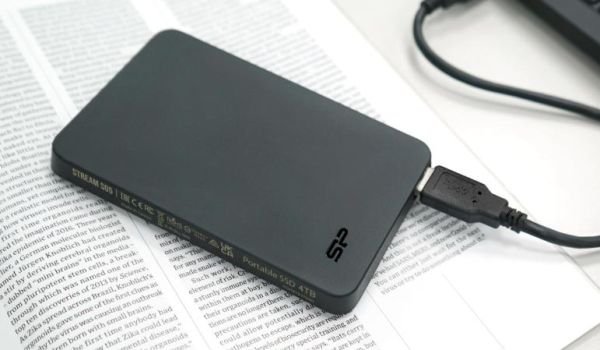
- Backups. A copy of your files that lives outside your computer is the cheapest insurance there is. Because SSD backups finish quickly, you’re more likely to actually run them.
- Photo and video editing. You can edit straight off an external SSD without copying files to your laptop first. A 10Gbps drive handles most 4K timelines comfortably.
- Carrying work between machines. Drop a project folder on the drive, walk to another computer, keep going. No upload, no waiting on internet speed.
- Freeing up laptop space. Modern laptops often ship with soldered storage you can’t upgrade. An external SSD is the fix.
- Game storage. This one has rules worth reading before you buy.
Do external SSDs work with PS5 and Xbox?
Yes, but with limits, and the limits are the same on both consoles: you can store current-generation games on an external SSD, but you can’t play them from it.
On PS5, an external drive needs to be at least 250GB, no more than 8TB, and support 5Gbps or faster. Sony’s guidance on USB extended storage also notes that you can’t run the drive through a hub, and only one extended-storage drive works at a time. PS4 games play directly from the drive. PS5 games have to be copied back to the console’s internal storage first, which takes a few minutes rather than the hour a re-download might cost you.
Xbox Series X and S work the same way. Older Xbox One games run from any USB 3.0 drive. Series X|S optimised titles need to sit on internal storage or a proprietary expansion card that slots into the back of the console.
So for consoles, an external SSD is a fast parking space, not a second internal drive. That’s still genuinely useful when a single game can eat 150GB.
How do you set one up?
Most drives work the moment you plug them in. If you need to format one, the file system you choose decides which devices can read it.
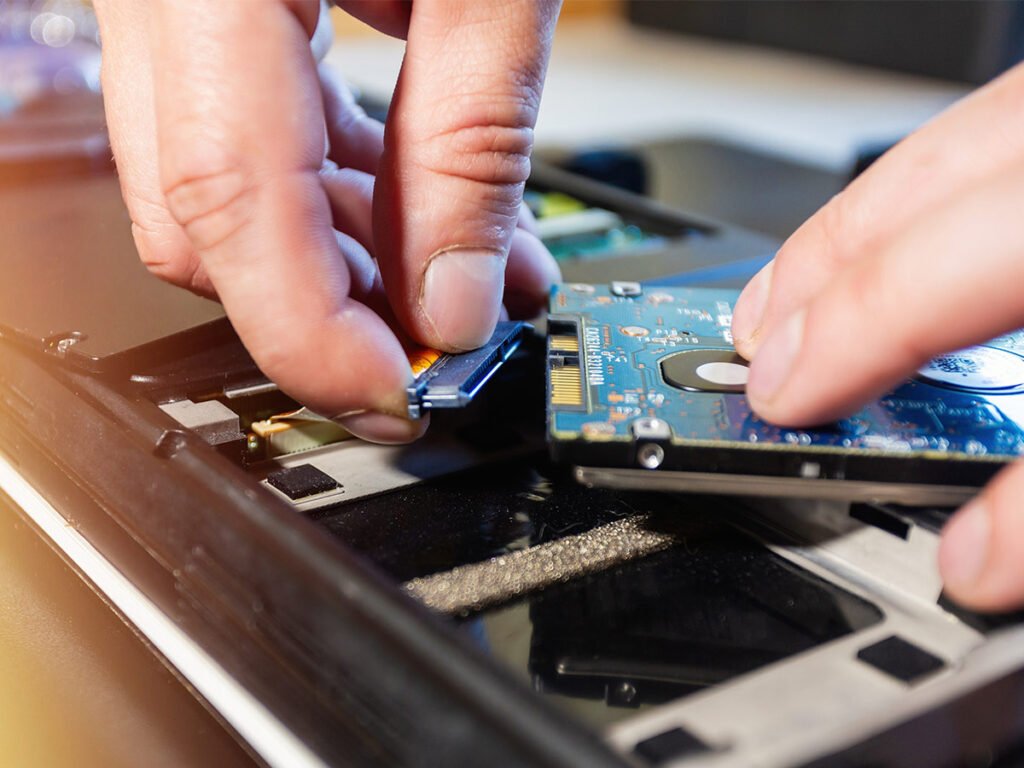
- Plug the drive into a USB port using the cable that came with it.
- Open Disk Management on Windows or Disk Utility on a Mac.
- Pick a format: exFAT if you’ll move between Windows and Mac, NTFS for Windows only, APFS for Mac only.
- Give the drive a name and confirm. Formatting erases everything on it.
- Eject the drive properly before unplugging, every time.
That last step matters more than people think. Pulling a drive mid-write is one of the few ways to lose data on an SSD.
How long does an external SSD last?
Most last five to ten years of normal use, and the drive will almost certainly become too small before it becomes too worn out.
Flash memory cells do wear down with each write, and manufacturers publish a rating for this called TBW, or terabytes written. A typical 1TB portable SSD is rated for a few hundred terabytes of writing. To burn through that in five years you’d need to write well over 100GB every single day. Ordinary backup and file-shuffling won’t come close.
Two habits help. Keep some free space on the drive, since a nearly full SSD has less room to spread writes around, and don’t leave a drive unplugged in a drawer for years at a time, because flash charge does slowly leak away without power. Plugging it in every few months is enough.
The bigger real-world risk isn’t wear, it’s that any single drive can fail, get lost, or get stolen. One copy of your files is not a backup. Keep two, with one somewhere else.
Which one should you buy?
Work through it in this order and the choice makes itself.
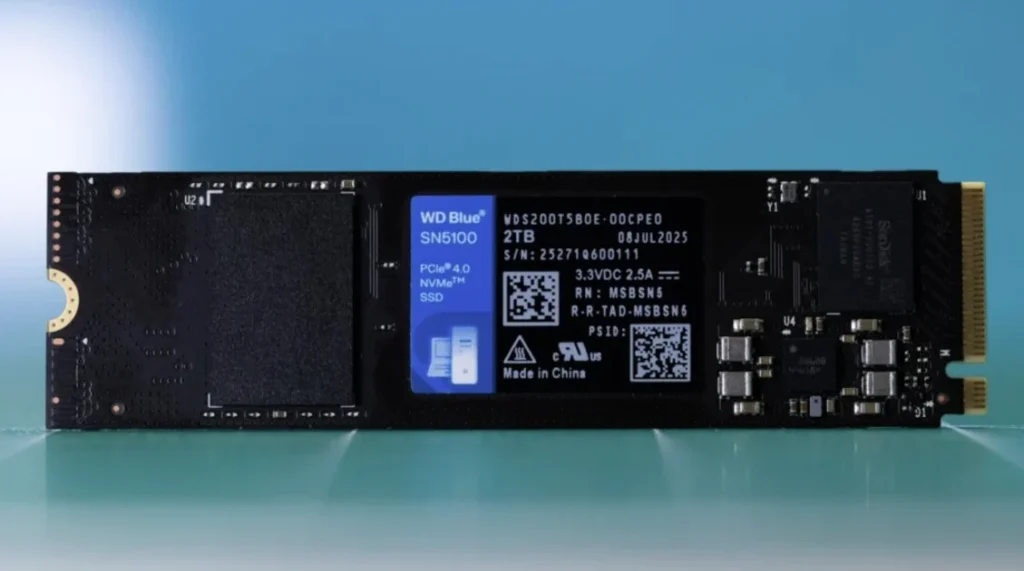
- Check your port first. Look up what speed your laptop’s USB-C port actually supports. Buy to match it, not above it.
- Capacity: buy one size up. 1TB is the practical minimum for photos or video. 2TB is the comfortable middle. Storage always fills faster than expected.
- Look for a rating if it’ll travel. An IP rating and a drop rating are worth having in a bag. Many rugged models survive a 3 metre drop and shrug off rain.
- Prefer a metal body for heavy use. Aluminium shells shed heat better, and a hot SSD slows itself down to protect the chips.
- Encryption if the data is sensitive. Hardware encryption built into the drive costs little and protects you if it goes missing.
- Stick to known brands. Cheap unbranded drives sometimes ship with fake capacity ratings that appear to work until the drive fills up and silently loses files.
For most people, a 1TB or 2TB drive rated at 10Gbps from a major manufacturer is the right answer. It’s fast enough that the drive stops being the bottleneck, and it works with essentially every port you’ll meet.
Frequently asked questions
Is an external SSD better than a USB flash drive?
Yes, for anything beyond casual file transfers. External SSDs are typically five to twenty times faster, come in far larger capacities, and handle sustained transfers without overheating or slowing down the way flash drives do.
Can I install and run programs from an external SSD?
Usually yes on Windows and Mac, and performance is fine on a 10Gbps connection or better. Some software refuses to run from external storage, and anything that launches at startup may fail if the drive isn’t connected.
Why is my external SSD slower than advertised?
Almost always the port or the cable. Check that your USB port matches the drive’s rated speed, and use the supplied cable. Long transfers also slow down once the drive’s fast write buffer fills.
Do external SSDs need to be defragmented?
No. Defragmenting is for spinning hard drives and does nothing useful on an SSD. It just burns write cycles. Modern operating systems handle SSD maintenance automatically in the background.
How much should an external SSD cost?
Expect roughly $150 to $190 for 1TB and $250 to $400 for 2TB in 2026. Prices have roughly doubled since 2024 because of a worldwide flash memory shortage, so deals are worth waiting for.
Conclusion
An external SSD is portable flash storage in a case, plugged in by cable, with no moving parts and speeds several times a portable hard drive’s. Match the drive’s rated speed to the port you’ll actually use, buy 1TB or 2TB unless you know you need more, use the cable in the box, and keep a second copy of anything important. Done right, the drive stops being something you think about and just becomes fast space that goes wherever you do
Related Post:
Advantages of SSD: Speed, Reliability, and More
How to Install an SSD in a PC: Step-by-Step for M.2 NVMe and SATA Drives
How to Format an SSD on Windows and Mac