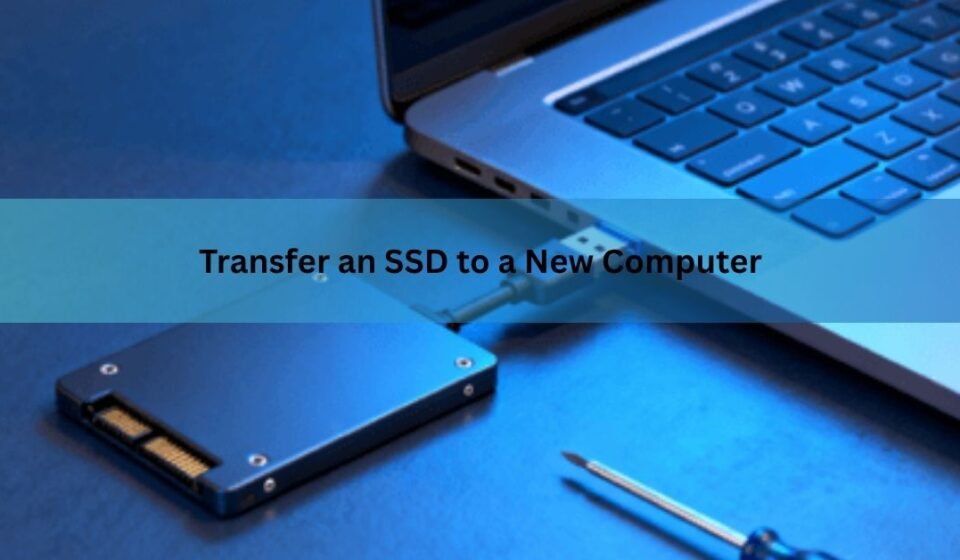

You can transfer an SSD to a new computer by physically installing the drive in the new machine, or by cloning its contents onto a different drive with software. Which one you need depends on your setup: moving the same SSD into new hardware is a physical swap, while upgrading to a bigger or faster SSD calls for cloning first.
Both routes keep your operating system, programs, and files intact, so you skip reinstalling Windows and every app from scratch. The steps below cover each method, plus what to check in the BIOS, what happens to your Windows activation, and how to fix a drive that won’t boot after the move.
Which method should you use?
If you’re keeping the exact same SSD and just moving it into a different computer case or laptop, you only need to physically relocate the drive. This works whether the SSD holds your operating system or just personal files.
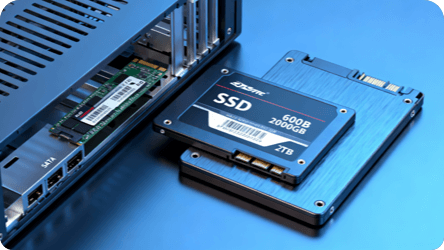
If you’re upgrading to a new SSD, bigger, faster, or a different connection type like NVMe instead of SATA, and want to keep the old one’s contents, you need to clone the old drive onto the new one first. Cloning copies every file, folder, and system setting sector by sector, so the new drive works exactly like the old one did.
There’s a third case worth knowing. If the new computer already has Windows installed on its own drive and you just want to add your old SSD as extra storage, you don’t need to clone or boot from it at all. Skip to the storage-only section below.
What you need before you start
Back up your files first, no matter which method you use. Cloning and physical moves are usually safe, but a power interruption or a failing drive can cause data loss, and a backup gives you a way back.
For a physical move, you need a compatible slot or connector in the new computer, a small screwdriver (usually Phillips), and possibly a SATA-to-USB or M.2 enclosure if you want to test the drive externally first.
For cloning, you need the old SSD, the new SSD, a way to connect both to the same computer at once (an internal bay, a spare SATA port, or a USB enclosure for one of them), and cloning software. Macrium Reflect discontinued its free edition in 2024, so most home users now reach for a free tool such as Clonezilla, or a manufacturer’s bundled cloning utility if the new SSD is a Samsung, Crucial, or Western Digital drive.
How to physically move an SSD to a new computer
- Shut down both computers and unplug them from power. Open the case of the computer the SSD is currently in, and ground yourself by touching an unpainted metal part of the case to avoid static damage.
- Disconnect the SSD. For a 2.5 inch SATA drive, unclip the SATA data and power cables and unscrew it from its bay. For an M.2 drive, remove the single retaining screw and lift it out of the slot at an angle.
- Open the new computer and locate an open drive bay or M.2 slot that matches the drive’s connector type.
- Install the SSD in the new machine, reconnecting cables for a SATA drive, or seating an M.2 drive at the correct angle before screwing it down.
- Close the case, reconnect power, and boot the new computer.
- Enter the BIOS or UEFI setup, usually by pressing Delete, F2, or Esc during startup, and confirm the drive is detected. If it held your operating system, set it as the first boot device.
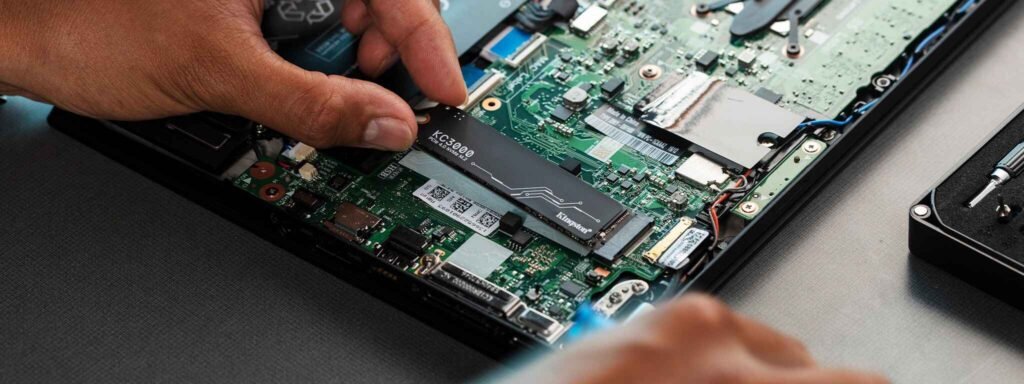
If the drive only contains data and the new PC already has its own Windows installation, Windows should recognize it automatically once you boot into the desktop, and it will show up in File Explorer with a new drive letter.
How to clone an SSD to a new drive
- Connect both drives to the same computer, either the source PC or the destination PC. If you only have one internal slot free, use a USB enclosure or SATA-to-USB adapter for one of the drives.
- Confirm the new drive is at least as large as the used space on the old one. Cloning software can usually handle a smaller total capacity as long as the actual data fits.
- Install and open your cloning software. AOMEI Cloner clones entire disks or individual partitions, supports cloning from larger disks to smaller SSDs, and automatically handles boot configuration during system cloning. Clonezilla is a free, open source alternative built for the same job.
- Select the old SSD as the source disk and the new SSD as the destination disk. Double check this step, since cloning overwrites everything on the destination drive.
- Turn on any SSD alignment or optimization option if the software offers one. This keeps the new drive performing at full speed.
- Start the clone and let it finish without interrupting the computer. Depending on how much data you’re copying, this can take anywhere from a few minutes to a few hours.
- Shut down, remove the old drive (or leave it in as a second drive if there’s room), and boot from the new one. In the BIOS, set the cloned SSD as the first boot device if it isn’t chosen automatically.
Do you need to change any BIOS settings?
Usually not, but two settings are worth checking if the new drive won’t boot. First, make sure the boot mode, UEFI or Legacy, matches what the drive was cloned or installed under. A drive set up for UEFI generally won’t boot in Legacy mode and vice versa. Second, if you’re moving from a SATA SSD to an NVMe drive, confirm the storage controller mode in the BIOS supports NVMe, since some older motherboards need this enabled manually.
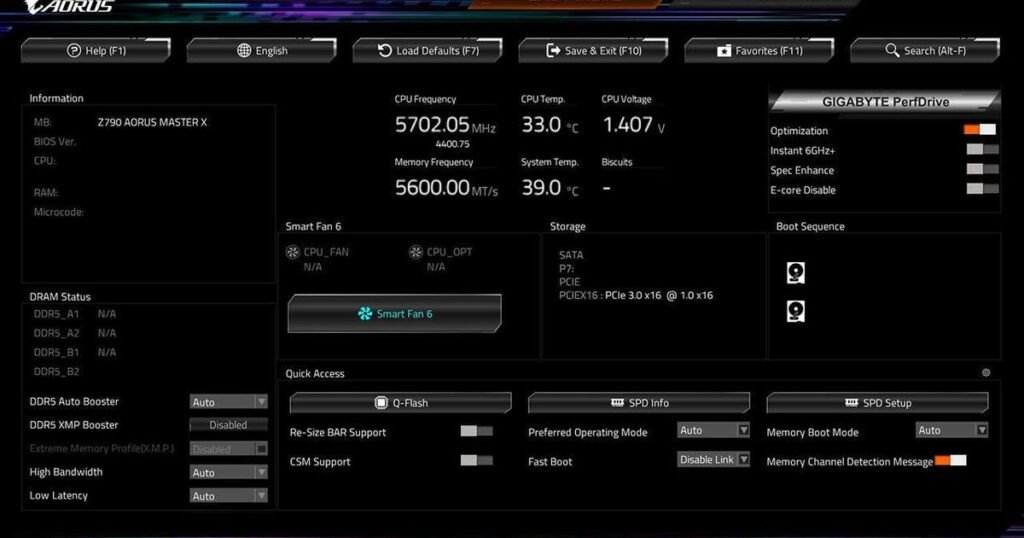
Will Windows still be activated after the transfer?
In most cases, yes. Moving an SSD between drive bays or cloning it to a new SSD without changing other major hardware, such as the motherboard, usually keeps Windows activated automatically once it reconnects to the internet.
Activation issues show up when you also change the motherboard or move the drive into a computer with substantially different hardware, since Windows treats that as a new device. If that happens, sign in with the Microsoft account linked to your digital license, then use the Windows activation troubleshooter and select the option for changing hardware recently to relink the license. A retail license usually reactivates this way. An OEM license, the kind pre-installed by a computer manufacturer, is tied to the original motherboard and generally won’t transfer to different hardware.
What if the new PC won’t boot from the transferred drive?
Reboot into the BIOS and confirm the drive shows up and is set as the first boot device. If it doesn’t appear at all, reseat the connection or try a different port or slot.
If the drive is detected but Windows still won’t load, boot into Safe Mode if you can, then uninstall the old computer’s chipset and storage drivers and install the correct ones for the new hardware. An outdated storage controller driver is one of the more common reasons a cloned drive won’t start on different hardware. Updating the BIOS on the new computer to its latest version can also resolve compatibility issues with newer drives.
Can you keep the old SSD as extra storage instead?
Yes, and it’s often the simplest option if the new computer already runs its own copy of Windows. Physically install the old SSD as described above, boot the new PC, and open Disk Management to confirm the drive is recognized and has a letter assigned.
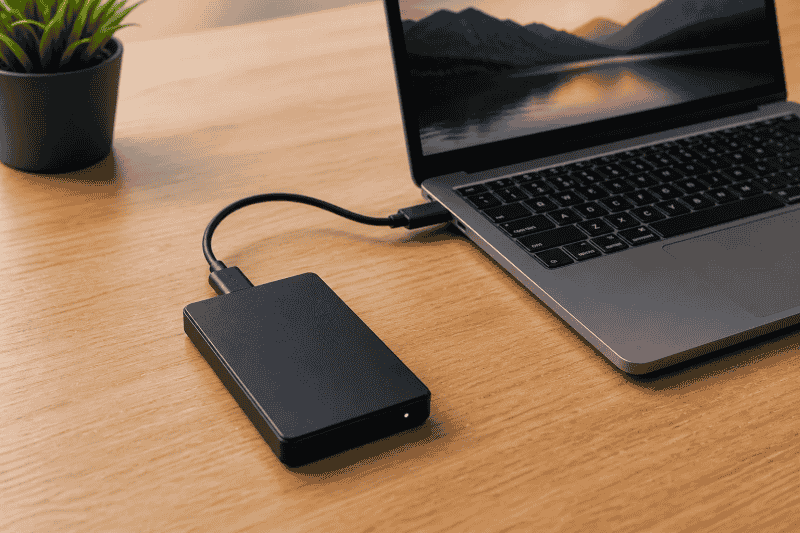
If you no longer need the files on it, you can format the drive for a clean start, which erases everything on it and gives you the full capacity as blank storage. If you want to keep the files, leave it as is. Either way, the drive works alongside your main drive without any cloning step.
Frequently asked questions
Can I just plug my old SSD into a new computer and use it right away?
Yes, if it’s a data drive and the new PC already has Windows on its own drive, it usually works right after you plug it in. If it holds Windows and you want to boot from it, you may need to set it as the boot drive in BIOS.
Do I need to reinstall Windows after moving my SSD?
No. If you physically move the same drive or clone it properly, Windows, your programs, and your files move with it, so a reinstall isn’t necessary.
Will I lose my files when I clone an SSD?
No, cloning copies everything from the old drive to the new one. The only files at risk are on the destination drive, since cloning overwrites it completely.
Can I transfer an SSD between a laptop and a desktop?
Only if both use the same drive type and connector, such as M.2 NVMe or 2.5 inch SATA, and the desktop has a compatible slot. Windows may also need new drivers for the different hardware.
What if my new SSD is smaller than my old one?
Cloning still works as long as the used space on the old drive fits within the new drive’s total capacity. Most cloning software will warn you if it doesn’t fit.
Conclusion
Transferring an SSD comes down to two paths. Physically move the drive if you’re keeping it as is, or clone it onto a new drive if you’re upgrading. Back up first, match the BIOS boot settings to how the drive was set up, and check Windows activation if you’ve also changed the motherboard. Either way, you keep your system, programs, and files without starting over.
Related Post:
How to Put an SSD in a Desktop: Complete Step-by-Step Guide
Why Is My SSD Showing Less Space Than It Has?
What to Do After Installing a New SSD
Computer Not Recognizing Your SSD? Here’s How to Find the Problem and Fix It
USB Flash Drive as an SSD: What You Can Do and Where It Falls Short