
Formatting an SSD on Windows 11 means clearing its file system and setting it up fresh so Windows can store data on it. You can do it three quick ways: right-click the drive in File Explorer, use Disk Management, or use the Settings app. For most people the job takes a few seconds. The main choices are which file system to use (almost always NTFS) and whether to run a quick format (yes, in nearly every case).
Below you will find the exact steps for each method, plus how to pick the right one for your situation. A brand-new SSD that shows up as Unallocated needs a slightly different path than a drive that already has a letter, and the drive Windows itself runs on is a separate story. Let us sort all of that out.
What formatting an SSD actually does
Formatting rebuilds the drive’s filing system. Think of it like clearing out a filing cabinet and putting in fresh, empty folders. Windows can then write new files in an orderly way.
Here is the part that surprises people: a normal format does not truly erase your old data. It removes the index that points to your files, so the drive looks empty and the space is marked as free. The actual bits often stay on the drive until new data overwrites them. That is why deleted files can sometimes be pulled back with recovery tools.
There is also a difference between formatting and partitioning that trips people up. Partitioning splits a physical drive into one or more sections that Windows treats as separate volumes, each with its own letter. Formatting sets up the file system inside one of those sections. A brand-new SSD usually needs both: you create a partition, then format it. On a drive that already has a partition, you are only formatting.
If you are selling or giving away the PC, a plain format is not enough to protect your private files. Skip to the section on wiping the drive Windows is on for the safe way to handle that.
Before you start
A minute of prep saves a lot of regret. Run through this short list first.
- Back up anything you want to keep. Formatting clears the drive. Copy files to another drive, a USB stick, or cloud storage first, then double-check the copy opened correctly.
- Confirm you are on an administrator account. Windows will not let a standard user format a drive.
- Identify the right drive. Note its letter (like D:) and its size in GB. Formatting the wrong disk is the most common and most painful mistake.
- Close any programs using the drive. If a file on it is open, Windows may refuse to format.
One more thing worth knowing: SSDs have a limited number of write cycles. A quick format barely touches that budget, but repeated full formats add real wear. So format only when you have a reason to, not as routine housekeeping.
Method 1: Format an SSD with File Explorer
This is the fastest method and the right one when the SSD already has a drive letter and shows up under This PC. It suits secondary drives and external SSDs.
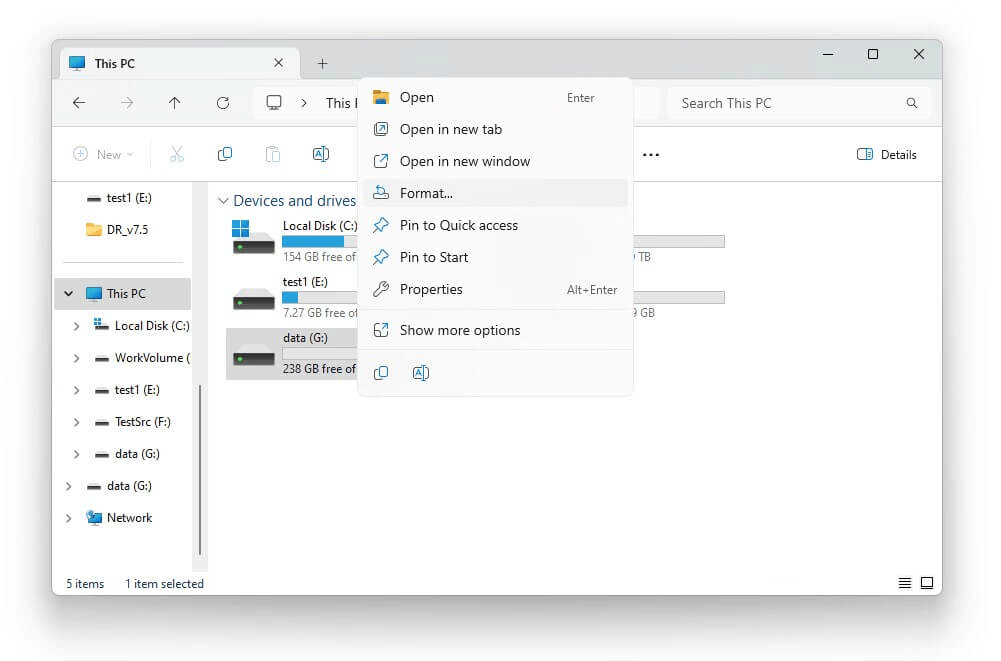
- Press Windows + E to open File Explorer, then click This PC on the left.
- Under Devices and drives, right-click the SSD you want to format.
- Choose Format from the menu.
- In the Format window, set File system to NTFS (or exFAT if the drive needs to work on non-Windows devices).
- Leave Allocation unit size on Default. There is rarely a good reason to change it.
- Type a name in the Volume label box so you can spot the drive later.
- Keep Quick Format ticked.
- Click Start, then OK to confirm. It should finish in a few seconds.
If there is no Format option, or Windows says the disk needs formatting but the attempt fails, the drive is probably new or in a bad state. Use Disk Management instead.
Method 2: Format a new or unallocated SSD with Disk Management
Disk Management is the tool to reach for when the SSD is brand new, shows as Unallocated, is Not Initialized, or does not appear in File Explorer at all. A fresh SSD out of the box often has no partition, so File Explorer simply cannot see it yet.
You can open the tool by right-clicking the Start button and choosing Disk Management, or by searching for Create and format hard disk partitions. Microsoft’s own Disk Management guide is a handy reference if you want to see every option in detail.
If the SSD already shows a healthy partition, you can right-click it and pick Format directly. For a new drive, follow these steps:
- If Windows prompts you to Initialize Disk, accept it. Choose GPT for any modern PC. GPT is the current standard and is required for drives larger than 2TB.
- Find your SSD in the lower pane. Right-click the black Unallocated bar and choose New Simple Volume.
- Click Next, then keep the default size to use the whole drive and click Next again.
- Assign a drive letter and click Next.
- Set File system to NTFS, leave allocation unit size on Default, tick Perform a quick format, and name the volume.
- Click Next, then Finish. The SSD will now appear in This PC with its letter.
On a Windows system disk you may spot small EFI System, Recovery, or Microsoft Reserved partitions with no drive letter. Leave those alone. They help Windows boot and recover, and deleting them can stop the PC from starting.
Method 3: Format an SSD from the Settings app
Windows 11 added a formatting option inside Settings for people who prefer the modern look over Disk Management. It works for basic formatting of a drive that already has a partition.
- Press Windows + I to open Settings.
- Go to System > Storage.
- Click Advanced storage settings, then Disks & volumes.
- Select the SSD, choose the volume you want, then click Properties.
- Click Format, pick your file system and label, and confirm.
Recent Windows 11 builds show a security prompt when you open Storage settings, so do not be thrown if a User Account Control box appears. That is expected, and you just approve it to continue.
Method 4: Format an SSD with Command Prompt
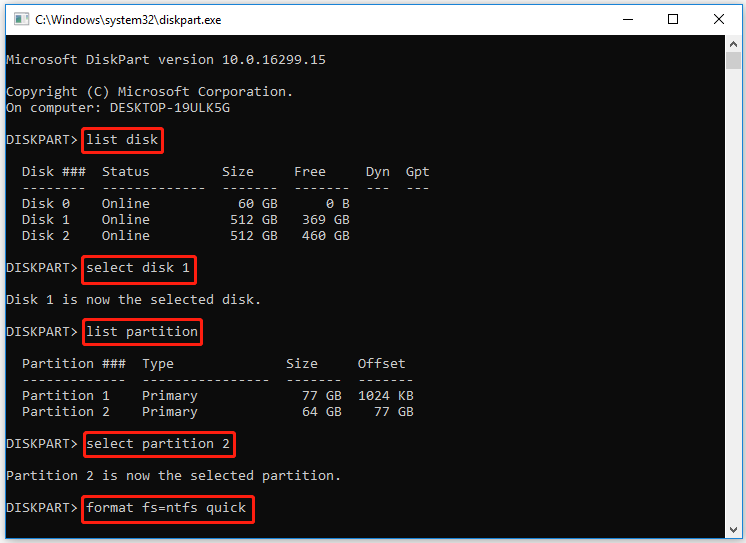
The command line is worth knowing when a drive is stuck in a bad state and the graphical tools will not cooperate. It is more powerful, which also means it is less forgiving, so read each line before you run it.
- Search for cmd, right-click Command Prompt, and choose Run as administrator.
- Type diskpart and press Enter.
- Type list disk to see every drive. Match your SSD by its size very carefully.
- Type select disk X (replace X with your SSD’s number).
- To format an existing partition, type list volume, then select volume X, then format fs=ntfs quick.
- Type exit to close diskpart when it finishes.
The clean command in diskpart erases every partition on the selected disk with no undo. Confirm the disk number twice before using it, because the wrong number can wipe the wrong drive in an instant.
Which file system should you pick?
For an internal SSD on a Windows 11 PC, choose NTFS. It is the native Windows file system, it is fast, and it has built-in safety features. The only time you would pick something else is when the drive has to talk to other devices.
| File system | Best for | Watch out for |
|---|---|---|
| NTFS | Internal SSDs and any Windows-only data drive. It is the default for a reason. | Older TVs, some cameras, and older game consoles may not read it. |
| exFAT | Drives you move between Windows, Mac, and other devices. Handles big files with no size cap. | Fewer safety features than NTFS, so it is not ideal as your main system drive. |
| FAT32 | Small USB sticks and gear that only speaks FAT32. | Cannot hold a single file over 4GB, and Windows caps new FAT32 volumes at 32GB. |
The simple rule: pick NTFS for Windows-only drives, and exFAT when you carry the same drive between a Windows PC and a Mac. Save FAT32 for tiny USB sticks or older gear that demands it.
Why does NTFS win for internal SSDs? It supports file permissions, on-the-fly compression, encryption, and journaling, which is a running log that helps the drive recover if power cuts out mid-write. exFAT drops most of that in exchange for wider compatibility. It is lighter and works almost everywhere, but it has no journaling, so it is more fragile if a transfer is interrupted. That trade is fine for a portable drive and a poor fit for the disk your PC leans on every day.
You will also see an Allocation unit size setting during formatting. This is the smallest chunk of space the drive hands out per file. Leave it on Default. Windows picks a sensible size based on the drive, and changing it rarely helps for everyday use. It only matters in narrow cases, like a drive that stores huge video files versus one full of tiny documents.
Quick format vs full format: which one?
Keep Quick Format checked for almost every job. It rebuilds the file system in seconds and is the standard choice for SSDs. A full format is much slower because it also scans the whole drive for bad sectors.
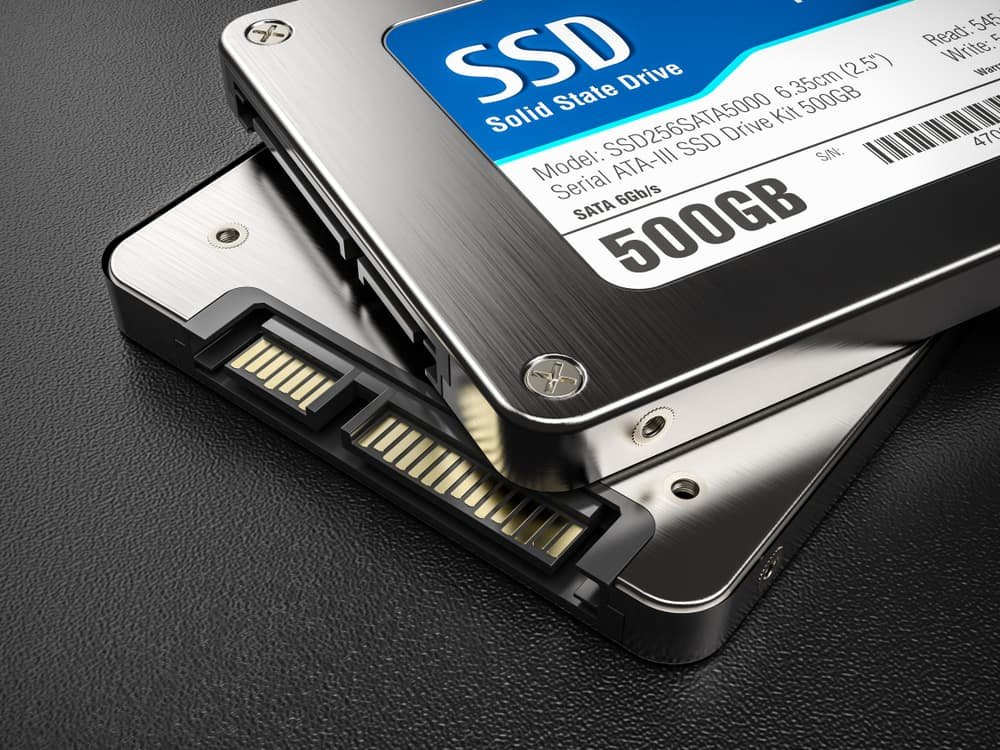
On old spinning hard drives, a full format wrote zeros across the entire surface, which helped scrub data and flag failing spots. SSDs work differently. A full format adds real write wear without the same benefit, and it will not securely erase your data anyway. So for an SSD, a quick format is the sensible default, and a full format is worth it only when you suspect the drive has errors and you want that bad-sector check.
Neither a quick nor a full format reliably destroys sensitive data on an SSD. For that, use your SSD maker’s secure erase tool, covered next.
Formatting the drive Windows is on
Windows will not let you format the drive it is currently running from, usually the C: drive. That is a safety block, not a bug. You cannot saw off the branch you are sitting on.
If your goal is to wipe the whole PC and start clean, you have two good routes depending on what you want:
- Reset this PC (easiest). Go to Settings > System > Recovery > Reset PC, then choose Remove everything. If you are selling the PC, pick the option to clean the drive fully so files are harder to recover.
- Clean install from a USB (most thorough). Create Windows 11 installation media, boot from it, and delete the existing partitions during setup. The installer then formats the SSD and lays down a fresh copy of Windows.
For truly sensitive data on an SSD, the gold standard is a secure erase. Most SSD brands offer a free tool for this, such as Samsung Magician, Crucial Storage Executive, or WD Dashboard. Secure erase resets the drive’s memory cells at the hardware level, which a normal format does not do. Grab the tool from your drive maker’s official site to be safe.
Frequently asked questions
Does formatting an SSD delete everything?
It clears the file system, so the drive looks empty and files disappear from view. But the underlying data often stays until it is overwritten, which is why recovery tools can sometimes bring files back. Back up first.
Should I use NTFS or exFAT for my SSD?
Use NTFS for an internal SSD or any Windows-only drive. Pick exFAT only if you move the same drive between Windows and Mac or other devices. For most people setting up an internal SSD, NTFS is the right call.
Is quick format bad for an SSD?
No. A quick format is the recommended choice for SSDs. It is fast and adds almost no write wear. A full format is slower and puts more wear on the drive, so save it for when you suspect disk errors.
Why can’t I format my C: drive?
Because Windows is running from it. You cannot format the drive that holds the active operating system. To wipe it, use Settings > Recovery > Reset PC, or boot from Windows install media and format during a clean install.
How do I completely wipe an SSD before selling my PC?
A normal format is not enough. Use a secure erase tool from your SSD’s maker, such as Samsung Magician or Crucial Storage Executive, or choose the clean-the-drive option during a Windows reset. That makes your old data very hard to recover.
Conclusion
To format an SSD on Windows 11, back up your files, confirm you have the right drive, then use File Explorer for a drive that already has a letter or Disk Management for a new, unallocated one. Choose
NTFS, keep Quick Format checked, and click Start. A good result is the SSD showing up in This PC with its letter, empty and ready to use. For selling a PC or clearing private data, reach for your drive maker’s secure erase tool instead.
Related Post:
Can You Recover Data From an SSD? What Actually Works
How to Partition an SSD: Windows, Mac, and When to Skip It
What to Do After Installing a New SSD
SSD Showing as Unallocated? What It Means and How to Fix It Safely
How to Copy an SSD to a Larger SSD Without Reinstalling Windows