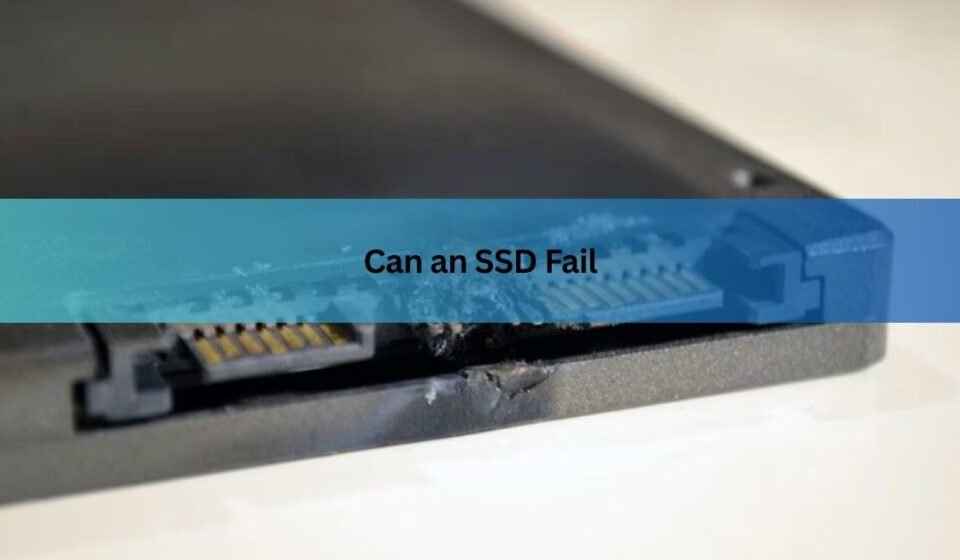

Yes, an SSD can fail. A solid-state drive has no spinning parts, so it dodges the mechanical problems that kill hard drives. But it can still die from worn-out memory cells, a failed controller chip, power damage, or a firmware bug. And unlike a hard drive, an SSD rarely makes noise or gives a slow, obvious goodbye. It can work fine one day and refuse to boot the next.
The good news is that failure is not common, and it is not random luck either. In large real-world fleets, only about one SSD in a hundred fails in a given year. Below is how SSDs fail, how long they tend to last, the warning signs worth knowing, and the simple habits that keep your files safe.
Can an SSD fail?
An SSD can fail, and every SSD will eventually reach the end of its life. No storage device lasts forever. What makes SSDs different is how they fail. They store data in NAND flash memory, which is a set of tiny cells that hold an electric charge. There are no platters, no spinning motor, and no read head hovering over a disk. That design removes a whole class of mechanical faults, which is a big reason SSDs are more reliable than the hard drives they replaced.
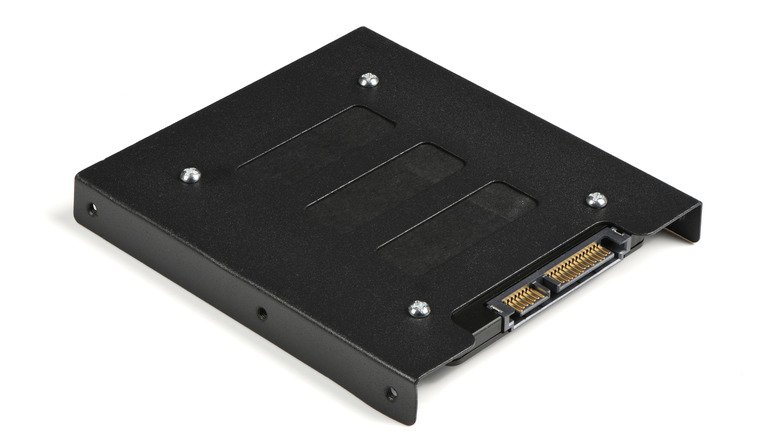
Still, an SSD is a small computer in its own right. It has a controller chip that decides where data goes, a power circuit, firmware (the built-in software that runs the drive), and the flash cells themselves. Any of those parts can go wrong. When one does, the drive can slow down, lock itself, drop off your system, or stop working outright.
Bottom line: SSD failure is uncommon but real. Treat your SSD as reliable, not indestructible, and keep a backup of anything you would hate to lose.
Why do SSDs fail?
SSDs fail for a handful of clear reasons. Usually it is not one single cause but a mix that builds up over time. Here are the main ones.
Worn-out flash memory
Every flash cell can only be written and erased a limited number of times before it wears out. Each write slowly damages the cell until it can no longer hold a charge reliably. To spread this out, SSDs use wear leveling, which shares writes evenly across all cells so no single spot gets hammered. This pushes the wear-out point far into the future for most people, but the limit is still there. Drives that pack more bits into each cell to hit a lower price tend to wear faster, which is one reason a budget SSD and a premium one of the same size can have very different lifespans.
Controller failure
The controller is the brain of the drive. It maps where your files live and manages every read and write. If it fails, from a defect, heavy use, or damage, the whole drive can vanish from your computer even when the flash cells holding your data are perfectly fine. Controller failure is one of the harder problems to recover from.
Power surges and sudden power loss
A power spike from a storm, a failing power supply, or yanking a drive out mid-write can corrupt data or fry the drive’s circuits. Many SSDs lose or damage data that was being written at the exact moment the power cut out, even if the drive itself survives. Cheaper drives often lack power-loss protection, which makes them more exposed to this.
Firmware bugs
Firmware is the software baked into the drive. A bug in it can cause data corruption, sudden slowdowns, or a drive that locks up or disappears. Firmware problems are rare, and makers release updates to fix known ones, which is why keeping firmware current matters. A striking real-world example: in one large data center fleet, a single drive model briefly jumped to a roughly 17% yearly failure rate, and the cause traced back to firmware work rather than the physical hardware.
Heat
SSDs dislike sustained high temperatures. Heavy workloads like video editing, gaming, or AI tasks can push a drive hot enough to throttle its speed or, over time, shorten its life. Roughly speaking, every 10°C of extra heat can meaningfully cut into an SSD’s lifespan, so airflow and a heatsink on fast NVMe drives are worth having.
Bad blocks and physical damage
Bad blocks are sections of flash that have gone faulty. SSDs ship with a few and quietly work around them, but if the count climbs, performance drops and failure can follow. And while SSDs shrug off bumps far better than hard drives, they are not immune: dropping a drive, crushing it, water, or dust that causes overheating can all still kill one.
How long does an SSD last?
Most consumer SSDs last between five and ten years, and often longer under normal use. For a typical home user, the drive usually gets replaced for more space or speed long before it actually wears out. Two things decide the real number: how much you write to it, and plain age.
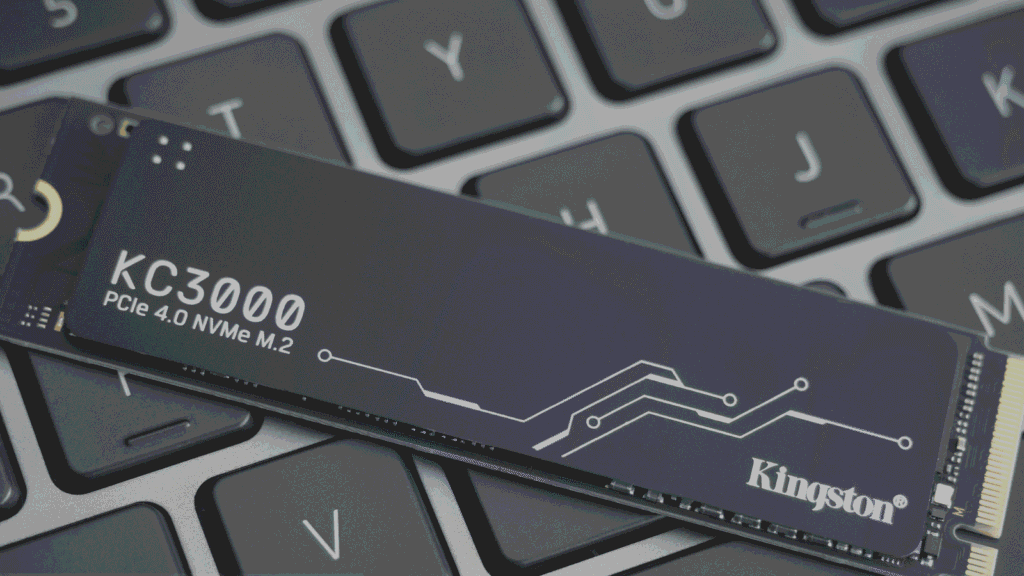
Drive makers rate endurance with a figure called TBW, short for terabytes written. It is the total amount of data you can write to the drive before the cells are no longer guaranteed to hold data reliably. Most consumer SSDs today carry TBW ratings between about 150 and 600 terabytes, depending on size and quality.
That sounds abstract, so here is the math in plain terms. An average person writes somewhere between 10 and 40 GB a day. At that rate, the write limit is almost impossible to hit in a normal lifetime. The table below shows how a 600 TBW drive holds up at different daily habits.
| How you use it | Data written per day | Years to reach 600 TBW |
|---|---|---|
| Light (email, web, docs) | 10 GB | Over 160 years |
| Average home use | 30 GB | About 55 years |
| Heavy (large downloads, some editing) | 100 GB | About 16 years |
| Very heavy (daily video work) | 200 GB | About 8 years |
These are theoretical ceilings, not promises. Real drives can slip earlier because of write amplification (the drive doing extra background writes to update small bits of data), heat, or a plain defect. But they show why write limits are rarely the thing that gets a normal user.
Age matters as much as writes, sometimes more. Research from Google and the University of Toronto that tracked SSDs over several years found that a drive’s age was a stronger predictor of trouble than how much data had been written to it. The takeaway is simple: an old, lightly used SSD still deserves attention, and anything past its warranty should not be trusted as your only copy of important files. You can check any drive’s rated endurance and warranty on the maker’s spec page, for example Samsung’s SSD specifications.
So how often do SSDs actually fail?
Real numbers help cut through the worry. The cloud backup company Backblaze runs thousands of SSDs and publishes failure data on them. Across its fleet, SSDs have held an annual failure rate of around 1% or less through their first several years of service. In plain terms, in a group of a hundred drives running hard every day, about one fails in a year. That is a low rate, and it lines up with the wider picture: modern SSDs are more reliable than the hard drives they replaced.
Reliable does not mean guaranteed. A 1% yearly failure rate is small, but if it is your drive that fails and you have no backup, the rate that matters to you is 100%.
What are the warning signs of a failing SSD?
A failing SSD often gives subtle hints before it quits, though sometimes it gives none at all. Watch for these signs. If you see more than one, back up your data right away and plan to replace the drive.
- Files won’t open or turn up corrupted. A photo or document that suddenly can’t be opened, or that your system reports as damaged, can point to failing cells. Frequent “needs repair” messages are a red flag.
- The system slows to a crawl. Boot times that stretch from seconds to minutes, or file transfers that hang, can mean the drive is struggling to read and re-read data. Performance can dip for many reasons, so this is a hint, not proof, on its own.
- Frequent crashes, freezes, or a blue screen. Random freezes, especially when saving or opening files, or a blue screen of death, can happen when the system can’t reliably read the files it needs.
- The drive goes read-only. You can open and view files but can’t save, change, or delete anything. Many SSDs lock themselves into read-only mode as a last-ditch protection when the controller senses trouble. This is a strong signal the end is near, but it is also a gift: while the drive is read-only, your existing files are still there to copy off, so use that window fast.
- The drive disappears. Your SSD stops showing up in the system, or you see a “no bootable device” message at startup. This often points to a controller or connection problem.
- A bad health score. Drive-monitoring tools read the drive’s own built-in health reporting, called SMART, and flag a failing or “caution” status before things get worse.
You don’t have to guess. Free tools let you read a drive’s health directly. On Windows, CrystalDiskInfo shows a plain health rating, the drive’s temperature, and how much data has been written to it. Mac users can check SMART status under System Information, and most SSD makers offer their own free health app.
What to do when your SSD is failing
If you spot the signs, act quickly and calmly. The steps below give you the best shot at saving your files. The single most important rule: the moment you suspect trouble, get your data off the drive before doing anything else.
- Stop heavy use of the drive. Every extra read and write is a risk on a dying drive. Close programs you don’t need and avoid running big tasks on it.
- Back up your most important files first. Copy your irreplaceable files, photos, documents, work, to another drive or the cloud straight away. Start with what you can’t replace, in case the drive quits partway.
- If the drive is read-only, copy everything you can. Read-only mode still lets you pull data off. Move it all to a healthy drive before the window closes.
- Run a health check. Use a tool like CrystalDiskInfo to confirm what’s going on and see how urgent it is.
- Don’t keep rebooting a drive that won’t boot. If it’s your system drive and it’s failing, repeated restarts can make things worse. If the data is critical and you can’t reach it, power down and consider a professional recovery service.
- Replace the drive. Once your data is safe, swap in a new SSD. A drive that has shown clear failure signs is not worth trusting again.
If the drive holds data you can’t afford to lose and it has already stopped responding, stop using it and talk to a professional recovery service. Continued attempts at home can lower the odds of getting your files back.
How to make an SSD last longer
You can’t make an SSD immortal, but a few habits genuinely lower your risk and stretch its life. None of these take much effort.
- Keep a backup, always. This is the one that matters most. Follow a simple rule: keep at least two copies of anything important, with one of them somewhere else, like the cloud or an offsite drive. Then a drive failure is an annoyance, not a disaster.
- Leave some free space. SSDs manage themselves better with room to breathe. Keeping roughly 10 to 20% of the drive free helps it handle writes smoothly and can extend its life.
- Use a surge protector. A good surge protector, or a battery backup for a desktop, shields the drive from power spikes and sudden cut-outs that can corrupt data or damage circuits.
- Keep it cool. Make sure your machine has decent airflow, keep vents clear of dust, and add a heatsink to a fast NVMe drive if it runs hot. Heat is a quiet life-shortener.
- Update the firmware. Check the maker’s software now and then for firmware updates. They fix known bugs that could otherwise cause corruption or failure.
- Watch the health now and then. A quick look at the drive’s SMART status every few months catches problems early, while you still have time to react.
Frequently asked questions
Can an SSD fail suddenly without warning?
Yes. Unlike hard drives, SSDs often give no noise or slow decline. A controller or firmware fault can take a drive offline instantly while it seemed fine. This is exactly why a current backup matters so much.
How do I know if my SSD is failing?
Look for corrupted or missing files, sharp slowdowns, frequent crashes or blue screens, or a drive that goes read-only or disappears. A free tool like CrystalDiskInfo reads the drive’s SMART health and flags trouble early.
Can data be recovered from a failed SSD?
Sometimes. If the drive is read-only or still readable, you can usually copy files off fast. If the controller has died or the drive won’t respond, recovery is harder and may need a professional service, with no guarantee.
Do SSDs fail more often than hard drives?
No. Modern SSDs are generally more reliable than hard drives and tend to last longer. Large-fleet data puts SSD yearly failure rates around 1% or lower, without the mechanical wear that eventually claims spinning hard drives.
How long will an SSD last if I barely use it?
Light use means the write limit is almost never the issue, so many years easily. But age still counts, and unused drives can slowly lose charge over long idle periods, so power it on occasionally and don’t rely on an old drive as your only copy.
Conclusion
Yes, an SSD can fail, from worn cells, a dead controller, power damage, or a firmware bug, and it often gives little warning. But real-world failure rates sit near 1% a year, and most drives run well for five to ten years or more. Watch for slowdowns, corrupted files, crashes, or a drive that goes read-only, and act fast if you see them. Above all, keep a backup. Do that, and a drive failure becomes a minor cost rather than lost memories or work.
Related Post:
Can You Recover Data From an SSD? What Actually Works
How to Partition an SSD: Windows, Mac, and When to Skip It
What to Do After Installing a New SSD
SSD Showing as Unallocated? What It Means and How to Fix It Safely
How to Copy an SSD to a Larger SSD Without Reinstalling Windows