
A failing SSD usually shows a few clear signs: files that get corrupted or vanish, a sudden drop in speed, random crashes or freezes (especially while booting), and the drive flipping into read-only mode where you can open files but not save anything. The surest way to confirm it is a quick health check that reads the drive’s built-in SMART data. If that check flags trouble, back up your files right away, because a solid-state drive can go from odd to unreadable fast.
Below you will find the warning signs to watch for, an exact step-by-step way to check your drive on Windows, Mac and Linux, and what to do once you know.
What are the warning signs of a failing SSD?
The most common signs of a failing SSD are file corruption, big slowdowns, crashes, and a drive that turns read-only. You often see more than one at a time. Here is what each looks like in daily use.
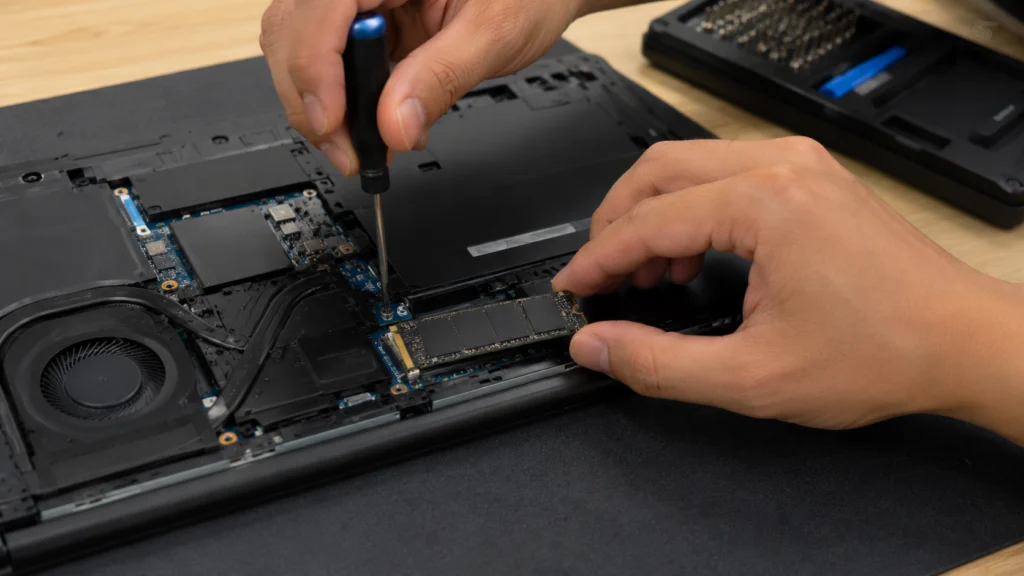
Files get corrupted, disappear, or won’t open
You try to open a photo, document or game file and it is broken, missing, or throws an error. Sometimes a file saves fine but is unreadable the next day. When flash memory cells start to wear out or a bad block appears, the data stored there can no longer be read back correctly. Repeated file errors are one of the earliest and clearest hints that something is wrong.
The drive suddenly feels slow
Boot times stretch from around 15 seconds to a minute or more. Programs take an age to open. File copies crawl or hang at a few kilobytes per second. A healthy SSD is quick, so a steady, noticeable slowdown, especially one that gets worse week by week, can mean the controller is struggling to read and write cleanly.
Random freezes, crashes, and boot failures
Your computer freezes when you save or open a file, or it crashes for no clear reason. The worst version is a boot problem: the PC can’t find the operating system, gets stuck restarting over and over, or throws a blue screen on Windows or a kernel panic on a Mac that mentions a storage or boot device.
To start up, your computer has to read thousands of system files. If a failing drive can’t hand over even one of them, the whole boot can stall or crash.
The drive goes read-only
You can open and view what is already there, but you can’t save a new file, edit an old one, or even delete anything. Every write ends in an error. This is actually a safety move: many SSDs lock themselves to read-only when they sense they are near the end, to protect the data still on them. If this happens, copy your files off immediately.
Other red flags
The drive disappears from your file manager or BIOS, then reappears later.
You get frequent “file system needs repair” messages.
The system reports bad blocks or reallocated sectors.
The drive runs hot to the touch or reports high temperatures.
Can an SSD fail without warning?
Yes. Unlike an old spinning hard drive, which often clicks or grinds before it dies, an SSD has no moving parts to make noise. It can go from working normally to unreadable quite suddenly. Flash cells wear out, the controller chip can fault, firmware can glitch, and a power surge or unsafe shutdown can corrupt data in an instant.
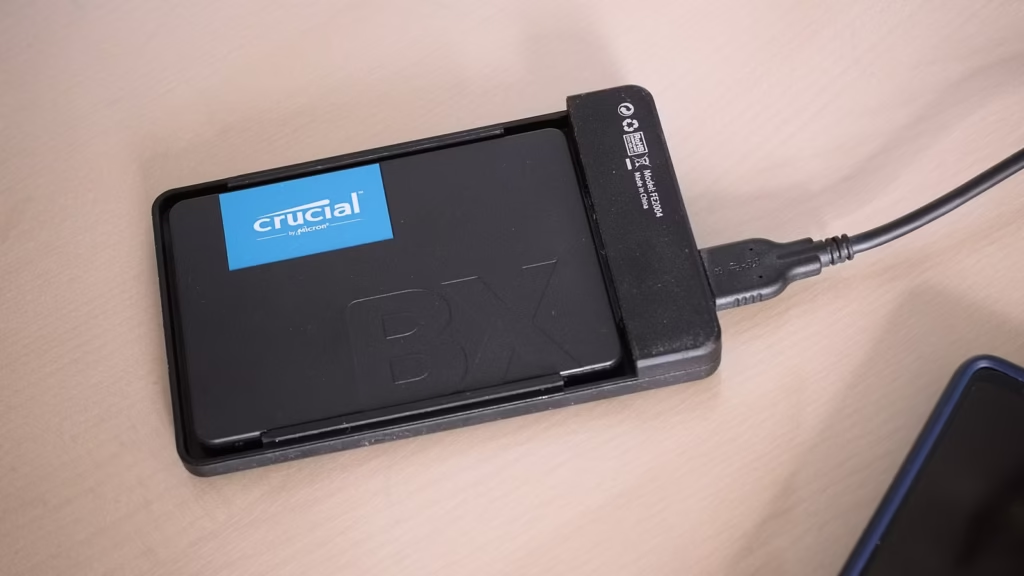
That is exactly why a health check matters. SMART data can catch slow wear before it becomes a failure, but it cannot predict every sudden death. The safe habit is simple: keep at least two backups of anything you care about, and put one of them somewhere else, such as cloud storage or a drive you keep unplugged.
How to check your SSD’s health (step by step)
You can confirm your SSD’s health in a few minutes using tools that read its SMART data. SMART, short for Self-Monitoring, Analysis and Reporting Technology, is a system built into every modern drive that quietly tracks wear, errors, temperature and hours of use. Here is how to read it on each system.
On Windows: the built-in check
- Open Settings and go to System then Storage.
- Click Advanced storage settings, then Disks & volumes.
- Pick your SSD, click Properties, and read the Drive health section.
This shows estimated remaining life, spare capacity and temperature. One catch: it only works for NVMe SSDs, the small stick-shaped drives, not older SATA SSDs. If you don’t see a health section, your drive isn’t NVMe, so use the next method.
On Windows: CrystalDiskInfo (works on every drive)
For a full readout on any SSD, download the free CrystalDiskInfo tool. The portable version needs no install. Open it and it scans your drives automatically.
Look at the coloured Health Status box near the top left. Blue or “Good” means everything is within normal range. Yellow or “Caution” means some values are slipping and you should back up now. Red or “Bad” means the drive is failing and should be replaced. It also shows temperature, which should sit roughly between 30°C and 50°C in normal use, with anything consistently above 60°C worth investigating.
On Windows: the PowerShell command
For a quick text check on any drive, right-click Start, open Terminal (Admin) or PowerShell, and run:
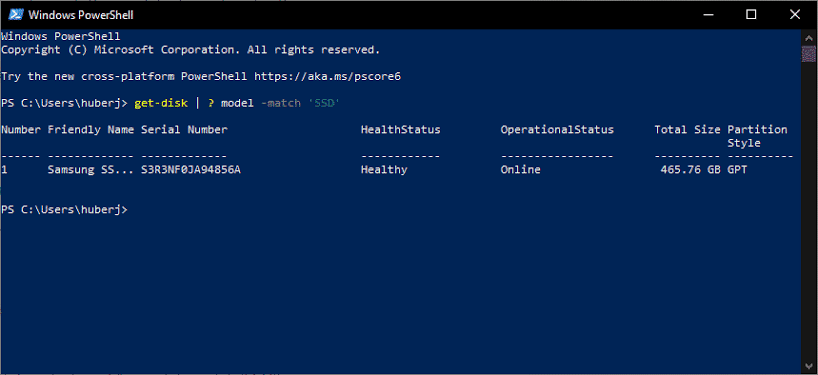
Get-PhysicalDisk | Get-StorageReliabilityCounter | Format-List
This pulls wear, temperature, read and write errors, and power-on hours for both NVMe and SATA drives. A plainer check is Get-PhysicalDisk on its own, which reports a HealthStatus of Healthy, Warning or Unhealthy.
On a Mac
Open System Information (hold Option, click the Apple menu, choose System Information). Under Hardware, pick NVMExpress or SATA depending on your drive, select your SSD, and look for the SMART attributes such as Percentage Used and Unsafe Shutdowns. Disk Utility also shows a basic SMART Status in the Info window. For deeper detail on Apple Silicon Macs, install smartmontools and run smartctl from the terminal.
On Linux
Install smartmontools and run smartctl -a /dev/your-drive for a full report. You can also run a built-in self-test with smartctl -t short, which takes a couple of minutes and gives a simple pass or fail.
What the SMART numbers actually mean
Most SMART attributes are noise for everyday users. A handful actually matter, and a good tool reads them for you. These are the ones worth knowing:
- Percentage Used / Remaining Life: how much of the drive’s rated write endurance is gone. Near 100 percent used means it is wearing out.
- Reallocated or bad blocks: spare cells the drive has swapped in to replace failing ones. A rising count is a warning.
- Available Spare: the pool of backup cells left. When this drops low, failure is closer.
- Unsafe Shutdowns: power cuts and forced shutdowns, which can corrupt data. A high number after a rough patch is a reason to be careful.
- Temperature: steady heat above 60°C shortens life and can cause the drive to throttle.
One useful term here is TBW, or terabytes written. Every SSD is rated for a set amount of data it can safely write over its life. Once a drive nears that limit, wear-related failure gets more likely, though many drives keep going well past their rating. Here is a quick guide to the free tools that read all of this:
| Tool | Best for | Cost |
|---|---|---|
| Windows Drive health page | Fast built-in check for NVMe drives | Free, built in |
| CrystalDiskInfo | Full SMART readout with a plain colour status | Free |
| Samsung Magician / WD Dashboard | Deep checks and firmware for that brand | Free |
| smartctl (smartmontools) | Detailed readout on Linux and Mac | Free |
What to do if your SSD is failing
Back up your data first. Everything else can wait. A failing SSD can get worse in the middle of any test or fix, so securing your files is always step one.
- Copy your important files to another drive or the cloud straight away. Start with what you can’t replace: photos, documents, projects.
- Avoid heavy use. Don’t run big scans, games or transfers on a drive you think is dying, since that adds wear and can hurry the failure.
- Confirm with a SMART check using one of the methods above, so you know whether it is truly the drive or a software issue.
- Update the firmware from the maker’s tool, such as Samsung Magician or WD Dashboard. A firmware bug can mimic failure, and an update sometimes fixes odd behaviour.
- Check the warranty. Many SSDs carry a three to five year warranty. If it is in range, the maker may replace it, and their tool can run the long test they require.
- Replace the drive if the health status is red or the symptoms continue. Worn flash memory can’t be repaired, so a swap is the real fix.
If the drive holds data you can’t lose and it is already unreadable, stop using it and talk to a professional data recovery service. Every extra write lowers your odds.
How long do SSDs usually last?
Most SSDs last many years, often longer than the computer they live in. For a typical home user who writes a modest amount of data each day, a good drive can run happily for five to ten years before wear becomes a worry. Heavy write workloads, constant near-full storage, high heat, and frequent power cuts all shorten that.

You can help yours last by keeping 10 to 20 percent of the space free, keeping it cool, leaving the TRIM feature on (it is on by default on modern systems), and never defragmenting an SSD, which only adds pointless wear. Even so, treat every drive as something that will eventually fail, and let regular backups be your real safety net.
Frequently asked questions
Can a failing SSD be repaired?
Usually not. Worn-out flash memory can’t be restored. A firmware update or reformat sometimes fixes odd behaviour caused by bugs, but if the SMART health reads bad, the real fix is to back up and replace the drive.
Does a slow computer always mean the SSD is failing?
No. Slowness can come from malware, a full drive, old drivers, background tasks or heat. Run a SMART check first. If the drive reads healthy but still lags, the cause is likely software or a nearly full disk, not a dying drive.
How do I check my SSD health without extra software?
On Windows 11, open Settings, then System, then Storage, then Advanced storage settings, then Disks & volumes, and read the Drive health section for NVMe drives. You can also run Get-PhysicalDisk in PowerShell for a quick Healthy, Warning or Unhealthy status.
What does read-only mode on an SSD mean?
It means the drive will let you view files but not save, edit or delete them. Many SSDs switch to read-only when they sense they are near end of life, to guard the remaining data. Copy your files off right away and plan to replace the drive.
How often should I check my SSD’s health?
A quick check every few months is plenty for most people. Also check after any crash, power cut, or if you notice new slowness or file errors. Regular backups matter more than frequent checks, since an SSD can fail between any two of them.
Conclusion
If your SSD shows file corruption, sudden slowdowns, crashes at boot, or a read-only lock, treat it as a real warning and run a SMART health check to confirm. On Windows use the built-in Drive health page, CrystalDiskInfo, or a quick PowerShell command; Mac and Linux have their own readouts. Whatever the result, back up first, because a solid-state drive can fail fast. A good outcome is simple: your files are safe and, if needed, a fresh drive is on the way.
Related Post:
Can You Recover Data From an SSD? What Actually Works
How to Partition an SSD: Windows, Mac, and When to Skip It
What to Do After Installing a New SSD
SSD Showing as Unallocated? What It Means and How to Fix It Safely
How to Copy an SSD to a Larger SSD Without Reinstalling Windows