
You plug your SSD into a USB port and wait for it to pop up in File Explorer, and nothing happens. Before you decide the drive is dead, know this: most of the time it isn’t. When an SSD won’t show up over USB, the cause is usually a bad cable, a weak port, a faulty enclosure, or a drive that just needs to be set up in Disk Management. All of those are fixable in a few minutes.
The trick is to fix the right thing. Where the drive shows up (or doesn’t) tells you exactly what’s wrong, so start there.
Start here: Press Windows key + X and open Disk Management. If your SSD appears there in any form, the hardware works and you just need to set it up. If it’s missing everywhere, the problem is physical.
Match the symptom to the fix
This table points you to the right section. Find the row that matches what you see, then jump to that fix below.
| Where the drive shows up | What it means and what to do |
|---|---|
| Nowhere at all | Not even in Disk Management or Device Manager. Almost always a cable, port, or enclosure problem. Swap all three. |
| Device Manager only | Windows sees the hardware but not a usable volume. Check Disk Management next. |
| Disk Management, unallocated | The drive is healthy but empty of partitions. Initialize it and create a volume (new drives only). |
| Disk Management, no letter | It has a partition but no drive letter. Assign one and it appears in File Explorer. |
| Shows but won’t open | Often a file system Windows can’t read (Mac or Linux format), or corruption. Reformat or repair. |
First, rule out the cable, port, and enclosure
If the SSD shows up nowhere at all, not in File Explorer and not in Disk Management, the odds are high that the drive itself is fine and something in the connection is failing. These parts fail quietly and often, so test each one.
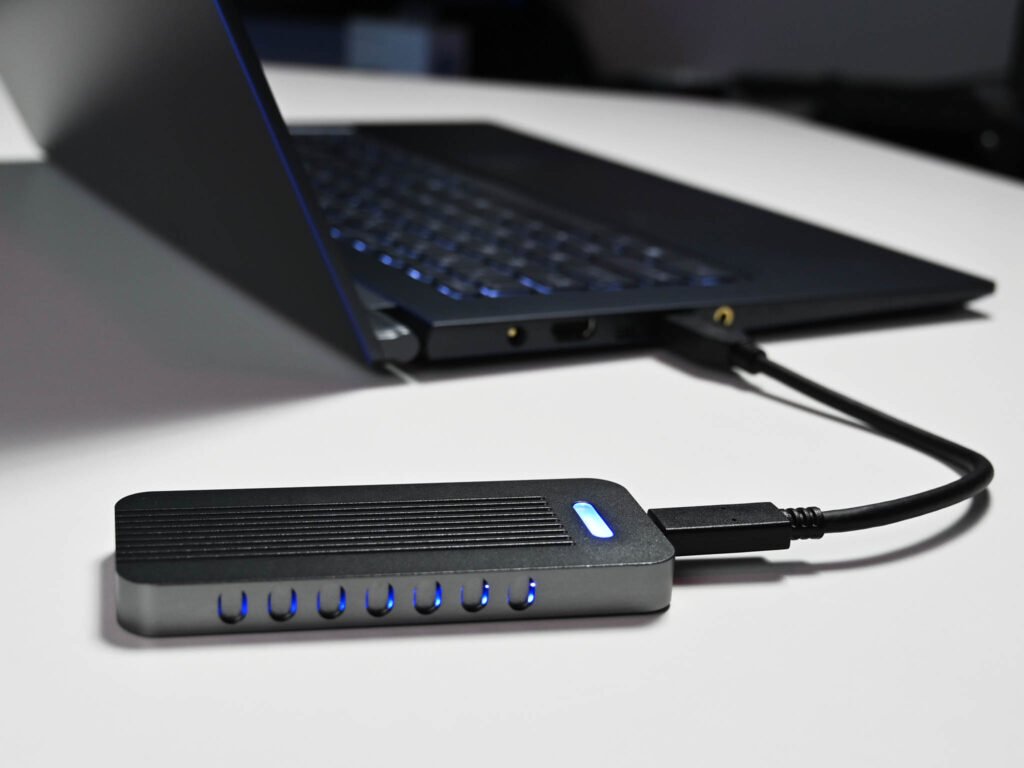
- Swap the USB cable. Cheap or worn cables are the number one cause. Some are charge-only and carry no data at all. Use a known-good cable that you’ve seen move files before.
- Try a different port. Plug straight into a rear port on a desktop or a main port on a laptop. Skip front-panel ports and unpowered USB hubs, which often can’t supply enough power.
- Skip extension cables and hubs. A long or low-quality extension can drop the voltage below what the drive needs, so the light comes on but the PC never sees it. Connect the drive directly.
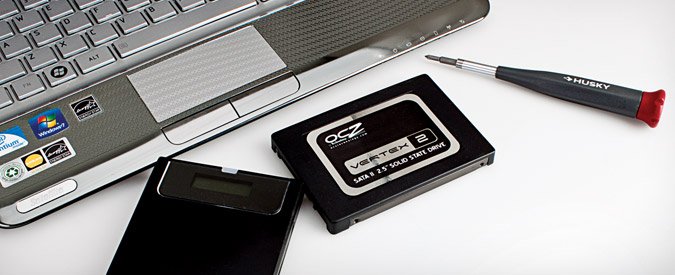
- Test the enclosure. If your SSD sits in a USB-to-SATA adapter or enclosure, the little bridge chip inside can die on its own. Try the drive in a different enclosure, or connect it straight to a SATA or M.2 port inside a desktop.
Tip: High-capacity and high-speed external SSDs can draw more power than a basic port supplies. If the drive came with a Y-cable or a power adapter, use it.
Check Disk Management before anything else
Disk Management is the single most useful screen for this problem. It shows every drive Windows can detect, even ones with no drive letter and no readable partition.
Press Windows key + X and choose Disk Management. Look at the lower pane and scroll down. If your SSD sits there, the hardware is working and one of the next three fixes will bring it back.
Initialize a brand-new SSD
A new SSD ships blank. Until you set it up, it appears in Disk Management as one solid block labeled Unallocated, with no drive letter, and it won’t show in File Explorer at all. This is normal, not a fault.
Microsoft’s own guide to initializing new disks walks through it, and the short version is this:
- In Disk Management, right-click the new disk and choose Initialize Disk.
- Pick GPT for drives over 2 TB or any modern PC. Pick MBR only for old systems.
- Right-click the Unallocated space and choose New Simple Volume.
- Follow the wizard: accept the full size, assign a drive letter, and format it as NTFS.
Warning: Initializing and formatting erases the drive. Only do this to a brand-new SSD or one whose data you no longer need. If the drive holds files you want, skip formatting and recover the data first.
Assign a drive letter
Sometimes the SSD has a healthy partition but Windows never gave it a letter, so it stays invisible in File Explorer while showing up fine in Disk Management. This is a common cause of a drive that clearly works but won’t open.
- In Disk Management, right-click the drive’s partition (the shaded bar with a size, not unallocated space).
- Choose Change Drive Letter and Paths.
- Click Add, pick any free letter, and click OK.
The drive should appear in File Explorer right away. If the option is greyed out, the partition isn’t ready, usually because the disk is unallocated or the connection is loose, so go back and check the earlier steps.
Update or reinstall the USB and disk drivers
If the SSD flickers in and out, shows up on one PC but not another, or carries a warning icon in Device Manager, the driver is a likely culprit. Windows needs the right driver to talk to USB storage, and a corrupt one breaks the connection.
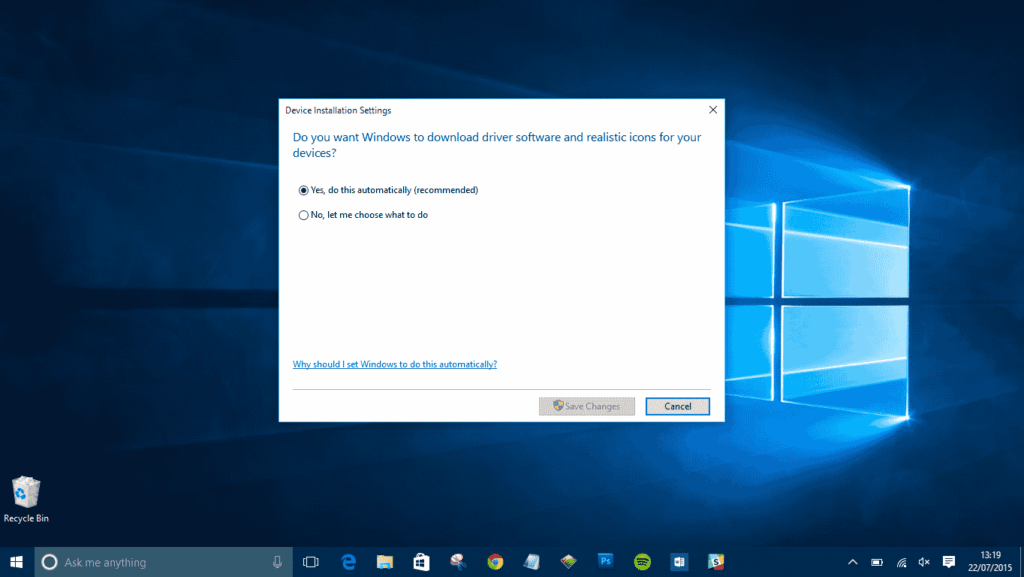
- Press Windows key + X and open Device Manager.
- Expand Disk drives and Universal Serial Bus controllers. Look for your SSD, listed by model or serial.
- Right-click it, choose Uninstall device, then unplug the SSD, restart the PC, and plug it back in. Windows reinstalls the driver fresh.
- If that fails, right-click and choose Update driver, then let Windows search automatically.
Fix a drive Windows can see but can’t read
If the SSD shows up but Windows offers to format it, or shows it as RAW, the file system is either unreadable or damaged. A drive formatted on a Mac (APFS) or Linux (ext4) won’t open on Windows without extra software.
You have two paths. If the drive holds important files, run data-recovery software first, then reformat. If it’s empty or you have backups, just reformat it: right-click the drive in File Explorer or Disk Management, choose Format, and pick NTFS for Windows-only use or exFAT if you want to share the drive between Windows and Mac.
exFAT is the friendliest format when a drive moves between Windows and Mac. NTFS is best if the SSD lives on a Windows PC.
On a Mac: mount it or run First Aid
Macs handle this a little differently. If your SSD doesn’t appear on the desktop, the fix usually lives in Disk Utility, found in Applications then Utilities.
- Show external drives. Open Finder settings, go to the General tab, and tick External disks so drives appear on the desktop.
- Mount it manually. In Disk Utility, a connected-but-unmounted SSD shows greyed out. Select it and click Mount.
- Run First Aid. If it won’t mount, select the drive, click First Aid, and run it to repair file-system errors.
- Show all devices. If the drive is missing from the sidebar, click View, then Show All Devices, so the physical disk appears.
Apple’s own steps for repairing and reformatting drives are covered on its support page for using Disk Utility, and for a fresh Mac drive you’ll want APFS, or exFAT if you also use it on Windows. Connect the SSD directly rather than through a hub, since a dodgy hub is a frequent cause on Mac.
When the SSD has actually failed
If you’ve swapped the cable, port, and enclosure, tried more than one computer, and the drive still shows up nowhere, hardware failure becomes likely. Signs of a dying SSD include the drive appearing and vanishing on its own, needing to be re-initialized every time you plug it in, or Disk Management showing it with no size at all.
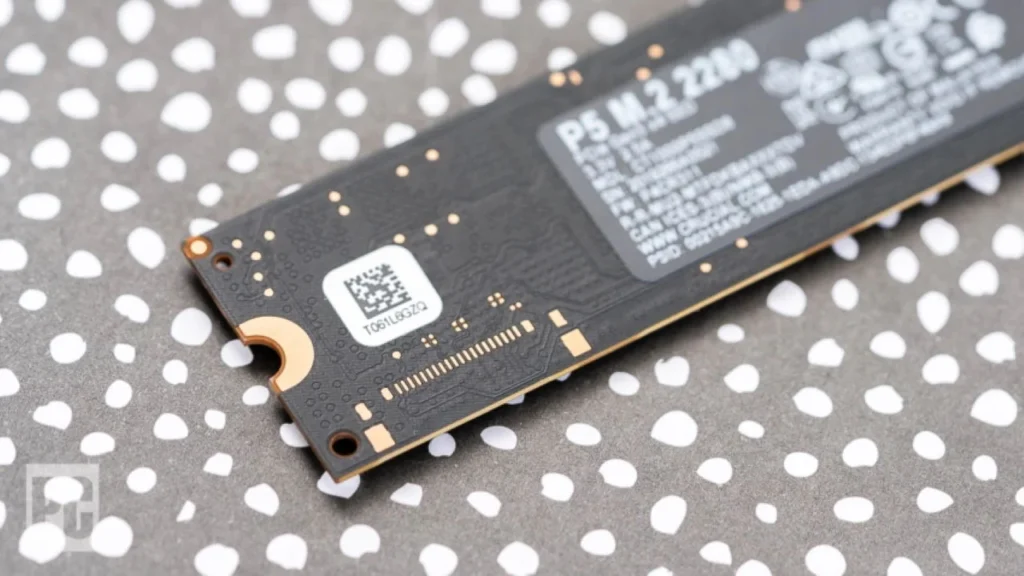
At that point, standard troubleshooting won’t help. If the drive still mounts occasionally, copy your files off immediately. If it holds data you can’t lose and won’t cooperate, a professional data-recovery service is the safest next step before you write the drive off for good.
Frequently asked questions
Why does my SSD show in Disk Management but not File Explorer?
It has no drive letter, or no partition yet. Right-click it in Disk Management and either assign a drive letter or, if it’s a new drive marked unallocated, initialize it and create a new simple volume.
Can a USB cable stop my SSD from being detected?
Yes, this is the most common cause. Many cables are charge-only and carry no data, and worn cables fail intermittently. Always test with a known-good cable before assuming the drive is faulty.
Will fixing an undetected SSD erase my data?
Only if you initialize or reformat it. Assigning a drive letter, swapping cables, and updating drivers are all safe. If the drive holds important files, recover them before formatting anything.
Why does my SSD work in one USB port but not another?
Some ports, especially front-panel ones and unpowered hubs, can’t supply enough power for a fast or high-capacity SSD. Plug directly into a rear or main port, and skip extension cables and hubs.
My new SSD isn’t showing up at all. Is it broken?
Probably not. New SSDs ship blank and appear only in Disk Management as unallocated space until you initialize them. Set it up there first, and only suspect failure if it’s missing from Disk Management too.
Conclusion
Most SSDs that won’t show up over USB aren’t broken. Work from the outside in: test the cable, port, and enclosure first, then open Disk Management. If the drive appears there, initialize it, assign a letter, or reformat it to a readable file system, and it’ll come back to life in File Explorer. A working result is your SSD showing up with a drive letter and opening normally. Only after every fix fails, and across more than one PC, should you treat the drive as dead.
Related Post:
Can You Recover Data From an SSD? What Actually Works
How to Partition an SSD: Windows, Mac, and When to Skip It
What to Do After Installing a New SSD
SSD Showing as Unallocated? What It Means and How to Fix It Safely
How to Copy an SSD to a Larger SSD Without Reinstalling Windows