
Formatting an SSD in Windows 10 sets up a file system so the drive can store files, and it wipes whatever is on the drive now. The fastest way is File Explorer if the drive already has a letter like D: or E:. If the drive is brand new and shows as unallocated, you use Disk Management instead. Both take about a minute.
Below you get the exact steps for each situation, plus the two settings that actually matter (file system and quick format) and the mistakes that wipe the wrong drive.
Back up first, then pick your method
Formatting erases everything on the drive. There is no undo, so copy anything you want to keep to another drive before you start.

Which method you use depends on how the SSD shows up right now:
- The drive already has a letter (like D:) and appears in This PC: use File Explorer. It is the quickest.
- The drive is new and shows as Unallocated, Not Initialized, or Offline: use Disk Management. You will set it up first, then format it.
- The drive is stuck or throwing errors: use the Command Prompt (diskpart) method near the end.
Check the drive size before you click Start. A 500 GB SSD should read close to 500 GB (Windows shows it as about 465 GB). If the size does not match the drive you mean to wipe, stop. That is how people erase the wrong disk.
Method 1: Format an SSD with File Explorer
Use this when the SSD already has a drive letter and shows up in This PC.
- Press Win + E to open File Explorer.
- Click This PC on the left. Your drives appear under Devices and drives.
- Right-click the SSD you want to format, then click Format.
- Set File system to NTFS (more on this choice below).
- Leave Allocation unit size on Default.
- Type a name in the Volume label box so you can tell the drive apart later.
- Keep Quick Format ticked.
- Click Start, then OK to confirm.
It finishes in a few seconds. When it is done the drive is empty and ready to use. If you do not see a Format option, or Windows says the disk needs formatting but the format fails, move to Disk Management.
Method 2: Format a new SSD with Disk Management
A brand new SSD often has no drive letter and will not show in This PC. Windows does not prompt you to set it up, so it looks missing until you do this. Disk Management lets you initialize it, create a partition, and format it in one go.
- Press Win + X and click Disk Management. (Or search for “Create and format hard disk partitions.”)
- If the SSD is new, a box asks you to initialize the disk. Choose GPT (GUID Partition Table). GPT is right for any modern PC and supports larger drives. Only pick MBR for very old hardware.
- Find your SSD in the lower panel. A new drive shows a black bar labelled Unallocated. Double-check the size matches your drive.
- Right-click the Unallocated space and choose New Simple Volume.
- Click Next through the wizard. Leave the volume size at the maximum to use the whole drive as one partition.
- Assign a drive letter, then click Next.
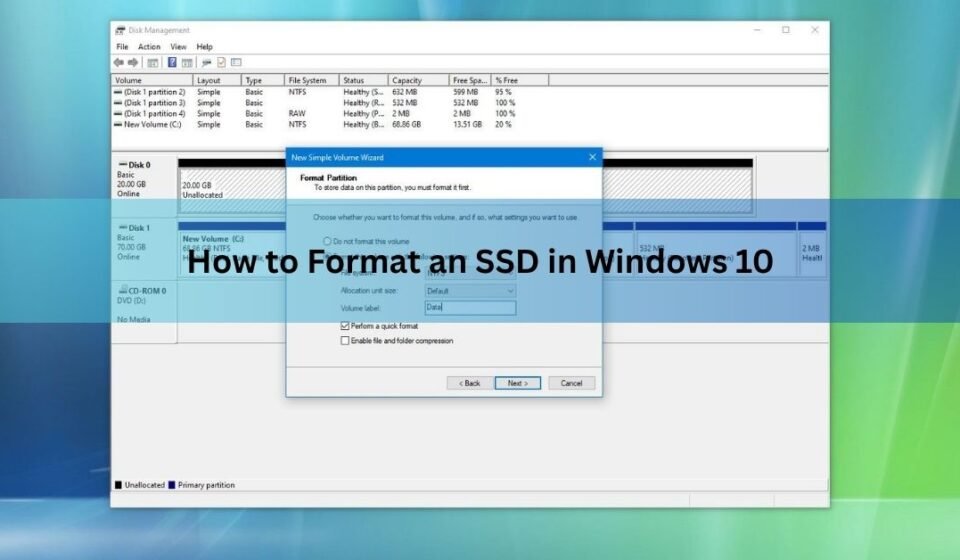
- On the format screen, set File system to NTFS, leave Allocation unit size on Default, and type a Volume label.
- Tick Perform a quick format, click Next, then Finish.
When it finishes the SSD appears in This PC with the letter you picked. If Disk Management will not let you initialize the drive, reseat it, try another port or cable, and confirm it shows up in your BIOS or Device Manager first.
NTFS or exFAT: which file system to pick
For a normal internal SSD in a Windows PC, choose NTFS. It is the Windows standard and handles large files, permissions, and drive recovery well.
Pick exFAT only when you need the drive to work across different systems, for example moving a portable SSD between Windows and a Mac. NTFS on a Mac is read-only without extra software, so exFAT is the practical shared choice. The catch is that exFAT has no journaling, which is a safety log that helps a drive recover if it is unplugged mid-write, so it is a little less robust for everyday internal use.
Skip FAT32 for an SSD. It cannot hold a single file larger than 4 GB, and Windows will not even format a drive bigger than 32 GB to FAT32 through the normal menu.
Should you change the allocation unit size?
No, leave it on Default for almost everyone. The allocation unit size (also called cluster size) is the smallest chunk of space the drive uses to hold a file. Windows picks a sensible value based on the drive size, and for NTFS on a normal drive that default is 4 KB. You can read Microsoft’s full breakdown of default cluster sizes if you are curious, but there is rarely a reason to override it.
A larger cluster can slightly speed up drives that hold only huge files, like a scratch disk for video. A smaller cluster wastes less space on drives full of tiny files. Both are edge cases. If you are asking whether you need to change it, you do not.
Quick format vs full format on an SSD
Always use Quick Format on an SSD. Quick format resets the file system’s index in seconds. It does not erase every byte, but on a healthy SSD that is exactly what you want.
A full format is slower and, on older mechanical hard drives, writes zeros across the whole surface. On an SSD that is a waste. Every SSD has a limited number of write cycles, and a full format spends some of them for no real benefit. Quick format is faster and kinder to the drive.
One thing worth knowing: a quick format does not truly wipe your data. The old files are still physically there until new data overwrites them, so recovery software can sometimes bring them back. That is fine when you are keeping the drive. It matters when you are selling or giving it away.
Wiping an SSD before you sell it
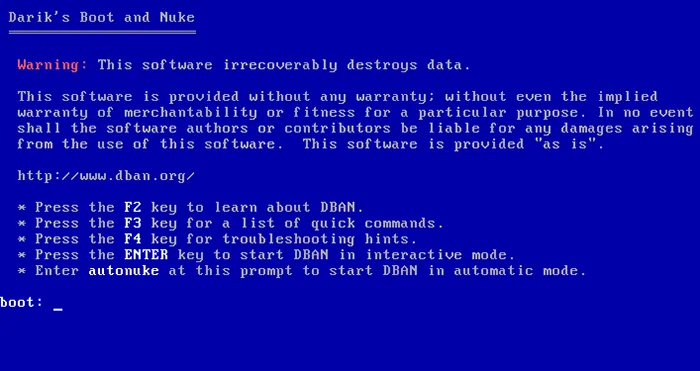
If the drive is leaving your hands, a quick format is not enough. The safe method for an SSD is a secure erase, which tells the drive’s controller to clear everything at once. This is cleaner and easier on the drive than trying to overwrite it.
Most SSD makers give you a free tool that does this: Samsung Magician, Crucial Storage Executive, WD Dashboard, and similar. Download the tool for your brand and use its secure erase or sanitize option. It is the reliable way to make old data unrecoverable without hammering the drive with writes.
Formatting an SSD from the Command Prompt
If Disk Management cannot touch the drive, diskpart can often force it. This wipes the entire disk, so read each line before you run it.
- Search for cmd, right-click Command Prompt, and pick Run as administrator.
- Type diskpart and press Enter.
- Type list disk to see every drive by number.
- Type select disk X (replace X with your SSD’s number). Match the size carefully. The wrong number wipes the wrong drive.
- Type clean and press Enter. This removes all partitions.
- Type create partition primary and press Enter.
- Type format fs=ntfs quick and press Enter.
- Type assign to give it a drive letter, then exit.
The drive is now formatted and visible in This PC.
Formatting the drive Windows runs on
You cannot format your main Windows drive (usually C:) from inside Windows, because the system is using it. If your goal is a clean reinstall, do it from Windows setup instead. Use Microsoft’s Media Creation Tool to build a bootable USB stick, boot the PC from that USB, and format the drive during the install steps. That formats C: safely as part of setting up a fresh copy of Windows.
Frequently asked questions
Does formatting an SSD delete everything?
Yes. Formatting wipes all files on the drive and there is no undo. Back up anything you want to keep first. A quick format clears the file index but leaves the raw data recoverable until it is overwritten.
Is quick format bad for an SSD?
No, quick format is the right choice for an SSD. It is fast and does not burn through write cycles the way a full format does. Only use a full format or secure erase when you are permanently disposing of the drive.
Should I use NTFS or exFAT for my SSD?
Use NTFS for an internal SSD used only with Windows. Choose exFAT only if you need the drive to work with both Windows and a Mac, since NTFS is read-only on macOS without extra software.
Why doesn’t my new SSD show up in This PC?
A brand new SSD has no partition yet, so Windows hides it. Open Disk Management, initialize the disk as GPT, then right-click the unallocated space and create a new simple volume to format it.
How long does it take to format an SSD?
A quick format takes a few seconds to about a minute for most drives. A full format or secure erase takes much longer, from several minutes to over an hour depending on the drive size.
Conclusion
To format an SSD in Windows 10, back up your files, then use File Explorer if the drive already has a letter, or Disk Management if it is new and needs setting up. Choose NTFS for a Windows drive or exFAT to share with a Mac, leave the allocation unit size on Default, and keep Quick Format ticked. The whole thing takes about a minute, and a good result is an empty drive that shows up in This PC, ready to use. Before selling a drive, run a secure erase instead.
Related Post:
Can You Recover Data From an SSD? What Actually Works
How to Partition an SSD: Windows, Mac, and When to Skip It
What to Do After Installing a New SSD
SSD Showing as Unallocated? What It Means and How to Fix It Safely
How to Copy an SSD to a Larger SSD Without Reinstalling Windows