
Most SSDs die from wear on their flash memory, controller faults, firmware bugs, or power problems, and they warn you first through a handful of clear signs. The most common are files that suddenly go corrupt or refuse to open, a big drop in read and write speed, random freezes and crashes (especially during startup), the drive vanishing from your system, and the drive flipping into read-only mode where nothing new can be saved.
If any of these show up on your machine, back up your important files right now, before you read the rest. A failing SSD can go from slightly odd to completely unreadable in a day, sometimes in an hour. The rest of this guide walks through each symptom, how to confirm what is really happening with free tools, and what to do next.
Files get corrupted or won’t open
Frequent file corruption is one of the clearest early signs of a failing SSD. You try to open a photo, a document, or a program, and you get an error, or the file opens as garbage. A single hiccup is normal and usually means nothing. A pattern of it across different files is the warning.
This happens when the drive develops bad blocks, small areas of flash memory that can no longer hold data reliably. When your operating system tries to read or write to one of those spots, it fails. You might also see Windows or macOS asking to repair the file system more often than usual, or programs crashing when they try to save.
Watch for the same file failing in the same way twice, new files that save fine but reopen broken, and repeated prompts to run a disk repair. When corruption clusters like this, treat it as a drive problem, not a software one.
Your computer slows to a crawl
A sudden, steady drop in speed is a common symptom of SSD wear. The whole point of an SSD is fast boots and instant app launches, so when startup drags, files take ages to save, and copying data feels slower than it used to, the drive itself may be struggling.
As flash cells wear out, the controller works harder to route around damaged areas, and everything slows down. You can check this instead of guessing. A benchmarking tool measures your drive’s real read and write speeds. Compare the numbers against the speed printed on the manufacturer’s spec sheet for your exact model. If a drive rated for 3,500 MB/s is now crawling along at a few hundred, something is wrong.
One caveat: slowdowns have other causes too, like a nearly full drive, a bad SATA cable, or background software. So use speed as one clue among several, not proof on its own.
Random freezes, crashes, and blue screens
If your computer freezes when you open or save a file, or throws a blue screen of death (BSOD) for no clear reason, the SSD is a prime suspect. When the drive can’t complete a read or write, the whole system can hang while it waits.
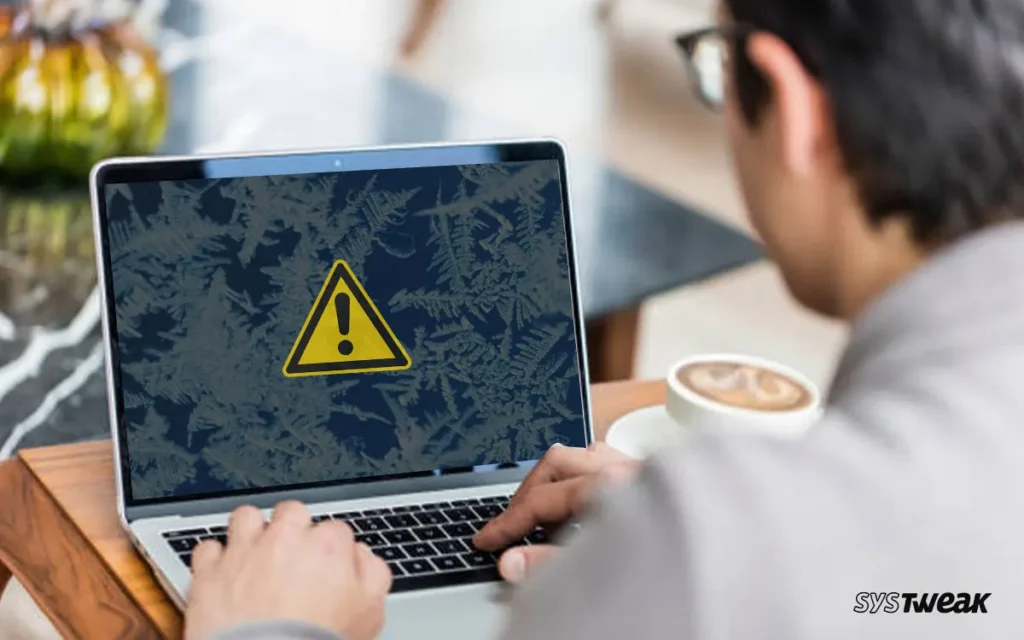
On Windows, a failing drive often triggers a BSOD because the system can’t write to disk. You might also hit random restarts or a machine that locks up hard and needs a forced power-off. These crashes tend to get more frequent as the drive gets worse, so a rising pattern matters more than a one-off.
Trouble booting up
Boot problems are one of the most serious SSD warning signs. If you have to restart more than once to get your computer going, or it hangs on the manufacturer logo, the flash cells your system needs during startup may be failing.
The worst version is a boot loop, where the machine keeps restarting and never reaches your desktop, or an error that says the operating system is missing. That message often means the drive holding Windows or macOS can no longer be read properly. Before you panic, rule out a loose or faulty cable, but if the drive keeps dropping out, the SSD is likely the cause.
The drive disappears or shows the wrong size
An SSD that vanishes from your system is a strong sign of controller or firmware trouble. One day it is there, the next it does not appear in File Explorer, Disk Management, or even the BIOS. Sometimes it shows up but reports 0 MB of capacity, or a size that makes no sense.
Every SSD relies on a controller chip and its firmware to talk to your motherboard. When that firmware gets corrupted or the controller fails, the drive can drop off entirely at the hardware level. This kind of failure is often sudden, with no slow decline first, which is exactly why regular backups matter so much.
The drive goes read-only
A rare but telling symptom is an SSD that switches to read-only mode. You can still open and copy your existing files, but you can’t save anything new, delete anything, or install updates. The drive has essentially locked itself to protect what is already there.
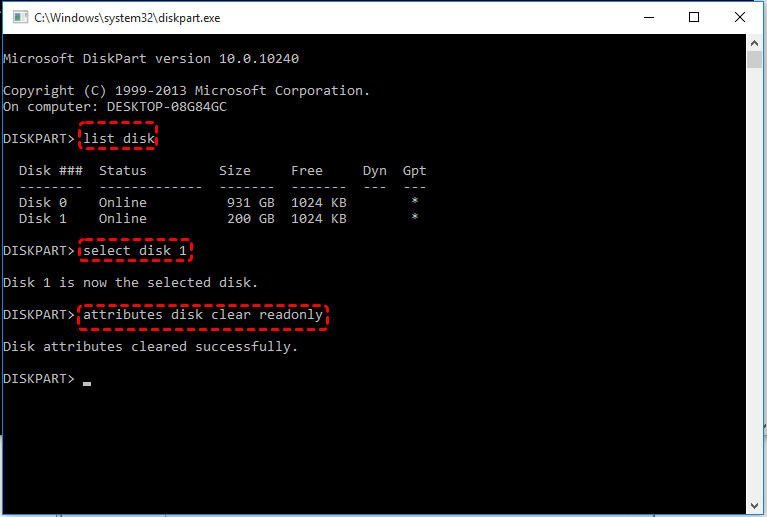
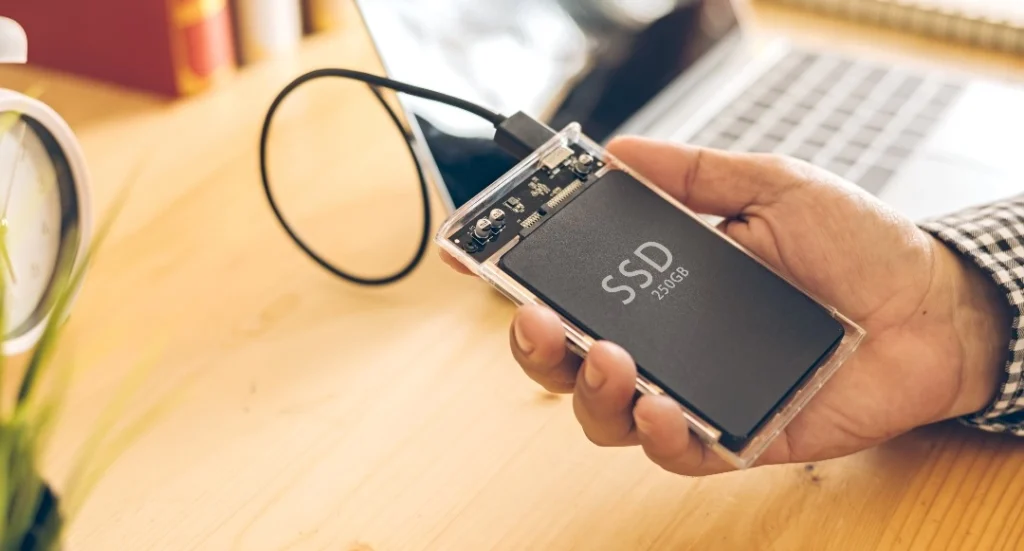
This is actually a small piece of good luck in a bad situation. Because the data is still readable, you have a clear window to copy everything off to another drive before it fails completely. Connect the SSD to another computer as a secondary drive if you need to, and move your files right away.
How to confirm what’s happening with SMART
Most SSDs made in the last two decades track their own health through a system called SMART, short for Self-Monitoring, Analysis, and Reporting Technology. It quietly logs dozens of internal readings, and a few of them tell you plainly how close a drive is to failing. Windows hides most of this, so a free tool is the fastest way to see it.
The most popular option is the free CrystalDiskInfo utility, which reads every SMART attribute your drive reports and sums it up with a simple health label: Good in blue, Caution in yellow, or Bad in red. On a Mac, Disk Utility can show basic SMART status. For NVMe drives, Windows 11 also shows estimated remaining life under Settings, then System, Storage, Advanced storage settings, Disks and volumes, then your drive’s properties.
A few readings are worth knowing:
- Percentage Used or Wear Leveling Count tells you how much of the drive’s write endurance is gone. On many NVMe drives this is a simple figure where 0 percent is brand new and 100 percent means the rated endurance is used up.
- Reallocated Sector Count shows how many bad blocks the drive has already swapped out for spares. A number that climbs over time is a warning.
- Total Bytes Written (often shown as TBW) is the total data ever written to the drive. Compare it to the endurance rating for your model.
- Temperature matters too. Most SSDs run happily between about 30 and 65 degrees Celsius. Steady readings above 70 can throttle speed and shorten the drive’s life.
Reassuring context: most consumer SSDs are rated for 150 to 600 TBW. At a typical 30 to 50 GB written per day, that is eight years or more, often decades. Pure write wear rarely kills a drive first, controller faults, firmware bugs, and power problems usually get there sooner.
What to do the moment your SSD acts up
Back up first, always. The instant you see any of these signs, copy your important files to another drive or the cloud. Do this before troubleshooting. A drive that is limping today can be dead tomorrow, and backups are the only thing that reliably saves your data.
Then work through these steps in order:
- Check SMART health. Run CrystalDiskInfo or your manufacturer’s tool and look at the overall status plus the wear and reallocated-sector readings. This tells you whether you are dealing with normal aging or real trouble.
- Update the firmware. Manufacturers regularly release firmware fixes that solve bugs, including ones that cause drives to fail early. Use the official tool for your brand, such as Samsung Magician, Crucial Storage Executive, or the SanDisk (WD) Dashboard, and back up before you flash. Some real-world drive failures have been traced to buggy firmware that a later update fixed.
- Update your storage drivers. Sometimes symptoms that look like hardware failure come from outdated storage controller or AHCI drivers. Check Device Manager on Windows for updates.
- Test the physical connection. Reseat the drive and swap the SATA or power cable if you can. A failing cable can cause CRC errors that mimic a dying drive.
- Replace the drive if the numbers say so. If SMART reports a Caution or Bad status, reallocated sectors keep climbing, or the drive keeps dropping out, its working life is over. Clone your data to a new SSD and retire the old one.
If the drive is already unreadable and you have no backup, stop experimenting. Every extra attempt on a physically failing drive can make recovery harder. That is the point to consider a professional data recovery service
Frequently asked questions
Do SSDs fail without any warning?
Sometimes, yes. Controller and firmware failures can be sudden. But many drives show signs first, like corrupted files, slowdowns, or SMART warnings, which is why regular backups and the occasional health check matter.
How long does an SSD last?
Most consumer SSDs last 5 to 10 years or more. They are rated for 150 to 600 TBW, which at normal desktop use is often decades. Age, heat, and power problems usually matter more than write wear.
Can I fix a failing SSD?
Sometimes. Updating firmware and drivers or reseating the cable can fix issues that only look like failure. But if SMART shows real wear or bad blocks, back up and replace the drive, it cannot be repaired.
How do I check my SSD’s health?
Install a free tool like CrystalDiskInfo, which reads SMART data and shows a Good, Caution, or Bad status. On a Mac, use Disk Utility. Windows 11 also shows remaining life for NVMe drives in Settings.
Should I keep using an SSD in read-only mode?
Only long enough to rescue your files. Read-only means the drive has locked itself and is near the end. Copy everything off to another drive right away, then replace it.
Conclusion
A failing SSD usually warns you through corrupted files, sudden slowdowns, freezes and crashes, boot trouble, disappearing from your system, or going read-only. If you spot any of these, back up your data immediately, then run a free tool like CrystalDiskInfo to check the drive’s SMART health. Update the firmware and drivers, test the cable, and replace the drive if the readings show real wear. A good result is simple: your files are safe, and a dying drive is swapped out on your schedule, not its own.
Related Post:
Can You Recover Data From an SSD? What Actually Works
How to Partition an SSD: Windows, Mac, and When to Skip It
What to Do After Installing a New SSD
SSD Showing as Unallocated? What It Means and How to Fix It Safely
How to Copy an SSD to a Larger SSD Without Reinstalling Windows