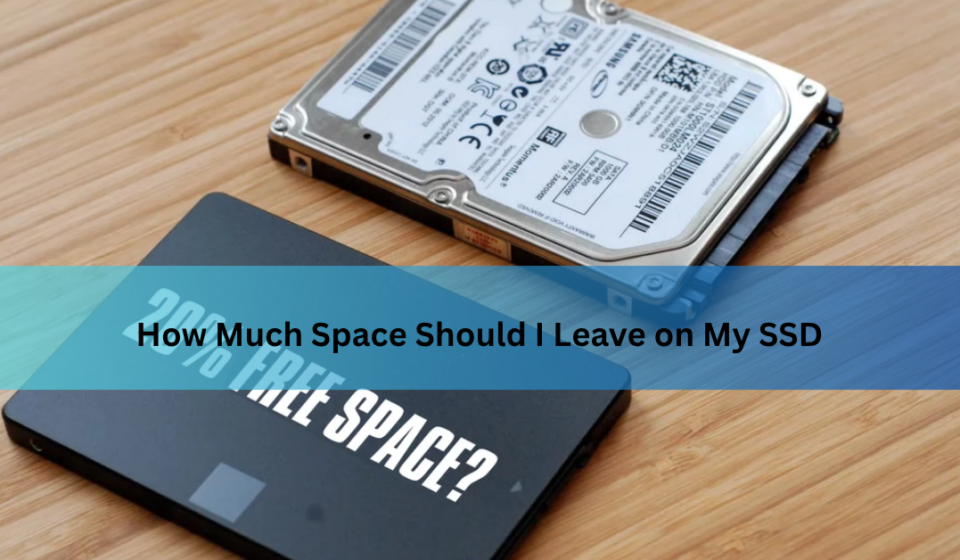

At some point, almost every SSD owner watches their storage bar creep toward full and starts to wonder if that matters. Old advice floating around the internet says to never let a drive get too full, but a lot of that advice was written for a completely different type of storage technology. So how much space should I leave on my SSD, really? This guide breaks down where that advice actually comes from, what modern SSDs genuinely need, and how to figure out the right number for your specific situation.
Quick Answer
As a general baseline, aim to keep at least 15 to 20 percent of your SSD free for the best sustained performance. If storage is tight and that is not realistic, an absolute minimum of 5 to 10 percent free space is enough to keep your operating system and applications running normally without major issues. Beyond that minimum, more free space generally means better performance, but you do not need to obsess over hitting an exact percentage.
Why Free Space Matters on an SSD (Unlike Traditional Drives)
To understand why this question even comes up, it helps to know how SSDs actually store and manage data behind the scenes, because it works quite differently from older mechanical hard drives. A traditional hard drive can overwrite data directly, writing new information right on top of old information in the same physical location. SSDs cannot do this. Instead, an SSD has to first erase an entire block of memory before it can write new data into that space, which is a fundamentally different and more involved process.
Because of this limitation, SSDs rely heavily on having free, available blocks ready to go at any given moment. When there is plenty of free space, the drive’s controller has room to work efficiently, organizing and preparing blocks in the background before you even need them. When free space gets tight, that background preparation becomes harder to manage smoothly, and performance can start to suffer as a result.
The Key SSD Processes That Depend on Free Space
A few background processes are running on your SSD constantly, even when you are not actively thinking about it, and all of them depend on having enough breathing room to work properly.
Garbage collection is one of the most important. Since SSDs cannot simply overwrite data in place, the drive periodically goes through and consolidates data from partially used blocks, freeing up fully empty blocks that are ready for new writes. This process runs much more smoothly when there is ample free space available for the controller to shuffle data around.
Wear leveling is another critical background function. SSD memory cells can only handle a limited number of write cycles before they wear out, so the controller spreads writes evenly across the entire drive rather than hammering the same cells repeatedly. Wear leveling actually continues working even when a drive is quite full, since it happens at a lower level than user-visible free space, but having more available space still gives the controller more flexibility in how it distributes those writes.
Write amplification ties both of these together. This term refers to the situation where the actual amount of data physically written to the flash memory ends up being larger than the amount of data you intended to save, often because of the block-erase-then-write process described earlier. Lower free space tends to increase write amplification, which means more wear on the drive and slower effective write speeds over time.
How Much Free Space Should You Actually Leave?
Putting the technical background aside, here is the practical number that actually matters. For most users, keeping 15 to 20 percent of your SSD free strikes the right balance between usable storage and reliable performance. This gives the controller enough room to run garbage collection and manage write amplification without constantly operating under pressure.
If you are working with a smaller drive, or you simply need more usable space and cannot spare that much, dropping down to a 5 to 10 percent minimum is generally still safe for keeping your system stable, though you may notice a bit more slowdown during heavy, sustained write tasks compared to keeping more headroom available.
Here is roughly how that translates across common drive sizes.
| Drive Size | Recommended Free Space (15–20%) | Absolute Minimum (5–10%) |
| 256GB | ~38–51GB | ~13–26GB |
| 512GB | ~77–102GB | ~26–51GB |
| 1TB | ~150–200GB | ~50–100GB |
| 2TB | ~300–400GB | ~100–200GB |
| 4TB | ~600–800GB | ~200–400GB |
Where the “20% Rule” Actually Came From
It is worth understanding the history behind this number, because it explains a lot of the confusion people run into. The 20 percent free space recommendation actually originated back in the era of traditional hard disk drives and older file systems like FAT32. Back then, the primary concern was fragmentation, where files would get split apart and scattered across different physical locations on the platter as a drive filled up and emptied repeatedly over time.
Defragmentation tools needed a healthy chunk of free space, typically that same 15 to 20 percent range, in order to have room to shuffle fragmented files back into neat, contiguous blocks. Without that breathing room, defragmentation software simply could not do its job effectively. This is also where a lot of confusion around wear leveling comes from, since early SSD users assumed leaving space empty was directly helping wear leveling in the same way it helped HDD defragmentation, when in reality wear leveling operates automatically at a lower level regardless of visible free space.
So while the number 20 percent has carried over into the SSD world, the underlying reason for it has actually changed. It is not about fragmentation anymore, since SSDs do not suffer from the same kind of fragmentation-related slowdowns that plagued spinning hard drives. Instead, the same general percentage happens to still be a reasonable guideline for a completely different reason: giving the controller enough free blocks to manage garbage collection and write amplification efficiently.
Does Filling Up an SSD Damage It?
This is a common worry, and thankfully the answer is reassuring. Filling up an SSD does not damage the drive in any permanent sense. Modern SSDs include a feature called over-provisioning, where the manufacturer reserves a portion of the drive’s total physical capacity that is not visible or accessible to you as the user. This reserved space exists specifically to give the controller room to perform wear leveling and garbage collection, even when your visible storage shows the drive as completely full.
Because of this built-in buffer, wear leveling continues to function normally even when your SSD appears to be at ninety-five percent capacity or higher from your perspective. What actually happens as a drive fills up is a gradual slowdown in sustained write performance, not physical harm to the drive itself. In other words, a full SSD will get slower under heavy write workloads, but it will not suddenly break or wear out prematurely just because you let it fill up.
System Drive vs. Storage/Game Drive: Does the Rule Change?
Not all drives serve the same purpose, and the ideal amount of free space can shift slightly depending on what a particular drive is actually doing for you. A drive running your operating system tends to benefit from a bit more buffer room, since the OS regularly needs space for updates, temporary files, virtual memory, and other background operations you might not think about day to day.
A secondary drive dedicated purely to games, media, or file storage generally has more flexibility. Since it is not juggling constant system-level read and write operations the way a boot drive is, you can often push closer to the minimum end of the recommended range without running into noticeable issues.
| Drive Purpose | Recommended Free Space |
| OS/boot drive | 15–20%, leaning toward the higher end |
| Game/storage drive | 10–15% is generally fine |
| Backup/archive drive | Minimal free space is acceptable if rarely rewritten |
Signs Your SSD Is Too Full
If you are not sure whether your current free space situation is causing problems, a few telltale signs tend to show up. File transfers and large installations may start taking noticeably longer than they used to, particularly during sustained, heavy write operations rather than quick, small file saves.
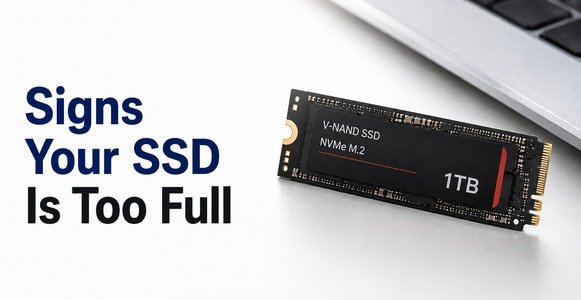
You might also notice reduced sustained write speeds specifically, where performance starts strong but drops off during longer file copies or installs. Occasional errors during Windows updates or software installations can crop up as well, especially if there simply is not enough temporary working space for the installer to do its job. And more generally, an overall sense of sluggishness across your system, even outside of obvious file transfer tasks, can sometimes trace back to a drive that has been running too close to full for too long.
How to Check and Free Up SSD Space
Fortunately, checking and managing your free space is straightforward on most systems. Built-in storage tools, like Storage Sense on Windows or the Storage Management section in macOS, give you a quick visual breakdown of what is taking up space on your drive without needing any third-party software.
From there, a few practical steps can help you reclaim space efficiently. Look for unusually large files you may have forgotten about, like old video exports, downloaded installers, or duplicate backups. Uninstalling programs or games you no longer actively use is often one of the biggest and easiest wins, especially for modern games that can easily take up fifty gigabytes or more each. And if you have a secondary drive available, moving less frequently accessed files, like media libraries or old project files, off your primary SSD can free up meaningful space without deleting anything you actually want to keep.
Does Drive Type or Age Affect the Recommendation?
The general guidelines above apply broadly, but a few nuances are worth knowing. NVMe drives, which connect via the faster PCIe interface, and older SATA-based SSDs both follow the same basic principles around free space, though NVMe drives often have more headroom in raw speed to begin with, which can make performance dips from low free space slightly less noticeable in everyday use.
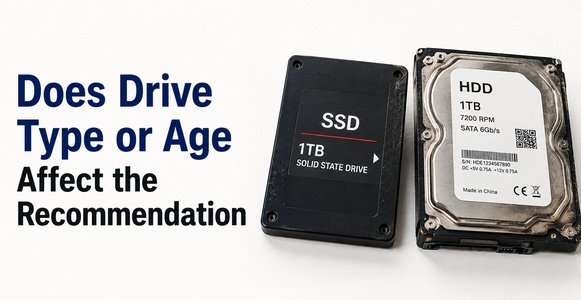
Newer, higher-end drives with more sophisticated controllers and larger amounts of built-in over-provisioning also tend to handle high capacity usage a bit more gracefully than older or budget-oriented drives. This does not mean the free space guidelines stop applying to premium drives, but it does mean a high-end NVMe SSD running at ninety percent capacity may hold up slightly better than a budget SATA SSD in the exact same situation.
Quick Reference Table: How Much Free Space Should I Leave?
| Scenario | Recommendation |
| OS/boot drive, general use | 15–20% free |
| Gaming/storage drive | 10–15% free |
| Small budget SSD (256GB or less) | Lean toward 20% free if possible |
| High-end NVMe drive | 10–15% is usually sufficient |
| Backup drive, rarely rewritten | Minimal free space is acceptable |
Frequently Asked Questions
Is 10% free space enough?
Yes, for most everyday use, 10 percent generally covers the absolute minimum needed for stable system performance, though 15 to 20 percent offers better sustained speeds, especially on a boot drive.
Does a full SSD get damaged permanently?
No. Filling up an SSD does not cause permanent damage. It can lead to slower sustained write performance, but the drive itself remains functionally intact.
Do SSDs still need defragmentation?
No. Defragmentation is unnecessary for SSDs and can actually cause unneeded wear, since SSDs do not suffer from the same file fragmentation issues that affected traditional hard drives.
Does over-provisioning replace the need for free space?
Not entirely. Over-provisioning is reserved space set aside by the manufacturer and works automatically regardless of your usage, but it works alongside, not instead of, keeping some user-visible free space available.
Is the 20% rule outdated in 2026?
The original reasoning behind it, HDD fragmentation, is outdated for SSDs. However, the same general percentage still holds up today for a different reason: giving the controller room to manage garbage collection and write amplification efficiently.
Conclusion
So, how much space should I leave on my SSD? For most people, aiming for that 15 to 20 percent free space baseline offers the best balance of usable storage and consistent performance, while an absolute minimum of 5 to 10 percent will keep your system stable if you are working with limited storage. The exact number matters less than understanding why it matters in the first place: giving your SSD’s controller enough breathing room to manage garbage collection and write amplification efficiently. Keep an eye on your usage, clean up unused files periodically, and you will get reliable, consistent performance out of your drive for years to come.
Related Post:
Is There a Side Effect to Low Power NVMe SSD? A Complete, Easy-to-Understand Guide
Is SSD With Heatsink Worth It? A Complete Guide
How Much Free Space Should You Leave on Your SSD?
SSD Showing as Unallocated? What It Means and How to Fix It Safely
How to Copy an SSD to a Larger SSD Without Reinstalling Windows