
If you upgraded to Windows 11 24H2 and then read that the update is killing solid-state drives, here is the short version. The scary headlines come from a few narrow problems, not a blanket failure, and for almost everyone the fix is simple: keep your SSD firmware current and install the latest Windows updates. Retail drives with up-to-date firmware are safe to use on 24H2.
That said, “Windows 11 24H2 SSD issues” is really a bundle of three separate stories that got mashed together online. Each one hits different hardware, has a different cause, and has a different fix. Once you can tell them apart, it is easy to work out whether you need to do anything at all. Let’s go through them.
What’s actually going on with 24H2 and SSDs?
Version 24H2 changed parts of how Windows talks to storage at a low level. It updated the storage driver stack, adjusted how the system manages drive memory and power states, and changed the timing of some of the commands Windows sends to an SSD’s controller. Most drives never notice any of this. But the change exposed pre-existing weak spots in certain SSD firmware, and that is where trouble showed up.
That distinction matters. In nearly every confirmed case, 24H2 didn’t physically damage a healthy drive out of nowhere. It pushed on a flaw that was already sitting in specific firmware, and the firmware buckled. That’s why a firmware update is the standard fix rather than a hardware replacement. There are three distinct issues to know about:
- Disappearing NVMe drives during very large file writes, mostly tied to some Phison controllers (August 2025).
- Blue screens on specific Western Digital and SanDisk models caused by a memory-handling mismatch.
- A C: drive lockout on some Samsung laptops that looked like an SSD failure but was really an app conflict (February 2026).
None of these affects every PC, and two of the three only touch a short list of drives or laptops. Here is each one in plain terms.
The August 2025 “disappearing drive” scare
This is the one that started the panic. In mid-August 2025, after the KB5063878 security update, some users saw an NVMe SSD suddenly vanish during a heavy write, such as copying tens of gigabytes at once or installing a large game. The drive would drop out of Windows, and sometimes out of the BIOS, until a full power-off and restart. In some cases files were left corrupted.
A clear pattern emerged from community testing. The drives that failed were usually past about 60% full, and the trigger was a sustained write of roughly 50GB or more, such as copying a big folder, installing a large game, or running a full system-image backup. Drives using certain Phison controllers, especially cheaper DRAM-less models, showed up most often, though a few other brands appeared too. When a drive went down, its health data (SMART) often became unreadable, and the system might throw a stop code such as CRITICAL_PROCESS_DIED or KMODE_EXCEPTION_NOT_HANDLED.
Here is the important part. After heavy lab testing, both Microsoft and the controller maker Phison said they could not reproduce the failure on normal retail drives, and Microsoft’s own fleet data showed no rise in drive failures. Phison alone ran more than 4,500 hours of testing without recreating the bug.
Further digging pointed to a narrow root cause: many of the worst cases involved drives running pre-release “engineering” firmware or beta motherboard BIOS versions that never ship on store-bought hardware. One widely shared example turned out to be a reviewer on a beta BIOS, and updating that BIOS fixed it. Microsoft also rolled out a follow-up fix that adjusted the storage-driver behavior behind the trigger.
Bottom line: if you bought your SSD at retail, kept its firmware updated, and run a normal BIOS, this issue is very unlikely to touch you, and later patches addressed the trigger anyway.
The Western Digital and SanDisk blue screen issue
This is a separate, older problem that resurfaced under 24H2, and it is more clear-cut. It hits a specific set of 2TB DRAM-less drives, and it comes down to a feature called the Host Memory Buffer, or HMB. DRAM-less SSDs borrow a slice of your system RAM to store their internal map of where files live.
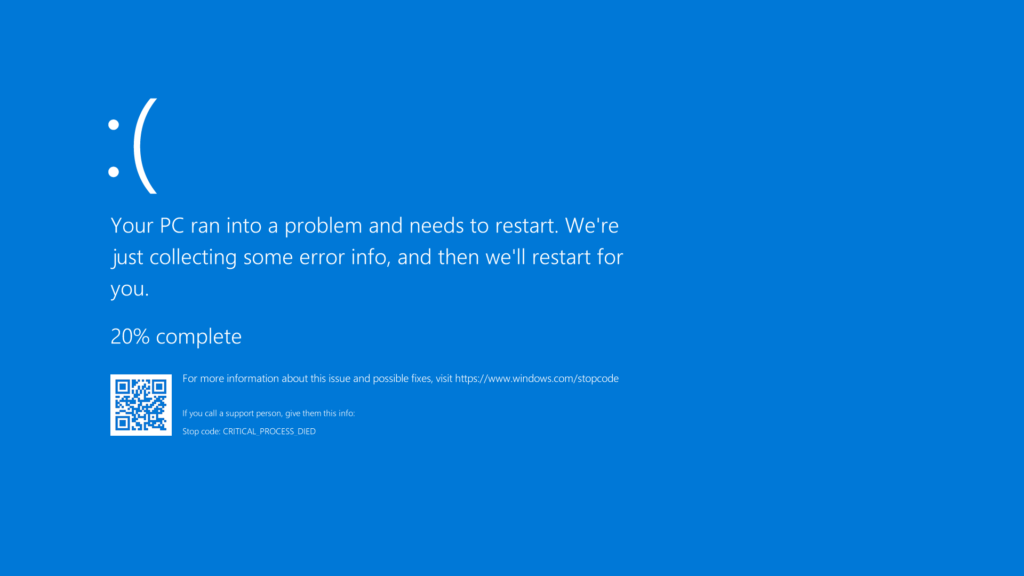
With 24H2, Windows started asking for a much larger slice of RAM for this purpose, jumping the HMB allocation from 64MB up to 200MB. A handful of Western Digital and SanDisk models had firmware that could not handle the bigger request. The controller would stall, drop offline, and the system would blue-screen, often with a stop code like UNEXPECTED_STORE_EXCEPTION or CRITICAL_PROCESS_DIED.
Affected models include 2TB versions of the WD Black SN770, WD Blue SN580, WD Blue SN5000, and the SanDisk Extreme M.2. Smaller-capacity versions of these drives were generally fine. The fix here is direct: Western Digital and SanDisk released firmware updates that correct the HMB handling.
You can update through the manufacturer’s free dashboard software. Western Digital and SanDisk publish the patched firmware and step-by-step instructions on their official SSD firmware support page. Back up first, since a firmware flash carries a small risk, then run the update and reboot. Microsoft may also block the 24H2 upgrade on machines with affected, un-updated firmware until you patch the drive.
The February 2026 Samsung C: drive lockout
The newest entry looks like an SSD disaster but isn’t one. Starting with the February 2026 update (KB5077181), some Samsung laptops and desktops suddenly lost access to their C: drive and threw the error “C:\ is not accessible – Access denied.” Apps like Outlook, browsers, and Office would not launch, which effectively froze the machine.
Because the timing lined up with a Patch Tuesday update, the update took the blame at first. After a joint investigation, Microsoft and Samsung found the real cause was the Samsung Galaxy Connect app, a preloaded screen-sharing and file-sharing tool that was corrupting drive-level permissions. The Windows update itself was not at fault.
This one is narrow. It only affects certain Samsung models, mainly the Galaxy Book 4 series and some Samsung desktops, running 24H2 or 25H2. Samsung pulled the buggy app, published a fixed version, and Microsoft released a recovery guide. If you are hit, the fix is to uninstall the problem app and repair the C: drive permissions, then reinstall the corrected app.
How to check which SSD you actually have
Before you worry, it helps to know what’s inside your PC. You can find your drive model in under a minute, then check it against the affected lists above.
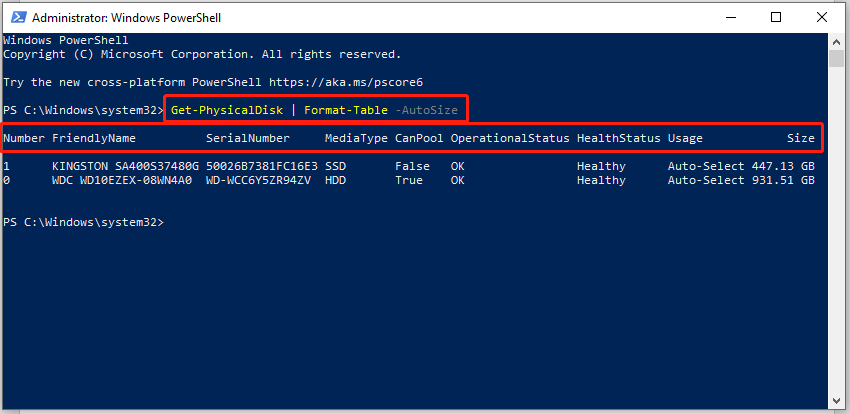
- Open Task Manager. Press Ctrl, Shift, and Escape together, click the Performance tab, and select your disk. The exact model name appears at the top right.
- Or use Device Manager. Right-click the Start button, open Device Manager, expand Disk drives, and read the model listed there.
- Note the capacity. For the WD and SanDisk blue screen issue, only the 2TB versions were affected, so the size matters as much as the model name.
Once you have the model and capacity, a quick look at your drive maker’s dashboard app will also tell you your current firmware version and whether an update is waiting.
Is your SSD actually at risk?
For most people, the honest answer is no. The table below sorts out who needs to act and who can relax.
| The issue | Who it affects | What to do |
| Disappearing NVMe drive (Aug 2025) | Mainly older/engineering firmware or beta BIOS; rare on retail drives | Update firmware + BIOS; install latest Windows patches |
| WD / SanDisk blue screen | Specific 2TB DRAM-less models (SN770, SN580, SN5000, SanDisk Extreme M.2) | Flash the maker’s firmware fix, then reboot |
| Samsung C: drive lockout | Certain Samsung Galaxy Book 4 and desktop models | Remove the Galaxy Connect app, repair C: permissions |
| Everyone else | Retail drives, updated firmware, normal use | Nothing; you’re safe to use 24H2 |
A few signs suggest your drive could be one of the affected ones: it drops out of File Explorer or the BIOS during big file transfers, you get repeated storage-related blue screens, or your machine needs a full power cycle to see the drive again. If none of that is happening, you almost certainly have nothing to fix.
How to protect your SSD on 24H2
Whether or not you think you’re affected, these steps remove the risk and are good habits on any modern PC. Work through them in order.
- Back up anything important first. Before touching firmware or large transfers, copy critical files to another drive or the cloud. This is the single most valuable step.
- Install the latest Windows updates. Go to Settings, Windows Update, and Check for updates. The follow-up patches that addressed the storage trigger are already rolled into current builds.
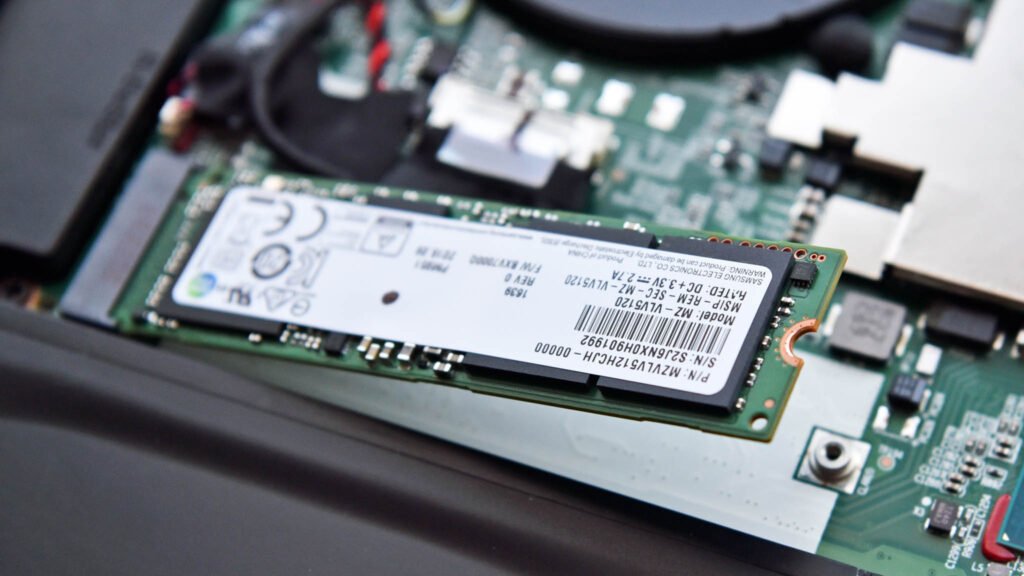
- Update your SSD firmware. Install your drive maker’s dashboard tool (Samsung Magician, WD/SanDisk Dashboard, Crucial Storage Executive, and so on), then apply any firmware update it offers.
- Update your motherboard BIOS. Grab the current stable BIOS from your motherboard or PC maker’s site. Avoid beta versions. Several edge-case failures came down to outdated or beta BIOS.
- Keep some breathing room on the drive. Try not to run your SSD constantly near full. Leaving headroom helps the drive manage writes and sidesteps the conditions that triggered the worst reports.
- Split very large transfers if you’re cautious. If you’re moving tens of gigabytes and want to be extra safe before patching, copy in smaller batches rather than one massive write.
Tip: You can check your firmware and Windows build status against Microsoft’s official Windows 11 24H2 release-health page, which lists the current known storage issues and whether each is resolved.
That release-health page is worth a bookmark. Microsoft keeps it current, and you can see the live status of any 24H2 issue on the Windows 11 24H2 known issues page, including what’s been fixed and which update fixed it.
What to do if your drive already vanished
If your SSD has already dropped offline or you’re locked out of it, don’t panic and don’t keep forcing reboots, which can make recovery harder. In most of these cases the flash memory holding your files is intact; the controller just lost its map. Try this:
- Do a full power cycle. Shut down completely, switch off or unplug the power for 30 seconds, then boot again. Many drives reappear after a true cold start, unlike a normal restart.
- Stop writing to the drive. If it comes back, don’t run more big transfers until you’ve patched. Back up your data right away.
- Update firmware and Windows immediately. Once you can see the drive, apply the firmware fix and the latest Windows update before doing anything heavy.
- For the Samsung lockout, follow the repair guide. Uninstall the Galaxy Connect app and restore C: drive permissions using Microsoft and Samsung’s recovery steps, then reinstall the corrected app.
- If the drive won’t return, get help before reinstalling. A drive that stays invisible may still hold recoverable data. A reputable data-recovery service can often image it. Reinstalling Windows or reinitializing the disk too early can cost you those files.
Frequently asked questions
Is it safe to install Windows 11 24H2 with an SSD?
Yes, for nearly everyone. Retail SSDs with current firmware run fine on 24H2. Just update your drive’s firmware, install the latest Windows patches, and keep a backup before any major file transfer.
Which SSDs were affected by the 24H2 update?
Mainly certain Phison-controller NVMe drives during huge writes, and specific 2TB DRAM-less models like the WD Black SN770, WD Blue SN580 and SN5000, and SanDisk Extreme M.2. Most other drives were never affected.
My SSD disappeared after a large file copy. Is it dead?
Probably not. Do a full power-off, wait 30 seconds, and restart. Most drives reappear and the data is intact. Back up immediately, then update firmware and Windows before any more heavy writes.
Has Microsoft fixed the 24H2 SSD problem?
Largely, yes. Microsoft released a follow-up update addressing the storage trigger, and drive makers issued firmware fixes. Microsoft’s release-health page shows the current status of each known storage issue and which patch resolved it.
How do I update my SSD firmware?
Install your drive maker’s free dashboard app (Samsung Magician, WD/SanDisk Dashboard, Crucial Storage Executive), open it, and apply any firmware update listed. Back up your data first, since flashing carries a small risk.
Conclusion
Treat “Windows 11 24H2 SSD issues” as three separate, mostly solved problems rather than one ongoing disaster. The disappearing-drive scare was largely tied to beta or engineering firmware and has since been patched, the WD and SanDisk blue screens are fixed by a quick firmware update, and the Samsung C: drive lockout was an app conflict with its own repair. Update your SSD firmware, your BIOS, and Windows, keep a backup, and you can run 24H2 with confidence.
Related Post:
What Is an External SSD? A Plain-English Guide to Portable Solid-State Storage
Cannot See SSD When Plugged In to USB? Here’s How to Fix It
How to Format an SSD on Windows and Mac