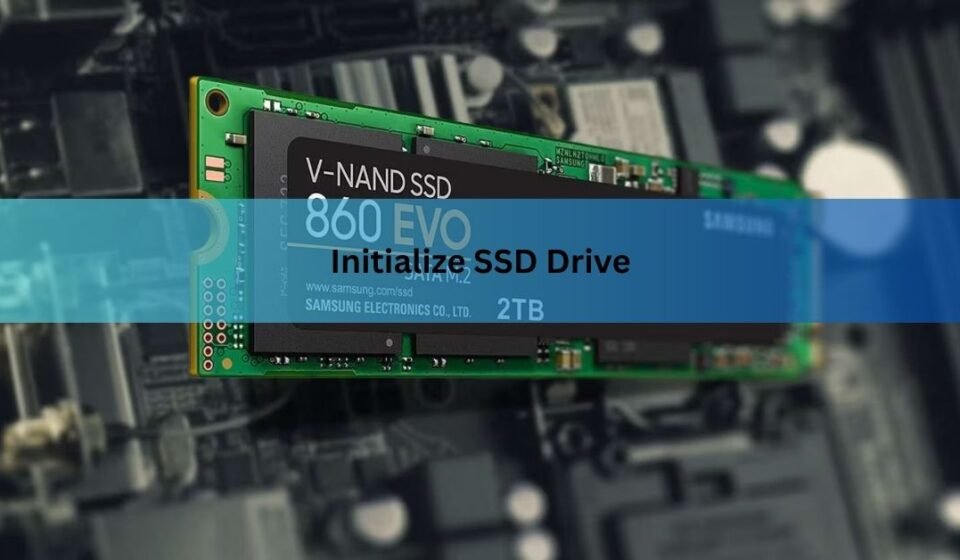

A brand-new SSD usually won’t show up in File Explorer or Finder until you initialize it. Initializing just means telling your operating system how the drive is laid out, so it can build partitions on it and store files. On Windows you do this in Disk Management; on a Mac you use Disk Utility. Pick the GPT partition style, create a volume, format it, and the drive is ready to use. The whole thing takes about two minutes.
Below you’ll find the exact steps for both Windows and Mac, plus how to choose between GPT and MBR and what to do if the drive still refuses to appear. If your SSD already has files on it, read the next section first, because initializing wipes the drive.
What does it mean to initialize an SSD?
Initializing an SSD writes a partition table to the drive. A partition table is like a table of contents: it tells your computer where partitions start and stop so the operating system knows how to reach your data. Without one, the drive shows up as “unallocated” or “not initialized” and you can’t save anything to it.
People mix up three words here, so it helps to keep them straight. Initialize sets up the partition table. Partition splits the physical drive into one or more sections, each of which can act like its own drive. Format lays down a file system (like NTFS or APFS) so files can actually be written. They happen in that order, and on Windows the New Simple Volume wizard rolls partitioning and formatting into a few clicks right after you initialize.
Why does a new drive need this at all? An SSD leaves the factory as raw storage with no map on it. Your operating system won’t guess how you want that space arranged, so it waits for you to lay down a partition table and a file system. Once those exist, the drive behaves like any other, and you never have to repeat the step unless you wipe it on purpose. This is also why a fresh SSD can look “missing” even though the hardware is working perfectly; the drive is there, it just has no structure yet.
Initializing a drive that already holds data will make that data unreachable. If your SSD is not brand new, back it up before you go any further.
Before you start: back up and connect the drive
Two quick checks save a lot of grief. First, if there is anything on the drive you care about, copy it somewhere safe. Initializing and formatting both clear the drive, and formatting doesn’t even guarantee the old data is gone for good, it just removes the file system so the space looks empty. That last point matters if the SSD is leaving your hands: a normal format can leave recoverable traces, so use your drive maker’s secure erase tool instead when you’re selling or giving the drive away. If the SSD is truly new out of the box, you have nothing to lose and can skip ahead.
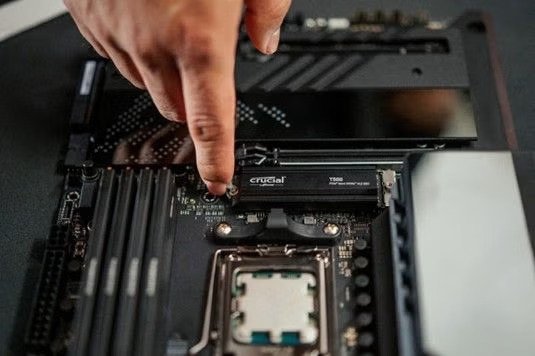
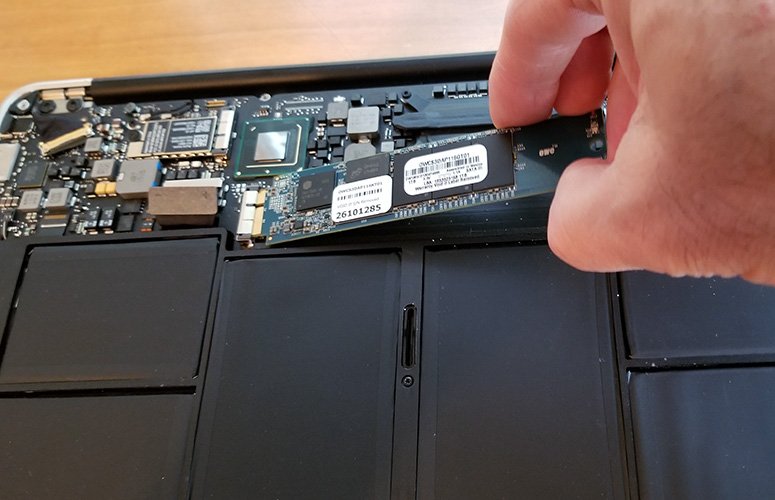
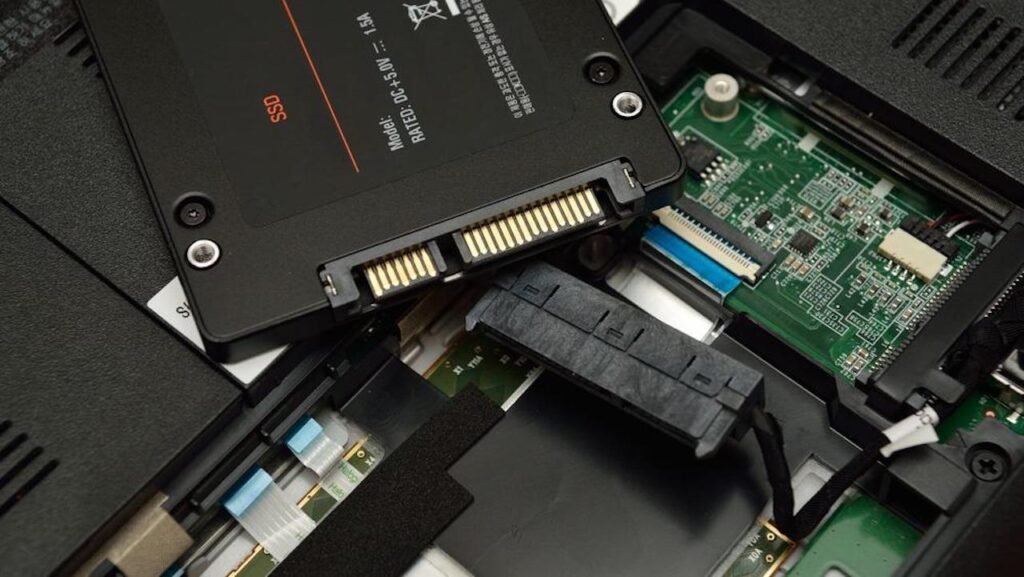
Second, make sure the drive is physically connected and detected. For an internal 2.5-inch or M.2 SSD, power down, seat it firmly, and check the SATA or M.2 slot. For a portable SSD, plug it straight into a USB or Thunderbolt port on the computer rather than through a hub, which can cause it to drop out. If the drive shows up in your system’s BIOS/UEFI or in Disk Management but not in File Explorer, that’s normal for a new drive, and initializing is exactly what fixes it.
How to initialize an SSD in Windows 10 and 11
Windows has a built-in tool called Disk Management that handles this. You don’t need to download anything. Here is the full process.
- Right-click the Start button and choose Disk Management. You can also press Windows + X and pick it from the menu, or type diskmgmt.msc into the search bar.
- A box may pop up on its own saying the disk must be initialized. If it does, skip to step 4. If not, scroll down the lower pane and find your new drive. It will be labeled Not Initialized with a black bar reading Unallocated.
- Right-click the drive’s name (the left box that says “Disk 1” or similar, not the black bar) and choose Initialize Disk.
- Choose a partition style. Select GPT (GUID Partition Table) for any modern PC. Pick MBR only for a very old, non-UEFI machine. Click OK.
- The drive is now initialized but still empty. Right-click the Unallocated space and choose New Simple Volume, then click Next.
- Leave the volume size at the maximum to use the whole drive as one partition, then click Next.
- Assign a drive letter (any free letter works) and click Next.
- Set the file system to NTFS, give the drive a name in the volume label box, tick Perform a quick format, and click Next.
- Click Finish. Your SSD now appears in File Explorer, ready for files.
A word on the file system you picked in step 8. NTFS is the right default for a drive you’ll use only with Windows, and it handles large files and full drive sizes without fuss. If you plan to move the SSD between a Windows PC and a Mac, choose exFAT instead when you format, since both systems can read and write it freely. Skip the old FAT32 option for an SSD; it can’t hold single files larger than 4 GB, which rules out big videos and disk images.
If you want to double-check which partition style a drive is using later, right-click it in Disk Management, choose Properties, and look at the Volumes tab. Microsoft also keeps its own walkthrough on the Initialize New Disks page if you’d like the official reference.
How to initialize an SSD on a Mac
Macs handle initializing and formatting together inside Disk Utility. The key trick that trips people up is showing all devices first, because if you only see the volume and not the physical drive, the partition scheme option stays hidden.
- Connect the SSD. For an external drive, plug it into a USB or Thunderbolt port.
- Open Disk Utility. Press Command + Space, type Disk Utility, and hit Enter.
- In the top-left, click View and choose Show All Devices. This is the step most guides leave out.
- In the sidebar, select the physical drive (the top, non-indented entry with the manufacturer name), not the volume indented beneath it.
- Click Erase in the toolbar.
- Give the drive a name. Set Scheme to GUID Partition Map. You must set the scheme before APFS becomes available as a format.
- Set Format to APFS for an SSD on macOS High Sierra or later. Choose Mac OS Extended (Journaled) only if you’re on an older macOS or need it for a mechanical drive.
- Click Erase, wait for it to finish, then click Done. The SSD is now ready and will mount on your desktop.
Apple recommends GUID Partition Map for every Intel and Apple silicon Mac, and APFS is built for flash storage, so it’s the right pick for almost any SSD. Apple’s Disk Utility guide lists all the scheme options if you’re curious about the rest.
If APFS is missing from the Format list, the drive is still on an MBR scheme. Go back, select the physical device, and erase it as GUID Partition Map first. APFS only works on a GUID drive.
GPT or MBR: which partition style should you pick?
For nearly everyone today, the answer is GPT. It’s the modern standard, it works with UEFI firmware, and Windows 11 requires it. MBR is the older scheme from 1983 and only makes sense on legacy, BIOS-only hardware. Here’s how the two compare on the things that actually matter.
| Feature | MBR | GPT |
|---|---|---|
| Max drive size | Up to 2 TB | Effectively unlimited (9.4 ZB) |
| Primary partitions | 4 (more need a workaround) | Up to 128 in Windows |
| Firmware | Legacy BIOS | Modern UEFI |
| Data safety | One partition table, no backup | Backup table + error checking |
| Best for | Old PCs, small legacy drives | Modern PCs, NVMe, Windows 11 |
A common worry is that GPT might slow the drive down. It doesn’t. Partition style has no effect on read or write speed; that comes from the drive itself (SATA versus NVMe), its controller, and the memory inside. GPT simply organizes partitions and boot data more safely. One practical point: if you put a 4 TB SSD on MBR, you’ll only ever see 2 TB of it, and the rest sits unusable. That alone settles the choice for larger drives.
There’s a hardware reason to reach for GPT with newer drives too. Fast M.2 NVMe SSDs are designed to boot through UEFI, and legacy BIOS has no native way to boot from them. So if your SSD is an NVMe stick and you want to boot from it, GPT paired with UEFI is really the only sensible route. For a plain SATA SSD used as extra storage, either scheme technically works, but GPT is still the better all-round pick.
There’s one real catch. If you initialize on MBR and later realize you need GPT, converting through Disk Management or the diskpart clean command wipes the drive. So it pays to choose GPT from the start unless you have a specific reason not to.
Do you need to initialize an SSD before installing Windows?
No. If the SSD is going to be your boot drive and you’re doing a fresh Windows install, you don’t initialize it first. Windows Setup sees the unallocated space, and when you select it during installation, it creates the needed partitions and formats them for you. Manually initializing beforehand can even get in the way.
Initializing in Disk Management is for a second drive you’re adding to a computer that already has an operating system running. There’s also a middle path: instead of a clean install, you can clone your old drive to the new SSD. Cloning copies the operating system, files, and settings exactly, so the new drive boots straight away with no reinstall. In that case, the cloning software handles the setup and you skip manual initializing too. Many SSD makers, including Crucial, Samsung, and WD, give away cloning tools built for their own drives, so it’s worth checking the maker’s site before you buy separate software.
The same idea applies on a Mac. When you install macOS onto a blank internal SSD from a bootable installer, the installer sets up the hidden EFI partition and lays down APFS itself. You only reach for Disk Utility’s Erase step manually when you’re preparing an external SSD or wiping a drive to start over.
SSD not showing up or won’t initialize? Common fixes
Sometimes the drive won’t cooperate. Work through these in order; the earlier ones solve most cases.
The drive doesn’t appear at all
Check the physical connection first. Reseat an internal SSD’s SATA or M.2 slot, or try a different cable. For a portable drive, plug directly into the computer, swap USB ports, and avoid hubs. Then look in the BIOS/UEFI: if the drive shows there, the hardware is fine and the fix is in the operating system. If it doesn’t show even in BIOS, you likely have a connection or hardware fault.
It shows in Disk Management but has no drive letter
A drive can be initialized and formatted yet still hide from File Explorer because it lacks a letter. Right-click the volume, choose Change Drive Letter and Paths, click Add, pick a free letter, and confirm. Do this right after initializing, since waiting can make the option grey out.
It reads as “RAW” or asks you to format
A RAW drive has no readable file system. If it’s new or empty, just format it: right-click the volume, choose Format, set NTFS, name it, and confirm. If it held data you need, don’t format yet, run recovery software first, because formatting removes access to what’s there.
A leftover hidden partition is in the way
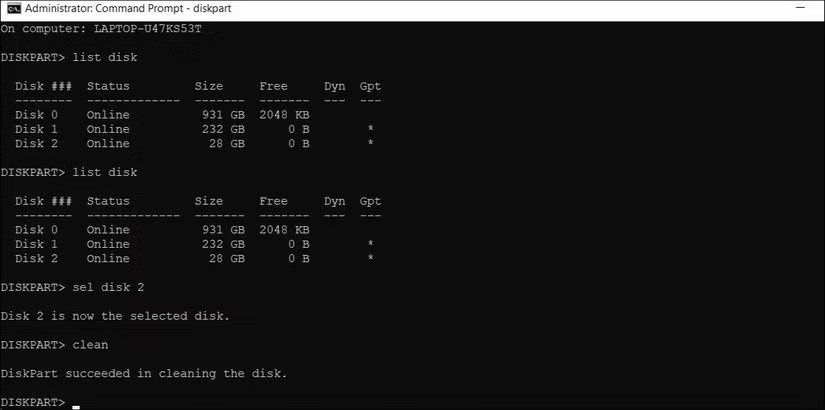
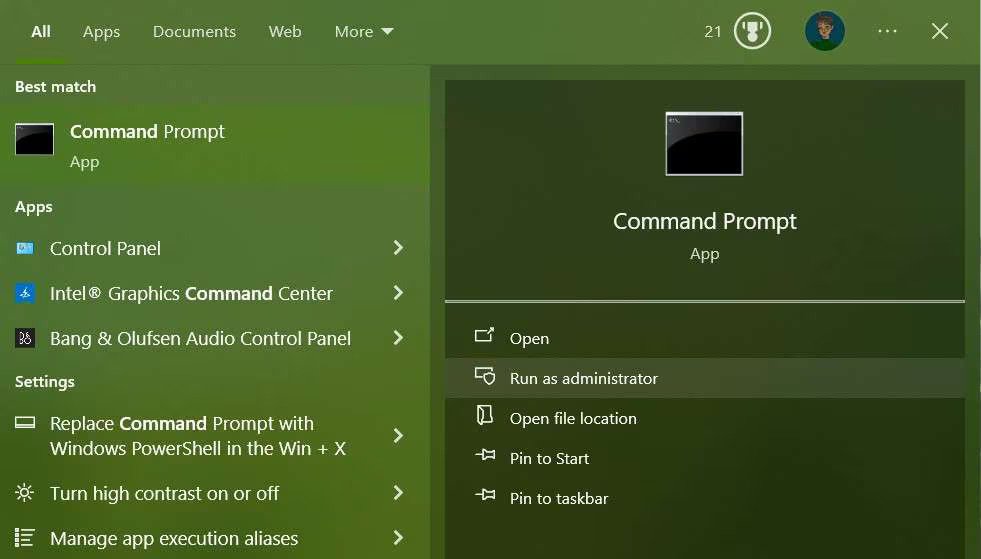
A used SSD can carry an old hidden or system partition that keeps the space from behaving. If you don’t need anything on the drive, the cleanest fix is to wipe it fully: open Command Prompt as administrator, type diskpart, use list disk to find the drive, select it with select disk followed by its number, then run clean. That strips every partition back to unallocated space so you can initialize from scratch. Be careful to select the right disk number, because clean is final.
Initialize Disk is greyed out or fails
Make sure your user account has administrator rights, since initializing requires them. If the option still won’t work, updating your motherboard chipset drivers or the SSD’s firmware from the manufacturer’s site can clear up controller-level hiccups. Drive makers publish these firmware updates on their support pages, and applying the latest one occasionally revives a drive that a computer refuses to read. As a last resort, the diskpart clean command described just above wipes a stubborn drive back to a blank slate, but it erases everything, so only use it on a drive you’re happy to empty.
Frequently asked questions
Does initializing an SSD erase everything on it?
Yes. Initializing writes a fresh partition table, which makes any existing data unreachable, and the format step that follows clears the drive too. Always back up a drive that already holds files before you initialize it.
Should I choose GPT or MBR for my SSD?
Choose GPT for almost any modern computer. It supports drives over 2 TB, allows more partitions, protects data better, and is required for Windows 11. Only pick MBR for old, BIOS-only systems.
Why doesn’t my new SSD show up in File Explorer?
A new SSD stays hidden until it’s initialized and formatted, or until it gets a drive letter. Open Disk Management, initialize the drive, create a volume, and assign a letter. Check the cable or USB port if it’s missing entirely.
Do I have to initialize an SSD before installing Windows on it?
No. Windows Setup creates and formats the partitions for you during a clean install. You only initialize manually when adding a second drive to a computer that already runs an operating system.
Is GPT faster than MBR for an SSD?
No. Partition style has no effect on read or write speed. That depends on the drive type, its controller, and the memory inside. GPT just organizes partitions more safely and works with modern UEFI systems.
Conclusion
Initializing a new SSD is quick: open Disk Management on Windows or Disk Utility on Mac, select the new drive, choose the GPT (or GUID) partition style, then create and format a volume. Pick GPT for any modern machine, and back up first if the drive isn’t empty, since the process wipes it. A good result is simple to spot: the SSD appears in File Explorer or on your desktop, with a drive letter or name, ready for files.
Related Post:
Can You Recover Data From an SSD? What Actually Works
How to Partition an SSD: Windows, Mac, and When to Skip It
What to Do After Installing a New SSD
SSD Showing as Unallocated? What It Means and How to Fix It Safely
How to Copy an SSD to a Larger SSD Without Reinstalling Windows