

You can find out exactly what SSD you have in about a minute, without opening your computer. On Windows 11, open Task Manager and check the Performance tab. On a Mac, open System Information and click Storage. Both show the drive’s model, its size, and whether it’s a solid-state drive or an older hard disk. If you want more, like the exact model number or whether the drive is SATA or NVMe, there are a few quick built-in tools that dig deeper.
People usually go looking for this for a good reason. Maybe you’re about to buy a bigger drive and need to know what fits. Maybe a game says it wants an SSD and you’re not sure you have one. Maybe you’re selling the machine, or a support agent asked for the model. The three things worth pinning down are the model name (like Samsung 990 PRO), the size (256 GB, 1 TB, and so on), and the type (SATA or NVMe). The methods below get you all three, starting with the fastest, then explain what each answer means for you.
What these details actually tell you
Before the steps, it helps to know why each detail is useful, so you can stop as soon as you have what you need.

- The type (SATA or NVMe) tells you how fast the drive is and, more importantly for an upgrade, what will physically fit. A drive is either a spinning hard disk or a solid-state drive, and if it’s solid-state it’s either the standard SATA kind or the faster NVMe kind.
- The size tells you how much room you have and whether a big game or video project will squeeze in. This is the number people check most often.
- The model name is the master key. With it, one quick search reveals the speed, the exact form factor, the warranty, and whether the drive is worth keeping or replacing. It’s also what a support agent or buyer usually wants.
If you only care whether you have an SSD at all, the first method takes fifteen seconds. If you’re planning an upgrade, read on to the SATA-versus-NVMe part, because that’s the detail that decides what you can buy.
The fastest way on Windows 11: Task Manager
Task Manager is the quickest built-in method, and recent versions of Windows 11 now label the drive type directly. Here’s how:
- Press Ctrl + Shift + Esc to open Task Manager.
- Click Performance in the left column.
- Look at the disk entries near the bottom of that list. Each one shows the drive’s name and type.
On current builds of Windows 11, the label spells it out as SSD, HDD, or even SSD (NVMe). If your Windows is a little older, you may only see SSD or HDD without the NVMe part. That’s still enough to answer the main question. To learn whether an SSD is SATA or NVMe, use the Settings method below.
Quick tip: If you have more than one drive, Task Manager lists each as Disk 0, Disk 1, and so on. The one running Windows is usually the drive that also holds your C: files.
See the full details: model, size, and bus type
Windows Settings shows the drive’s manufacturer, model, size, and its bus type, which is the field that tells you SATA from NVMe. This is the method to use when you want the complete picture:
- Press Windows + I to open Settings.
- Go to System, then Storage.
- Scroll down and click Advanced storage settings, then Disks & volumes.
- Find your drive in the list and click Properties.
The properties page shows the model name, capacity, and a Bus type line. If it reads NVMe, you have a fast NVMe drive. If it reads SATA, it’s a SATA SSD (or a hard disk, which the Media type line will confirm). On some machines NVMe drives show up as RAID instead, which comes from the storage driver rather than the drive itself, so a RAID label on a modern M.2 stick almost always means NVMe.
Note that newer Windows 11 updates sometimes show a quick security prompt when you open Storage settings. Approve it and continue as normal.
One command that shows everything: PowerShell
If you’d rather skip the menus, a single command lists every drive with its name, media type, and connection at once. It’s the fastest route when you have several drives:
Right-click the Start button and choose Terminal (or Windows PowerShell).
Type or paste this line and press Enter:
Get-PhysicalDisk | Select FriendlyName, MediaType, BusType, Size
You’ll get a small table. The FriendlyName is the drive model, MediaType says SSD or HDD, and BusType shows SATA or NVMe. The Size is listed in bytes, so divide by roughly a billion to read it in gigabytes (about 500,000,000,000 is a 500 GB drive).
Now and then MediaType comes back as Unspecified for a drive Windows can’t classify, often an NVMe drive behind a certain driver. If that happens, the BusType still tells the real story, and the model name confirms it. This one command replaces four different menu trips, which is why it’s handy when a machine has a mix of drives.
Find the exact model: Device Manager
When you need the precise model string, say for a firmware update or to check compatibility before buying, Device Manager is the cleanest place to read it:
- Right-click the Start button and choose Device Manager.
- Expand Disk drives. Every storage device is listed by its model name.
You’ll see something like Samsung SSD 990 PRO 2TB or WD Blue SN580 1TB. The first word is the maker and the rest is the model. Device Manager on its own won’t confirm SATA versus NVMe, but the model name will: type it into a search engine and the manufacturer’s page tells you the interface, the speed, and the form factor. Later in this guide there’s a section on what to do with that model number.
Handy shortcut: Want just SSD or HDD without the menus? Press Windows + R, type dfrgui, and press Enter. The Optimize Drives window has a Media type column that says Solid state drive or Hard disk drive for each one.
How to tell what SSD you have on a Mac
Every Mac from the last several years ships with an SSD, so the question on a Mac is usually the model and size rather than the type. System Information has it all:
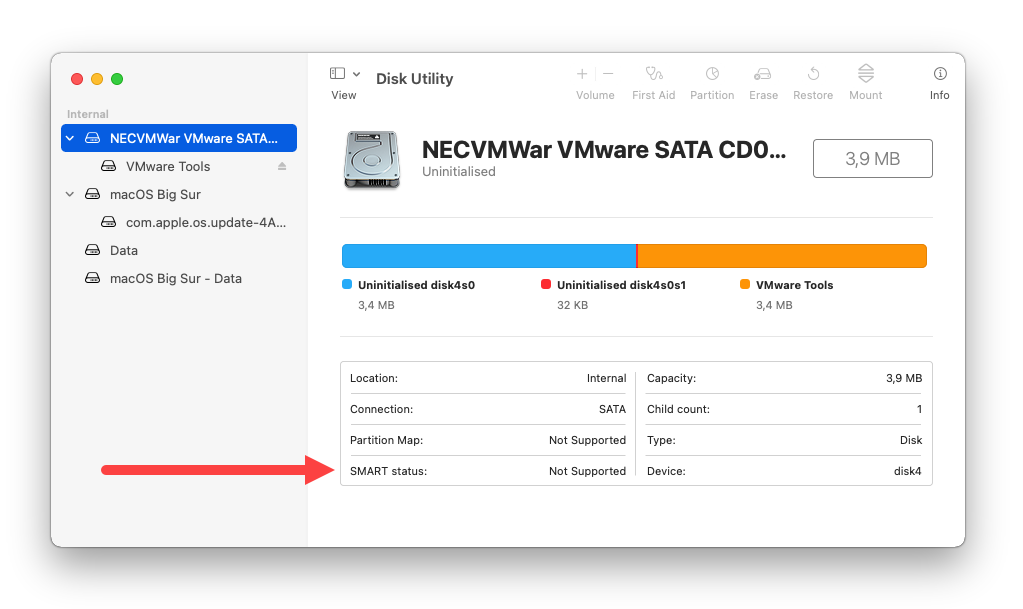
- Click the Apple menu in the top-left corner and choose About This Mac.
- Click More Info, scroll down, and open System Report. (On older macOS, hold Option and pick System Information from the Apple menu.)
- In the sidebar, select Storage under Hardware, then click your drive.
You’ll see the model, the capacity, the connection (often listed as NVMe or PCIe), and a S.M.A.R.T. Status line that reads Verified when the drive is healthy. For quick capacity only, you can also click the Apple menu, open About This Mac, and read the storage bar.
One thing to know about Apple Silicon Macs, the M1, M2, M3, M4 and newer: the storage chips are built onto the same chip as the processor, so System Report may show the flash storage without a separate branded model name. That’s normal. On those machines the size and health status are the useful details, and the drive is always fast built-in flash rather than a removable SATA or NVMe stick. Older Intel Macs are different, they often show a clear model like “APPLE SSD” plus a code, and they may list the drive under a SATA or NVMe heading in System Report.
If you’ve plugged in an external SSD, it shows up in the same Storage list, though the name may reflect the enclosure rather than the drive inside it. USB and Thunderbolt enclosures sometimes hide the true model, so for an external drive the label on the case or the box is often the most reliable source.
SATA or NVMe? What the labels mean
This is the part most people are really asking about when they check their SSD. SATA and NVMe are two ways a drive connects to your computer. They aren’t brands or sizes, just different lanes with very different speeds. Here’s how the three common storage types compare:
| What you see | What it means | Rough real-world speed |
| HDD / Hard Disk Drive | A spinning mechanical disk. Slowest, cheapest per terabyte, and makes a faint whir. | About 80 to 160 MB/s |
| SSD (SATA) | A solid-state drive on the older SATA connection. Silent, much faster than a hard disk. | About 500 to 550 MB/s |
| SSD (NVMe) | A solid-state drive on the faster PCIe lane, usually an M.2 stick. The quickest common type. | Roughly 3,000 to 7,000+ MB/s |
A SATA SSD is still a huge jump over a spinning hard disk, and it’s plenty for everyday work, web browsing, and most games. An NVMe SSD uses the faster PCIe lane, usually as a small M.2 stick that sits flat on the motherboard, and it shines when you move big files, edit video, or want the shortest possible load times. For a plain “is my computer quick enough” question, either SSD type will feel fast; the difference between them shows up mostly in heavy tasks.
If you’re upgrading, the connection matters because your motherboard decides what fits. A SATA slot won’t take an NVMe M.2 stick, and an M.2 slot may support NVMe, SATA, or both depending on the board. This is why the bus type you found earlier is worth knowing before you buy. When in doubt, check your motherboard or laptop maker’s spec page for the exact slots it has. Microsoft also keeps a plain-language SSD, HDD, and storage types if you want a refresher on why solid-state storage is faster.
What shape is the drive? Form factors in plain terms
Once you know the type, the other thing that decides what fits is the form factor, which is just the drive’s physical shape and size. There are two common ones inside laptops and desktops today, plus the old hard-disk shape:
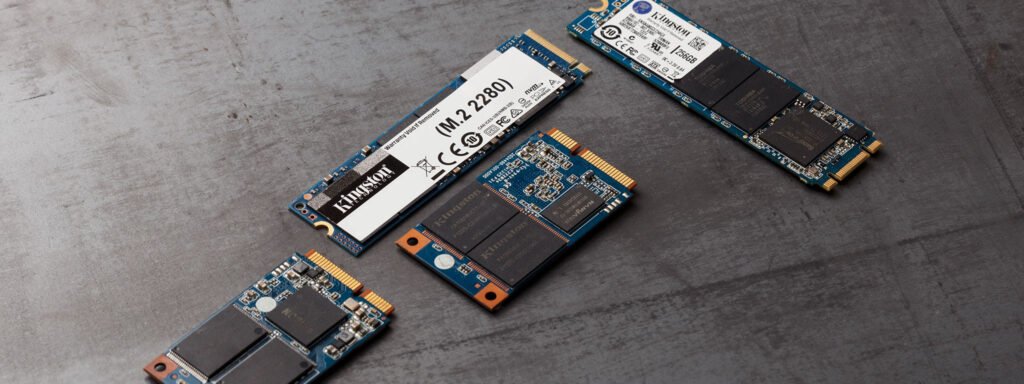
- 2.5-inch: A flat metal rectangle about the size of a deck of cards, connected by a SATA cable in a desktop or a slot in older laptops. Almost all 2.5-inch drives are SATA.
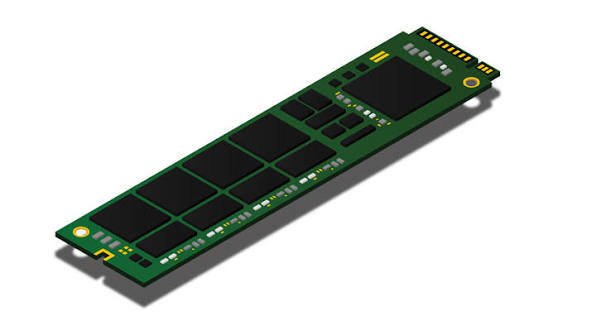
- M.2: A slim stick, close to a stick of gum, that lies flat and screws directly onto the motherboard. M.2 drives can be NVMe or SATA, so the shape alone doesn’t tell you the type; the bus type from Settings does.
- 3.5-inch: The larger, heavier shape used by mechanical hard disks in desktops. If your drive is this size, it’s a hard disk, not an SSD.
You don’t need to open the machine to guess the form factor. If the bus type is NVMe, it’s almost certainly an M.2 stick. If it’s a SATA SSD, it’s usually 2.5-inch in a laptop and either shape in a desktop. The model name settles it for sure, since the maker’s page lists the exact form factor, often written as M.2 2280, where 2280 means 22 mm wide and 80 mm long. That length matters if you’re buying a replacement, because a slot built for an 80 mm stick may not hold a longer or shorter one.
Reading the model number and checking drive health
The model name you found is the key to everything else about the drive. Search it and the maker’s own product page will tell you the interface (SATA or NVMe), the form factor (2.5-inch or M.2 2280), the rated read and write speeds, and the warranty. Reading the model is quicker than any spec tool, and it’s the reliable way to settle the SATA-versus-NVMe question when Windows only showed you “SSD.”
Model names follow a loose pattern. The first word or two is the brand: Samsung, Crucial, Western Digital (often shown as WD), Kingston, SK Hynix, and so on. What follows is the product line and capacity, like 980 PRO 1TB or BX500 480GB. If a drive shows up only as “Generic” or with no clear name, it’s usually a smaller or unbranded unit, and a search may turn up little; in that case the bus type and size from Settings are your best information.
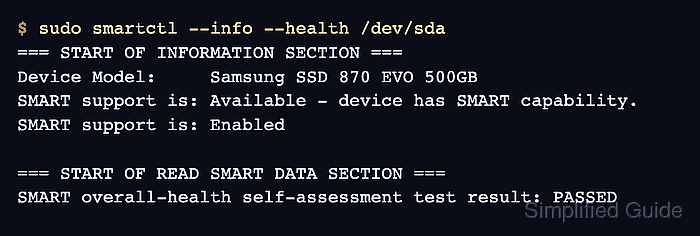
It’s also worth a quick health check while you’re in here, especially on an older drive or one you’re buying used. On Windows, free tools read the drive’s built-in S.M.A.R.T. data, which is the self-report every modern drive keeps on its own condition. CrystalDiskInfo is a well-known free option that shows a plain Good, Caution, or Bad health rating, the drive’s temperature, and how much it has been written to. On a Mac, the Verified line under Storage in System Report is the built-in version of the same check.
For most people, none of this needs to be a regular habit. Check the model and type once so you know what you’re working with, keep an eye on the health rating if the drive is getting old, and you’re set.
Frequently asked questions
How do I know if my SSD is SATA or NVMe?
Open Windows Settings, go to System, Storage, Advanced storage settings, Disks & volumes, then Properties, and read the Bus type line. NVMe means the fast type; SATA means the standard type. On a Mac, the Storage section of System Report shows NVMe or PCIe.
Does my computer have an SSD or a hard drive?
On Windows 11, open Task Manager, click Performance, and the disk entry says SSD or HDD. Or press Windows + R, type dfrgui, and check the Media type column. On a Mac, it’s almost certainly an SSD, shown as flash storage in System Report.
How can I check my SSD without opening the computer?
You don’t need to open anything. Every method here reads the drive from software: Task Manager, Settings, PowerShell, or Device Manager on Windows, and System Information on a Mac. The physical label on the drive is only a last resort if software comes up blank.
What size SSD do I have?
Windows Settings under System and Storage shows total capacity, as does the Properties page in Disks & volumes. Keep in mind a “500 GB” drive shows slightly less usable space because of how storage is measured. On a Mac, the storage bar in About This Mac shows the size.
Is it worth upgrading from a SATA SSD to an NVMe SSD?
For everyday use, the difference is small and a SATA SSD already feels fast. NVMe is worth it if you move large files, edit video, or want the quickest load times, and only if your motherboard has a free M.2 slot that supports it.
Conclusion
To tell what SSD you have, open Task Manager on Windows or System Information on a Mac; both show the drive’s model, size, and type in under a minute. For the full picture, including whether it’s SATA or NVMe, check Disks & volumes in Windows Settings or run the PowerShell command. A good result is simple: you know the model name, the size, and the connection, which is everything you need to upgrade, install, sell, or troubleshoot with confidence.
Related Post:
How to Initialize a New SSD on Windows and Mac (and Fix One That Won’t Show Up)
How to Transfer an SSD to a New Computer
What to Do After Installing a New SSD
How to Tell If Your SSD Is Failing: 7 Warning Signs and How to Check
How to Clone an SSD to a Bigger SSD (2026): A Step-by-Step Guide