
A BitLocker SSD won’t format because Windows will not let you write to a volume that is locked or still encrypted. The drive isn’t broken and the data isn’t stuck to it forever. You just have to remove BitLocker first, either by unlocking and turning it off, or by wiping the whole disk with the right command. Once BitLocker is gone, the SSD formats like any other drive.
There is one big exception, and it trips up a lot of people. If your SSD throws a “data error (cyclic redundancy check)” or an input/output error every time you try, that is not an encryption problem. That is a hardware fault, and no amount of formatting commands will fix it. Sorting out which of these two situations you’re in is the whole game, so we’ll start there and then walk through each fix.
Formatting erases everything on the drive. If there is anything on it you still want, unlock it and copy your files off first. Everything below assumes you’re fine wiping the SSD clean.
Why a BitLocker drive refuses to format
BitLocker scrambles the contents of a drive and keeps the key locked away. When the drive is locked, Windows can read the encrypted blocks but it can’t make sense of them, and it won’t overwrite them either. So a normal format quietly fails.
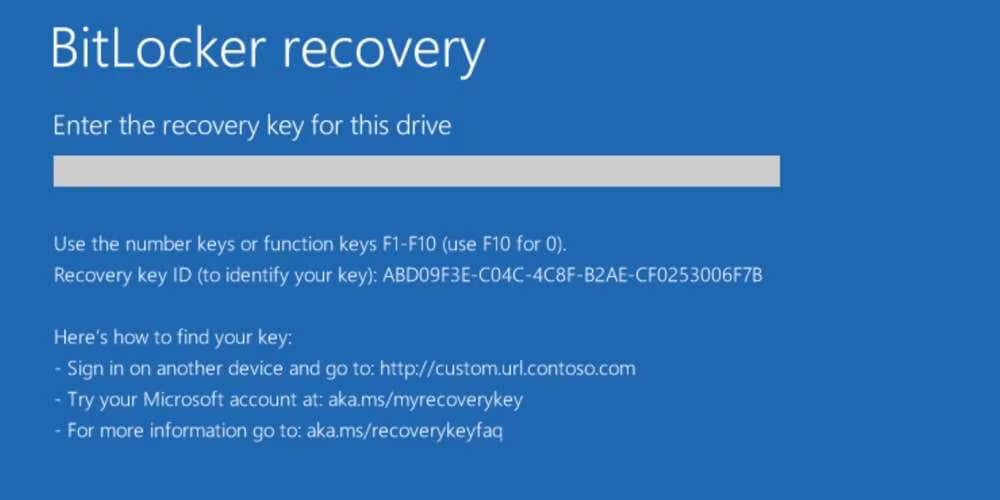
You’ll usually run into this in one of a few moments. You’re installing Windows and the setup screen says the disk has BitLocker enabled. You right-click a drive in File Explorer and “Format” does nothing useful. Or you open Disk Management, hit format, and get “The format did not complete successfully.” In every case the block is the same: BitLocker is still on the volume, and it has to come off before the drive will take a format.
The good news is that removing BitLocker doesn’t require any paid tool. Everything you need is already built into Windows. Which method you use depends on whether you can unlock the drive and whether it’s the same drive Windows is running from.
First, figure out which situation you’re in
Before you type a single command, look at the exact message you’re getting. The wording tells you what’s actually wrong, and that decides which fix will work. Match your symptom to the table below.
| What you see | What it usually means |
| A pop-up asks for a password or 48-digit recovery key | The drive is healthy and locked. Unlock it, then format normally. |
| “The format did not complete successfully” on an unlocked drive | The volume still carries BitLocker metadata. Delete it with the override step below. |
| “Data error (cyclic redundancy check)” when you delete or format | Physical fault on the drive. This is a hardware problem, not an encryption block. |
| “Access is denied” on clean | You are trying to wipe the disk from inside running Windows, or without admin rights. |
| “Clean is not allowed… boot, system, pagefile…” | You are wiping the disk Windows is running from. Boot from a USB first. |
If you’re in one of the top four rows, keep reading and pick the matching fix. If you’re seeing cyclic redundancy check or input/output errors, skip ahead to the section on a dying SSD, because the drive itself needs attention before formatting is even possible.
Fix 1: Unlock the drive, then turn off BitLocker
This is the clean way, and it’s the right first move whenever you can still get into the drive. Turning BitLocker off decrypts the whole volume and strips the protection, which leaves you with a normal drive you can format however you like.
If you have the password or PIN
- Open Control Panel and go to BitLocker Drive Encryption.
- Find the drive in the list. If it’s locked, click Unlock drive and enter your password.
- Once it’s unlocked, click Turn off BitLocker next to that drive.
- Wait for it to decrypt. This can take a while on a full SSD, so let it finish.
- When it’s done, right-click the drive in File Explorer and choose Format.
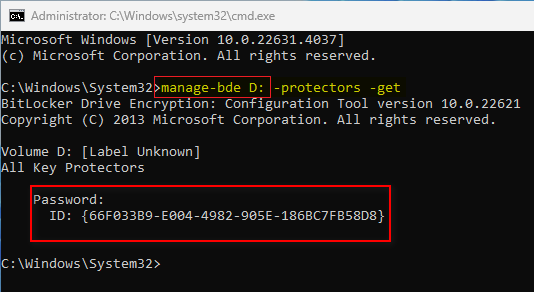
Prefer the command line? Open Command Prompt as an administrator and run this, swapping E: for your drive letter:
manage-bde -off E:
That kicks off decryption. You can check progress with manage-bde -status E:. You can read the full option list on Microsoft’s manage-bde command reference. Once the status shows the drive is fully decrypted, formatting works normally.
If the drive is locked and you don’t have the key
You can’t turn BitLocker off without unlocking first, and you can’t unlock without the password or the 48-digit recovery key. That sounds like a dead end, but it isn’t, as long as you don’t care about the data. Skip to Fix 2, which wipes the drive whole instead of decrypting it. Just know that once you do this, whatever was on the drive is gone for good, and no recovery tool can bring it back from an encrypted volume.
Lost your recovery key? Check your Microsoft account at aka.ms/myrecoverykey, since Windows often backs it up there automatically. If it’s there, unlock the drive the easy way and use Fix 1 instead.
Fix 2: Wipe a locked drive with DiskPart
When you can’t unlock the drive, you stop trying to decrypt it and just erase the whole thing. Windows won’t let you delete a BitLocker volume by accident, so it makes you confirm with a special override word. That override is the exact step most guides leave out, and it’s why people get stuck.
This works when the drive is a secondary drive, meaning it is not the one Windows is currently running from. If it is your system drive, jump to Fix 3 instead.
Double-check the disk number before you run anything here. DiskPart does not ask twice, and selecting the wrong disk will wipe the wrong drive. Match it by size in the list before you touch it.
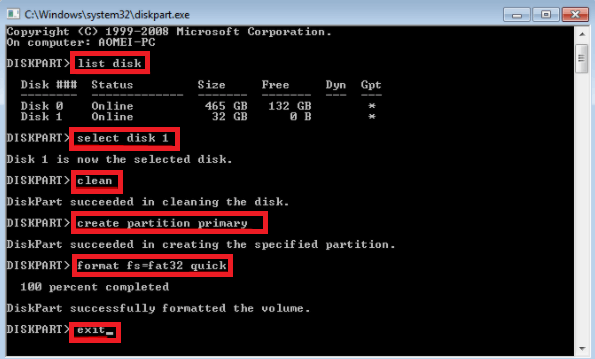
- Press Windows + X and open Terminal (Admin) or Command Prompt as administrator.
- Type diskpart and press Enter.
- Type list disk to see every drive. Find your SSD by its size.
- Type select disk X (replace X with your SSD’s number).
- Type list partition to see the partitions on it.
- Type select partition 1, then delete it with the override word.
Here’s the part that matters. A plain delete will fail on a BitLocker partition. Adding override tells Windows you mean it:
DISKPART> select partition 1
DISKPART> delete partition override
DiskPart successfully deleted the selected partition.
Repeat select partition and delete partition override for each partition on the drive until they’re all gone. If DiskPart lists volumes instead, the same trick applies with volumes:
DISKPART> select volume 3
DISKPART> delete volume override
DiskPart successfully deleted the volume.
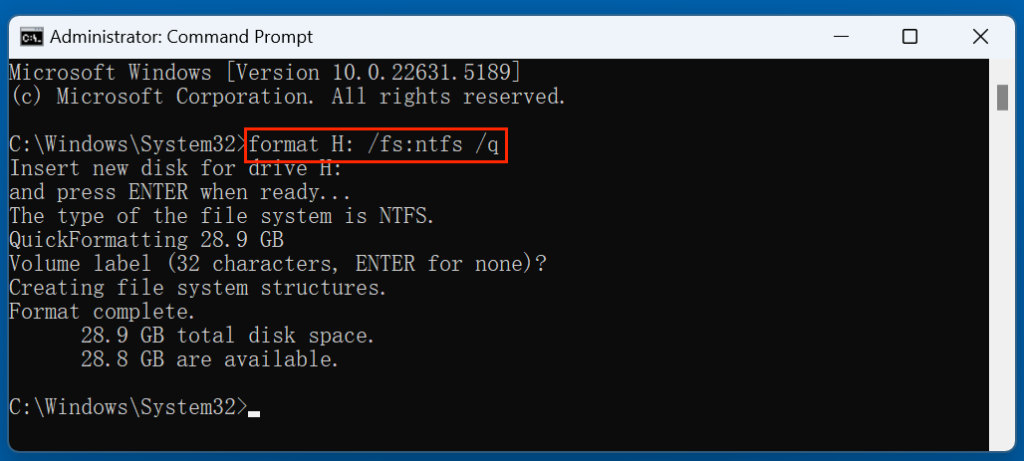
With every BitLocker partition removed, the disk becomes empty, unallocated space with no encryption left on it. Now you can create a fresh partition and format it:
DISKPART> create partition primary
DISKPART> format fs=ntfs quick
DISKPART> assign
DISKPART> exit
That’s it. The SSD is now a clean NTFS drive with a letter assigned, ready to use. If you’d rather not use commands, a free tool like MiniTool Partition Wizard can delete all partitions and format from a friendlier interface, but the built-in DiskPart route costs nothing and takes about two minutes.
Why plain “clean” sometimes says “Access is denied”
You might try clean first and get “Access is denied.” On a BitLocker disk this happens because clean tries to zero out the whole disk in one shot, and Windows guards the encrypted volume. Deleting each partition with override, as above, gets around it. Make sure you opened the command window as administrator too, since without that, DiskPart can’t touch the disk at all.
Fix 3: Format the system drive from a bootable USB
If the BitLocker SSD is the drive Windows is running from, you can’t wipe it from inside Windows. The system won’t delete the disk it’s living on. Try, and you’ll get “Clean is not allowed on the disk containing the current boot, system, pagefile, crashdump or hibernation volume.” That message isn’t a bug. It’s Windows stopping you from sawing off the branch you’re sitting on.
The way around it is to boot the computer from something else, usually a Windows installation USB, and format the drive from there while Windows isn’t using it.
- On another PC, download the Media Creation Tool and make a bootable Windows USB stick.
- Plug the USB into the problem computer and boot from it. You usually press F12, F2, Esc, or Del at startup to pick the boot device.
- At the first Windows setup screen, press Shift + F10 to open a command window.
- Run the same DiskPart steps from Fix 2. Because Windows is now running from the USB, the SSD is no longer the system drive, so clean and delete partition override both work.
- Either format it right there, or just carry on and let Windows setup install onto the freshly wiped drive.
If your goal was to reinstall Windows anyway, you can often skip the command window entirely. On the “Where do you want to install Windows?” screen, delete each partition on the SSD using the buttons, then install onto the resulting unallocated space. Setup formats it for you.
When the real problem is a dying SSD
Here’s the situation none of the standard fixes will touch. You’ve tried DiskPart, you’ve tried Disk Management, maybe you’ve even booted Linux, and every single attempt ends the same way: “Data error (cyclic redundancy check),” or a write error, or an input/output error. If that’s you, stop running commands. The problem is no longer BitLocker.
A cyclic redundancy check error means Windows tried to read or write part of the drive and the data came back corrupted. On an SSD, that points to failing memory cells or a controller that’s giving out. BitLocker just happens to be along for the ride. You can see it because the drive was encrypted, but encryption isn’t what’s blocking the format anymore. A physically damaged drive will refuse to format no matter what tool you throw at it, on Windows or Linux, with or without the key.
A few things worth knowing when you hit this wall:
- It’s not you and it’s not the command. The same override steps that work on a healthy locked drive will fail on a failing one. The commands are right; the hardware isn’t cooperating.
- Trying every tool won’t help. DBAN, GParted, third-party formatters, they all hit the same bad sectors and stop. Cycling through them wastes hours.
- Check the drive’s health. Run the maker’s own tool, like Samsung Magician or Crucial Storage Executive, and look at the SMART data. Reallocated sectors or a failing status confirms the drive is on its way out.
If the SSD is under warranty, a status like this is usually grounds for a replacement, so check with the manufacturer before you bin it. If it’s out of warranty, the honest answer is that a drive throwing constant CRC errors has reached the end of its life. It can’t be trusted with your data even if you did force it to format, so the safe move is to retire it.
Quick test: try the drive on a second computer with a different cable or USB adapter. If the same read/write errors follow it everywhere, the drive is the problem, not your PC or your software.
A note on secure erase and hardware encryption
You may have seen advice to run a “secure erase” from the SSD maker’s software, and then found the tool refuses. Samsung Magician, for one, won’t secure-erase a drive it can’t put into the right state, and it may point you to the BIOS instead. This is common on drives with their own built-in hardware encryption, which is separate from BitLocker’s software encryption.

For everyday formatting, you don’t need secure erase at all. The DiskPart steps above fully wipe the partitions and remove BitLocker, which is all that’s required to reuse the drive. Secure erase is a deeper, factory-reset-style wipe, mainly worth doing if you’re selling the drive and want to be certain nothing lingers. If you do want that level of wipe, the reliable path is your motherboard’s BIOS or UEFI, many of which include a built-in secure-erase option for the attached drive, run before Windows loads.
Frequently asked questions
Can I format a BitLocker drive without the recovery key?
Yes, if you don’t need the data. You can’t decrypt it without the key, but you can wipe the whole drive using DiskPart’s delete partition override command. This erases everything, and the encrypted files can’t be recovered afterward.
Why does DiskPart say “Access is denied” when I run clean?
Usually because you’re not running Command Prompt as administrator, or because clean is fighting the BitLocker volume. Open the command window as admin, then delete each partition with the override word instead of using clean.
Will a quick format remove BitLocker?
Only if the drive is already unlocked or decrypted. On a locked BitLocker volume a quick format fails outright. Unlock and turn off BitLocker first, or wipe the drive with DiskPart, and then formatting works.
My SSD gives a cyclic redundancy check error. Is BitLocker the problem?
No. A CRC error means the drive is physically failing, and no format command will fix it, on Windows or Linux. Check its health with the maker’s tool and, if it’s under warranty, request a replacement.
Does turning off BitLocker delete my files?
No. Turning off BitLocker just decrypts the drive and removes the protection; your files stay put. Formatting is the step that erases data, so decrypting is safe if you only want to remove encryption.
Conclusion
A BitLocker SSD won’t format because Windows blocks a locked or encrypted volume, not because the drive is ruined. If you can unlock it, turn BitLocker off and format normally. If you can’t, wipe it with DiskPart using delete partition override, and boot from a USB first if it’s your system drive. The one exception is cyclic redundancy check or input/output errors, which mean the SSD is failing and needs replacing, not formatting. Match your symptom, pick the right fix, and the drive comes back to life.
Related Post:
How to Initialize a New SSD on Windows and Mac (and Fix One That Won’t Show Up)
How to Transfer an SSD to a New Computer
What to Do After Installing a New SSD
How to Tell If Your SSD Is Failing: 7 Warning Signs and How to Check
How to Clone an SSD to a Bigger SSD (2026): A Step-by-Step Guide