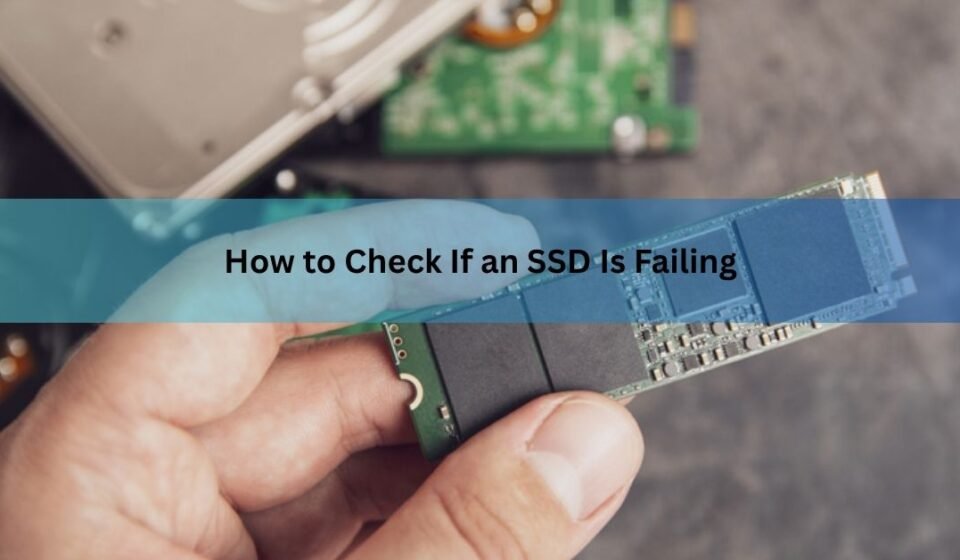

Your SSD is probably failing if its built-in health data shows climbing wear or error counts, or if you keep running into crashes, corrupted files, sudden slowdowns, or a drive that has switched to read-only. The good news is you don’t have to guess. Every modern SSD tracks its own condition, and a free tool can read it in about two minutes.
Below you’ll find the warning signs to watch for, a step-by-step way to check your drive’s real health, the handful of numbers that actually predict failure, and what to do the moment something looks off. One rule first: if you suspect your drive is dying, back up your important files before you do anything else. A failing SSD can go from slow to gone overnight.
What are the warning signs of a failing SSD?
SSDs don’t click or grind the way old hard drives do, so the warning signs are quieter. They show up as odd behavior in everyday use. Any one of these on its own might be something else, but several together point at the drive.
- Files get corrupted or won’t open. A photo or document that opened fine yesterday is suddenly reported as damaged, or Windows keeps asking to repair the drive.
- Everything slows to a crawl. Boot times stretch from seconds to minutes, or a file copy that should fly along stalls at a few kilobytes per second.
- Crashes, freezes, and blue screens. Random reboots, frozen apps, or a Blue Screen of Death, especially when you save or open a file. On a Mac, a kernel panic that names a storage device.
- You can read files but can’t save them. The drive lets you open what’s already there but blocks any new write. This is read-only mode, and it’s one of the clearest signs the end is near.
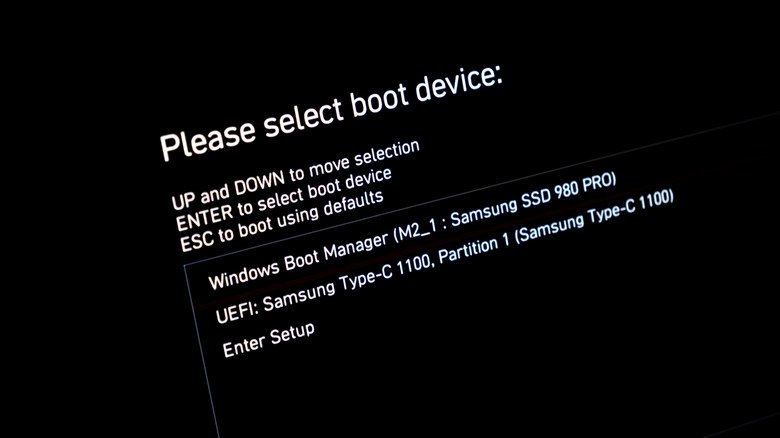
- The drive vanishes. It disappears from File Explorer or the system BIOS, or the computer can’t find the operating system and gets stuck restarting in a loop.
Worth knowing: an SSD enters read-only mode on purpose. When its spare cells run out, the firmware locks writing to protect what’s stored, giving you a short window to copy your data off. Take it.
Here’s the catch with symptoms: they’re clues, not proof. Slowdowns and crashes can come from malware, a loose cable, a full drive, or a bad Windows update. That’s why the next step is to check the drive’s own health data, which tells you what’s actually happening inside.
How do you check SSD health step by step?
The fastest reliable method is a free Windows tool called CrystalDiskInfo, which reads the data your SSD already collects through a system called SMART (short for Self-Monitoring, Analysis, and Reporting Technology). Windows has built-in checks too, but they only give a basic pass or fail. Here’s the full process.
- Back up first. If you have any suspicion the drive is failing, copy your important files to another drive or the cloud right now, before running tests. This is the single most important step.
- Run a quick built-in check. Open Command Prompt as administrator and type wmic diskdrive get status, then press Enter. You’ll see OK for a healthy drive or Pred Fail if the drive expects to fail soon. Note that Microsoft has retired this command on the newest Windows 11 builds, so it may not run.
- Or use PowerShell instead. On current Windows, open PowerShell as administrator and run Get-PhysicalDisk | Get-StorageReliabilityCounter | Format-List. This shows wear, temperature, and read or write error counts without installing anything.
- Check NVMe drives in Settings. On Windows 11, go to Settings, then System, Storage, Advanced storage settings, Disks & volumes, pick your drive, and open Properties. You’ll see estimated remaining life and temperature. This works for NVMe drives only and is easy to miss.
- Install CrystalDiskInfo for the full picture. Download it from the official site, install it, and open it. It pulls every SMART value your drive reports and shows a color-coded health status at the top: Good (blue), Caution (yellow), or Bad (red), plus the current temperature.
- Read the result. Blue and “Good” means no attribute has crossed its danger threshold. Yellow means a value is heading the wrong way. Red means the drive is actively failing. Don’t stop at the color, though, because the individual numbers tell the real story.
Mac users have a built-in option: open Disk Utility, select the drive, and run First Aid to scan and repair the file system. For deeper SMART readings on macOS or Linux, the free smartctl tool (part of smartmontools) reads the same data the Windows tools do.
Tip: if CrystalDiskInfo shows confusing letters and numbers like 0A or FF, go to Function, then Advanced Features, then Raw Values, and switch to DEC. That changes the display from hexadecimal to plain decimal numbers.
Which SMART numbers actually tell you it’s failing?
The color badge is a starting point, but a drive can read “Good” while a single value quietly creeps toward trouble. SATA and NVMe SSDs report slightly different attributes, so check the set that matches your drive. Always read the Raw Value column, since the normalized Current and Worst columns vary by maker and confuse more than they help.
For NVMe drives (most newer M.2 SSDs)
| Attribute | What it means | When to worry |
| Percentage Used | How much of the drive’s rated write life is spent. 0% is new. | Approaching 100%; plan a replacement before it gets there. |
| Available Spare | Reserve cells left to swap in for worn-out ones, as a percentage. | Dropping near the “Available Spare Threshold” below it. |
| Media and Data Integrity Errors | Data errors the drive couldn’t fully handle. | Anything above 0 deserves a closer look. |
| Critical Warning | A built-in flag for serious problems like overheating or read-only. | Any value other than 0. |
For SATA drives (2.5-inch and older M.2 SSDs)
| Attribute | What it means | When to worry |
| Reallocated Sector Count | Bad cells the drive has swapped for spares. | A count that climbs week to week, not a small stable number. |
| Remaining Life / Wear Leveling | An estimate of life left based on write cycles used. | Below about 10%; start planning sooner. |
| Available Reserved Space | Spare blocks ready to replace bad ones. | Falling toward 0; at 0 the drive goes read-only. |
| Total Host Writes (TBW) | Total data written, to compare against the rated limit. | Nearing the drive’s TBW rating. |
Two ideas tie these together. First, trends beat snapshots. A reallocated sector count of 4 that hasn’t moved in months is normal aging. The same number climbing to 12 next week means the drive is actively breaking down, so get your data off fast. Second, the maker’s own page is the final word on what “normal” looks like for your exact model. Crucial publishes a clear breakdown on its SSDs and SMART data page that explains what each attribute number means.
Keep temperature in view too. Most SSDs are happy up to around 70 degrees Celsius, but NVMe drives often start throttling near 60 to 65 degrees, which feels like a slowdown. If yours runs hot all the time, better case airflow or a small heatsink helps it last longer.
How long should an SSD last anyway?
Most consumer SSDs last many years of normal use. They’re rated by total data written, called TBW (terabytes written), and a typical 1 TB drive is rated for several hundred terabytes. To put that in perspective, writing 50 GB a day would take well over a decade to reach a 250 TBW rating.
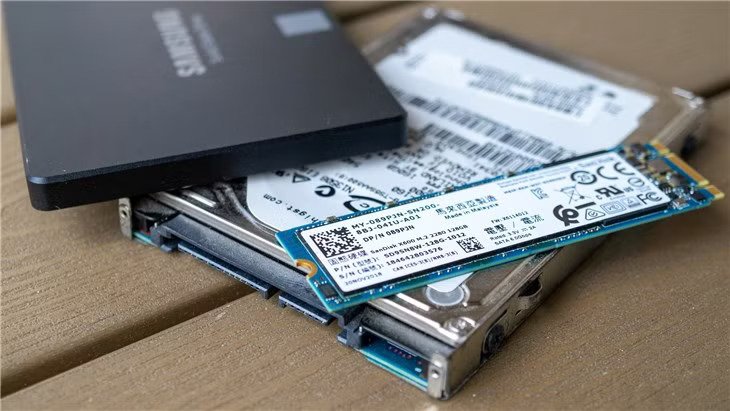
Wear comes from writing, not reading. Reading files barely touches an SSD’s life, while every write slowly uses up the flash cells. That’s why a drive packed with games you mostly load and play can stay healthy for years, while one hammered with constant large writes, like video editing scratch files, wears faster.
Rule of thumb: most SSDs run fine up to about 80% of their rated life. Past that, keep solid backups and start watching for a replacement, even if it still works.
Age matters less than writes, but it isn’t nothing. If your drive is more than five years old and showing any warning signs, treat those signs more seriously than you would on a one-year-old drive. And remember that any SSD can fail early from a firmware bug, a power surge, or plain bad luck, which is the whole reason backups exist.
What should you do if your SSD is failing?
If your checks point to a failing drive, move in this order. Speed matters more than perfection here.
- Back up everything important, now. Copy your files to another drive or a cloud service before you do anything else. If the drive is already read-only, you can still read and copy from it, so use that window.
- Stop heavy use. Don’t run big tasks or write lots of new data to a drive that’s struggling. Every write is a risk and adds wear.
- Update the firmware. Some slowdowns and bugs are fixed in firmware updates from the maker. Their tool will tell you if one is available.
- Run a repair pass for file errors. Open Command Prompt as administrator and run chkdsk C: /f /r (swap C: for your drive letter). This fixes file system errors, but it can’t repair worn-out flash, so treat it as a patch, not a cure.
- Replace the drive. If the numbers are bad or the warnings keep coming, get a new SSD. You can clone the old drive to the new one while it’s still stable, or do a clean install and copy your files over.
Manufacturer tools are worth installing because they often catch problems before a generic health score moves. Use the one that matches your brand: Samsung Magician for Samsung drives, Crucial Storage Executive for Crucial, or the SanDisk and WD Dashboard for Western Digital and SanDisk. They show drive health, monitor temperature, and handle firmware updates in one place.
Can a failing SSD be fixed?
Sometimes, depending on what’s wrong. If the trouble is file system errors or a firmware bug, then chkdsk, a firmware update, or in some cases a full secure-erase and reinstall can bring the drive back to normal. Those are software-level problems, and they’re fixable.
Physical wear is a different story. When the flash cells themselves are used up or the controller is dying, no software fixes that. A drive that has gone read-only because its spare cells ran out has reached the end of its usable life. You can rescue the data, but the drive needs replacing. When health numbers are bad, spend your energy saving your files and buying a replacement, not trying to revive worn-out hardware.
If a drive fails completely and you never backed up, professional data recovery services can sometimes pull data off dead SSDs, but it’s slow, never guaranteed, and can cost a lot. A cheap second backup is far less painful than an expensive recovery, which is the lesson worth taking from all of this.
Frequently asked questions
Is CrystalDiskInfo safe and free to use?
Yes. CrystalDiskInfo is free, open-source Windows software that only reads the SMART data your drive already collects. It doesn’t write to or alter the drive, so running it carries no risk to your files.
Does chkdsk damage or wear out an SSD?
No. Running chkdsk normally is fine and won’t meaningfully wear an SSD. It fixes file system errors but can’t repair worn flash cells, so it helps with software glitches, not physical failure.
What percentage of SSD health means I should replace it?
There’s no single cutoff, but most drives are fine above 80% remaining life. Below about 10 to 20%, or once errors start climbing, back up and plan a replacement even if it still works.
Can an SSD fail with no warning at all?
Yes. While SMART data often warns you first, SSDs can fail suddenly from a firmware bug, power surge, or controller fault. That’s why keeping at least one backup of important files matters.
How often should I check my SSD’s health?
For a healthy drive, every few months is plenty. Check more often if it’s old, runs hot, or you’ve seen warning signs. Trends over time tell you far more than a one-time reading.
Conclusion
Confirm a failing SSD by reading its SMART health data with CrystalDiskInfo or your maker’s tool, and by watching for crashes, corrupted files, slowdowns, or a read-only drive. Focus on a few numbers, percentage used, available spare, reallocated sectors, and errors, and pay more attention to values that are trending worse than to any single reading. A good result is a healthy status, low wear, and zero error growth. The moment anything looks off, back up first, then plan a replacement.
Related Post:
What Is an External SSD? A Plain-English Guide to Portable Solid-State Storage
Cannot See SSD When Plugged In to USB? Here’s How to Fix It
How to Format an SSD on Windows and Mac