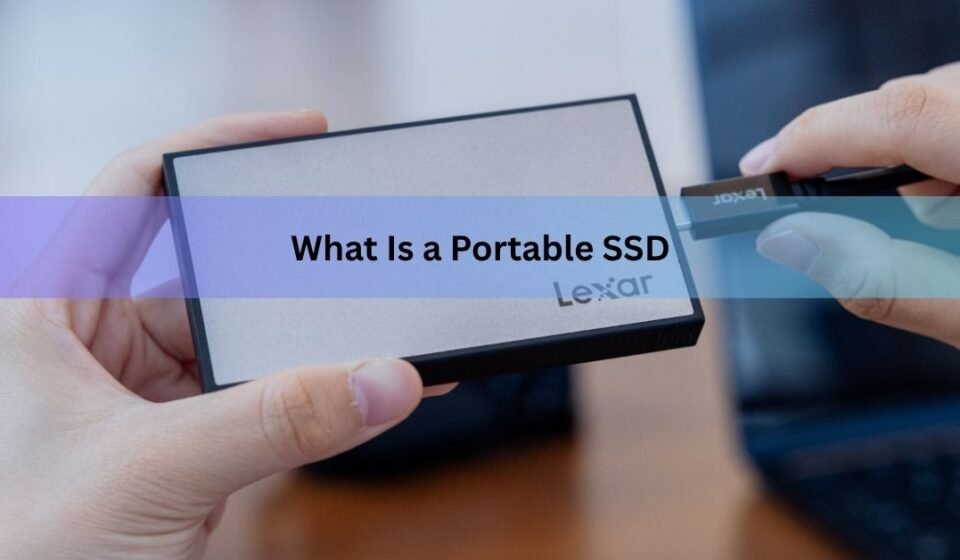

A portable SSD is a small external storage drive that uses flash memory chips to hold your files, with no moving parts inside. You plug it into a laptop, phone, tablet, or game console with a cable, and it works like extra space you can carry in a pocket. Because nothing spins, it reads and writes files much faster than a regular external hard drive and shrugs off the bumps that come with travel.
SSD stands for solid state drive. “Solid state” just means the storage is built from chips rather than moving discs. “Portable” means it is designed to be carried around and powered through the same cable that moves your data, so there is no separate power brick to pack.
That is the short version. Below, here is how these drives actually work, how they compare to an external hard drive, how fast they really are once you account for ports and cables, and how to pick one that fits what you do.
How does a portable SSD work?
A portable SSD stores data on NAND flash memory, the same type of chip used in phones and memory cards. Flash memory is non-volatile, which means it keeps your files even when the drive is unplugged and has no power. Each chip is split into billions of tiny cells, and each cell holds a charge that the drive reads back as your data.
Most portable SSDs use one of two cell types. TLC (triple-level cell) packs three bits of data into each cell and tends to be a bit faster and longer-lasting. QLC (quad-level cell) packs four bits in, which makes the drive cheaper to build and lets it hold more, at the cost of some speed and endurance. For everyday backups and file transfers, either is fine. Heavy daily writing, like a video editor filling a drive every day, is where TLC earns its slightly higher price.
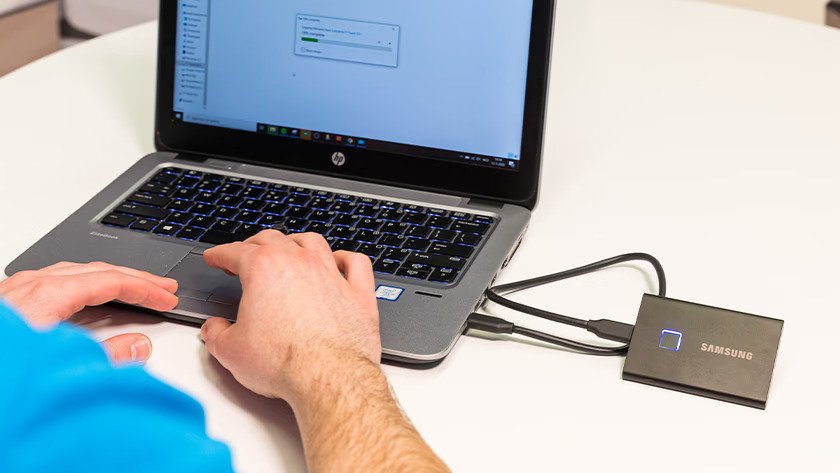
Inside the case sit three main parts: the flash chips that hold the data, a controller that acts as the drive’s brain, and a connector for the cable. The controller decides where to place data, spreads writes evenly so no single area wears out too fast (a process called wear levelling), and fixes small errors as they appear. Two drives with identical chips can perform very differently depending on how good their controller is.
Because there is no read head moving across a spinning platter, the drive finds and returns data almost instantly. That is the core reason an SSD feels quicker: there is no waiting for a disc to spin up or for a mechanical arm to reach the right spot. It also means the drive draws little power, which is why it can run from the cable alone and stays cool enough to sit in a pocket.
Portable SSD vs external hard drive: what’s the difference?
The main difference is what’s inside. A portable SSD uses flash chips with no moving parts. An external hard drive (HDD) stores data on spinning metal platters that a tiny arm reads and writes, much like a record player. That single design choice drives every other difference between them.
SSDs win on speed, toughness, size, weight, and noise. Hard drives win on price per terabyte and on how much storage you can buy in one unit. Here is how they stack up:
| Feature | Portable SSD | External hard drive |
| Speed | Roughly 500 to 4,000 MB/s | Roughly 100 to 160 MB/s |
| Moving parts | None | Spinning platters and a read arm |
| Drop resistance | High | Low; a drop can kill it |
| Size and weight | Pocket-sized, very light | Bulkier and heavier |
| Top capacity (consumer) | Around 8TB | 20TB or more |
| Price per TB | Higher | Much lower |
| Noise | Silent | Faint hum and clicks |
If you move large files often, edit photos or video, or carry a drive in a bag every day, the speed and durability of an SSD are worth paying for. If you mainly need a lot of cheap space sitting on a desk for archives, a hard drive still gives you more gigabytes for your money.
It is also worth separating a portable SSD from a USB flash drive, since both use flash memory and both are small. A flash drive (the thumb-sized stick) is built for cheap convenience and light use, with slower controllers and modest speeds. A portable SSD uses faster, higher-quality components built for sustained transfers and bigger capacities. If you only carry a few documents, a flash drive is fine. For moving hundreds of gigabytes or working off the drive, an SSD is the right tool.
How fast is a portable SSD?
A portable SSD’s real speed depends on three things working together: the drive itself, the port you plug it into, and the cable between them. The slowest link sets the limit. This is why a drive sold as “up to 2,000 MB/s” can copy files at half that rate on the wrong port, and it trips up a lot of buyers.
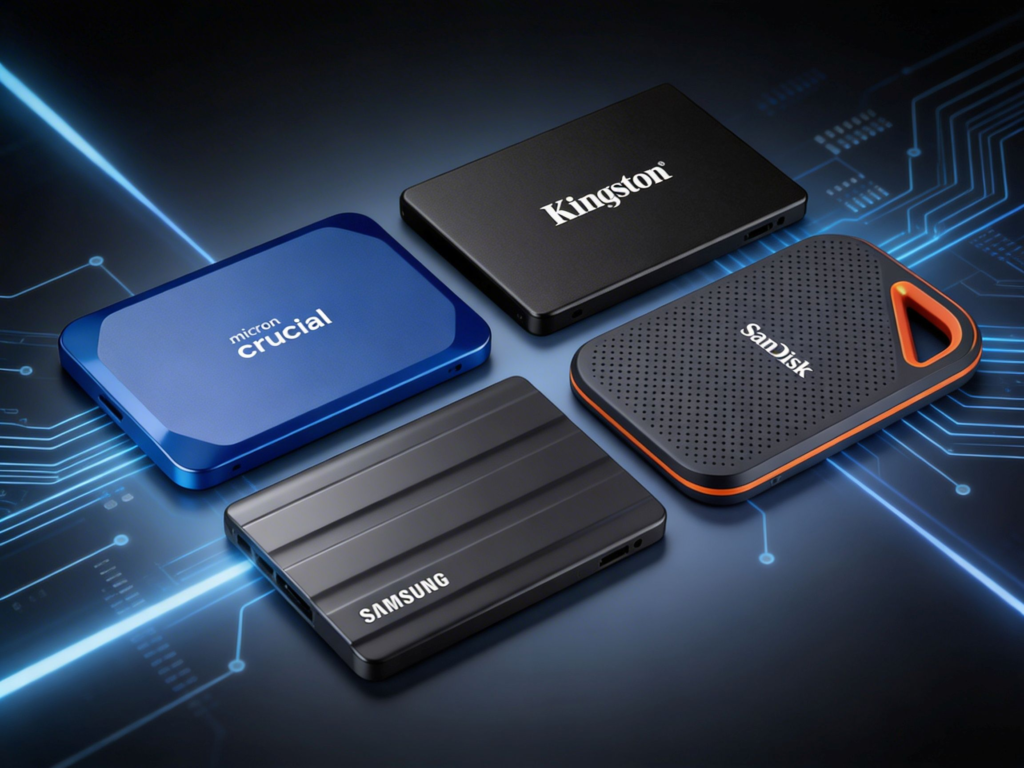
Speed is set by the interface, the standard that governs how fast data moves through the cable. The connector you can see (usually USB-C these days) does not tell you the speed on its own, because two identical-looking USB-C ports can run at very different rates. You have to check the standard your laptop’s port actually supports. The full naming list lives on the official USB-IF guidelines, but here are the tiers that matter for storage:
- USB 3.2 Gen 1 (5 Gbps): real-world speeds around 400 to 500 MB/s. Fine for everyday backups.
- USB 3.2 Gen 2 (10 Gbps): around 1,000 MB/s. The most common standard on portable SSDs today.
- USB 3.2 Gen 2×2 (20 Gbps): around 1,500 to 2,000 MB/s, but your computer’s port must support it too, which many do not.
- Thunderbolt 3/4 and USB4 (40 Gbps): the fastest mainstream options, reaching several thousand MB/s and rivalling drives built into a computer.
To put that in plain terms: copying a 5GB movie takes about a minute over a 5 Gbps port and roughly 17 seconds over a 20 Gbps port. For most people, a 10 Gbps drive hits the sweet spot of fast enough and affordable. The very fast Thunderbolt and USB4 drives mainly pay off for video editors moving terabytes a day, and the real-world gap between USB and Thunderbolt is smaller than the headline numbers suggest.
Quick tip: a drive can only run as fast as the slowest part in the chain. Match the drive’s interface to your computer’s port, and use the cable that came in the box. A cheap or worn cable can quietly cap your speed.
One more honest note: the headline read speed is for big, continuous files like videos. Copying thousands of tiny files (a folder of small documents, for example) is always slower, on any drive, because the work is scattered rather than smooth. That is normal, not a fault.
There is also a quirk worth knowing on long transfers. Many drives use a fast buffer that absorbs the first chunk of a big copy at full speed, then slow down once that buffer fills. So a huge transfer, say 200GB in one go, may start quick and then settle to a lower steady rate. For everyday file sizes you will rarely notice, but it explains why a giant copy can feel like it loses pace partway through.
What is a portable SSD used for?
A portable SSD is used to expand storage, back up files, move large projects between devices, and run media or games straight off the drive. Its speed and small size make it useful well beyond simple backup. Common uses include:
- Freeing up a full laptop: when your built-in drive fills up, an SSD adds space instantly with no need to open the machine.
- Photo and video work: editors can work directly off the drive, scrubbing through 4K footage without copying it over first.
- Backups: a fast, reliable copy of your important files you can grab and go.
- Gaming: many consoles and PCs can store and launch games from an external SSD, cutting load times and texture pop-in.
- Moving between devices: one drive shared across a Windows PC, a Mac, a tablet, and sometimes a phone.
The plug-and-play nature is part of the appeal. Connect it to a USB port and your computer treats it like any other drive, with no setup or software to install before you can drag files across.
A growing use is travel. Photographers and videographers offload memory cards onto a portable SSD at the end of each day, which clears their cards for reuse and creates a second copy of the shoot away from the camera. The drive’s small size and lack of moving parts make it far better suited to a backpack on a bumpy road than a spinning hard drive would be.
How to choose a portable SSD
Pick a portable SSD by matching four things to how you’ll use it: capacity, interface speed, durability, and your budget. Work through them in that order and the right drive usually becomes obvious.
- Capacity: 1TB suits general use and backups. 2TB is the comfortable middle for photos and a game library. Go for 4TB or 8TB if you handle large video projects, but expect the price to climb steeply at the top end.
- Interface: check what your computer’s port supports first, then match it. There is no point paying for a 40 Gbps Thunderbolt drive if your laptop tops out at 10 Gbps. For most people, a USB 3.2 Gen 2 (10 Gbps) drive is the smart buy.
- Durability: if the drive travels, look for a rugged model with a water and dust rating (often shown as an IP rating, like IP65) and a drop rating measured in metres.
- Security and extras: some drives offer hardware encryption to lock your data with a password, and many include a few years of warranty or even data recovery service. Worth checking if the files matter.
One small but real frustration to plan around: a drive labelled 1TB shows up as roughly 931GB once you plug it in. Nothing is missing. Drive makers count a terabyte as a flat trillion bytes, while your computer counts in powers of two, so the number it reports is a little lower. Buy with that gap in mind.
How do you set up and use a portable SSD?
Setting up a portable SSD takes seconds: plug it into a USB port, wait for it to appear as a drive, and drag your files across. There is no software to install for basic use. Most drives arrive preformatted and ready to go the moment you connect them.
The one decision worth making early is the file system, which is how the drive organises files. Most drives ship formatted as exFAT because it works on both Windows and Mac out of the box. If you use only one platform, you can reformat to its native system for smoother performance: NTFS on Windows, or APFS on a Mac. Reformatting erases everything on the drive, so do it before you copy anything important across.
When you’re done, eject or “safely remove” the drive before pulling the cable, rather than yanking it mid-transfer. Cutting power partway through a write can corrupt the file you were copying. A few seconds of patience here saves the occasional lost file.
For everyday use, no. A healthy consumer SSD is designed to hold your data for about a year unplugged with no power at all, and in practice many keep files far longer when stored somewhere cool. You do not need to plug it in every week to keep your photos safe.
The thing to understand is how flash storage holds data. Each cell keeps a small electrical charge, and over a long time with no power, that charge slowly drifts. The year-long retention figure is also a worst case that applies to a drive near the end of its rated life, not a fresh one. A new drive sitting in a drawer is very unlikely to lose anything in that window.
Where this matters is long-term cold storage. For files you want to park untouched for several years, like a wedding archive you may not open until much later, an SSD left disconnected is not the ideal home. For that kind of deep archive, a hard drive or a second copy in the cloud is a safer bet. The simplest rule covers every case: keep at least two copies of anything you cannot afford to lose, on two different devices.
To keep a portable SSD healthy, eject it properly before unplugging instead of yanking the cable, and keep it out of extreme heat, since high temperatures are harder on flash memory than cold. Avoid letting it run completely full for long stretches, as a little free space helps the controller manage writes and keeps speeds up. Beyond that, these drives need almost no maintenance.
Frequently asked questions
Is a portable SSD worth it over a hard drive?
For most people, yes. You pay more per terabyte, but you get speeds several times faster, a drive that survives drops, and a much smaller, lighter device. A hard drive only makes more sense when you need lots of cheap space that stays on a desk.
Can I run programs or games from a portable SSD?
Yes. Many game consoles and PCs let you install and launch games from an external SSD, with load times close to internal storage. Whole programs and even some operating systems can run from one too, as long as the port is fast enough.
How much storage do I need in a portable SSD?
For backups and general files, 1TB is plenty. For a mix of photos and games, 2TB is the comfortable middle. Choose 4TB or more only if you work with large video projects, since the price rises sharply at the top capacities.
Why is my portable SSD slower than advertised?
Almost always the port or cable, not the drive. A drive rated at 2,000 MB/s will run at about 1,000 MB/s on a 10 Gbps port. Copying many small files is also slower than one big file. Check your computer’s USB standard and use the supplied cable.
Do portable SSDs work with phones and tablets?
Many do. Most modern phones and tablets with a USB-C port can read and write to a portable SSD, which is handy for offloading photos and video. Check that your device supports external storage and that the drive’s file system is one it can read.
Conclusion
A portable SSD is a pocket-sized external drive built from flash chips, with no moving parts, so it is fast, tough, and silent compared to an external hard drive. To pick well, match the capacity to your needs, match the drive’s speed to your computer’s port, and choose a rugged model if it travels. A good result is a drive that copies files quickly, survives daily life in a bag, and gives you space you barely have to think about, backed up by a second copy of anything important.