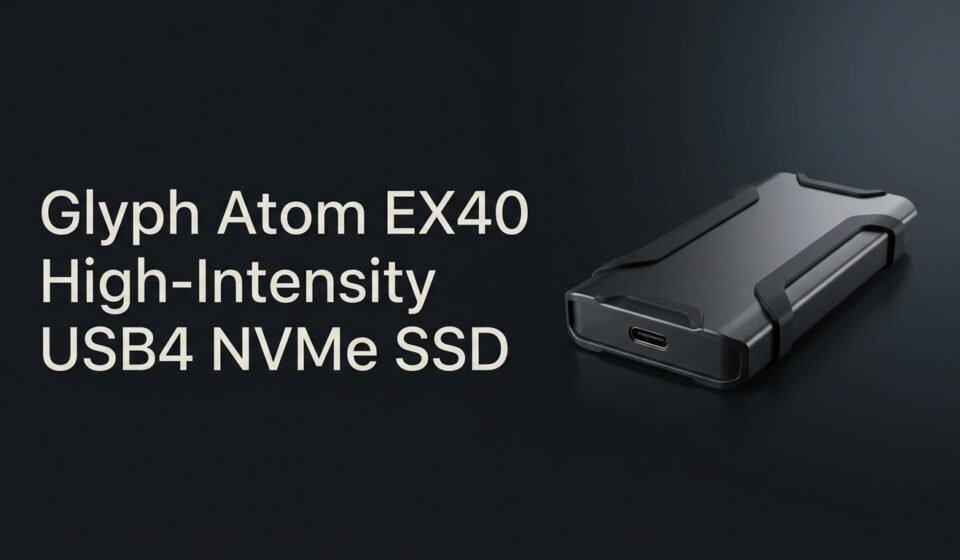

The Glyph Atom EX40 High-Intensity USB4 NVMe SSD is a rugged portable drive built for creators who move large video files fast, with claimed speeds up to 4,000 MB/s over a USB4 connection. It’s aimed squarely at people offloading 8K footage, oversized RAW files, or VFX timelines on location, not casual backup use.
This guide covers what actually sets the EX40 apart from Glyph’s other Atom drives, what USB4 means for the speeds you’ll really see, and who should spend the extra money over a cheaper option.
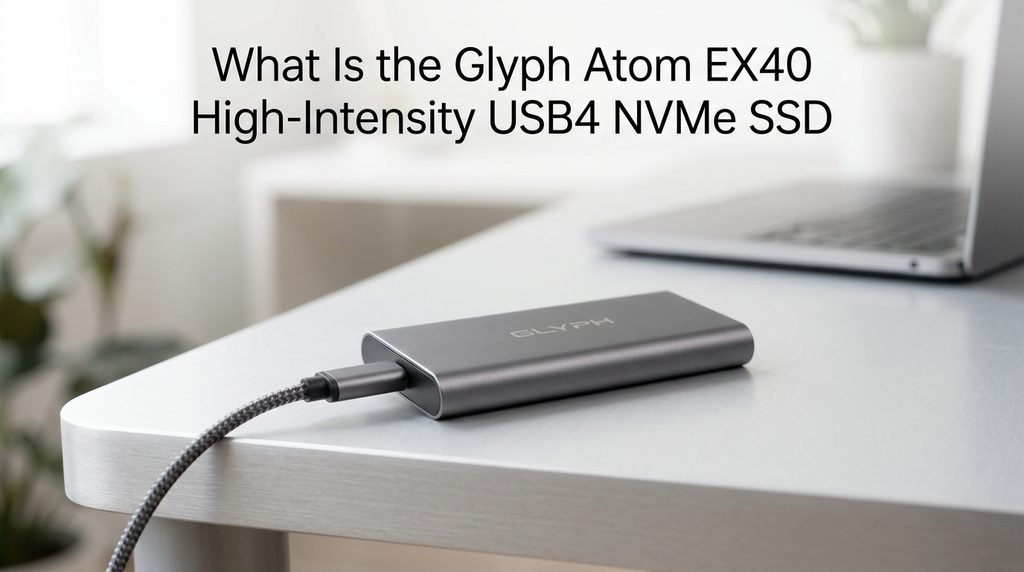
Suggested image placement: a product photo of the Glyph Atom EX40 drive connected via USB-C cable to a laptop, positioned after the intro. Alt text: “glyph atom ex40 high-intensity usb4 nvme ssd connected to laptop”
What Is the Glyph Atom EX40 High-Intensity USB4 NVMe SSD
The Atom EX40 is a portable NVMe SSD from Glyph Production Technologies, launched in January 2026 alongside its sibling drive, the Atom EX20. Both use an internal NVMe drive housed in a rugged aluminum enclosure, but the EX40 is the faster of the two, built specifically around a USB4 interface.
It ships in capacities from 1TB up to 8TB, comes pre-formatted for macOS out of the box, and is assembled in the USA with a 3-year warranty that includes data recovery coverage. Glyph markets it toward filmmakers, photographers, and mobile professionals whose workflows can’t tolerate slow offloads between shoots.
The EX40 sits in the middle of Glyph’s Atom EX lineup, positioned above the USB-C 3.2-based EX20 and below the higher-bandwidth EX80. That middle position is worth keeping in mind while reading the rest of this guide, since it shapes almost every buying decision around the drive — it’s the option for people who need more than entry-level speed but don’t need the absolute ceiling Glyph offers.
What USB4 Actually Means for Real-World Speed
USB4 isn’t just a faster label slapped on the same USB-C cable — it’s a different underlying protocol that supports significantly higher bandwidth than USB-C 3.2, which is what Glyph’s cheaper EX20 uses.
The EX20 tops out around 2,100 MB/s because USB-C 3.2 Gen 2×2 simply can’t move data faster than that, regardless of how fast the NAND inside the drive is. The EX40’s USB4 interface removes that ceiling, which is why it can claim roughly double the throughput.
That said, hitting 4,000 MB/s in practice requires a host computer with an actual USB4 or Thunderbolt 3/4 port, since those are the interfaces capable of negotiating that bandwidth. Plug the EX40 into an older USB-C 3.0 or 3.1 port, and it will simply run at that port’s slower ceiling — the drive doesn’t create bandwidth that isn’t there on the host side.
EX40 vs. EX20: Which Glyph Drive Fits Your Workflow
The EX20 and EX40 share the same rugged design and warranty terms, so the real decision comes down to what you’re actually editing and how much you’re willing to pay for headroom.
If your work is primarily 4K footage, photo libraries, or standard audio sessions, the EX20’s 2,100 MB/s ceiling is plenty — you’re unlikely to notice a practical difference in offload or editing speed, and you’ll save real money across every capacity tier. The EX40 earns its price premium when you’re regularly handling multi-stream 8K footage, oversized RAW image sequences, or VFX timelines where sustained high throughput directly cuts down your waiting time between takes.
It’s also worth considering your existing hardware before paying for the EX40’s extra speed: if your laptop only has USB-C 3.2 ports and no USB4 or Thunderbolt, you won’t be able to access the EX40’s full advantage anyway, making the EX20 the more sensible buy.
Durability and Thermal Design — What “High-Intensity” Really Means
Glyph’s “High-Intensity” branding refers to two specific engineering choices, not just marketing language, and both matter for anyone shooting outside a controlled studio environment.
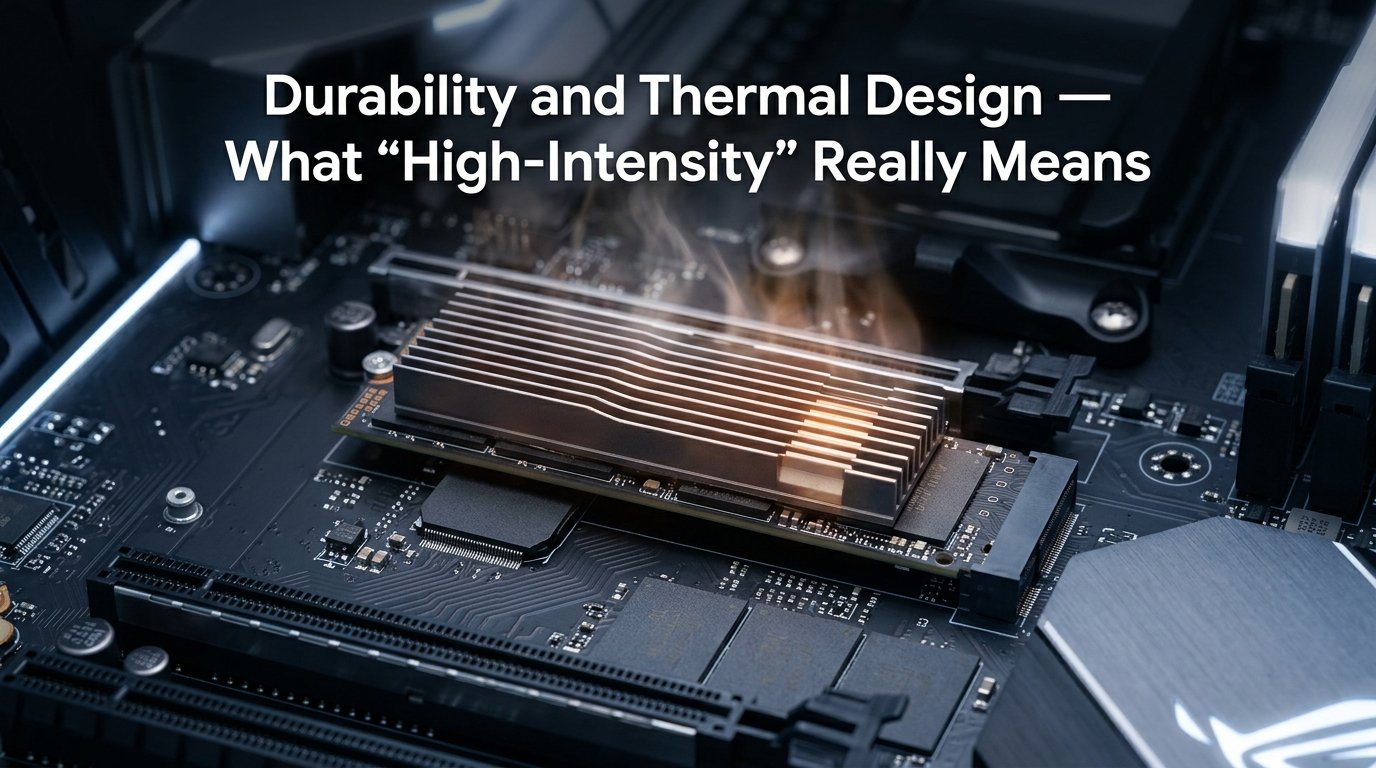
The first is MIL-Standard 810F certification, a military testing standard covering shock, vibration, and dust resistance. In practice, this means the EX40 is built to survive being dropped, jostled in a camera bag, or used in dusty field conditions without the internal NVMe module getting knocked loose or damaged, something plastic-bodied consumer drives aren’t rated for.
The second is the solid aluminum core and outer shell, which function as a passive heatsink. NVMe drives generate real heat under sustained write loads, and without adequate cooling, they throttle down to protect themselves, which is exactly when you don’t want your offload to slow down mid-transfer. The aluminum shell pulls heat away from the internal components continuously, which is what lets the EX40 hold its rated speed through a long offload rather than just hitting it briefly at the start.
This matters more than it might sound. A cheap plastic-bodied portable SSD can look identical on a spec sheet, claiming the same peak speed, but without a real thermal path for heat to escape, that speed only lasts for the first minute or two of a transfer before the drive throttles. For a working shooter dumping an hour of 8K footage between setups, that difference between peak and sustained speed is the entire point of paying for a “High-Intensity” rated drive instead of a standard consumer one.
Capacities and Pricing
| Capacity | Price (USD) |
| 1TB | $349.99 |
| 2TB | approx. $499.99–$599.99 (varies by retailer) |
| 4TB | approx. $799.99–$899.99 (varies by retailer) |
| 8TB | $1,499.99 |
Pricing scales roughly in line with capacity rather than dropping much per-terabyte at higher tiers, so buying more capacity than you currently need doesn’t carry the same discount curve you’d see with internal desktop SSDs. It’s worth checking current pricing directly with Glyph or an authorized retailer before buying, since promotional pricing shifts periodically.
Compatibility — Mac, Windows, and the Ports You Actually Need
The Atom EX40 ships pre-formatted for macOS, which means Mac users can plug it in and start working immediately without any setup step.
Windows users will need to reformat the drive before use, since macOS’s default file system (APFS or HFS+) isn’t natively writable on Windows. This is a quick one-time step in Windows’ Disk Management, but it’s worth doing deliberately rather than assuming the drive will just work out of the box on a Windows machine.
On the port side, the EX40’s USB-C connector is physically compatible with any USB-C or Thunderbolt port, but the speed you get depends entirely on what that port supports. A genuine USB4 or Thunderbolt 3/4 port gets you the full claimed speed; anything older still works, just slower.
Who Should Buy the Atom EX40 (And Who Shouldn’t)
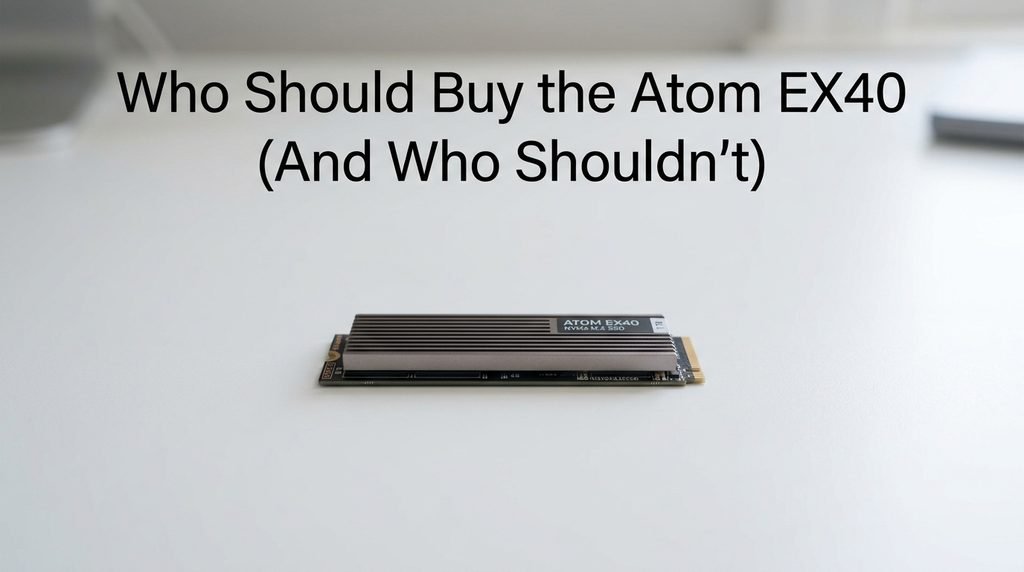
- Buy the EX40 if you regularly shoot and offload 8K or high-bitrate multi-stream footage on tight deadlines
- Buy it if your host computer has a genuine USB4 or Thunderbolt 3/4 port that can actually deliver the extra bandwidth
- Buy it if field durability against drops, dust, and vibration is a real concern in your workflow
- Skip it if your work is mostly 4K, photography, or audio, where the EX20 delivers essentially the same practical experience for less money
- Skip it if your laptop or desktop only has older USB-C 3.x ports, since you won’t access the EX40’s speed advantage anyway
Frequently Asked Questions
Do I need a USB4 port on my computer to use the Atom EX40? Not strictly it will work on any USB-C port. You just won’t reach the drive’s full 4,000 MB/s speed without a genuine USB4-capable port on the host side.
Will the Atom EX40 work with a Thunderbolt 3 or Thunderbolt 4 port? Yes, Thunderbolt 3 and 4 ports are compatible with USB4 devices and can deliver the bandwidth needed to reach the EX40’s rated speeds. This makes it a solid match for most modern MacBooks and Thunderbolt-equipped PCs.
Is the 4,000 MB/s speed claim realistic for everyday editing? It’s a peak sequential figure achievable under ideal conditions with a compatible host port. Real-world sustained speeds during actual editing or offload sessions will typically run somewhat below that peak, which is normal for any NVMe drive.
Does the Atom EX40 need to be reformatted for Windows use? Yes, since it ships pre-formatted for macOS. Windows users need to reformat it to NTFS or exFAT through Disk Management before the drive will accept writes from a Windows PC.
How does the Atom EX40 compare to the Atom EX80? The Atom EX80 is Glyph’s higher-tier drive in the same High-Intensity line, built around an even faster USB4 80Gbps interface for users who need more headroom than the EX40 offers. For most 8K and RAW workflows the EX40 is sufficient, with the EX80 reserved for the most demanding, sustained high-throughput use cases.
Conclusion
The Glyph Atom EX40 High-Intensity USB4 NVMe SSD makes the most sense for creators whose workflows genuinely push past what USB-C 3.2 drives can handle — heavy 8K footage, large RAW sequences, or tight-deadline offloads where every minute of transfer time matters. If your host hardware can actually deliver USB4 bandwidth and your workload demands it, the EX40 is a durable, purpose-built choice worth the premium over Glyph’s slower Atom EX20.
Related Post:
How Is SSD Calculated? The Full Formula, Explained Step by Step
2230 vs 2280 SSD: Which Size Fits Your Device (and Is One Faster?)
1TB vs 2TB SSD: Which One Do You Actually Need?