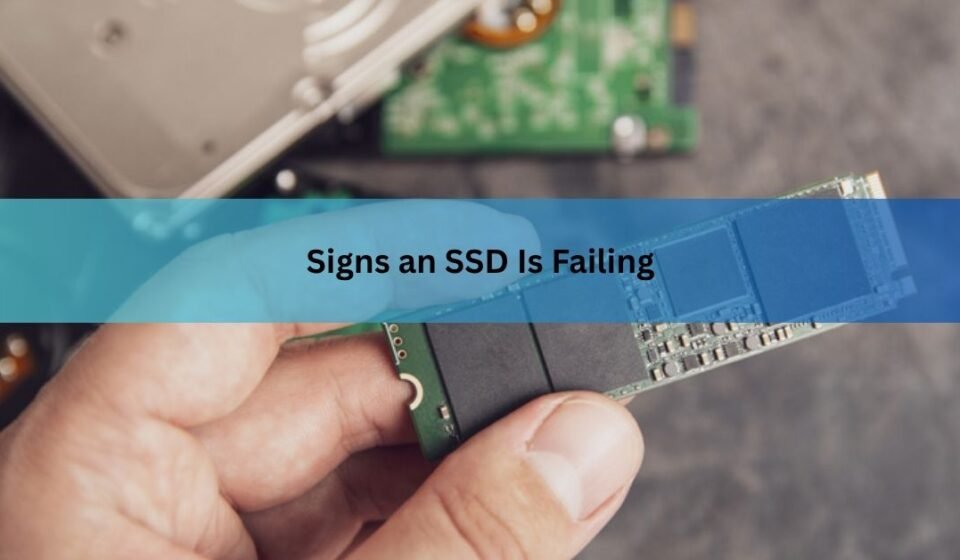

A failing SSD usually announces itself through a handful of specific symptoms: a sudden drop in speed, files that won’t open or vanish outright, a drive that turns read-only, repeated crashes tied to storage, or the drive disappearing from your system altogether. None of this happens because of worn-out moving parts, since solid-state drives don’t have any. It happens because the NAND flash memory chips inside are wearing down, the controller is struggling to manage bad blocks, or a firmware or power problem has damaged the drive’s internal map of your data. Catching any of these signs early buys you time to back up your files before the drive stops responding completely. Here’s what to watch for, why it happens, and how to confirm it before you replace anything.
Your computer slows down for no clear reason
If boot times stretch from seconds to a minute or more, or programs that used to open instantly now hang for several seconds, a failing SSD is one of the most common causes once you’ve ruled out malware and a nearly full drive.
A healthy SSD reads and writes at a fairly consistent speed no matter how long you’ve owned it. When NAND cells start to wear out, or the controller has to retry a read several times just to pull a clean copy of your data, that delay shows up as system-wide lag rather than a slowdown in one app. Copying a folder that used to take a few seconds might now crawl along at a few kilobytes per second, or the drive might spike to 100 percent usage in Task Manager for no obvious reason.

Before you blame the drive, check for the usual culprits: too many programs launching at startup, too little free RAM, or a drive that’s over 90 percent full. SSDs slow down as they fill up, because the controller has fewer free blocks to write to efficiently. If none of that explains it, the drive itself is the more likely cause.
Files won’t open, go missing, or come back corrupted
Recurring “the file or directory is corrupted and unreadable” errors, documents that disappear after you’re certain you saved them, or programs that suddenly refuse to launch point to the drive’s flash cells or its internal file table starting to fail.
An occasional corrupted file isn’t unusual. Sudden software crashes, power outages, or a messy shutdown can all damage a single file without the drive being at fault. What matters is the pattern: if corruption keeps happening, especially to the same files, or if it’s getting worse over a few weeks, wear on the drive is the more likely explanation, particularly on a drive that’s five years old or older and has seen heavy daily writing.
The drive turns read-only or won’t save new files
When an SSD refuses to write new data, or your operating system reports the drive as write-protected, the controller has almost certainly triggered a built-in failsafe.
This happens when the drive runs out of healthy spare blocks to write to. Rather than risk losing what’s already stored, the controller locks the drive into read-only mode as a last-ditch way to protect existing data and give you one final chance to copy it off. If you see this, treat it as urgent. Every additional minute the drive stays powered on and in use raises the risk that even read-only access disappears.
Frequent crashes, freezes, or blue and black screens
Freezing when you try to open a file, apps that crash without warning, or a blue-screen or black-screen error mentioning disk errors, a storage timeout, or a “file system needs repair” message usually mean the SSD is struggling to complete read or write requests within the time the operating system expects.
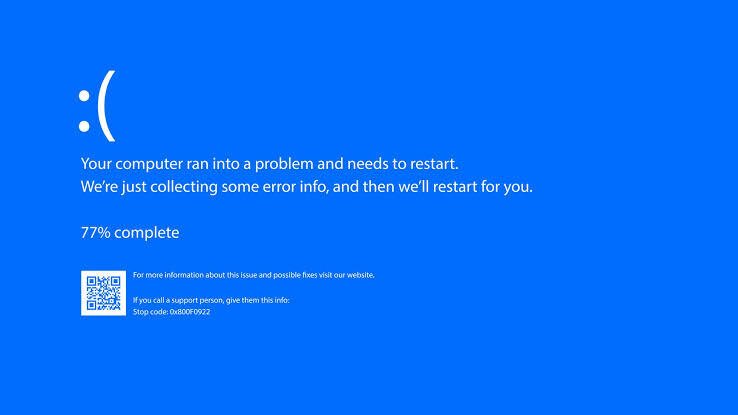
On Windows, the Event Viewer can help confirm this. Look for repeated references to disk errors, timeouts, or bad blocks tied to the drive around the time of a crash. On a Mac, the Console app or the built-in Disk Utility SMART status field can point to the same kind of problem. A single crash rarely means much, since software bugs cause plenty of their own blue screens, but a pattern that keeps coming back to the same drive is a stronger signal.
The BIOS or operating system stops recognizing the drive
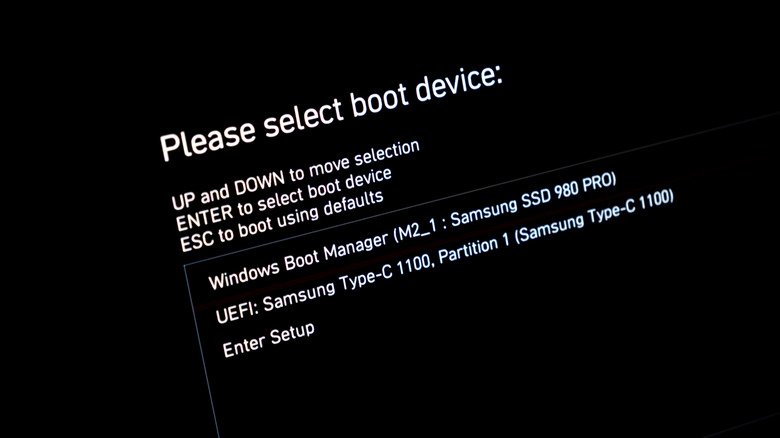
If your BIOS or UEFI setup screen, or Disk Management on Windows and Disk Utility on a Mac, suddenly stops showing the drive at all, or you get a “no boot device” or flashing question mark error, the controller has likely failed outright.
This is usually the most serious sign on this list, since a drive the system can’t see at all is a drive you generally can’t read from either. Before assuming the worst, rule out a connection problem: reseat an NVMe drive in its slot, check a SATA cable, or try the drive in another computer or an external enclosure. If it still doesn’t show up anywhere, the controller itself is the likely point of failure.
The drive runs hotter than it should
SSDs handle heat better than spinning hard drives, but they’re not immune to it, and excess heat accelerates wear on the flash memory cells inside. NVMe drives in particular can run hot during sustained heavy reads or writes, especially in a laptop or a case with poor airflow.
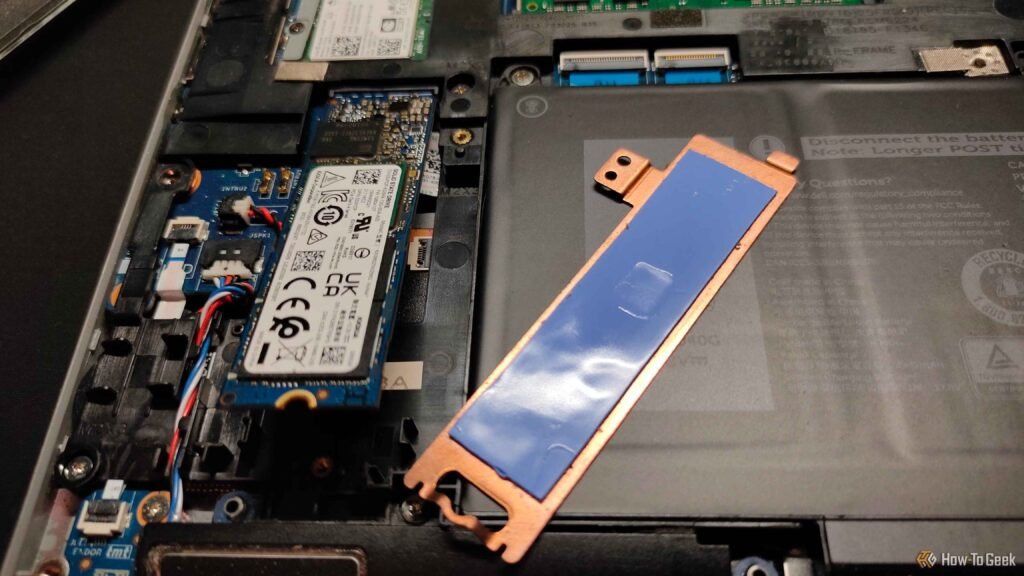
If you notice your drive or system running warmer than usual during routine tasks, not just heavy gaming or video editing, it’s worth checking the temperature with a monitoring tool. A drive that’s consistently running hot isn’t failing yet, but it’s aging faster than it should, and that shortens the runway before other symptoms on this list start to appear.
How to check SMART health data instead of guessing
Every modern SSD tracks its own condition through S.M.A.R.T. (Self-Monitoring, Analysis, and Reporting Technology), and a handful of key attributes tell you far more than symptoms alone.
| Attribute | What it tracks | When to be concerned |
|---|---|---|
| Reallocated or retired block count | NAND cells the controller has permanently retired and replaced with spares | Any value above zero and rising over time |
| Current pending sector count | Data the drive can’t reliably read yet, not yet reallocated | A rising count, especially alongside slowdowns |
| Percentage Used / Media Wearout Indicator | How much of the drive’s rated write endurance has been consumed | Above 80 to 90 percent of rated life |
| Uncorrectable error count | Errors the drive’s error correction couldn’t fix | Any value above zero |
A tool like CrystalDiskInfo, a free HDD and SSD utility that reads these attributes directly, will summarize the results as a simple Good, Caution, or Bad health status along with a remaining-life percentage for SSDs. On Windows, you can also get a quick read on basic drive status and media type through the built-in Defragment and Optimize Drives tool, though it won’t give you the same level of SMART detail a dedicated utility does. On a Mac, Disk Utility’s SMART status field does the same basic job in one word: Verified or Failing.
How long an SSD should actually last
SSD endurance is rated in TBW, or terabytes written, which is the total amount of data the drive is guaranteed to handle over its lifetime before wear becomes a real concern. A typical consumer SSD is rated for several hundred terabytes of total writes, which works out to somewhere between five and ten years of typical home or office use. Heavy daily writing, such as constant large file transfers, video editing, or running a database, burns through that allowance much faster.
The Percentage Used or Remaining Life figure in your SMART data tracks this directly. Once that figure crosses roughly 80 percent, it’s a reasonable point to start planning a replacement even if the drive hasn’t shown any other symptoms yet.
The safest way to treat any of the signs above is to assume you have limited time left, not that the drive will hold on indefinitely. Back up first and diagnose second.
What to do the moment you notice these signs
- Back up your data immediately. Copy anything important to another drive or cloud storage before you do anything else, even before running a diagnostic.
- Stop heavy writing to the drive. Avoid installing large programs, downloading big files, or running anything that writes heavily until you’ve backed up.
- Run a SMART check to confirm what’s actually happening rather than guessing from symptoms alone.
- If the drive has already gone read-only or disappeared from the system, stop using it. Repeated attempts to force access can make data recovery harder rather than easier.
- Plan the replacement early. A drive that’s already shown one of these signs is worth replacing on your schedule, not the drive’s.
Frequently asked questions
Can a failing SSD be repaired?
Not in the way a software problem can be fixed. Once NAND cells wear out or the controller starts failing, there’s no repair, only backing up your data and replacing the drive.
How long does a failing SSD take to die completely?
It varies widely, from days to many months. A drive that’s already gone read-only or dropped off the system can fail completely at any time, so don’t wait to find out.
Does reformatting or running TRIM fix a failing SSD?
No. TRIM helps a healthy drive stay fast by managing free space, but it does nothing for worn-out or damaged flash cells, and reformatting won’t undo physical wear.
Can data still be recovered from a dead SSD?
Sometimes, through a professional data recovery service, but it’s harder and less reliable than recovering from a failed hard drive, and it can be expensive. A current backup is far cheaper.
Do SSDs fail more often than hard drives?
Generally no. SSDs have no moving parts to wear out mechanically, and most last as long as or longer than hard drives, but they can fail suddenly rather than with the gradual noises an HDD often gives off first.
Conclusion
A failing SSD tells you before it dies completely, through slower performance, file errors, a read-only lockout, storage-related crashes, or the drive vanishing from your system. Checking SMART data confirms what symptoms alone can only suggest. The moment you notice any of these signs, back up your files first and worry about diagnosing or replacing the drive second. A drive caught early costs you an afternoon; one caught late can cost you the data on it.
Related Post:
SSD Not Detected by BIOS: How to Find and Fix the Real Cause
How to Partition an SSD: Windows, Mac, and When to Skip It
What to Do After Installing a New SSD
SSD Showing as Unallocated? What It Means and How to Fix It Safely
How to Copy an SSD to a Larger SSD Without Reinstalling Windows