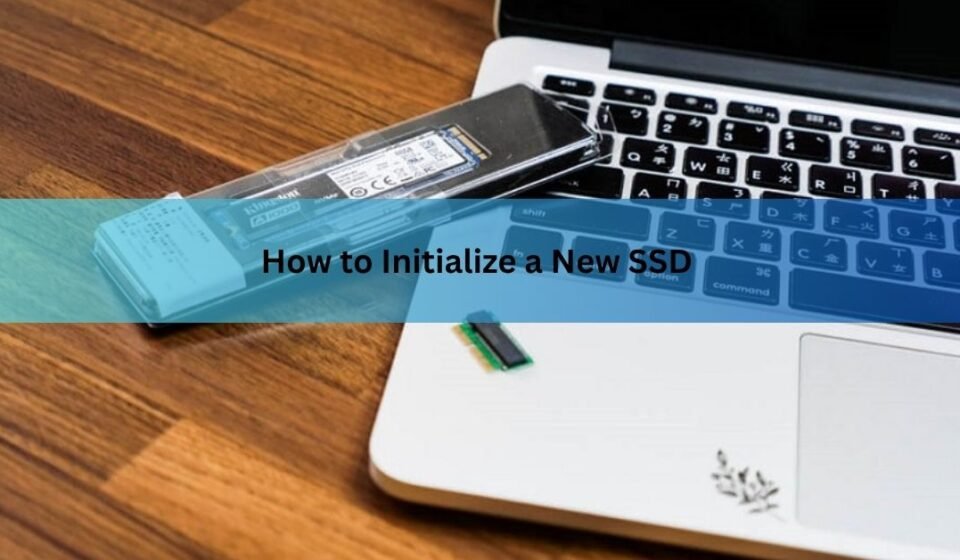

To initialize a new SSD on Windows, right-click the Start button, open Disk Management, right-click the disk marked “Not Initialized,” choose Initialize Disk, select GPT, and click OK. Then right-click the unallocated space, pick New Simple Volume, and click through the wizard to format the drive. The whole job takes about two minutes. On a Mac, Disk Utility handles all of it with a single Erase step.
This guide walks through each step on Windows 10, Windows 11, and macOS, explains why GPT is almost always the right choice, and covers the fixes that work when a new drive refuses to show up.
What initializing an SSD actually does
A brand-new SSD ships completely blank. There is no partition table on it, which is the small map an operating system reads to know how the drive is laid out. Until that map exists, Windows can see the hardware but has no idea what to do with it, so the drive never appears in File Explorer.
Getting a drive ready is really three separate steps, and they happen in this order:
- Initialize: writes the partition table (MBR or GPT) so the operating system can manage the drive.
- Partition: splits the drive into one or more volumes. Most people create a single volume that uses the whole drive.
- Format: puts a file system (like NTFS or APFS) on a volume so it can actually hold files.
People often say “initialize” to mean all three, and that is fine. The Windows wizard chains them together anyway.
When you can skip this
You only initialize a drive by hand when it will be used for extra storage. In two common cases the work is done for you:
- Installing Windows or macOS on the new SSD. The installer detects the blank drive, creates the partitions, and formats them during setup. Initializing first adds nothing.
- Cloning your old drive to the new SSD. Cloning copies the partition table along with everything else, so the new drive comes out ready to boot.
For every other case, a game drive, a scratch disk, an external SSD, follow the steps below.
How to initialize a new SSD on Windows 10 and 11
The steps are the same on both versions of Windows. You need an administrator account.
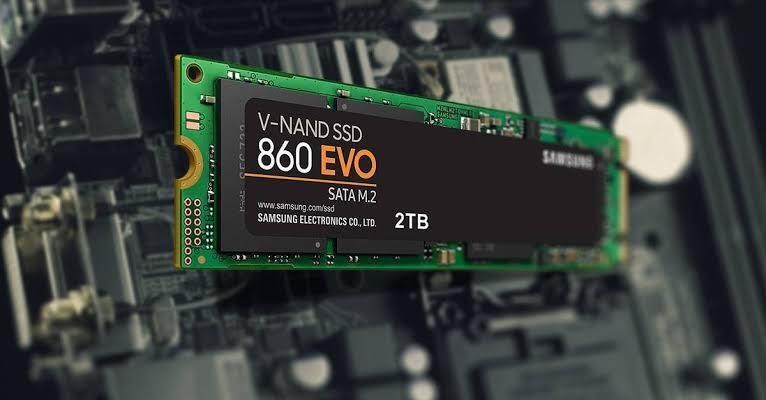
- Install the SSD (or plug it in over USB) and boot the PC from your existing drive.
- Right-click the Start button and choose Disk Management. You can also press Windows key + X and pick it from the menu.
- An Initialize Disk window usually pops up on its own as soon as Disk Management opens. If it does not, scroll the lower pane, find the disk labeled “Not Initialized,” right-click its name on the left, and choose Initialize Disk.
- Confirm the correct disk is ticked. On a fresh drive it shows as unallocated space with no partitions.
- Select GPT (GUID Partition Table) and click OK. The status changes to Online within a second or two.
That is the initialization done. The drive still will not show in File Explorer, though, because it has no volume yet. Keep going.
MBR or GPT: pick GPT
Windows offers two partition styles, and the dialog gives you one line of explanation for each. Here is the practical difference:
| GPT | MBR | |
| Maximum usable size | Effectively unlimited for consumer drives | 2 TB per drive |
| Partitions | Up to 128 in Windows | 4 primary partitions |
| Boot support | UEFI (every modern PC) | Legacy BIOS only |
| Windows 11 boot drive | Required | Not supported |
| Resilience | Keeps a backup copy of the partition table | Single copy, no backup |
GPT is the right answer for basically every SSD sold today. Windows 11 will only boot from a GPT disk, drives larger than 2 TB need GPT to use their full capacity, and GPT stores a backup of its own partition table at the end of the drive, so it recovers better from corruption. The only reason to pick MBR is a genuinely old machine with a legacy BIOS or software from that era, and Microsoft covers those edge cases in its official guide to initializing new disks.
Picked wrong? You can switch styles later, but converting between MBR and GPT means deleting every partition on the drive first. It costs thirty seconds now or your data later, so choose GPT while the drive is empty.
Create a volume and format the drive
With the disk online, the space on it still reads “Unallocated.” Turning it into a usable drive takes one short wizard:
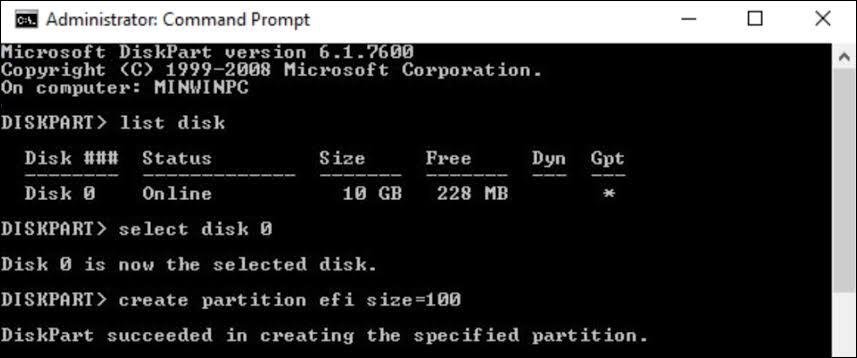
- Right-click the Unallocated space and choose New Simple Volume, then click Next.
- Leave the volume size at the default to use the whole drive, and click Next.
- Accept the suggested drive letter or pick your own, then click Next.
- Choose NTFS as the file system, type a volume label (the name the drive shows in File Explorer), and make sure Perform a quick format stays checked.
- Click Next, then Finish. The drive appears in File Explorer a few seconds later.
Two choices in that wizard matter. NTFS is right for a drive that stays inside a Windows PC. If the SSD is external and will move between Windows and Mac machines, pick exFAT instead, since both systems can read and write it. And keep the quick format option checked: a full format writes to every cell on the drive, which takes far longer and adds pointless wear to an SSD for no benefit on a new drive.
Doing it with PowerShell instead
If you prefer a terminal, three commands in an elevated PowerShell window do the same job. First run Get-Disk and note the number of the new drive. Then:
Initialize-Disk -Number 1 -PartitionStyle GPT
New-Partition -DiskNumber 1 -UseMaximumSize -AssignDriveLetter | Format-Volume -FileSystem NTFS -NewFileSystemLabel “Data”
Swap the 1 for your disk’s actual number, and check it twice. Disk commands do not ask “are you sure,” and pointing them at the wrong disk will cost you whatever was on it.
How to initialize a new SSD on a Mac
macOS folds initializing, partitioning, and formatting into one Erase action in Disk Utility:
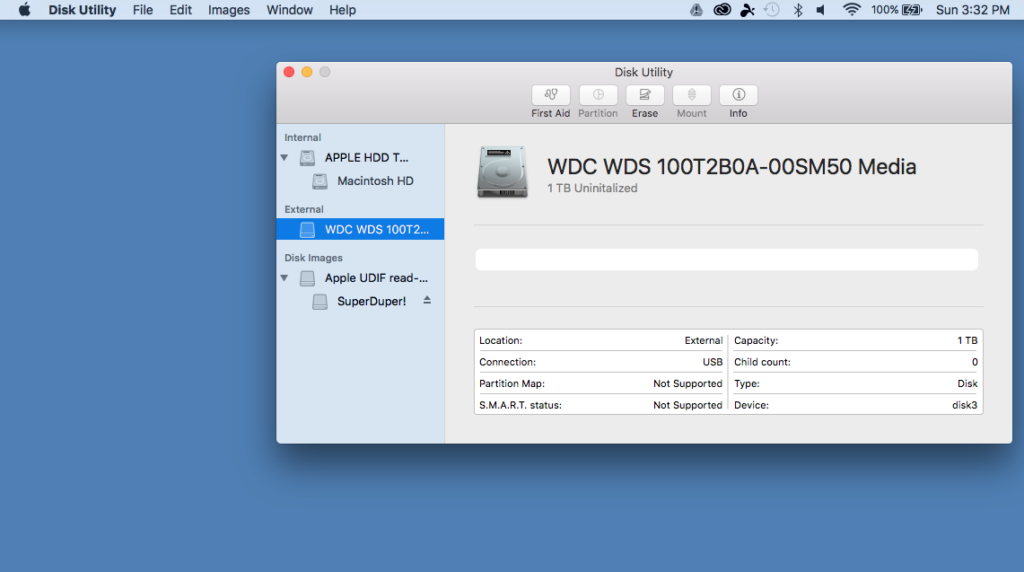
- Connect the drive, then press Cmd + Space, type Disk Utility, and press Return.
- In the menu bar, choose View > Show All Devices. This matters: you want to erase the whole physical drive, not just a volume on it.
- Select the new SSD at the top level of the sidebar and click Erase.
- Give the drive a name, choose APFS as the format, and GUID Partition Map as the scheme.
- Click Erase. The drive mounts on the desktop when it finishes.
APFS is the right format for any Mac running macOS High Sierra (10.13) or later, which covers every Mac from the last eight years. For an external SSD that also needs to work on Windows machines, choose exFAT instead.
New SSD not showing up? Work through these fixes
When the drive does not behave the way the steps above describe, the fix is usually one of these, roughly in order of how often each one is the culprit:
- No pop-up appeared in Disk Management. That is normal. Scroll the lower pane and look for a disk marked Not Initialized or Offline. If it says Offline, right-click it and choose Online first, then initialize it.
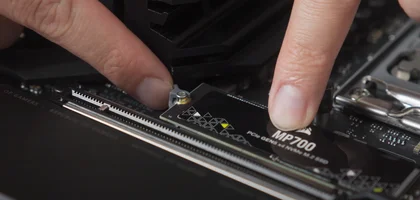
- The drive is missing from Disk Management entirely. Check whether your BIOS or UEFI firmware sees it (press Delete or F2 during boot on most PCs). If the firmware cannot see it either, the problem is physical: reseat the M.2 drive and its screw, or swap the SATA data and power cables and try a different port.
- An M.2 drive killed a SATA port. On many motherboards, filling an M.2 slot disables one or two SATA ports because they share bandwidth. If an old drive vanished when you added the new one, check your motherboard manual for which ports pair with which slot.
- The drive shows up but initialization fails with an I/O error. Try another cable, another port, or another PC. A brand-new drive that will not initialize anywhere is faulty, and drives rarely get better. Return it while it is still easy to.
- The drive is initialized but invisible in File Explorer. It probably has no drive letter. In Disk Management, right-click the volume, choose Change Drive Letter and Paths, and add one.
Two quick checks after setup
Confirm TRIM is on. TRIM lets Windows tell the SSD which blocks are free, which keeps write speeds up over the years. It is enabled by default, and you can confirm it by running fsutil behavior query DisableDeleteNotify in a command prompt. A result of 0 means TRIM is active.
Check for a firmware update. Manufacturers ship free dashboard tools, Samsung Magician, Crucial Storage Executive, WD Dashboard and the like, that update firmware and report drive health. Crucial’s SSD setup and support pages are a good example of the documentation these tools sit alongside. Five minutes here can fix bugs the drive shipped with.
Frequently asked questions
Should I choose MBR or GPT for a new SSD?
Choose GPT. It supports drives over 2 TB, works with the UEFI firmware in every modern PC, is required for booting Windows 11, and keeps a backup partition table. MBR only makes sense on old legacy-BIOS machines.
Do I need to initialize an SSD before installing Windows on it?
No. Windows Setup detects the blank drive and creates and formats the partitions itself during installation. The same goes for cloning, which copies the partition table from your old drive. Manual initialization is only for extra storage drives.
Does initializing a disk erase my data?
On a new SSD there is nothing to erase. On a used drive, initializing rewrites the partition table, which makes the existing partitions and files inaccessible. Back up anything you care about before touching a drive that has been used.
Why won’t my new SSD show up in Disk Management?
Check your BIOS or UEFI first. If the firmware cannot see the drive either, reseat the M.2 stick or swap SATA cables and ports. Also check whether the M.2 slot disables a SATA port on your motherboard, which is common.
Should I use quick format or full format on a new SSD?
Quick format. It sets up the file system in seconds. A full format writes to every cell of the drive, which takes much longer and adds unnecessary wear while offering no real benefit on a new SSD.
Conclusion
Initializing a new SSD comes down to one short sequence: open Disk Management, initialize the disk as GPT, then create a New Simple Volume formatted as NTFS. On a Mac, select the drive in Disk Utility and erase it as APFS with a GUID Partition Map. Done right, the drive shows up in File Explorer or on your desktop within two minutes, at full capacity, ready to hold files. If it does not, the troubleshooting list above catches nearly every cause.
Related Post:
How to Format an SSD in Windows 10 (Safely, Without Killing the Drive)
SSD failure symptoms: how to tell your drive is dying
What to Do After Installing a New SSD
Computer Not Recognizing Your SSD? Here’s How to Find the Problem and Fix It
USB Flash Drive as an SSD: What You Can Do and Where It Falls Short