
Your SSD is almost certainly fine. A 1TB drive showing about 931GB in Windows is normal, because drive makers count storage in decimal while Windows counts in binary. The drive holds every byte you paid for; only the label changes.
If the gap is bigger than that, roughly 7 percent, the missing space is usually sitting on the drive as unallocated or hidden partitions, and you can get it back in a few minutes with tools already built into Windows. This guide covers both cases: first a quick way to tell which one you have, then the fix.
How much space should your SSD actually show?
Multiply the size on the box by 0.93. If the number Windows reports is close to that, nothing is wrong and there is nothing to fix. Here are the common sizes:
| Size on the box | What Windows shows | Verdict |
| 128 GB | about 119 GB | Normal |
| 256 GB | about 238 GB | Normal |
| 500 GB | about 465 GB | Normal |
| 1 TB | about 931 GB | Normal |
| 2 TB | about 1,863 GB | Normal |
| 4 TB | about 3,726 GB | Normal |
So a 500GB SSD showing 465GB is correct, and a 1TB SSD showing 931GB is correct. But a 1TB drive showing 500GB, or a 4TB drive stuck at 2TB, is a real problem with a real fix. The next section explains the normal gap; if your gap is bigger, jump ahead to the causes.
Why Windows reports less than the box says
Drive makers and Windows measure the same bytes with different rulers.
Manufacturers use decimal units, where 1GB equals 1,000,000,000 bytes. A 500GB SSD really does contain 500 billion bytes. Windows, though, counts in binary units, where 1GB equals 1,073,741,824 bytes (1,024 multiplied by itself three times). Divide 500 billion by that bigger number and you get 465. Same bytes, smaller-looking total.
The gap grows with drive size: about 7GB on a 100GB drive, about 70GB on a 1TB drive, and about 280GB on a 4TB drive. Every SSD, hard drive, USB stick, and SD card on the planet shows this same difference, which is why the fine print on the box says something like “1GB = 1 billion bytes; actual usable capacity may vary.” Crucial explains this labeling convention on its official support page.
One detail that trips people up: macOS and most Linux tools count in decimal, the same way the box does. Plug the same 500GB SSD into a Mac and Disk Utility shows the full 500GB. Nothing changed except the math the operating system uses to display it.
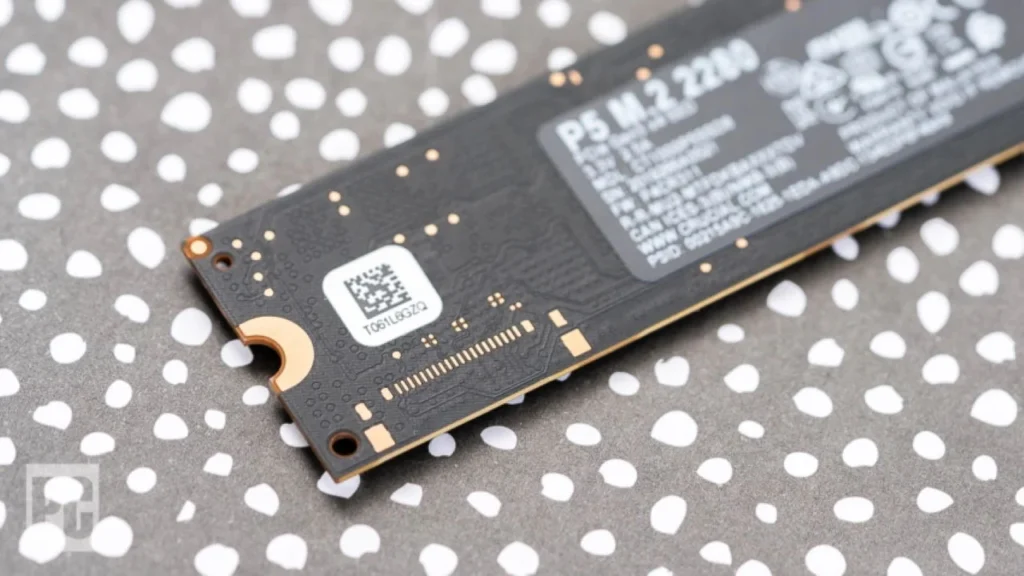
Overprovisioning, the spare flash an SSD keeps aside for wear management, does not explain the gap either. On consumer drives that spare area is hidden from the very first byte, so it was never part of the advertised number to begin with.
A couple of small extra bites are normal too. Formatting a drive creates a file system, the index that tracks where every file lives, and that index takes a little room. On a Windows boot drive, a recovery partition of a few hundred megabytes to a few gigabytes is standard as well.
When the gap is too big to be normal: 6 causes
If your SSD shows far less than 93 percent of the advertised size, one of these is almost always the reason.
Unallocated space
This is the most common cause by a wide margin. Part of the drive was never assigned to a partition, so File Explorer simply cannot see it. It happens with brand-new drives that were only partly set up, and with drives that came pre-partitioned into sections you never noticed. The space is still there, just unclaimed.
You cloned from a smaller drive
Cloning copies the old drive’s partition layout exactly. Clone a 500GB drive onto a 1TB SSD and the new drive ends up with a 500GB partition plus 500GB of unallocated space sitting behind it. The fix is a two-minute partition extension, covered below.
The drive uses MBR and is bigger than 2TB
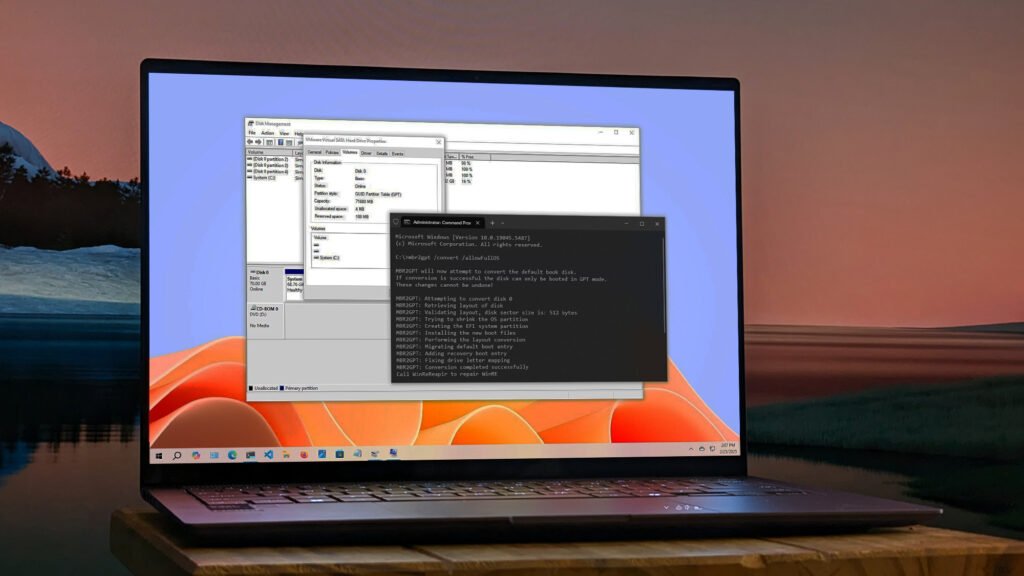
A disk can be set up in one of two partition styles: MBR (an older standard) or GPT (the current one). MBR can only address about 2TB, so a 4TB SSD initialized as MBR shows 2TB and hides the rest as unallocated space that cannot even be claimed. Converting the disk to GPT removes the cap.
Hidden recovery or OEM partitions
Prebuilt laptops and desktops often ship with hidden partitions holding factory-restore files and manufacturer tools. These can take anywhere from 1GB to 25GB. They are real and doing a job, so only remove one if you have made a recovery USB first.
The drive was formatted as FAT32 with an old tool
Windows’ built-in formatter caps FAT32 partitions at 32GB. If a large drive was set up this way, it can show a 32GB partition with the rest unallocated. Reformatting as NTFS (for Windows use) or exFAT (for drives shared with other devices) fixes it.
The drive is counterfeit
Fake SSDs and flash drives sold through marketplace sellers carry doctored firmware that misreports capacity, and the flash inside is a fraction of the label. If a bargain drive behaves strangely, corrupts files once it fills past a certain point, or reports odd sizes in every tool, test it before trusting it with data. The last section shows how.
If the capacity is right but the free space keeps shrinking
Sometimes the drive reports the correct total, and what looks wrong is the free space. That is a different issue: files you cannot see are using the room. Windows itself keeps several large ones on the boot drive, including the paging file (spillover memory), the hibernation file (a saved copy of RAM, often several gigabytes), and System Restore snapshots.
To see where the space went, open Settings > System > Storage and click into each category. From there you can clear temporary files, trim restore points, and spot the folders doing the damage. If a category called “System and reserved” looks huge, the paging and hibernation files are usually why, and both are normal.
How to get the missing space back
Everything here uses Disk Management, which ships with Windows 10 and 11. Start by looking at what the drive really contains:
- Press Windows key + X and choose Disk Management.
- Find your SSD in the lower half of the window. Each disk is one row, split into blocks. Blocks with a black bar labeled Unallocated are your missing space.
What you do next depends on what you see.
If unallocated space sits right after your partition
Right-click the partition, choose Extend Volume, and click through the wizard, accepting the default (maximum) size. The partition grows into the free space instantly, with no data loss and no restart. This is the standard fix after cloning.
If a new drive is entirely unallocated
Right-click the unallocated block, choose New Simple Volume, and accept the defaults, formatting as NTFS. The drive appears in File Explorer at full usable size.
If Extend Volume is greyed out
Windows can only extend a partition into free space that sits directly to its right. If a small recovery partition is wedged in between, the button stays grey. You can either delete that recovery partition (only after creating a Windows recovery USB) or use a free third-party partition manager to move it out of the way, since Disk Management cannot move partitions.
If a 4TB or larger drive is stuck at 2TB
The disk is using MBR and needs to become GPT. For a data drive, back up its files, delete its volumes in Disk Management, right-click the disk’s label on the left and choose Convert to GPT Disk, then create a new volume across the full size. For the drive Windows boots from, use Microsoft’s MBR2GPT tool, which converts the system disk without deleting data; after it finishes, switch the firmware from legacy BIOS boot to UEFI so the machine still starts.
One warning before you touch anything: the diskpart “clean” command erases every partition on whatever disk is selected, instantly and without a confirmation prompt. Double-check the disk number before running it, and never use it as a first resort.
How to check whether the drive itself is genuine
A real capacity test writes data across the entire drive and reads it back. The free tool H2testw does exactly that on Windows: point it at the empty drive, let it fill the whole thing, and it reports the true usable capacity. A genuine 1TB drive verifies around 931GB; a fake fails partway through with read errors.
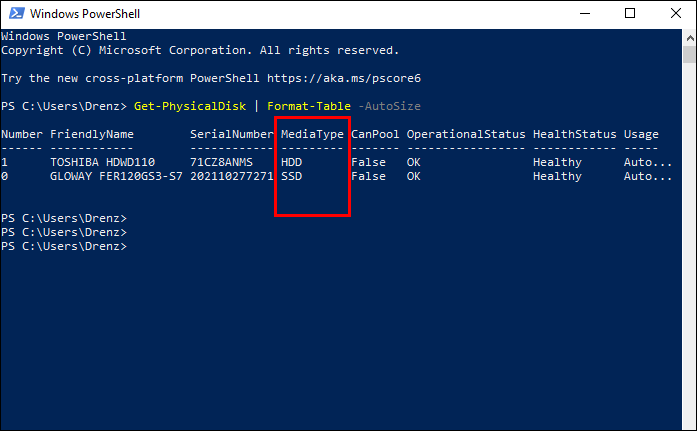
Manufacturer software is another quick check. Samsung Magician, Crucial Storage Executive, and WD Dashboard each recognize their own genuine drives and show the model, serial number, and firmware. A drive the official tool refuses to recognize deserves suspicion, and a marketplace purchase that fails a full-drive test should go straight back for a refund.
Frequently asked questions
Is it normal for a 1TB SSD to show only 931GB?
Yes, completely. The maker counts 1TB as one trillion bytes, while Windows divides by 1,024 three times, which lands on 931GB. Every 1TB drive shows the same number, and no space is actually missing.
Why does my 4TB SSD only show 2TB in Windows?
The disk is initialized as MBR, which cannot address space past 2TB. Convert it to GPT: back up and reinitialize a data drive in Disk Management, or run Microsoft’s MBR2GPT tool on a boot drive, then switch the firmware to UEFI.
Can I recover unallocated space without losing my files?
Yes, if the unallocated block sits directly after your partition. Right-click the partition in Disk Management, choose Extend Volume, and accept the maximum size. It completes in seconds and keeps all existing data in place.
Will formatting the SSD give me the full advertised capacity?
No. Formatting cannot change how Windows counts bytes, so a 500GB drive still shows about 465GB afterward. Formatting only helps when the drive was set up with the wrong file system, such as a large drive stuck with a 32GB FAT32 partition.
How do I know if my cheap SSD is fake?
Run H2testw on the empty drive. It writes test data across the full capacity and reads it back; a genuine drive verifies close to its rated size, while a fake fails with errors partway through. Buy from the maker or a major retailer to avoid the problem entirely.
Conclusion
Check the number first: an SSD showing about 93 percent of the size on the box is working exactly as designed, and there is nothing to fix. A bigger gap means the space exists but is unclaimed, and Disk Management gets it back: Extend Volume for unallocated space after a clone, New Simple Volume for a fresh drive, and a GPT conversion for large drives capped at 2TB. A good result is a drive showing its full expected capacity in File Explorer, with your data intact.
Related Post:
Can You Recover Data From an SSD? What Actually Works
How to Partition an SSD: Windows, Mac, and When to Skip It
What to Do After Installing a New SSD
SSD Showing as Unallocated? What It Means and How to Fix It Safely
How to Copy an SSD to a Larger SSD Without Reinstalling Windows