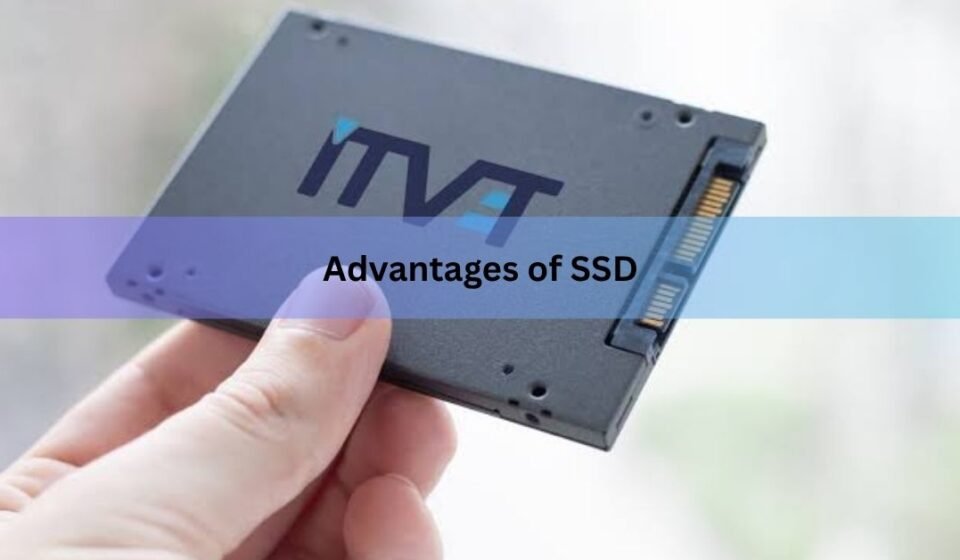

SSDs are faster, more reliable, more compact, and more power-efficient than the hard drives they replaced. That one sentence covers the core of it. But because storage decisions involve real money and affect how your computer feels to use every single day, the details are worth knowing.
A hard disk drive (HDD) stores data on spinning magnetic platters. A tiny arm moves back and forth to read and write. It’s a mechanical process, and physics puts a ceiling on how fast it can go. A solid-state drive (SSD) stores data in flash memory chips with no moving parts at all. The result is a different category of performance.
Below is every meaningful advantage SSDs have over HDDs, backed by real numbers plus an honest look at where a traditional hard drive still makes sense.
How much faster is an SSD?
Speed is the most obvious advantage, and the gap is bigger than most people expect. A typical hard drive reads data at 80 to 160 MB/s. A SATA SSD the most common, older type reaches around 550 MB/s. A modern NVMe SSD using the PCIe interface starts at about 3,500 MB/s and goes all the way up to 14,000+ MB/s for cutting-edge PCIe 5.0 drives.
Those numbers matter in practice. Windows 11 boots from a top NVMe drive in about 7 seconds. From a SATA SSD, closer to 14 seconds. From a 7,200-RPM hard drive, 38 to 45 seconds and that figure gets worse as the drive ages and fills up.
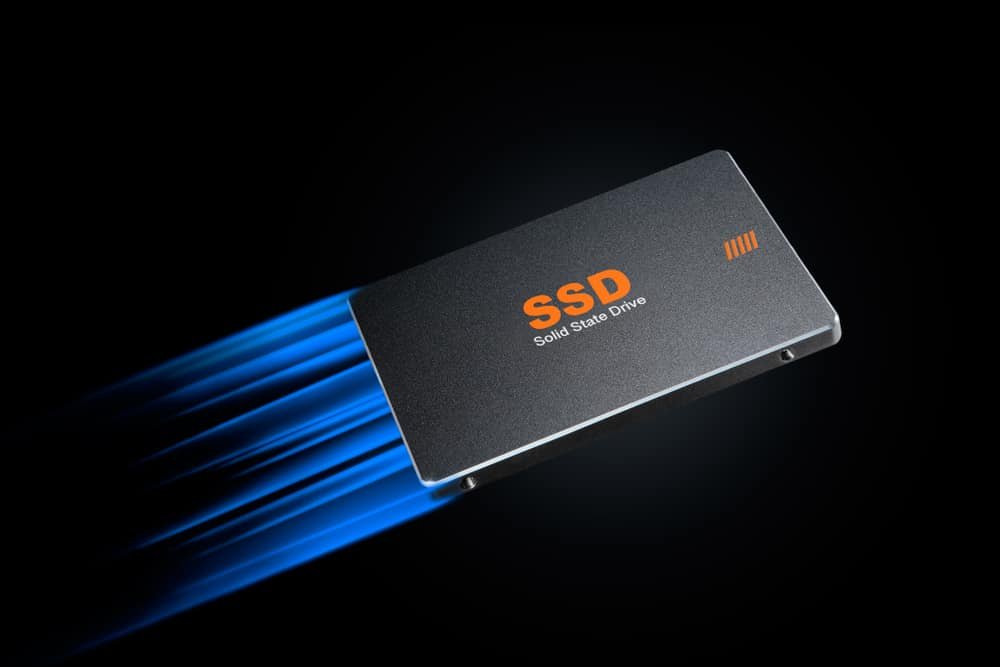
Real-world mixed workloads tell the full story: in PCMark 10 benchmarks, a 7,200-RPM hard drive scores roughly 320 points compared to over 1,100 for a budget SATA SSD and over 4,600 for a flagship NVMe drive. That’s a 14x gap in everyday computing tasks.
Game loading is a concrete example people notice immediately. Modern open-world games stream asset data from your drive constantly as you move through a world. A hard drive introduces stutters and long load screens because the read head has to physically find the data on the platter. An SSD delivers it almost instantly.
The same applies to application launch times. Adobe Photoshop, a web browser with dozens of tabs, a large Excel spreadsheet — all of these open faster on an SSD. Programs that access the drive frequently (your operating system, your browser, your creative tools) benefit the most.
Are SSDs more durable?
Yes, in most real-world conditions and the reason is simple: no moving parts. An HDD has platters spinning at 5,400 to 7,200 RPM, a read/write arm moving back and forth, and a motor keeping it all going. Drop a laptop with a spinning hard drive and you risk damaging the mechanism. Jolt it while it’s reading or writing, and you can corrupt data.
An SSD has none of that. Drop it, jostle it, toss it in a bag the flash memory chips don’t care. That’s why SSDs are now standard in laptops, tablets, and phones: portability demands it.
Long-term failure rates also favor SSDs. Backblaze’s drive stats, which track hundreds of thousands of real drives in data center conditions, put the 2024 annual failure rate for HDDs at 1.57%. SSDs in comparable boot-drive roles have consistently shown lower failure rates in Backblaze’s fleet reporting.
That said, SSDs do have a wear mechanism: each cell in the flash memory can only be written to a finite number of times. Consumer SSDs are rated in TBW (terabytes written). A 1TB drive rated at 600 TBW would take years of typical home use to approach its limit. For most users, an SSD will outlast the computer it sits in.
Do SSDs save battery life?
SSDs use significantly less power than HDDs, and the numbers are not close. During active use, a SATA SSD draws around 2 to 4 watts. An HDD can draw anywhere from 6 to 15 watts, and a 3.5-inch desktop drive spins up to 25 watts when first starting. At idle, an SSD with device sleep enabled can drop to as little as 0.5 watts, compared to 3 to 4 watts for a resting hard drive.
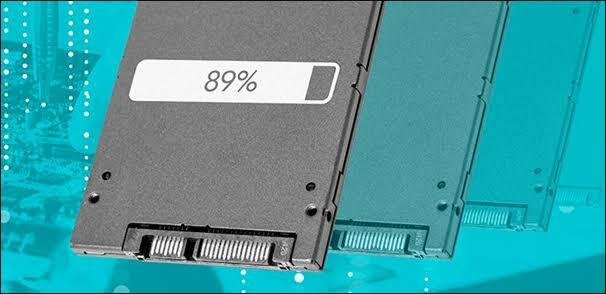
For laptop users, this adds up. The estimated battery life gain from switching a drive is typically in the range of 10 to 30 percent, depending on how often your workload hits the storage. If you’re doing light work documents, browsing, email the drive is often idle, and the SSD’s tiny idle draw gives you noticeably longer battery sessions.
There’s a secondary benefit too: less heat. HDDs generate heat through the friction of their mechanical components and the motor. SSDs run cooler, which reduces the thermal load on the rest of the system, letting fans run more quietly or less often.
Does size matter? The form factor advantage
HDDs are physically large. A 3.5-inch desktop hard drive is roughly the size of a small book. The 2.5-inch laptop version is smaller, but still chunky relative to modern storage needs.
SSDs come in two main forms. The 2.5-inch SATA SSD matches the footprint of a laptop HDD, making it a drop-in upgrade for older machines. The M.2 SSD found in most laptops and desktops built in the last several years is a stick roughly the size of a stick of gum. It plugs directly into the motherboard with no cables at all.
That physical compactness is why today’s ultrabooks are as thin as they are. A 13-inch laptop weighing under a kilogram could not exist with a spinning hard drive inside. M.2 SSDs made thin, light, fanless computing possible.
The fastest M.2 drives use the NVMe protocol over PCIe lanes rather than the older SATA interface. A PCIe 4.0 NVMe drive reaches up to about 7,000 MB/s; PCIe 5.0 drives push past 14,000 MB/s. Kingston’s SSD form factor guide walks through the differences in detail if you’re planning an upgrade.
A quieter, cooler machine
Hard drives make noise. There’s the low hum of the platters spinning and the clicking of the read/write head seeking across the disk. In a quiet room, an active hard drive is clearly audible. Some drives, particularly older or cheaper models, are quite loud under load.
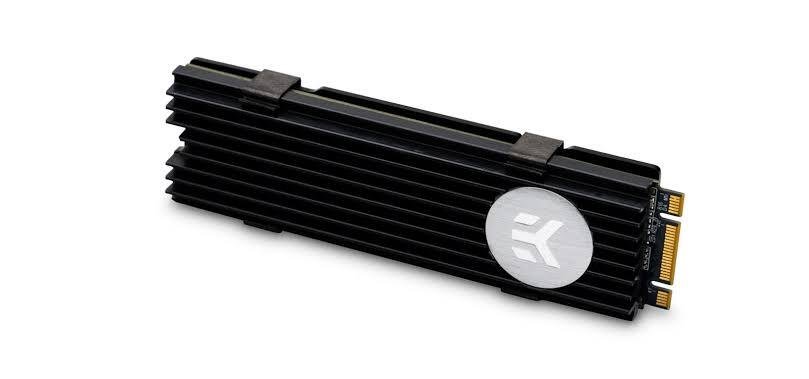
An SSD is completely silent. It has no motor, no moving arm, nothing to vibrate. If a loud computer bothers you — whether you’re recording audio, working in a quiet office, or just prefer a calmer environment the difference is immediate and permanent after upgrading.
The noise reduction isn’t just comfort: it’s a sign of fewer things that can go wrong. Every mechanical component in an HDD is a potential failure point. The motor can seize. The read head can crash. The platters can get scratched. None of these failure modes exist in an SSD.
SSD vs HDD: side by side
Here’s how the two technologies compare across the metrics that matter most:
| Feature | SSD | HDD |
| Sequential read speed | 500 MB/s (SATA) to 14,000+ MB/s (NVMe PCIe 5.0) | 80 to 160 MB/s |
| Boot time (Windows 11) | 7 to 14 seconds | 38 to 45 seconds |
| Active power draw | 2 to 4 watts | 6 to 15 watts |
| Moving parts | None | Spinning platters, read/write arm |
| Noise | Silent | Audible spin and seek |
| Shock resistance | High (no moving parts) | Low (mechanical damage risk) |
| Form factor | 2.5-inch or M.2 stick | 3.5-inch (desktop) / 2.5-inch (laptop) |
| Cost per GB (mid-2026) | ~$0.09 to $0.10 (NVMe 1TB) | ~$0.015 to $0.02 (4TB+) |
The price-per-GB gap is the only area where HDDs remain clearly ahead, and it’s a real one. As of mid-2026, NAND supply constraints have pushed SSD prices up notably, so HDDs are better value for bulk storage at scale.
Where HDDs still make sense
For your operating system, programs, and the files you work with daily, an SSD is simply better in every way that affects your experience. But HDDs hold on in specific, valid situations:
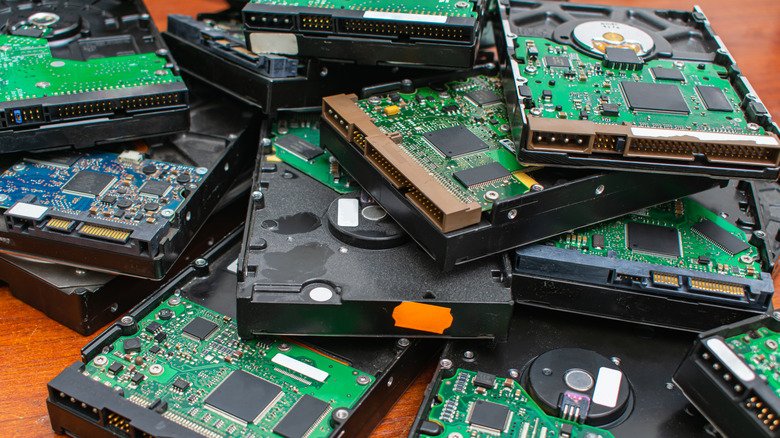
- Large-scale cold storage. Storing terabytes of video footage, old photos, music libraries, or archives you rarely access. The performance advantage of an SSD barely matters if the files sit untouched for months, and a 4TB HDD costs a fraction of an equivalent SSD.
- Secondary desktop storage. Many desktop builds use an NVMe SSD for Windows and frequently used apps, then a large HDD for media and game libraries. You get the speed where it counts and the capacity where it doesn’t.
- Budget constraints. If every dollar matters, a large HDD can store far more than you could afford in SSD form. For a PC used mainly for light tasks with no premium on speed, an HDD still works.
For laptops, tablets, and any machine where you move it around, SSDs are effectively mandatory — the risk of physical damage to a spinning drive is too real for portable use.
Frequently asked questions
Is an SSD worth upgrading from an HDD?
Yes, for almost every user. Replacing an HDD with an SSD in an older laptop or desktop is often the single fastest way to improve how the machine feels. Boot times, app loading, and general responsiveness all improve noticeably. The cost of a 1TB SSD has dropped to the point where it is a straightforward value purchase.
How long do SSDs last?
Most consumer SSDs carry a warranty of 3 to 5 years, and real-world data suggests many last well beyond that. The main wear mechanism is the total amount of data written to the drive. A 1TB drive rated for 600 TBW would take a typical home user decades to reach that limit. For most people, the computer will be replaced before the SSD wears out.
What is the difference between SATA and NVMe SSDs?
SATA SSDs connect using the older storage interface and top out at around 550 MB/s. NVMe SSDs connect through PCIe lanes directly to the CPU, reaching 3,500 to 14,000+ MB/s depending on the PCIe generation. For everyday tasks like booting and app launching, both feel fast. NVMe pulls ahead noticeably when copying large files or doing sustained creative work like video editing.
Do SSDs fail without warning?
SSDs can fail without the audible warning signs (clicking, grinding) that HDDs sometimes give. However, most SSD firmware reports health data through SMART monitoring, which tools like CrystalDiskInfo can read. Keeping backups of important files is good practice regardless of drive type.
Should I use an SSD and an HDD together?
Yes, this is a common and sensible setup for desktop PCs. Install the operating system and frequently used programs on a 1TB or 2TB NVMe SSD to get the full speed benefit. Use a large HDD (4TB to 16TB) as a secondary drive for photos, videos, backups, and other files you access infrequently. Most motherboards support this combination with no special configuration required.
Conclusion
SSDs are faster by a wide margin, more resilient to physical shocks, quieter, more power-efficient, and compact enough to fit in form factors an HDD never could. For any computer you use regularly — especially a laptop — the upgrade from an HDD to an SSD is one of the most noticeable improvements you can make, often more impactful than adding RAM or replacing the CPU. The main trade-off is cost per gigabyte, which still favors HDDs for large-capacity storage. Use an SSD where performance touches your experience, and an HDD where you need bulk storage on a budget.
Related Post:
Macrium Reflect Cyclic Redundancy Check Error on SSD: How to Fix It
How to Repair an SSD Drive: Step-by-Step Fixes That Actually Work
How to Format an SSD on Windows and Mac
Fujitsu Stylistic Q704 SSD Replacement: A Step-by-Step Guide
What Is a Portable SSD? A Plain-English Guide to Fast External Storage