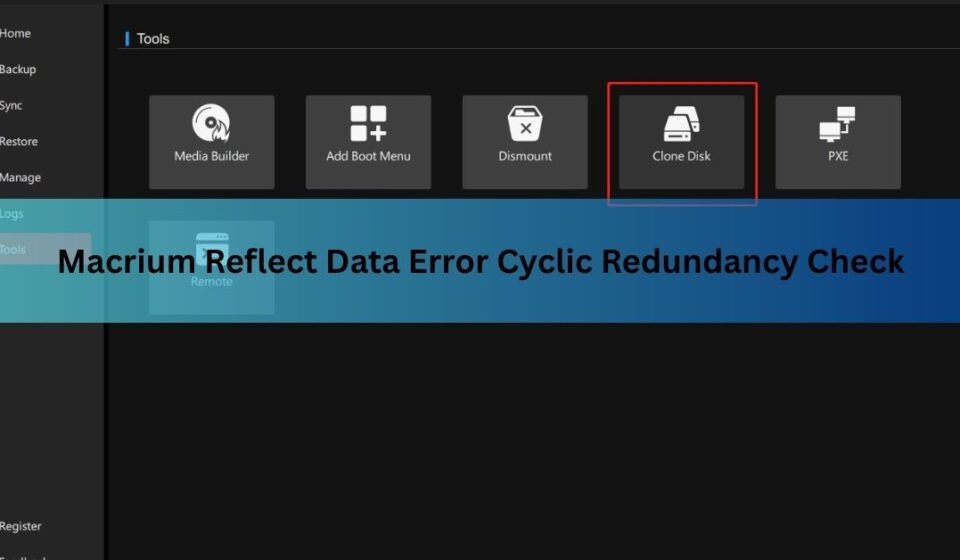

A cyclic redundancy check error in Macrium Reflect means the software asked your SSD for a block of data and the drive handed back something that failed its own integrity check. Reflect stops right there. In the log you get “Unable to read from disk – Error Code 23 – Data error (cyclic redundancy check)”, or “Clone failed – Error 9 – Read Failed – 23” if you were cloning.
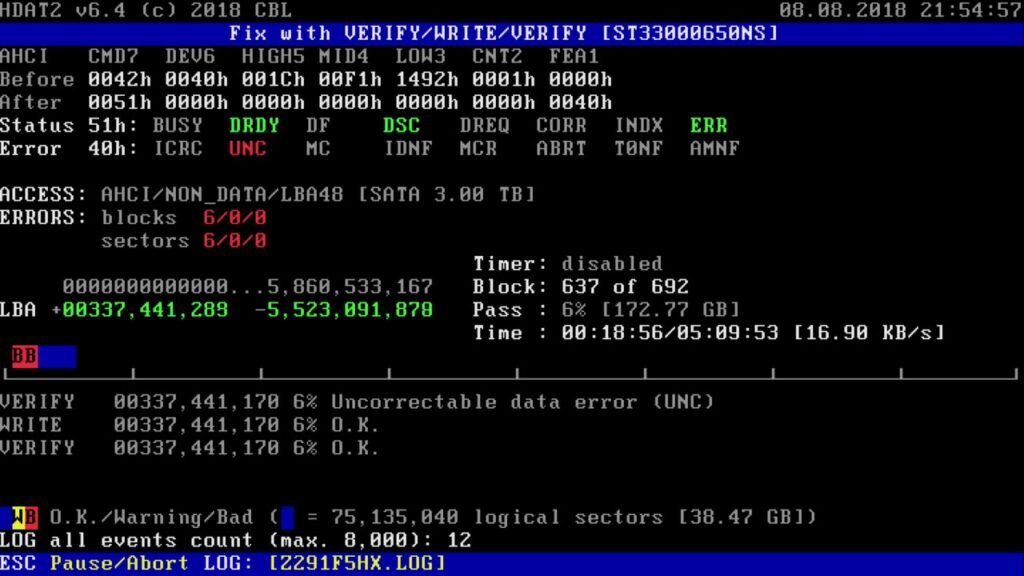
On a mechanical hard drive this points to bad sectors. On an SSD it means one of two very different things, and telling them apart is the whole job. One is a cable or connection fault you can fix in ten minutes. The other is NAND failure, and your priority shifts from fixing the backup to saving the data.
What does Error Code 23 actually mean on an SSD?
It means the read failed and Reflect could not trust the data, so it stopped rather than write a corrupt image.

Every read from a drive carries a checksum. The controller works out a value from the data and compares it to the value stored alongside it. When the two do not match, the read is bad. Reflect treats this as fatal on purpose. An image built from unreadable blocks would restore into a broken Windows install, and you would not find out until the day you needed it.
The wording changes a little depending on what you were doing:
- Imaging: “Backup aborted! Unable to read from disk – Error Code 23 – Data error (cyclic redundancy check)”
- Cloning: “Clone failed – Error 9 – Read Failed – 23 – Data error (cyclic redundancy check)”
Same underlying problem. The read did not come back clean.
Why SSDs are different from hard drives here
SSDs have no platters and no physical bad sectors, so the standard hard drive advice only half applies.
A hard drive develops bad sectors when the magnetic surface degrades. An SSD stores charge in NAND cells, and every read is protected by error correction built into the controller. That correction is strong. It quietly fixes bit errors all day without telling you. A CRC error reaching Windows means the correction ran out of headroom, which is a much later stage of failure than a single bad sector on a spinning disk.
That is one possibility. The other has nothing to do with the flash at all. The data may leave the drive perfectly and get corrupted on the way to the motherboard, over a SATA cable, a USB adapter, or an M.2 slot with a poor connection. Windows sees a failed checksum either way and reports the same error.
So before you run any repair tool, work out which one you have. The fix is completely different.
Do not run repeated write-heavy repairs on an SSD you suspect is failing. Every write uses up endurance and can push a marginal drive over the edge. Read the drive health first.
How to tell a cable problem from a dying SSD
Check the drive SMART data. It separates the two causes clearly.
Install CrystalDiskInfo, run it, and pick the affected drive from the tab at the top. You are looking at a handful of values.
On a SATA SSD:
| SMART attribute | What a bad number tells you |
|---|---|
| C7 UDMA CRC Error Count | A connection fault. Cable, port, adapter or power. The flash itself is fine. |
| 05 Reallocated Sector Count | Blocks the controller has retired. Wear or damage inside the drive. |
| B8 / B3 Erase or Program Fail Count | The NAND is no longer accepting writes reliably. |
| C5 Current Pending Sector Count | Blocks that failed a read and are waiting for a verdict. |
| BB Reported Uncorrectable Errors | Error correction gave up. Serious, and the drive is on its way out. |
The distinction matters more than any single number. If the CRC count is climbing and everything else sits at zero, you have a wiring problem. If the reallocated, pending, or uncorrectable counts are rising, the drive itself is going.
For an NVMe drive the names are different. CrystalDiskInfo shows Media and Data Integrity Errors and Available Spare. Any media error above zero on a drive that is only a year or two old is worth acting on. Available spare dropping toward its threshold means the controller has burned through its reserve blocks.
Note the numbers down, then run the backup again and check a second time. Counters that climb during the failure tell you exactly what is causing it.
Fix the connection first
If the CRC count is rising, swap the cable and the port before you touch the file system.
This takes minutes, costs nothing, and it is the most common cause of a CRC error on a drive that is otherwise healthy.
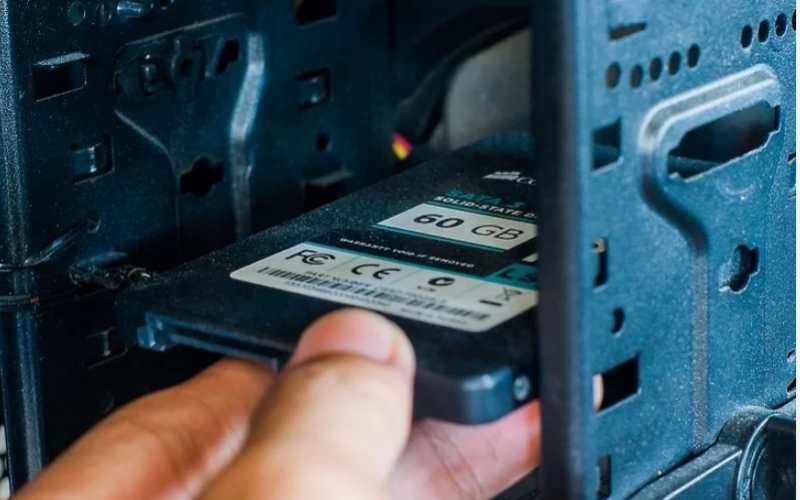
- Shut down and unplug the machine.
- Replace the SATA data cable with a new one. Cables fail quietly and the connectors work loose from vibration.
- Move the drive to a different SATA port on the motherboard.
- Use a different SATA power lead, and avoid splitters and Molex adapters.
- For an M.2 or NVMe drive, remove it, clean the contacts, reseat it firmly, and check the retaining screw is tight.
- If the SSD is in a USB enclosure or dock, take it out and connect it directly. Cheap USB-to-SATA bridges are a frequent culprit, especially during long clone jobs.
Run the backup again and watch whether the CRC count moves. If it stays put and the backup finishes, you are done.
While you are in there, update the SSD firmware using the maker own tool. Samsung Magician, Crucial Storage Executive and WD Dashboard each check for updates and read SMART data in one place. Firmware bugs cause read failures that look exactly like hardware faults.
Run chkdsk, but know what it does on an SSD
Chkdsk maps damaged clusters out of use so the file system stops asking for them.
Macrium guidance for this error is to run chkdsk with the /r switch, then image straight away. Open Command Prompt as administrator and run:
chkdsk c: /r
Replace c: with the right drive letter. It needs a reboot for the system drive and can take hours on a large volume. What it does is check every cluster, move readable data somewhere safe, and mark the unreadable ones so nothing uses them again. After that, a fresh image should finish because Reflect no longer touches the damaged area.
Two things to be honest about. First, anything sitting in those clusters is gone. Chkdsk is not recovering it, just stepping around it. Second, on an SSD the /r switch triggers a full read and rewrite pass, which is heavy work for a drive that may already be struggling. Do it once. If Error 23 comes back afterwards, running it again and again will not help, and each pass adds wear.
Once you have restored the image to a new drive, run chkdsk c: /b on that new disk to clear the old bad-cluster marks so you do not lose usable space.
When to use Ignore Bad Sectors
Turn it on when you need the backup more than you need it to be perfect.
Reflect has a setting that forces it to carry on past a read failure instead of aborting. Go to Other Tasks, then Edit Defaults and Settings, then Advanced, and tick Ignore bad sectors when creating images. The Macrium page on imaging disks with bad sectors walks through this and the chkdsk steps in more detail.
The trade-off is real. Blocks that could not be read are written into the image as empty space. Reflect logs how many were affected, something along the lines of “Bad Sectors: 112 Clusters located in bad sectors. Data may be lost”. You end up with an image that finishes and restores, with holes in it. If a hole lands in a Windows system file, the restored install may be unstable. If it lands in an old download, you will never notice.
Use it as a rescue tool on a drive you have already decided to replace. Do not leave it switched on as a default, because it hides a failing drive behind backups that look successful.
If the drive is failing, image to a file first and then restore that image to the new SSD. Cloning reads the whole source in one pass with nowhere to retry, so a single unreadable block ends the job.
What to do when the SSD is the problem
Stop repairing and start copying.
Once SMART shows uncorrectable errors, reallocated blocks, or media integrity errors that keep climbing, the drive has told you it is finished. Reads get less reliable every time you power it on, and every extra scan is time spent on the wrong task.
- Copy your irreplaceable files by hand, right now. Documents, photos, anything you cannot download again. Straight file copies are quicker than imaging and get the important data off first.
- Attempt one image with Ignore bad sectors switched on, saved to a different physical drive.
- Buy the replacement SSD.
- Restore the image to the new drive, then run chkdsk c: /b on it.
- Reinstall Windows instead if the image is badly damaged. A clean install on good hardware beats a restored image full of holes.
If the SSD is still in warranty, and most consumer drives carry five years, your SMART data is the evidence. Manufacturers accept media error counts and spare depletion as grounds for a claim, and tools like Samsung Magician will print the drive health for you.
Stopping it from happening again
Verify your backups and watch drive health, so you find problems before a restore does.

Switch on image verification in Reflect. It reads the backup file after writing it and confirms the contents are intact. It adds time to every job, and it is the difference between a backup you have and a backup you can use.
Keep a copy somewhere else too. A single external drive holding every image is one failure away from nothing. Two destinations, or one local and one off-site, covers you.
Check SMART every few months. CrystalDiskInfo can sit in the system tray and warn you when an attribute changes. A drive that starts logging uncorrectable errors gives you weeks of notice if someone is watching, and none at all if nobody is.
Frequently asked questions
Can I ignore a CRC error if my SSD seems to work fine?
No. The drive works until it does not, and the error means data has already been lost or corrupted somewhere. Check SMART, find the cause, and get a verified backup before you carry on using it.
Will chkdsk /r damage my SSD?
One run will not. It performs a full read and rewrite pass, which adds wear, so it is not something to repeat weekly. Running it once after a CRC error is sensible. Running it five times on a failing drive is not.
Why does cloning fail but imaging works?
Cloning reads the whole source in one pass and stops on the first bad block. Imaging can be set to ignore bad sectors and keep going. If a clone fails with Error 9, try imaging to a file and restoring that instead.
Does a CRC error always mean my SSD is dying?
No. Faulty SATA cables, loose M.2 seating and cheap USB adapters cause the same error on perfectly healthy drives. If the UDMA CRC count is the only attribute rising, the flash is fine and the connection is at fault.
Should I use TRIM or a secure erase to fix bad blocks?
Neither repairs failing NAND. A secure erase wipes everything and will not bring back cells that no longer hold charge. If the controller is reporting uncorrectable errors, replace the drive rather than trying to reset it.
Conclusion
A cyclic redundancy check error in Macrium Reflect means a read came back corrupt, and on an SSD it is either the connection or the flash. Check SMART first: a rising UDMA CRC count points at cables, while uncorrectable or media errors point at the drive. Swap the cable and port if that is the cause. If the NAND is failing, copy your files, take one image with bad sectors ignored, and replace the drive. A clean, verified image is what success looks like.
Related Post:
How to Initialize a New SSD on Windows and Mac (and Fix One That Won’t Show Up)
How to Transfer an SSD to a New Computer
What to Do After Installing a New SSD
How to Tell If Your SSD Is Failing: 7 Warning Signs and How to Check
How to Clone an SSD to a Bigger SSD (2026): A Step-by-Step Guide