
“How long does an SSD take” is one of those questions that doesn’t have a single answer, because it really depends on which part of the process you’re asking about. Are you wondering how long it takes to physically install the drive? How long formatting takes? How long it takes to clone your old hard drive over to the new SSD? Or maybe you simply want to know how soon you’ll actually feel the speed difference after upgrading.
This guide breaks down every stage of the SSD journey and gives you realistic, easy-to-understand time estimates for each one. Whether you’re a first-timer nervously opening your laptop for the first time, or someone who just wants to plan out an evening to get the whole upgrade done, you’ll walk away knowing exactly what to expect and how long each step genuinely takes.
Quick Answer Overview
Before diving into the details, here’s a snapshot table covering the most common timing questions people have about SSDs.
| Task | Typical Time Range |
| Physical installation (desktop or laptop) | 10–20 minutes |
| Formatting the drive | 1–5 minutes |
| Fresh OS installation | 15–40 minutes |
| Cloning an old drive (varies by size) | 30 minutes–4+ hours |
| Transferring files (varies by size/type) | Seconds to hours |
| Noticing performance improvement | Immediate to a few days |
| Full start-to-finish setup | 30 minutes–4 hours |
Keep in mind these are general ranges. The actual time in your case depends on your specific hardware, how much data you’re moving, and which connection type you’re using — all of which we’ll unpack below.
How Long Does SSD Installation Take?
Desktop installation time (SATA vs M.2) Installing a SATA SSD in a desktop typically takes around 10 to 15 minutes. This includes opening the case, mounting the drive into a bay, and connecting the SATA data and power cables. Installing an M.2 SSD is often even quicker, sometimes just 5 to 10 minutes, since it simply slots directly into the motherboard without any cables at all.
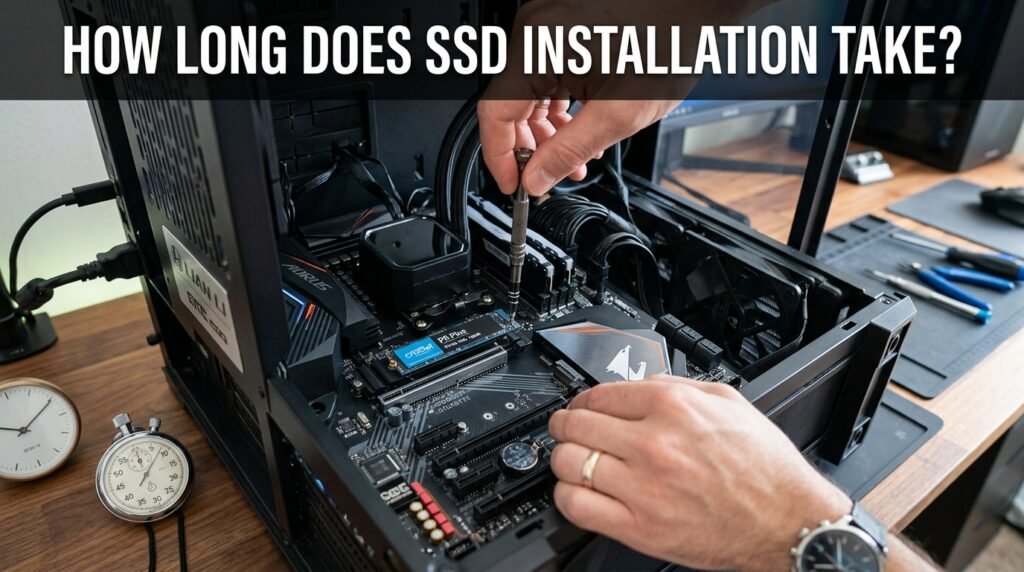
Laptop installation time Laptops usually take slightly longer, around 15 to 25 minutes, mainly because you need to remove the back panel, which can involve several small screws and sometimes a bit of careful prying around plastic clips.
Factors that speed up or slow down installation Having the right screwdriver on hand, a clear workspace, and a laptop model that’s easy to open will make the process faster. On the other hand, ultra-thin laptops with tricky panel designs, or desktops with cramped cases, can add extra time.
First-time vs experienced installer comparison Someone installing an SSD for the very first time might take closer to 20 to 30 minutes simply due to double-checking each step. Someone who’s done it before can often finish the physical installation in well under 10 minutes.
How Long Does It Take to Format an SSD?
Formatting itself is one of the fastest steps in the entire process. On Windows, using Disk Management, a quick format usually takes only a minute or two, regardless of the drive’s capacity. On a Mac, using Disk Utility, the process is just as fast, typically finishing in under two minutes as well.
It’s worth understanding the difference between a quick format and a full format. A quick format simply clears the file table and makes the drive ready to use almost instantly, while a full format goes through and checks every sector of the drive for errors, which can take significantly longer — sometimes 30 minutes or more depending on capacity. For a brand-new SSD, a quick format is generally all you need.
How Long Does Installing an OS on an SSD Take?
Installing a fresh copy of Windows onto a new SSD typically takes between 20 and 40 minutes, including the initial setup screens, though this can vary depending on how fast your installation media is and whether the process needs to install additional updates afterward. Installing macOS or a Linux distribution follows a similar timeline, usually landing somewhere between 15 and 30 minutes for the core installation.
A few factors can affect how long installing an OS on an SSD take exactly: the speed of the USB drive you’re installing from, whether your computer needs to download updates during setup, and how fast your NVMe or SATA connection is. Installing from a fast USB 3.0 flash drive onto an NVMe SSD is often noticeably quicker than using an older USB 2.0 stick with a SATA drive.
How Long Does Cloning a Drive to an SSD Take?
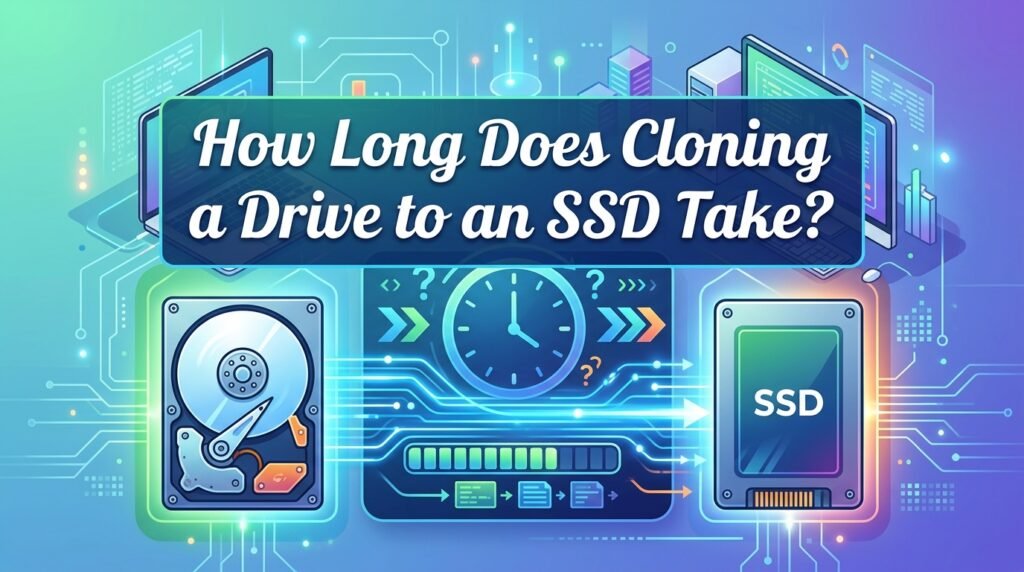
What affects cloning speed Several factors influence how long cloning takes, including the total amount of data being copied, the connection type used, and the specific cloning software you choose. More data naturally means more time, and a faster connection between the old drive and the new SSD will always speed things up considerably.
Cloning via SATA-to-USB adapter This is one of the slower methods, since USB connections — especially older USB 2.0 ports — create a bottleneck. Cloning even a modest amount of data this way can take well over an hour.
Cloning via internal SATA/NVMe connection Connecting both drives internally, rather than through an external adapter, is significantly faster because you’re not limited by USB transfer speeds. This method can cut cloning time dramatically compared to an external setup.
Estimated time by data size
| Data Amount | Estimated Cloning Time |
| 128GB | 20–40 minutes |
| 256GB | 30–60 minutes |
| 512GB | 45 minutes–1.5 hours |
| 1TB | 1–2.5 hours |
| 2TB+ | 2–4+ hours |
Popular cloning software compared Tools like Macrium Reflect, Clonezilla, and manufacturer-specific software such as Samsung Data Migration or Crucial’s Acronis-based tool all perform similarly in terms of raw speed, since the real bottleneck is usually the connection type rather than the software itself. That said, manufacturer tools are often the easiest for beginners to use correctly.
How Long Does It Take to Transfer Files to/from an SSD?
Transfer speed depends heavily on which type of SSD you’re using. NVMe drives can move large amounts of data in a fraction of the time a SATA SSD or external drive would need, simply because of the much higher bandwidth available through the PCIe connection.
| File Size/Type | SATA SSD | NVMe SSD | External SSD (USB) |
| A few photos (under 1GB) | Seconds | Seconds | Seconds |
| A movie file (~5GB) | ~15–20 seconds | ~2–5 seconds | ~10–30 seconds |
| A large folder (~100GB) | ~5–8 minutes | ~1–3 minutes | ~5–15 minutes |
| Full backup (~500GB) | ~20–30 minutes | ~5–10 minutes | ~20–40 minutes |
For comparison, an old-fashioned HDD would typically take two to three times longer than a SATA SSD for the same tasks, which is part of why the upgrade feels so dramatic in everyday use.
How Long Do SSDs Take to Show Performance Improvement?
One of the best parts of upgrading is that you don’t have to wait long to notice the difference. As soon as your operating system is running from the new SSD, boot times typically improve immediately — often dropping from a minute or more down to just 10 to 15 seconds.

Application load times see a similar instant improvement, with programs that used to take 20 to 30 seconds to open now launching in just a few seconds. There’s no “break-in period” needed for you to feel these benefits; the speed boost is essentially there from the very first restart.
How Long Does SSD Setup Take from Start to Finish?
Putting every stage together gives you a realistic full-process timeline, from the moment you unbox your new drive to the moment you’re back up and running.
| Stage | Beginner Timeline | Experienced Timeline |
| Unboxing & prep | 5 minutes | 2 minutes |
| Physical installation | 20–30 minutes | 5–10 minutes |
| BIOS detection check | 2–5 minutes | 1 minute |
| Formatting | 2–5 minutes | 1–2 minutes |
| OS install or cloning | 30 minutes–3 hours | 20 minutes–2 hours |
| Final checks/first boot | 5–10 minutes | 2–5 minutes |
| Total | ~1–4 hours | ~30 minutes–2.5 hours |
So, when someone asks how long does an SSD take from complete start to finish, the honest answer is: budget for an afternoon if it’s your first time, but expect it to go much faster on future upgrades once you know the process.
Factors That Affect How Long an SSD Takes (At Any Stage)
A wide range of variables can shift these estimates up or down. The type of SSD you’re using matters — NVMe drives are consistently faster than SATA drives across nearly every task. The connection method also plays a big role, since internal connections almost always outperform external USB setups.
The sheer amount of data being moved is another major factor, as is the overall condition and specification of your computer or motherboard, since older systems with slower buses can create bottlenecks regardless of how fast the SSD itself is. The specific software or tool you choose for cloning or installation can introduce small differences too, and finally, your own experience level plays a real role — familiarity with the process naturally shaves time off nearly every step.
Tips to Speed Up the Entire SSD Process
Choosing an NVMe drive over a SATA drive whenever your device supports it will save you time at nearly every stage, from installation to file transfers. If you’re cloning a drive, using a fast USB enclosure — ideally USB 3.0 or higher — rather than an older, slower adapter can cut your wait time significantly.
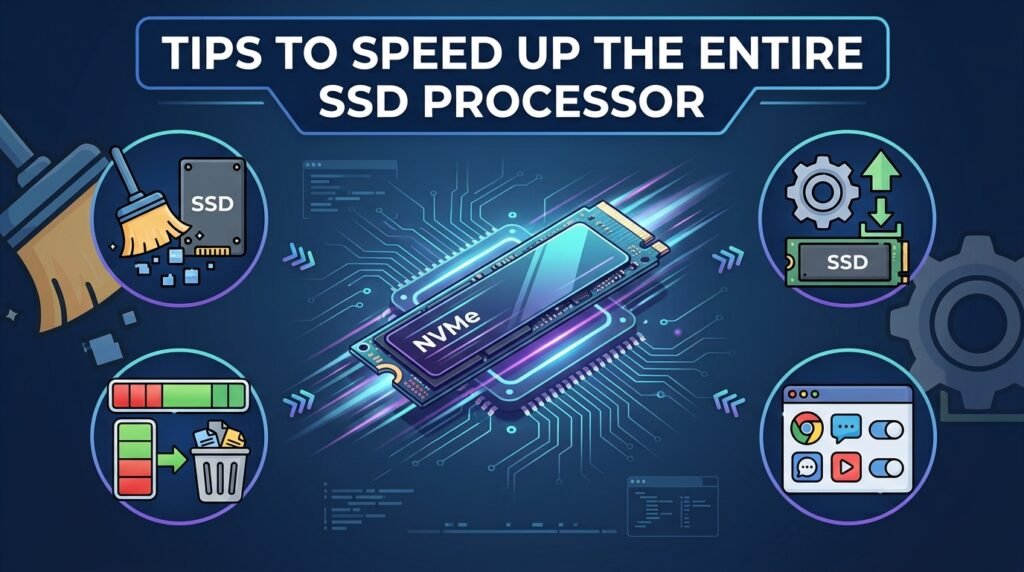
Closing unnecessary background programs before starting a clone or installation frees up system resources and can help things move along more smoothly. It’s also worth updating your SSD’s firmware and your motherboard’s drivers ahead of time, since outdated firmware can occasionally slow things down or cause hiccups mid-process. Finally, simply preparing all your tools and files in advance — rather than pausing partway through to search for a screwdriver or download software — keeps the whole process efficient from start to finish.
Frequently Asked Questions
How long does it take to install an SSD in a laptop? Physically installing an SSD in a laptop typically takes between 15 and 25 minutes, depending on how easy the laptop is to open.
How long does cloning 1TB take? Cloning around 1TB of data usually takes between 1 and 2.5 hours, depending on your connection type and the cloning software used.
Does formatting an SSD take long? No, a quick format typically takes only 1 to 2 minutes regardless of the drive’s total capacity.
Why is my SSD installation or cloning taking longer than expected? This is often caused by using a slow USB connection, having a large amount of data to transfer, running background programs during the process, or using an older, less efficient cloning tool.
Can I use my computer while cloning to an SSD? It’s technically possible in some cases, but it’s best avoided, since active use can slow down the cloning process and, in rare cases, cause errors if files change mid-transfer.
How long until I notice speed improvements after installing an SSD? Improvements are typically noticeable immediately, starting with your very first boot after the operating system is running from the new SSD.
Conclusion
So, how long does an SSD take overall? As you’ve seen throughout this guide, the answer changes depending on exactly which stage you’re asking about — but as a general rule of thumb, physical installation takes well under half an hour, formatting takes just a couple of minutes, and the biggest variable by far is cloning or installing your operating system, which can range anywhere from half an hour to a few hours depending on your data size and connection type.
For most people tackling their first SSD upgrade, setting aside an afternoon is a safe and realistic expectation. Once you’ve been through the process once, you’ll likely find that future upgrades go by much faster. Either way, the time investment is almost always worth it once you experience just how much quicker your computer feels afterward.
Related Post:
Is There a Side Effect to Low Power NVMe SSD? A Complete, Easy-to-Understand Guide
Is 512GB SSD Enough? A Complete Guide for Every User Type
1TB vs 2TB SSD: Which One Do You Actually Need?