

If your SSD shows up in BIOS but not Windows, the drive itself is almost always fine. BIOS talks to the hardware directly, so if it can see the SSD, the connection and the controller are working. Windows is pickier it needs a partition table, a recognized file system, and a drive letter before it will show a disk anywhere, including File Explorer or Disk Management.
The fix depends entirely on one thing: whether this is a brand-new empty drive or one that already had your files on it. Get that wrong and you risk wiping data that was never actually lost. Here’s how to work through it safely.
Is This a New Drive or One That Already Had Data on It?
This is the question to answer before you click anything, because the two situations call for opposite approaches.
If you just installed this SSD and never put files on it, it’s likely uninitialized. That’s a normal, expected state for a factory-fresh drive, and Windows hides it on purpose until you set it up.
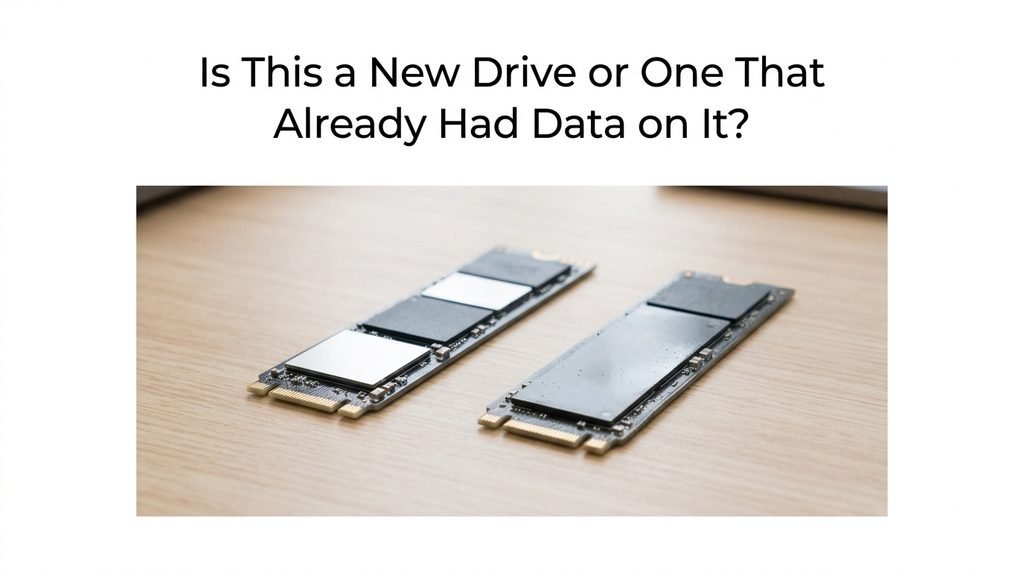
If this SSD has been running for a while it had a drive letter, you saved files to it, and now it’s simply gone from Windows treat it as a used drive with data at risk. Skip any step involving initializing or formatting until you’ve read the section on protecting existing data further down.
Why Windows Can Hide a Drive That BIOS Already Sees
Windows will only display a storage drive in File Explorer if three specific things are in place: a partition table (MBR or GPT), a file system it recognizes like NTFS or exFAT, and an assigned drive letter.
A brand-new SSD has none of these by default. It’s just raw, unallocated space, and Windows deliberately keeps it out of sight rather than risk a careless format.
BIOS doesn’t care about any of that. It only checks whether a drive responds on its data bus, which is why the two can disagree — BIOS says “there’s a drive here,” and Windows says “there’s nothing to show you.”
Check These BIOS Settings Before Touching Windows
Before you open Disk Management, rule out a BIOS configuration issue, since these produce the exact same symptom and are easy to overlook.
Confirm your SATA controller is set to AHCI mode rather than IDE older or misconfigured boards sometimes default to a mode Windows’ storage driver doesn’t expect. For NVMe drives specifically, check that CSM (Compatibility Support Module) is disabled, since CSM can interfere with NVMe boot and detection on some motherboards.
One cause worth knowing about on mid-range and budget B-series motherboards: certain M.2 slots share PCIe lanes with SATA ports or a second M.2 slot. Populating both can silently disable one of them. Check your motherboard manual for a lane-sharing table if you’ve recently added a second drive.
Fixing It in Windows — Drive Letters, Initializing, and Formatting
Open Disk Management by right-clicking the Start button and selecting it from the menu. Look at the visual map at the bottom of the window for your SSD.
If it appears as “Unallocated,” that’s consistent with a genuinely new, empty drive — right-click it, choose New Simple Volume, assign a letter, and format it as NTFS. This process writes a fresh file system to the drive.
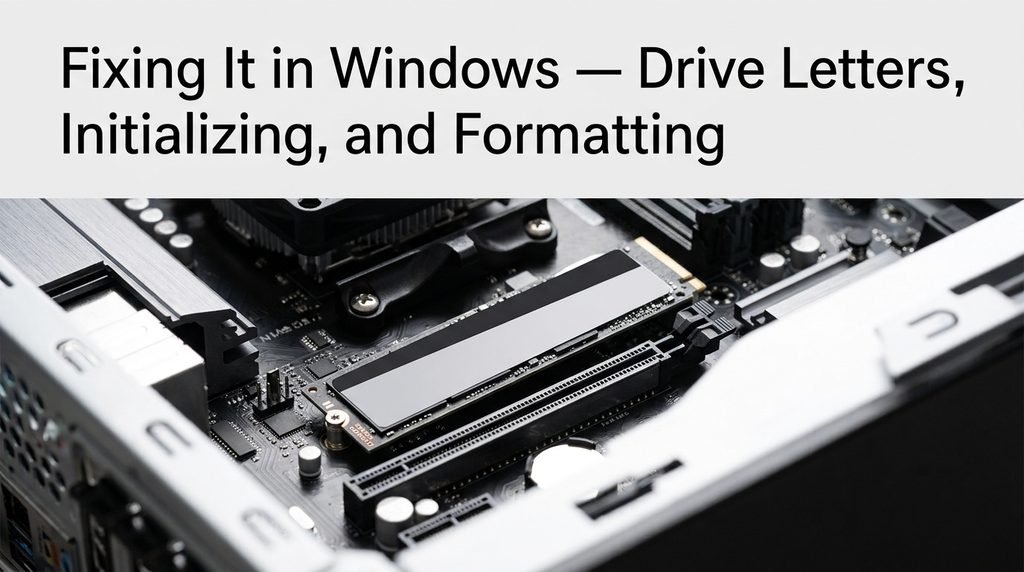
Here’s the warning that matters most: initializing or formatting permanently erases anything already on the drive. If you’re not certain this SSD has always been empty, stop here and treat it as a used drive with data instead the section further down covers what to do safely.
If the drive already shows a partition but simply has no letter, right-click it and choose “Change Drive Letter and Paths” instead. That’s a safe, non-destructive fix that doesn’t touch your files.
The Storage Spaces Trap for New M.2 and NVMe Drives
If a new M.2 or NVMe SSD doesn’t appear in Disk Management at all — not even as unallocated space — check Windows Storage Spaces before assuming a hardware fault.
Windows occasionally pulls a newly connected NVMe drive into a hidden storage pool automatically, particularly after a Windows Update. While it’s trapped there, Disk Management can’t see it, so no amount of scanning or driver updates will surface it.
Search “Storage Spaces” from the Start menu, open it, and check under the Storage Pool section. If your missing SSD is listed, click Change Settings, then remove the drive from the pool. It should reappear in Disk Management as unallocated space shortly after.
Driver and Device Manager Issues
Open Device Manager and expand “Disk drives.” If your SSD appears with a yellow warning icon, or doesn’t appear there at all despite showing in BIOS, this points to a driver problem rather than a partition or file system issue.
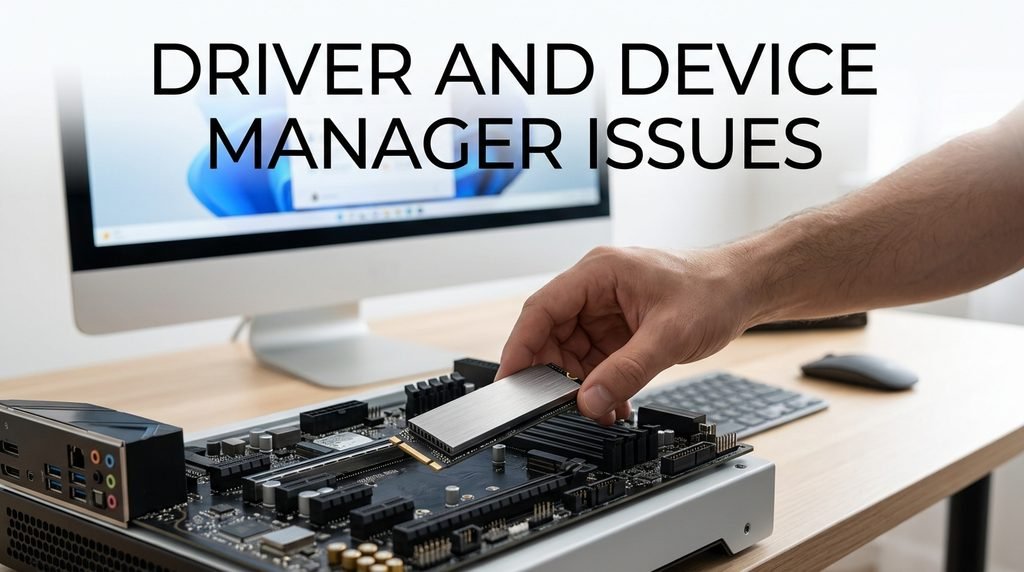
Right-click the storage controller entry (not the SSD itself) under “Storage controllers,” and choose Update Driver, then let Windows search automatically. If the drive vanished right after a Windows Update, rolling back the storage driver to the previous version often resolves it faster than updating forward.
Some motherboard chipsets also need a dedicated NVMe or RAID driver from the manufacturer’s website rather than the generic Microsoft one worth checking if updating through Windows doesn’t change anything.
When It’s Not Software — Signs of a Failing or Dead SSD
Most cases of an SSD showing in BIOS but not Windows resolve through the steps above. But certain symptoms point to actual hardware failure, where no software fix will help and further attempts can make data recovery harder later.
| Symptom | Likely Cause | Safe Next Step |
| Drive shows wrong or 0MB capacity | Firmware or controller fault | Stop, don’t initialize; back up first if possible |
| Detected in one PC, not another | Cable, port, or BIOS config | Test a different slot/port before assuming failure |
| Appears briefly, then disappears | Controller crashing under load | Power off, avoid repeated reboots |
| Runs hot immediately or smells burnt | Hardware/PCB damage | Power off immediately, don’t reconnect |
| Not detected anywhere, including BIOS | Dead controller or connection | Reseat once; if unchanged, treat as hardware failure |
If your symptoms match any of the last three rows, the safest move is to stop troubleshooting and get the drive evaluated rather than keep trying fixes on unstable hardware.
What to Do If Your SSD Has Data You Can’t Lose
If this drive already had files on it, your priority shifts from “make it show up” to “don’t lose what’s already there.”
- Don’t initialize, format, or run CHKDSK on the drive under any circumstances
- Don’t update the SSD’s firmware while it’s in this state
- Don’t power cycle the system repeatedly hoping it reappears
- Do check Disk Management once to see if it appears as RAW or unallocated, without changing anything
- Do stop and consult a data recovery professional if the drive won’t mount cleanly on a second computer
If Disk Management shows the partition as RAW rather than unallocated, that’s actually a reasonably good sign the file system is damaged but the underlying data is often still intact, and read-only recovery software can frequently retrieve it without you needing to format anything first.
Frequently Asked Questions
Is it safe to initialize an SSD that shows up in BIOS? Only if you’re certain the drive has never had data on it, or you no longer need anything that was on it. Initializing writes a new partition table and erases everything the file system knew about, so it should never be your first move on a drive you’re unsure about.
Why does my M.2 SSD show up in BIOS only sometimes? Intermittent detection almost always points to a physical connection problem — the drive may not be fully seated, or it’s overheating and throttling until it drops offline. Power down, reseat the drive firmly, and check that the retention screw is tight before testing again.
Can a BIOS update fix an SSD that Windows won’t detect? Occasionally, if the issue is a compatibility bug between an older BIOS version and a newer NVMe drive, but this is less common than partition or driver issues. Update your BIOS as a later step, not a first attempt, since interrupted updates carry their own risk.
Does this happen with external SSDs too, or only internal drives? It happens with both, though the causes shift slightly. External SSDs more often show this symptom due to a failing USB-to-SATA/NVMe bridge chip inside the enclosure or a faulty cable, rather than a BIOS or partition issue.
Will reinstalling Windows fix an SSD Windows won’t recognize? Rarely, and it shouldn’t be attempted before the steps above. If the issue is a partition table, driver, or Storage Spaces problem, reinstalling Windows won’t address the actual cause and risks losing data on other drives in the process.
Conclusion
Working through this methodically BIOS settings first, then Windows-side software fixes, then hardware failure signs last — solves the vast majority of cases where an SSD shows up in BIOS but not Windows without any data loss at all. The one habit worth keeping regardless of which fix works: never initialize or format a drive you’re not certain was already empty, since that single click is the difference between a five-minute fix and a permanent mistake
Related Post:
How Is SSD Calculated? The Full Formula, Explained Step by Step
2230 vs 2280 SSD: Which Size Fits Your Device (and Is One Faster?)
1TB vs 2TB SSD: Which One Do You Actually Need?