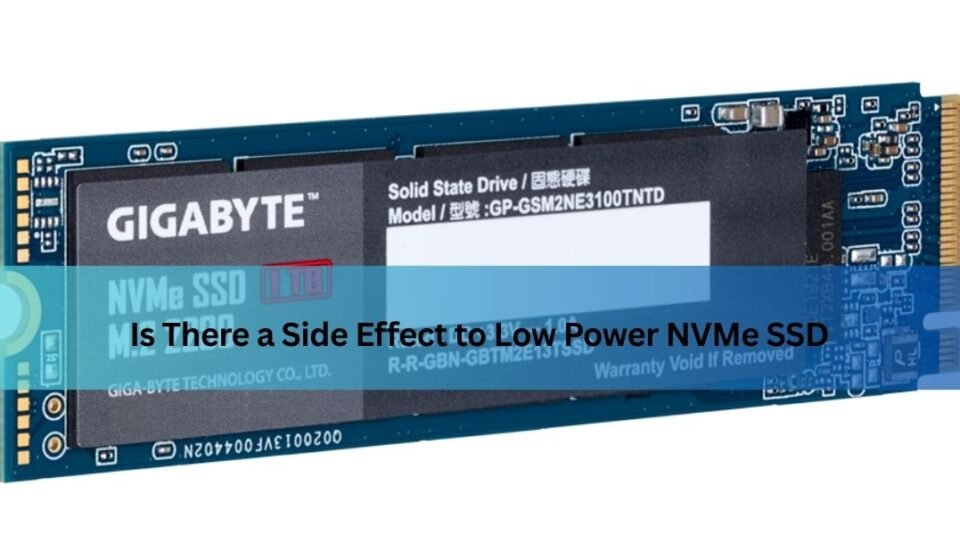

If you have ever dug into your laptop’s BIOS or power settings and noticed an option related to NVMe power management, you may have paused and wondered: is there a side effect to low power NVMe SSD settings, or is it simply a free way to save battery life? It is a fair question, and one that more people are asking as laptops get thinner, batteries are expected to last longer, and energy efficiency becomes a bigger priority for everyday computer users.
The short answer is yes, there can be side effects, but they are usually small and only noticeable in specific situations. This guide walks through exactly what low power NVMe SSD settings do, why they exist, what trade-offs they bring, and how to decide whether they are the right choice for your own setup. Whether you are a casual laptop owner trying to squeeze out more battery life, a gamer chasing every bit of performance, or an IT professional managing servers, this article will help you make an informed decision without needing a degree in computer engineering.
What Does “Low Power NVMe SSD” Mean?
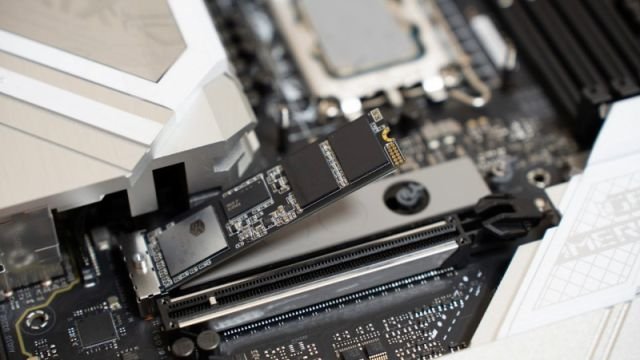
Before getting into the side effects, it helps to understand what this setting actually refers to. An NVMe SSD is a type of solid-state drive that connects through the PCIe interface, offering much faster data transfer speeds than older SATA drives. Because these drives are so fast, they can also draw meaningfully more power than a typical hard drive, especially during heavy read and write operations.
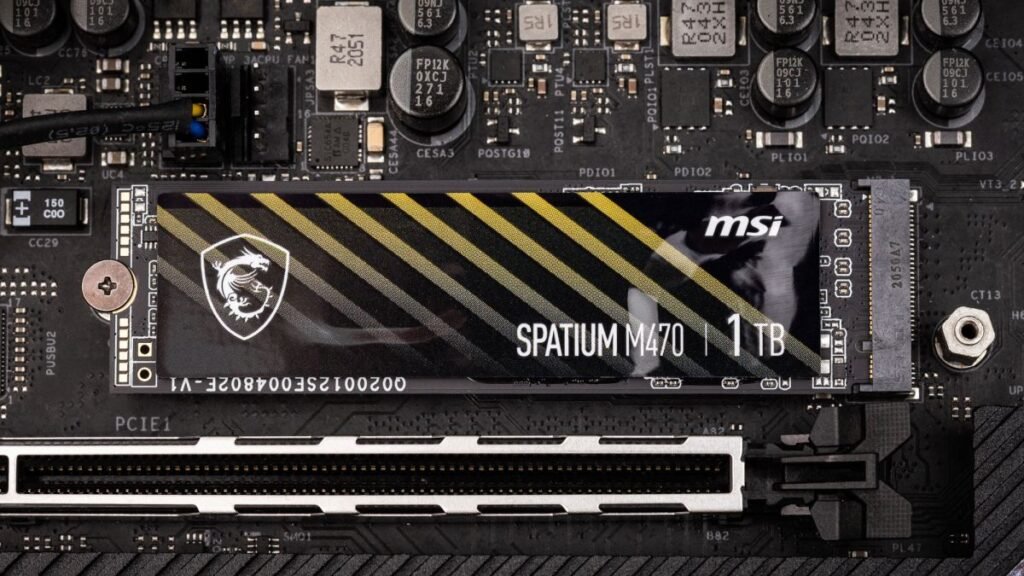
To manage this, manufacturers build power-saving features directly into the drive and its controller. A “low power” NVMe SSD setting essentially tells the drive to spend more time in reduced-power states rather than staying fully active. This setting can usually be found in a few different places: within your motherboard’s BIOS or UEFI menu, inside your operating system’s power plan options, or through a dedicated tool provided by the SSD manufacturer, such as Samsung Magician or Western Digital Dashboard.
How NVMe Power Management Works
To really understand whether there is a side effect to low power NVMe SSD configurations, it helps to know a little about how these drives manage power behind the scenes. NVMe drives are not simply “on” or “off.” Instead, they operate across a range of power states, moving between full active performance and various levels of idle or sleep depending on what the system needs at any given moment.
Two technical features play a major role here. The first is APST, which stands for Autonomous Power State Transition. This allows the operating system to automatically shift the drive into lower power states when it senses reduced activity, without requiring the user to do anything manually. The second is ASPM, or Active State Power Management, which works at the PCIe link level to reduce power to the physical connection between the drive and the motherboard when it is not actively transferring data.
Together, these systems are designed to strike a balance: keep the drive fast when you need speed, but let it rest and consume less energy the rest of the time. Manufacturers build these features in because most consumer usage, especially on laptops, involves short bursts of activity followed by long stretches of near-idle time, making power savings genuinely worthwhile in real-world use.
The Benefits of Low Power Mode (Quick Context)
Before jumping into the downsides, it is worth remembering why this feature exists in the first place, since the benefits are real and meaningful for many users. Lower power consumption directly translates into longer battery life, which matters enormously for anyone using a laptop away from a charger for extended periods. Reduced power draw also means the drive generates less heat, which keeps the overall system cooler and can even reduce fan noise in laptops and small-form-factor desktops.
For everyday tasks like browsing, document editing, video streaming, and casual gaming, these benefits often come at little to no noticeable cost. This is precisely why the feature is enabled by default on most consumer laptops rather than being an obscure, rarely-used setting.
Potential Side Effects and Trade-Offs
Now to the core question: is there a side effect to low power NVMe SSD settings that users should actually worry about? The honest answer is that there are a few genuine trade-offs, though their real-world impact depends heavily on how you use your computer.
The most commonly reported side effect is a slight increase in latency, particularly during moments of peak workload. Because the drive needs a brief moment to transition out of a low-power state and back into full performance, tasks that demand instant responsiveness can experience a small delay. For most everyday applications, this delay is so short that it goes completely unnoticed. However, in specialized, latency-sensitive environments, it can become a measurable factor.
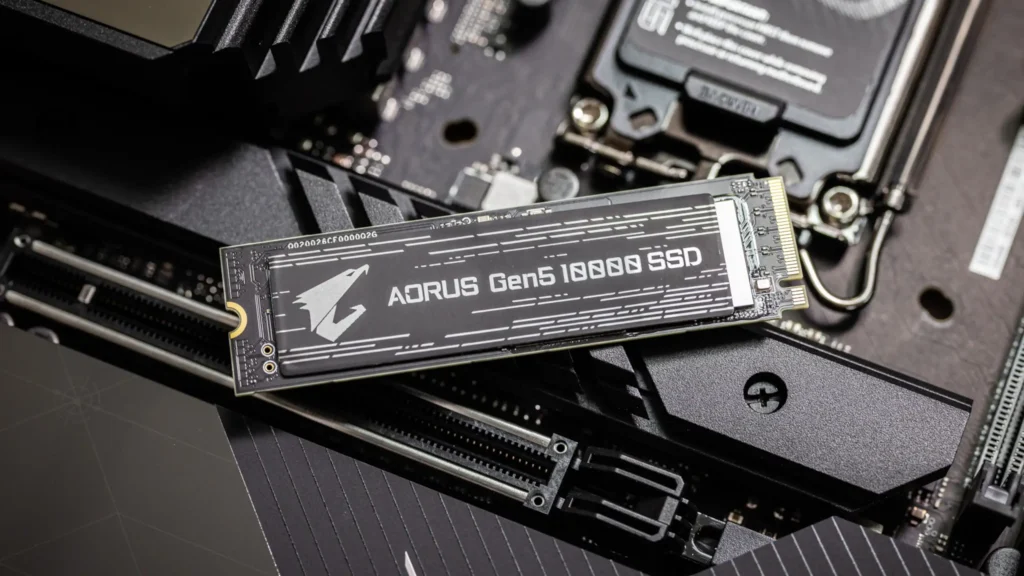
A second trade-off involves sustained read and write performance. When a drive is configured to prioritize power savings, it may not sustain its absolute maximum speed during long, continuous data transfers in the same way a fully unrestricted drive would. This is rarely an issue for typical file transfers, but can matter for tasks like large video exports or transferring very large datasets.
A third, more situational side effect involves the “wake up” behavior of the drive. Moving from a deep idle state back to active use takes a small amount of time. In most cases this happens in milliseconds and is imperceptible, but on some systems combined with certain firmware, users have reported a very brief stutter, especially right after long idle periods.
Finally, there is the rare but real possibility of hardware-level quirks. A small number of documented cases involve specific SSD models experiencing power-spike related instability, particularly when combined with other power-hungry components such as a demanding GPU running at the same time. These situations are uncommon and tend to be tied to specific hardware combinations rather than being a widespread problem.
Who Is Most Affected by These Side Effects
Not everyone experiences these trade-offs the same way. The table below offers a simple breakdown of how different types of users are typically affected.
| User Type | Likely Impact | Recommendation |
| Everyday laptop user (browsing, office work, streaming) | Minimal to none | Keep low power settings enabled |
| Casual gamer | Very slight, rarely noticeable | Default settings usually fine |
| Content creator / video editor | Moderate, during large sustained exports | Consider balanced or performance mode during heavy work |
| Competitive gamer / latency-sensitive use | Small but potentially noticeable | May prefer performance mode |
| Server / data center environment | More significant due to high, constant duty cycles | Low power modes generally avoided |
| PC builder combining high-power GPU + budget SSD | Possible power-spike instability in rare cases | Check compatibility, avoid extreme low power settings |
As the table shows, the vast majority of everyday users are unlikely to notice any real downside, while the effect becomes more relevant as workloads become heavier, more sustained, or more sensitive to timing.
Low Power Mode vs Full Performance Mode
Another helpful way to understand the trade-off is to compare the two settings side by side.
| Factor | Low Power Mode | Full Performance Mode |
| Power draw | Lower | Higher |
| Heat generated | Less | More |
| Battery life impact (laptops) | Longer battery life | Shorter battery life |
| Peak sustained speed | Slightly reduced | Maximum available |
| Latency on wake-up | Small delay possible | Minimal delay |
| Best suited for | Everyday use, laptops, travel | Gaming, heavy editing, servers |
| Noise and cooling needs | Lower | May require better cooling |
This comparison highlights that neither setting is universally “better.” It genuinely depends on what you value more in a given moment: longer battery life and cooler running temperatures, or maximum, uncompromised speed.
Real-World Examples and Reported Issues
Looking at real reports from users and professionals helps put these side effects into perspective. In one documented case, a development team using certain NVMe drives found that when the SSD’s power draw spiked at the same time as a demanding GPU, the combined power draw exceeded the system’s supply limit, causing shutdowns under specific hardware configurations. Their workaround involved manually setting the drive to a lower power mode, which resolved the stability issue but came at the cost of noticeably reduced storage performance, illustrating the classic trade-off between reliability and speed.
In other cases, users have reported firmware-specific quirks where certain SSD models behaved unexpectedly only while in deep low-power states, with no issues occurring during normal operation, hibernation, or full shutdown. These kinds of reports tend to be tied to particular firmware versions and are usually resolved through manufacturer firmware updates rather than being an inherent flaw in low power technology itself.
How to Check Your SSD’s Power Settings
If you want to see exactly how your own drive is currently configured, there are a few straightforward ways to check. On a Windows system, you can look through Device Manager, where selecting your NVMe drive and viewing its properties often reveals options related to power management. Windows Power Options also lets you view and adjust the broader power plan affecting your entire system, including storage devices.
For a more direct look, entering your computer’s BIOS or UEFI setup screen during startup usually reveals dedicated storage or power-related menus where NVMe power states can sometimes be adjusted manually. Finally, most major SSD manufacturers offer their own free software, such as Samsung Magician, Western Digital Dashboard, or Crucial Storage Executive, which often includes clearer, more user-friendly controls specifically designed for their drives.
How to Decide If Low Power Mode Is Right for You
Deciding whether to keep low power settings enabled really comes down to matching the setting to your actual usage pattern rather than following a one-size-fits-all rule. If your daily computer use mostly involves browsing, writing, streaming video, or general office tasks, the default low power configuration is almost certainly the right choice, since the battery and thermal benefits far outweigh the barely noticeable performance trade-off.

On the other hand, if you regularly work with large video files, run demanding creative software, or play competitive games where every millisecond matters, it may be worth testing your system with a more performance-oriented power plan to see if you notice a meaningful difference. For server environments or any setup running sustained, heavy workloads around the clock, full performance settings are typically the more sensible choice from the start.
Tips to Minimize Side Effects
If you want to enjoy most of the power-saving benefits while reducing the small trade-offs involved, a few simple adjustments can help. Rather than choosing between extreme power-saving and maximum performance, most operating systems offer a “balanced” power plan that aims to get the best of both worlds, adjusting dynamically based on what you are actually doing at any given moment.
Keeping your SSD’s firmware updated through official manufacturer channels is also important, since many of the more unusual power-related quirks reported by users have been resolved through routine firmware updates over time. Finally, it is worth only switching to more aggressive power-saving settings when you genuinely need the extra battery life, such as during travel, and switching back to a more performance-focused setting when working on demanding tasks at your desk.
Frequently Asked Questions (FAQ)
Does low power mode damage the SSD over time?
No credible evidence suggests that using low power settings causes long-term damage to a healthy SSD. These features are built into the drive’s official specifications and are designed for regular, everyday use.
Will I notice the performance drop in daily use?
For the vast majority of everyday tasks, no. The difference becomes more noticeable primarily during large, sustained data transfers or latency-sensitive applications.
Is low power mode different for gaming laptops vs desktops?
The underlying technology is the same, but gaming laptops often use more aggressive power management by default to preserve battery life, while desktops, which are typically plugged in at all times, may lean toward performance-oriented settings.
Can I switch back to full performance anytime?
Yes. In most cases, these settings can be changed at any time through your operating system, BIOS, or manufacturer software, and take effect without needing to reinstall anything.
Conclusion
So, is there a side effect to low power NVMe SSD settings? Yes, but for most people, those side effects are minor enough to be unnoticeable in daily use. The main trade-offs — slightly increased latency, marginally reduced sustained speeds, and occasional wake-up delays — mostly matter in specific, demanding scenarios like heavy content creation, competitive gaming, or server workloads. For everyday laptop and desktop users, the benefits of longer battery life, reduced heat, and quieter operation make low power settings a smart, sensible default.
Understanding how your own usage pattern lines up with these trade-offs is the real key to making the right choice. Whether you decide to stick with power-saving defaults or switch to a performance-focused configuration, knowing exactly what is happening behind the scenes puts you in full control of your system’s balance between speed and efficiency.
Related Post:
NVMe SSD USB Enclosure Issues: Why They Happen and How to Fix Them
Are 2230 SSDs Compatible With 2280 M.2 Slots?
How Much Free Space Should You Leave on Your SSD?
SSD Showing as Unallocated? What It Means and How to Fix It Safely
How to Copy an SSD to a Larger SSD Without Reinstalling Windows