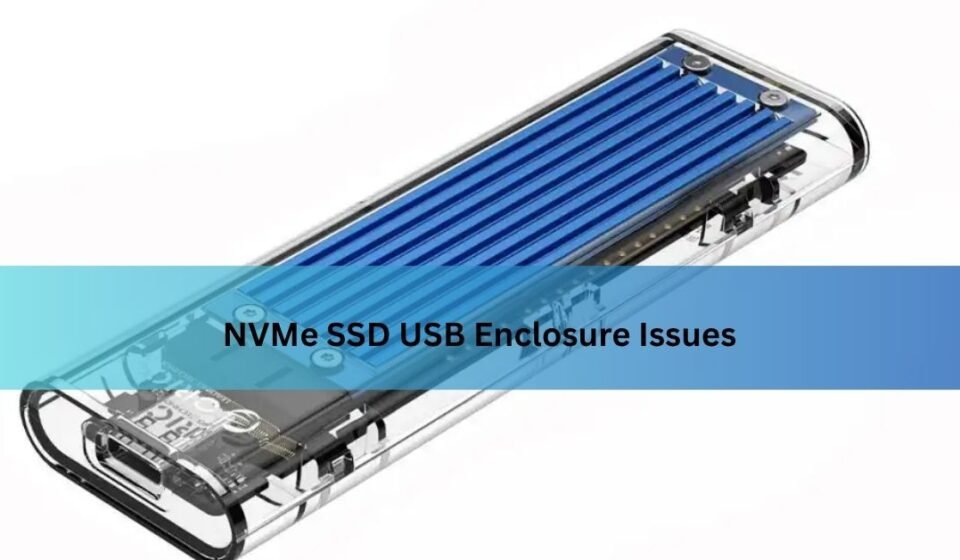

An NVMe SSD in a USB enclosure should be simple: slide the drive in, plug it into your laptop, get a fast portable disk. Often it is. But a lot of people hit the same wall instead, a drive that vanishes mid-copy, speeds a fraction of what the box promised, or a case so hot you can’t hold it. The good news: nearly all of it comes down to four causes. Heat, the little bridge chip inside the enclosure, the cable and port you’re using, and power. Once you know which one you’re dealing with, the fix is usually quick.
Quick version: if it disconnects during large transfers, suspect heat or a weak cable first. If it never shows up, suspect the cable, the port, or the drive type. If it’s slow, suspect the port speed or UASP. If speeds nosedive after a minute, that’s thermal throttling.
Why NVMe enclosures act up in the first place
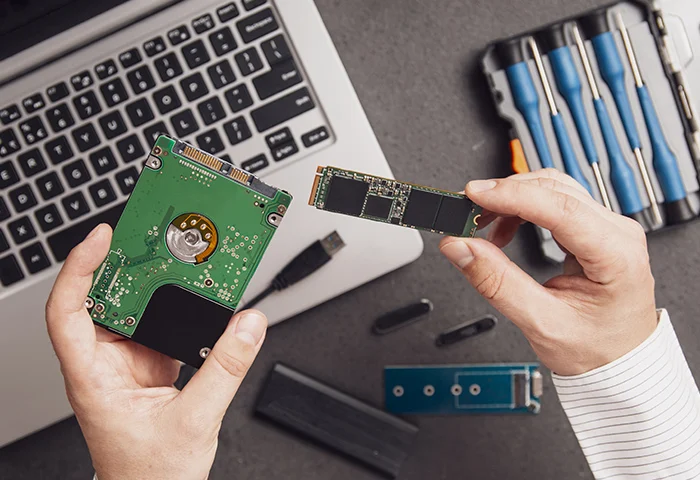
An NVMe drive is built to talk directly to your computer over PCIe, the fast lanes inside the machine. USB doesn’t speak PCIe. So every NVMe enclosure has a translator chip inside, called a bridge chip, that converts between the drive’s PCIe language and USB. That chip does a huge amount of work, and it’s where most trouble starts.
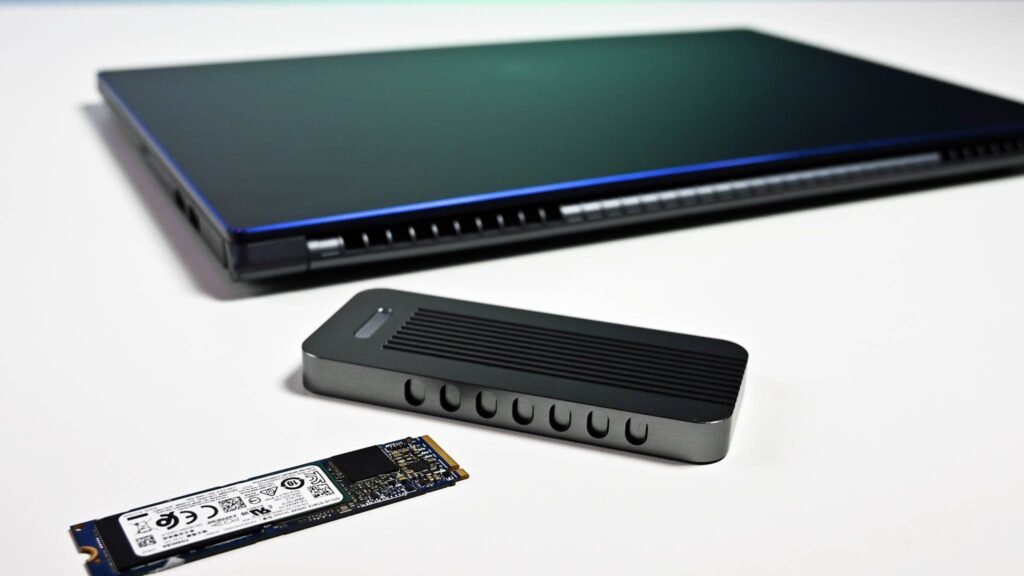
On top of that, NVMe drives are fast, and fast means hot. A drive that stays cool inside a roomy desktop can cook inside a sealed metal tube the size of a stick of gum. Add a cheap cable or a laptop port that can’t supply enough power, and you have the full set of reasons an enclosure misbehaves.
None of this means enclosures are bad. It means the cheap ones cut corners on exactly the parts that matter, and knowing which part failed tells you what to do.
The drive doesn’t show up at all
You plug in, and nothing. No new drive, no sound, sometimes not even a light. Work through these in order, because the common causes are also the quickest to rule out.
- Check the drive type. NVMe and SATA M.2 drives look almost identical but are not interchangeable. Many enclosures take only NVMe; some take only SATA; a few take both. If your drive is the wrong type for the enclosure, it will never appear. Look up your exact drive model and confirm it’s NVMe.
- Reseat the drive. Open the case and push the SSD firmly back into the M.2 slot, then secure it with the screw or peg. A drive that sits at a slight angle or isn’t fully home won’t make contact. This fixes a surprising number of dead enclosures.
- Swap the cable. This is the single most common culprit. Many USB-C cables carry power only, or run at slow USB 2.0 speeds, and look identical to fast data cables. Use the cable that came with the enclosure, or one you know is rated for 10Gbps.
- Try a different port and computer. Move to a rear USB port on a desktop, or a different laptop. Front-panel and hub ports are often underpowered. If the drive shows up elsewhere, the problem is the original port, not the enclosure.
- Look in Disk Management. On Windows, open Disk Management (or Disk Utility on a Mac). A brand-new SSD often shows up here as unallocated space with no drive letter. It’s working fine; it just needs to be partitioned and formatted before it appears as a usable drive.
If the drive shows up as a device but reports zero capacity or garbage details, it’s usually the bridge chip failing to read the drive properly, often because the enclosure’s firmware is old. Check the maker’s site for a firmware update.
One more case worth knowing: on Apple’s M1 and M2 laptops, plugging in two fast NVMe enclosures at once can leave the second one unmounted, because those chips have a limit on how many PCIe-class USB drives they’ll run together. Using one at a time, or a powered hub, gets around it.
It keeps disconnecting during big transfers
This is the classic NVMe enclosure complaint. Small jobs work fine, then you start a large backup and partway through the drive drops off, sometimes coming back with a new drive letter, sometimes leaving the copy broken. Two things cause the vast majority of these drops.
Heat
A sustained write pushes the drive and the bridge chip hard, and both heat up fast. When either gets too hot, it can shut down to protect itself, which reads as a disconnect. A drive that’s only slightly warm to the touch can still be too hot inside, because the sensor is on the chip, not the shell.
- Add the thermal pads. Good enclosures include thin sticky pads that bridge the drive to the metal case so heat can escape. If yours came with pads and you skipped them, that’s likely your problem. Fit them so the pad touches both the drive and the lid.
- Use a metal enclosure, not plastic. A solid aluminium body pulls heat away; plastic traps it. This one choice prevents a lot of drops.
- Break the transfer into chunks. Copying 200GB in one go gives the drive no chance to cool. Moving it in smaller batches, or pausing between them, keeps temperatures down.
- Give it air. Don’t run a long transfer with the enclosure sitting on a laptop vent or buried under papers. A short extension cable to set it on an open surface helps.
A weak or wrong cable
A cable that’s marginal at 10Gbps can pass a quick test and then fail under a long, heavy load, dropping the connection. If you’ve ruled out heat, the cable is the next thing to change. Try a known-good 10Gbps cable, and keep it short. Long cables lose signal and make drops more likely.
There’s a third, quieter cause worth checking if heat and cables are ruled out: the enclosure’s own firmware. The bridge chip runs its own small software, and early versions of some chips were genuinely buggy, dropping out under load until an update fixed them. If your enclosure comes from a maker that publishes firmware, updating it can turn an unstable case into a stable one. The catch is that many budget brands never release updates at all, which is one more reason to buy from a name that supports its products.
A telltale sign it’s the enclosure and not the drive: the same SSD runs perfectly when installed inside a PC, but drops out in the enclosure. That points straight at the bridge chip, the cable, or cooling, not the SSD itself.
Speeds are far slower than promised
The box says 10 or 20 gigabits per second, and you’re getting a crawl. Slow speed usually comes from a mismatch somewhere in the chain, and the chain is only as fast as its slowest link.
- Check what the port actually is. A USB-C shape tells you nothing about speed. The same connector can run USB 2.0, 5Gbps, 10Gbps, 20Gbps, or USB4. A 10Gbps enclosure in a 5Gbps port runs at 5Gbps at best. Check your computer’s spec sheet for the real speed of each port, and watch for hubs and docks, which share one connection across everything plugged into them.
- Match the cable to the speed. A cable rated only for 5Gbps caps a 10Gbps enclosure, and plenty of bundled or spare cables are exactly that. Use the cable that shipped with the enclosure, or one clearly rated for your target speed, and keep it short.
- Confirm UASP is active. UASP (USB Attached SCSI Protocol) is a smarter way for the drive to handle many requests at once, and it’s what lets a fast bridge get near its rated speed. Without it, the drive falls back to an older one-at-a-time mode and feels sluggish, especially on lots of small files. Modern enclosures and current versions of Windows, macOS, and Linux support it, but a cheap or old enclosure may not.
- Rule out throttling. If speed starts high and then collapses after a minute or two, that’s not the port, it’s heat. See the thermal section above.
Also keep expectations realistic. A 10Gbps connection tops out around 1,000MB/s in practice, nowhere near the 3,000MB/s-plus the same drive hits inside a PC. That’s a limit of USB, not a fault. If you need the drive’s full speed, you want a 20Gbps, USB4, or Thunderbolt enclosure and a host that supports it. A 20Gbps enclosure plugged into a plain 10Gbps port just runs at 10Gbps, so the faster case only pays off when both ends match.
It’s also worth separating two numbers people mix up. Sequential speed, the big figure on the box, is what you get copying one huge file. Random speed, moving thousands of tiny files, is always lower and is where a missing UASP mode hurts most. If your big-file copies are fast but a folder full of small files crawls, the drive and port are fine; you’re just seeing normal random performance made worse without UASP.
The bridge chip: the part that decides most of this
If there’s one thing worth knowing before you buy, it’s which bridge chip an enclosure uses, because that chip sets the speed, whether UASP and TRIM work, how much heat it throws off, and how stable it is. Brand names on the box matter far less than the chip inside.
A handful of chips cover most enclosures on the market. Here’s how the common ones compare:
| Bridge chip | Top speed | Notes |
|---|---|---|
| Realtek RTL9210B | 10Gbps | Widely used and well supported across systems. Handles NVMe and SATA. A safe default. |
| JMicron JMS583 | 10Gbps | Common and now stable on current firmware. Early versions had drop and heat issues that updates fixed. |
| ASMedia ASM2362 | 10Gbps | Reliable 10Gbps option, used even in some name-brand drives. |
| ASMedia ASM2364 | 20Gbps | Doubles bandwidth but runs hot; needs good cooling and a rarer 20Gbps port and cable. |
| ASMedia ASM2464PD | 40Gbps | USB4 / Thunderbolt speeds. Fast, runs warm, often paired with a fan or large heatsink. |
The pattern is clear: the faster the chip, the more heat it makes and the more careful you have to be about cooling and matching ports. For most people a solid 10Gbps chip in a metal case is the sweet spot. If a listing won’t tell you the chip, that itself is a warning. Reputable makers like Plugable publish the chip and thermal design right on the product page.
Heat, and why it causes both drops and slowdowns
Heat deserves its own section because it’s behind two different symptoms that look unrelated: random disconnects and speeds that fall off a cliff. Both come from the same place.
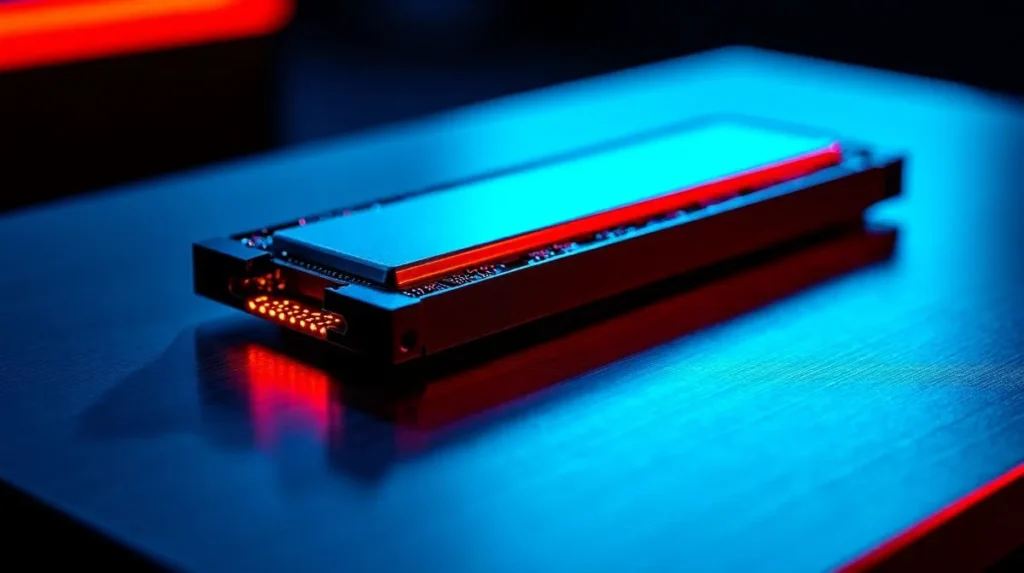
When an NVMe drive gets too hot, it deliberately slows itself down to cool off. That’s thermal throttling, and it’s why a transfer can start at full speed and then drop to a fraction of it a minute later. Push the heat further and the drive or bridge chip may cut out entirely to protect itself, which shows up as a disconnect. In testing, hotter high-end drives have been seen briefly throttling under sustained writes, while cooler drives sail through the same job untouched, and cases that run away on heat have pushed drives past 80 degrees Celsius.
The fixes are the same ones from the disconnect section, and they’re worth repeating because they solve so much: use a metal enclosure, fit the thermal pads, keep transfers in smaller batches, and give the case open air. For 20Gbps and faster enclosures, a model with a small built-in fan or a chunky finned heatsink is worth the extra bulk.
TRIM and SMART: the quiet ones
Two features often get lost over USB, and while neither stops the drive working today, both matter over time.
TRIM keeps an SSD fast and healthy by letting the system tell the drive which blocks are free to clean up. Over USB, the bridge chip has to pass that command through, and cheaper chips don’t always do it, so the drive can slow down as it fills. This bites harder on Linux, which is strict about only using TRIM when the chip clearly reports support; Windows is more lenient. Picking a well-supported chip is the real fix.
SMART is the drive’s built-in health reporting, warnings, temperature, wear. Many bridge chips block it, so monitoring tools show blanks. If you want to keep an eye on a drive’s health, choose an enclosure known to pass SMART through.
For a portable drive you back up to now and then, neither is a dealbreaker. For a drive you write to constantly, both are worth checking before you buy.
How to pick an enclosure that won’t do this
Most of the pain is avoidable at the buying stage. A few things to look for:
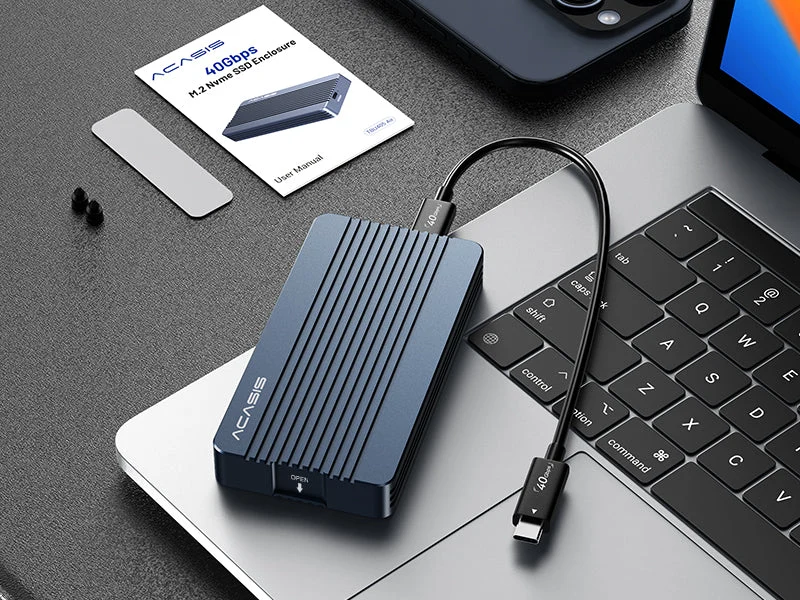
- A named, current bridge chip. An RTL9210B or a current ASMedia chip, stated in the listing. No chip named, no sale.
- A metal body with thermal pads. Aluminium pulls heat out; pads make the contact that lets it. Skip plastic for anything you’ll write to heavily.
- A speed that matches your computer. There’s no point paying for a 40Gbps enclosure if your laptop only has 10Gbps ports. Match the enclosure to the port you actually have.
- Firmware updates from the maker. The makers who publish updates are the ones who fix drop and heat bugs after launch. That’s a good sign the product is supported.
Match the drive too. If you don’t need blistering speed, a mid-range PCIe Gen 3 drive runs cooler and is easier on a small enclosure than a top-tier Gen 4 drive that was built for a desktop. When in doubt, check the drive maker’s own page, for example Samsung’s SSD support pages list power draw and specs that tell you how hot a drive is likely to run.
Frequently asked questions
Why does my NVMe enclosure keep disconnecting during large file transfers?
Almost always heat or a weak cable. Long writes overheat the drive or bridge chip, which cuts out to protect itself. Fit the thermal pads, use a metal case, copy in smaller batches, and try a known-good short 10Gbps cable.
Why is my NVMe enclosure so much slower than advertised?
Usually a mismatch. A 10Gbps enclosure in a 5Gbps port or on a slow cable runs at the slower speed. Also confirm UASP is active. And remember USB caps real speed around 1,000MB/s, well below the drive’s internal rate.
Why isn’t my NVMe drive showing up at all?
Check three things first: that the drive is actually NVMe (not SATA) and fits the enclosure, that the cable carries data and not just power, and that the drive isn’t sitting unformatted in Disk Management waiting to be set up.
Does the enclosure brand or the chip inside matter more?
The chip. The bridge chip sets speed, stability, heat, and whether UASP and TRIM work. A trusted brand usually means a good chip, but if a listing won’t name the chip, treat that as a reason to skip it.
Will a USB enclosure damage my NVMe SSD?
Not under normal use. The risk is sustained overheating from a cheap case with no cooling, which shortens a drive’s life over time. A metal enclosure with thermal pads and sensible transfer habits keeps temperatures safe.
Conclusion
Nearly every NVMe enclosure problem comes back to heat, the bridge chip, the cable, or power. When a drive won’t show up, swap the cable and check the drive type and Disk Management first. When it drops out mid-copy, treat heat and the cable as prime suspects. When it’s slow, check the port speed, the cable, and whether UASP is on. Buy a metal enclosure with a named chip that matches your ports, use the thermal pads, and most of this simply stops happening.
Related Post:
How to Format an SSD in Windows 10 (Step by Step)
How to Partition an SSD: Windows, Mac, and When to Skip It
What to Do After Installing a New SSD
SSD Showing as Unallocated? What It Means and How to Fix It Safely
How to Copy an SSD to a Larger SSD Without Reinstalling Windows