Short answer: not by itself. If your computer already runs on one decent SSD, adding a second or third one will not make Windows boot faster, open apps quicker, or raise your frame rates. Where extra SSDs do help is in specific situations: replacing a slow hard drive, freeing up a nearly full drive, or spreading heavy workloads across separate disks.
So does having more SSDs make your computer faster? Only when storage is the real bottleneck. This guide shows you how to tell, when a second SSD is worth buying, and what to upgrade instead if it is not.
The Short Answer: Does Having More SSDs Make Your Computer Faster?
Think of an SSD as a storage shelf with a very fast door. The faster the door, the quicker your computer can fetch files. But having five fast shelves does not make your computer think faster. The processor, memory, and graphics card still do the actual work.
Here is the simple version:
- Going from a hard drive (HDD) to an SSD: a big, noticeable speed boost.
- Going from one SSD to two SSDs: usually no change in everyday speed.
- Going from a full SSD to one with free space: can improve consistency.
- Going from a SATA SSD to an NVMe SSD: a real but often modest gain in daily use.
The number of SSDs matters far less than the type of drive and what it is used for.
C
What an SSD Speeds Up
An SSD stores data on flash memory chips instead of spinning platters. With no moving parts, it can find and deliver data almost instantly. That improves:
- Boot and shutdown times
- App and game loading screens
- File copying and extraction
- Opening large projects, such as photo libraries or video timelines
- General responsiveness when many programs read from the disk at once
To put real numbers on it: a typical 7200 RPM hard drive reads data at roughly 80 to 160 MB/s. A SATA III SSD tops out around 550 MB/s because of the interface limit. A modern PCIe 4.0 NVMe SSD can reach about 7,000 MB/s in sequential reads. Those are manufacturer-rated peak figures, so real-world results vary.
What an SSD Cannot Speed Up
Storage does not control everything. These parts matter just as much:
- CPU: handles calculations, multitasking, and most software logic.
- RAM: holds the data your programs are actively using. Too little forces Windows to swap data to disk, which feels slow even on an SSD.
- GPU: controls gaming frame rates, 3D rendering, and video effects.
- Internet connection: no drive can fix a slow download or laggy streaming.
If your PC feels slow while a game is running or a browser has 40 tabs open, an extra SSD is unlikely to be the cure.
When Adding a Second SSD Actually Helps
Adding another SSD is a smart move in a few clear cases.
You Are Replacing an Old Hard Drive
If your computer still boots from an HDD, an SSD is the single most effective upgrade you can make. Many people find that an older laptop or desktop feels like a different machine afterward. Here, “adding an SSD” is really “switching to an SSD,” and the improvement is large.
Your Main Drive Is Almost Full
SSDs slow down when they run very low on free space, because the drive has less room to manage writes efficiently. Windows also needs breathing room for updates, temporary files, and virtual memory. Many manufacturers suggest keeping a portion of the drive free, commonly around 10 to 20 percent. If your boot drive is packed, moving games, photos, or project files to a second SSD can bring back smoother performance.
You Run Heavy Creative or Technical Workloads
Some professionals benefit from using separate drives for different jobs. For example:
- Video editors often keep source footage on one drive and the cache or scratch files on another, so the editing software is not reading and writing everything to the same disk at once.
- Photographers may store active catalogs on a fast SSD and archive older work elsewhere.
- Developers and virtual machine users can run virtual machines from a dedicated drive so the main system stays responsive.
The gain comes from reducing competition for one drive, not from the number of drives itself.
You Want Better Organization and Safety
A second SSD lets you keep your operating system separate from personal files and games. If you ever need to reinstall Windows, your data on the other drive stays untouched. That is not a speed boost, but it is a practical benefit many people value.
When More SSDs Will Not Make a Difference
Skip the extra drive if any of these describe you:
- You already have a modern SSD with plenty of free space.
- Your slowdowns happen mostly while gaming, rendering, or multitasking.
- You have 8 GB of RAM or less and run many programs together.
- Your computer is several years old, and the CPU is the weak link.
- Your PC is slowed down by startup programs, malware, or an overloaded browser.
In these cases, the money is better spent elsewhere, which we cover below.
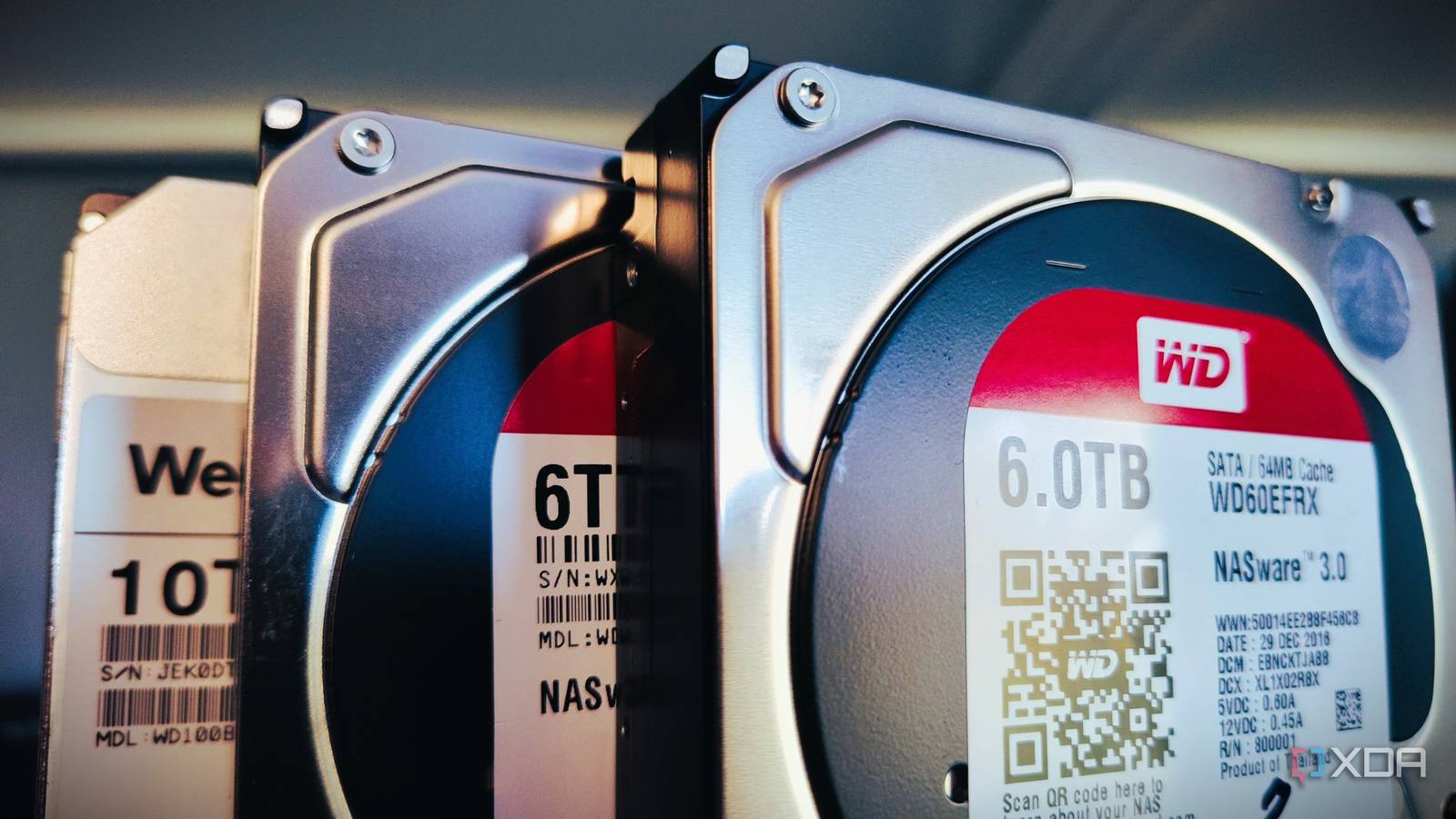
Do Multiple SSDs Combine Their Speeds? (RAID Explained)
Some readers ask whether two SSDs can work together like a team and double the speed. They can, using a setup called RAID.
What RAID 0 Does
RAID 0 splits data across two or more drives so they read and write at the same time. On paper, that can nearly double sequential speeds. It sounds great, but there is a catch: if one drive fails, you can lose all the data on both.
Why It Is Rarely Worth It for Home Users
- Everyday tasks such as opening apps and browsing rely more on quick response times than raw transfer speed, so you will barely notice the difference.
- A single NVMe drive is already faster than most people can use.
- The risk of losing everything is higher.
- It adds setup complexity, and the benefit mostly shows up in benchmarks.
For most home and gaming PCs, a single fast NVMe SSD is simpler, safer, and just as responsive. RAID 0 makes sense mainly for specialized workstation tasks where very high sustained transfer speeds matter, and even then, regular backups are essential.
SATA vs NVMe: Drive Type Matters More Than Drive Count
If you are choosing between a second SSD and a better SSD, the better one often wins.
| Drive Type | Typical Peak Speed | Best For |
| HDD (7200 RPM) | About 80 to 160 MB/s | Cheap bulk storage, backups |
| SATA SSD | About 550 MB/s | Budget upgrades, older PCs |
| NVMe SSD (PCIe 3.0) | Up to about 3,500 MB/s | Mainstream PCs and laptops |
| NVMe SSD (PCIe 4.0) | Up to about 7,000 MB/s | Fast gaming and creator PCs |
Speeds are common manufacturer ratings, and actual performance depends on your hardware.
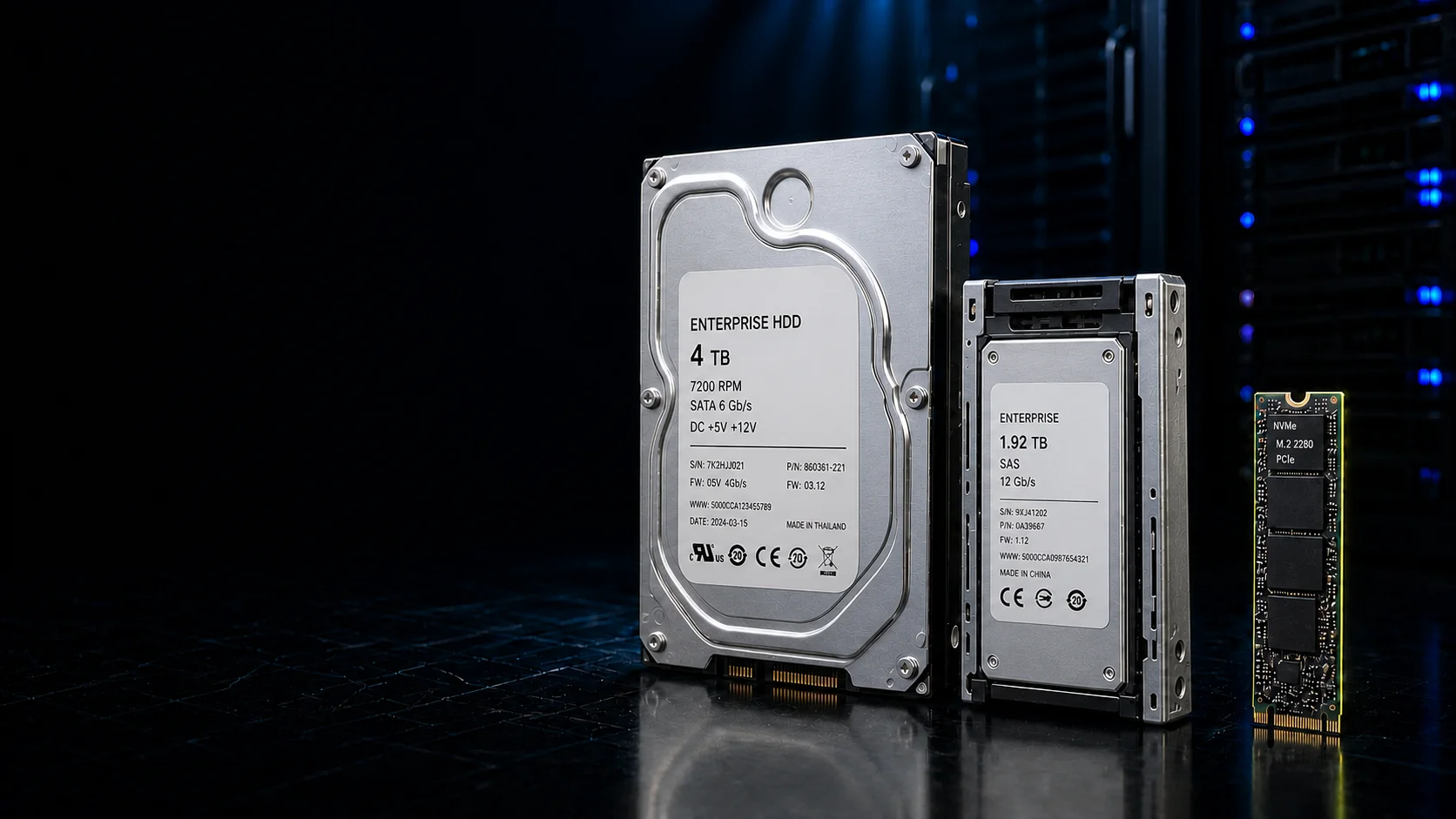
The jump from an HDD to any SSD feels huge. The jump from SATA to NVMe is smaller in daily use, though you will notice it when moving very large files. Before buying, check what your motherboard or laptop supports. Many older machines only have SATA connections, and some NVMe drives need a specific M.2 slot type.
Practical Examples: Is a Second SSD Worth It for You?
Example 1: The older laptop with a hard drive. A five-year-old laptop takes three minutes to boot. Swapping the HDD for a SATA SSD can cut that dramatically. Verdict: absolutely worth it.
Example 2: The gamer with one 500 GB NVMe drive. The drive is 95 percent full, and updates take forever. Adding a 1 TB SSD for games frees up space and keeps Windows responsive. Verdict: worth it for space and stability, not for higher frame rates.
Example 3: The office PC with a 1 TB SSD and 8 GB of RAM. It lags when many tabs and apps are open. More RAM helps far more than another drive. Verdict: skip the SSD, upgrade memory.
Example 4: The video editor with one drive for everything. Timeline playback stutters when footage and cache share a disk. A second fast SSD for cache files can smooth things out. Verdict: worth it.
Common Mistakes to Avoid
- Buying more storage when RAM is the problem. Check Task Manager first. If memory sits near 90 percent or higher, more RAM is the better fix.
- Ignoring free space. A big drive that is nearly full can perform worse than a smaller one with room to spare.
- Assuming every M.2 slot is the same. Some slots are SATA-only, and some support NVMe. Confirm compatibility before you buy.
- Cloning or installing without a backup. Always back up important files before changing drives.
- Choosing the cheapest drive without checking reviews. Some budget SSDs slow down sharply during long writes.
- Using RAID 0 without a backup plan. One failed drive can wipe everything.
What to Upgrade Instead for a Faster Computer
If an extra SSD will not solve your problem, try these in order:
- Check Task Manager. Open it with Ctrl + Shift + Esc and watch CPU, memory, disk, and GPU usage while the slowdown happens. The component hitting 100 percent is your bottleneck.
- Add RAM. For modern Windows use, 16 GB is a comfortable level for most people.
- Clean up startup programs. Disable apps you do not need at login.
- Update Windows and drivers. Old drivers can cause odd slowdowns.
- Scan for malware. Unwanted software can quietly eat resources.
- Upgrade the CPU or GPU. For gaming and heavy editing, these usually bring the biggest gains.
For more background, Microsoft’s Windows support pages explain how to manage startup apps and check performance, and manufacturers such as Crucial and Samsung publish clear guides on SSD types and interface speeds. The NVM Express organization (nvmexpress.org) explains how the NVMe standard works.
Frequently Asked Questions
Will adding a second SSD make my games load faster?
Only if your games currently load from a slower drive, such as an HDD or a nearly full SSD. If they already sit on a healthy NVMe SSD, a second drive will not noticeably change load times.
Is it better to have one big SSD or two smaller ones?
For simplicity and value, one larger SSD is usually the better choice. Two drives make sense when you want to separate your operating system from data, or when a heavy workload benefits from using different disks.
Can too many SSDs slow down my computer?
Not in normal use. Extra drives use very little power and do not slow the system. The only real limits are the number of available slots and, on some boards, shared bandwidth between M.2 slots and other ports.
Does an SSD help with FPS in games?
No. Frame rates depend mostly on your GPU and CPU. An SSD can cut loading screens and reduce stutter from texture streaming in some games, but it will not raise average FPS.
Should I put Windows on a new SSD or keep it where it is?
If your current boot drive is an HDD, moving Windows to an SSD is the best upgrade you can make. If Windows is already on an SSD, there is rarely a speed reason to move it.
Conclusion
So, does having more SSDs make your computer faster? Not just by having more of them. A single good SSD delivers nearly all of the speed benefit most people will ever notice. A second SSD earns its place when it replaces a hard drive, rescues a full boot drive, or supports a demanding workload.
Before you spend money, find your real bottleneck. For many everyday slowdowns, more RAM, a cleaner startup list, or a better processor will do more than another drive. Match the upgrade to the problem, and your computer will feel faster where it counts.
Recommended articles:
Are SSDs Compatible With All Motherboards? Proven 2026 Guide
Laptop s RAM the Same as PC RAM? What Matches and What Doesn’t
A Technician Is Installing an Internal HDD: Which Connector?
How to Install a Solid State Drive in a Laptop: A Step-by-Step Guide
SSD Shows Up in BIOS But Not Windows: How to Fix It Safely
Related guides
- How Much Space Should I Leave on My SSD? A Complete Guide
- 1TB vs 2TB SSD: Which One Do You Actually Need?
- How to Install an SSD in a PC: Step-by-Step for M.2 NVMe and SATA Drives
- Is a 1TB SSD Enough for Gaming? What It Really Holds in 2026
- Laptop s RAM the Same as PC RAM? What Matches and What Doesn’t