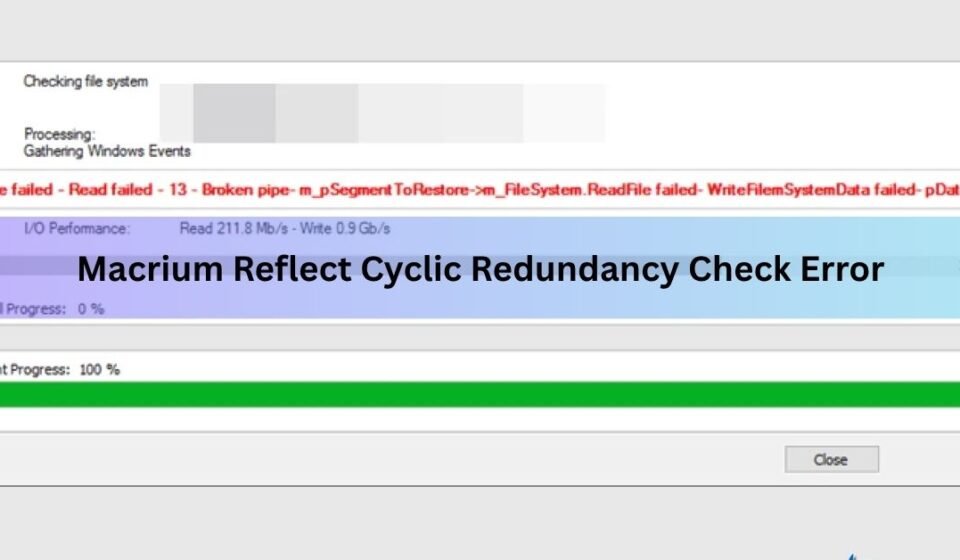

A cyclic redundancy check (CRC) error in Macrium Reflect almost always means the software hit a sector on your SSD it could not read. The backup or clone stops, and Macrium logs the message: Backup aborted! Unable to read from disk — Error Code 23 — Data error (cyclic redundancy check). The fix depends on how serious the underlying problem is. In most cases, running CHKDSK clears the error. When it does not, a SMART health check tells you whether the drive is salvageable or needs replacing.
This guide works through the fixes in order from simplest to most drastic, so you do not spend an hour on a hardware swap when a two-minute command line fix would have done the job.
What the error actually means
Every time Macrium Reflect reads a block of data from your drive, it runs a quick calculation called a cyclic redundancy check to confirm the data arrived without corruption. If the value it calculates does not match the expected value stored on the drive, Windows throws Error Code 23. Macrium treats this as fatal and stops the operation immediately, because continuing would risk writing a corrupted image.

The error message is Windows standard, not something Macrium invented. The same code appears in Windows Event Viewer as \Device\HardDiskX\DRX has a bad block. Seeing it in the Macrium log and the Event Viewer at the same time is a reliable sign the sector problem is real, not a fluke.
A single unreadable sector stops the whole backup because Macrium reads the drive sequentially, and any gap in the read breaks the image’s integrity. That is by design. An image with silent holes in it would be worse than no image at all.
Why SSDs get this error
SSDs can develop unreadable areas for several reasons, and knowing which one applies to your drive shapes how urgently you need to act.
File system corruption is the most common cause and also the easiest to fix. A crash, unexpected shutdown, or Windows update that did not complete cleanly can leave the NTFS Master File Table in a state where some entries point to clusters that no longer exist. CHKDSK catches this and repairs it without any physical damage to the drive involved.
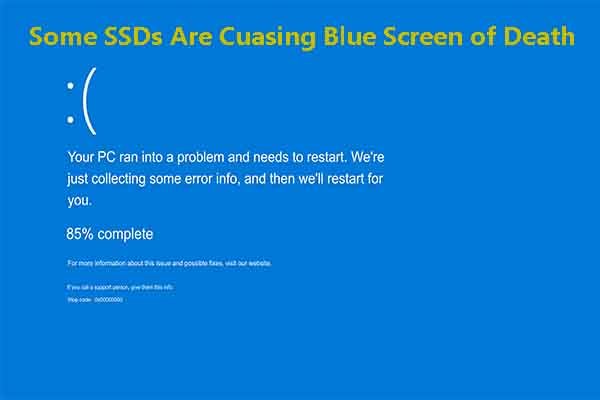
Genuine bad sectors are areas of the SSD’s NAND memory that have worn out or suffered a write error the drive’s internal error correction could not handle. Most modern SSDs have a pool of spare cells reserved for exactly this situation: when a cell goes bad, the drive remaps it to a spare. But if the remapping has not happened yet, or the spare pool is exhausted, the host system sees a read error.
Firmware and driver issues can sometimes produce read errors that look identical to hardware damage but disappear after an update. This is less common but worth checking early because it costs nothing.
Connection problems matter more than you might expect. A SATA cable that is slightly loose, or an M.2 drive that was not fully seated after a case was opened, can cause intermittent read failures. It is one of those embarrassingly simple causes that is easy to rule out in thirty seconds.
Antivirus and cloud sync software occasionally intercept Macrium’s read calls and block them, especially on system partitions. This is rare but worth eliminating as a variable early.
| Cause | How common | First fix to try |
| File system corruption | Very common | CHKDSK /r |
| Bad NAND sectors | Common on older SSDs | CHKDSK, then SMART check |
| Loose cable or connector | Occasional | Reseat cable or M.2 module |
| Outdated firmware/driver | Occasional | Update SSD firmware |
| Antivirus interference | Rare | Disable AV temporarily |
Step 1: Check physical connections first
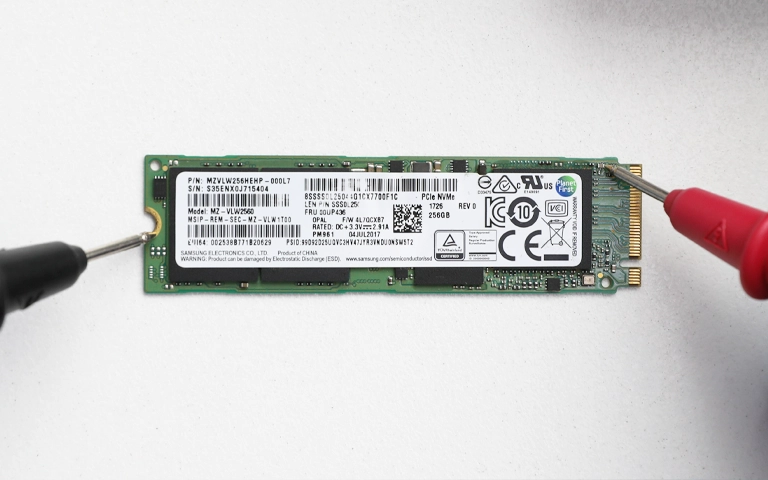
Before touching any software, shut the PC down and open the case. Push the SATA data cable firmly into both the drive and the motherboard port. If you are working with an M.2 NVMe drive, unscrew the retaining screw, lift the module, and press it back into the slot until you feel a slight click, then reseat the screw. This takes about two minutes and occasionally resolves the error completely.
If you are backing up an external SSD, try a different USB cable and a different port on the PC. USB 3.0 ports on older machines sometimes struggle with sustained read operations during imaging.
While you are at it, check that Macrium Reflect is up to date. A version mismatch between the software and a newer Windows update has occasionally caused spurious read errors that disappeared after updating Macrium.
Step 2: Run CHKDSK to repair the file system
This is the fix that resolves most CRC errors in Macrium Reflect. CHKDSK scans the file system, locates bad clusters, moves any data that can be salvaged to healthy sectors, and marks damaged clusters so the OS never writes to them again.
Open an elevated command prompt (right-click Start > Terminal (Admin) or Command Prompt (Admin)) and run:
chkdsk C: /r /f
Replace C: with the letter of the drive that triggered the error in Macrium. The /r switch is the key one: it scans the entire partition for bad sectors and attempts to recover data from them. The /f switch fixes any file system errors found. Windows will ask to schedule the scan on the next restart if the drive is currently in use, which it usually is for the system drive. Accept, restart, and let it run.
The scan can take anywhere from ten minutes to several hours depending on drive size and how many sectors need checking. Let it finish. Do not interrupt it.
Once Windows boots again, open Macrium Reflect and try the backup. If it completes successfully, the problem was file system corruption and the drive is fine. If CHKDSK ran but Macrium still errors, note the result. Macrium’s own knowledgebase on imaging disks with bad sectors advises running CHKDSK repeatedly until the image succeeds, which sometimes takes two or three passes.
Step 3: Read your SSD’s SMART data
SMART (Self-Monitoring, Analysis and Reporting Technology) is a built-in diagnostic system inside every SSD and hard drive. It keeps a running log of health metrics: how many sectors have been remapped, how many write errors occurred, how much of the drive’s write endurance has been used, and more. Reading it takes about two minutes and tells you immediately whether you are dealing with a software glitch or a drive that is genuinely wearing out.
Download CrystalDiskInfo (free, from the developer’s site). Open it and look at the status badge next to your drive. Blue means good, yellow is caution, red means the drive has crossed a failure threshold.
The specific attributes to look at for an SSD:
- Reallocated Sectors Count: a raw value above zero means the drive has already remapped bad cells. A small, stable number is not necessarily alarming, but a rising count is.
- Current Pending Sectors: sectors the drive flagged for remapping but has not yet acted on. Any non-zero number here is a sign of active surface problems.
- Uncorrectable Sector Count: sectors the drive could not remap. Even a single non-zero entry here is serious.
- Percentage Used / Media Wearout Indicator: shown as a raw number on NVMe drives. Once this hits 100, the drive’s rated write endurance is gone.
If all attributes show green and the raw values are zero or stable, the drive is physically healthy and the CRC error was likely a file system problem that CHKDSK fixed. If any of the sector count attributes are non-zero, the drive has genuine damage.
Most SSD manufacturers also offer their own diagnostic tools with deeper self-tests: Samsung Magician for Samsung drives, WD Dashboard for Western Digital and SanDisk, and Crucial Storage Executive for Crucial. These run extended self-tests that go beyond basic SMART polling and can sometimes surface problems that CrystalDiskInfo misses on NVMe drives.
Step 4: Use Macrium’s bad-sector override
If CHKDSK ran and the backup still fails, Macrium has a setting that tells it to continue past unreadable sectors instead of aborting. The resulting image will have gaps where the bad sectors were, and any data in those gaps is lost, but you get an image of everything else. This is a fallback, not a solution, and it makes more sense as a way to capture what you can from a damaged drive than as a routine backup strategy.
To enable it in Macrium Reflect:
- Open Macrium Reflect and go to Other Tasks > Edit Defaults and Settings
- Select Advanced Settings
- Check Ignore bad sectors when creating images
- Click OK and run the backup again
You can also choose Forensic Sector Copy in the Advanced Options during a clone operation. This mode reads the entire disk sector by sector, including empty space, and forces through read errors rather than stopping. It takes significantly longer than a standard intelligent sector copy.
If you enable either of these options and the backup completes, check the Macrium log afterwards. Look for lines like Read Error: Bad sector found in cluster XXXXXXX. The number of bad sectors in the log tells you how serious the damage is and whether replacement is urgent.
Step 5: Try from Macrium’s rescue environment
Macrium includes a bootable rescue environment built on Windows PE. When you boot from it, Windows is not running and no other software has a lock on the drive. This eliminates antivirus interference, cloud sync software, and Windows file locks as possible causes.

To use it, go to Other Tasks > Create Rescue Media in Macrium and write it to a USB drive. Then restart the PC, boot from the USB, and run the same backup or clone from within the rescue environment.
If the operation completes successfully from the rescue environment but fails inside Windows, the problem is software interference and not the drive. Try disabling your antivirus and any cloud sync tools (OneDrive, Dropbox, Google Drive) and run Macrium again under Windows. If it fails from the rescue environment too, the issue is with the drive itself.
When to replace the drive
At some point, troubleshooting tips run out and the right answer is a new SSD. These signs point clearly toward replacement:
- CHKDSK reports bad sectors after more than two or three passes and Macrium still errors
- CrystalDiskInfo shows a yellow Caution or red Bad status
- Current Pending Sectors or Uncorrectable Sector Count in SMART is non-zero and rising
- The SSD is more than five years old and the Percentage Used is above 80
- You get the bad-block error in Windows Event Viewer frequently, outside of backup operations
If any of these apply, get the backup using the ignore-bad-sectors method described in Step 4, then restore it to a new drive. A fresh backup, even a gappy one, is far better than no backup when a drive is actively degrading.
One practical path that has worked for many users: buy the replacement SSD, put it in a USB enclosure, and immediately clone the failing drive to it using Macrium Reflect with ignore-bad-sectors enabled. If the clone succeeds, swap the drives. If it does not, restore from the most recent clean image you have.
What to do if CHKDSK found nothing wrong
A clean CHKDSK result does not always mean the drive is healthy. CHKDSK operates at the file system level, so it checks whether files and directory entries are consistent, not whether every physical memory cell is working. A drive can pass CHKDSK while still having sectors that fail under the sustained sequential reads Macrium performs.
When CHKDSK comes back clean but Macrium still errors, check the Macrium log (found at C:\ProgramData\Macrium\Reflect\) for the exact partition that triggered the error. Partition-by-partition imaging can help isolate whether the problem is in the Windows partition, the EFI partition, or the recovery partition. Some users find that the OS partition images cleanly but a small utility partition is where the bad sector lives.
In that case, it is often safe to simply exclude that partition from the backup and recreate it fresh if you ever restore. The EFI and recovery partitions can be regenerated by Windows, so losing them in a backup does not mean you lose access to your system.
Frequently asked questions
What does Error Code 23 mean in Macrium Reflect?
Error Code 23 is Windows’ standard code for a cyclic redundancy check failure. It means Macrium tried to read a sector from your drive and the data it received did not match the expected checksum. The backup stops immediately because continuing would risk writing a corrupted image.
Can I fix the CRC error without replacing the SSD?
Yes, in many cases. Running CHKDSK with the /r flag repairs file system corruption and remaps accessible bad sectors, which often resolves the error entirely. Only replace the drive if CHKDSK cannot fix it and SMART data shows physical hardware damage.
Does CHKDSK showing a clean drive mean the SSD is healthy?
Not necessarily. CHKDSK checks the file system structure, not the physical health of NAND memory cells. Check SMART data with a tool like CrystalDiskInfo to see whether the drive has any reallocated or pending bad sectors that CHKDSK would not catch.
What is the ignore bad sectors option in Macrium Reflect and is it safe?
It tells Macrium to continue past unreadable sectors instead of stopping. The resulting image will be missing any data that was in those sectors, so it is not ideal. Use it as a last resort to capture what you can from a damaged drive, then restore to a healthy one.
Can antivirus software cause a CRC error in Macrium Reflect?
It can, though it is uncommon. Security software occasionally blocks Macrium’s deep disk reads, especially on system partitions. Try disabling your antivirus temporarily and running the backup again, or boot from Macrium’s rescue USB to run the backup outside Windows entirely.
Conclusion
The cyclic redundancy check error in Macrium Reflect signals that the software hit a sector on your SSD it could not read. In most cases, running chkdsk C: /r /f and then retrying the backup is all it takes. If that does not work, a SMART check with CrystalDiskInfo or your manufacturer’s own tool shows whether the drive has genuine hardware damage. If the SMART data looks alarming, enable Macrium’s ignore-bad-sectors option, get a backup of whatever can be read, and replace the drive before you lose more data.
Related Post:
How to Format an SSD on Windows and Mac
Fujitsu Stylistic Q704 SSD Replacement: A Step-by-Step Guide
What Is a Portable SSD? A Plain-English Guide to Fast External Storage