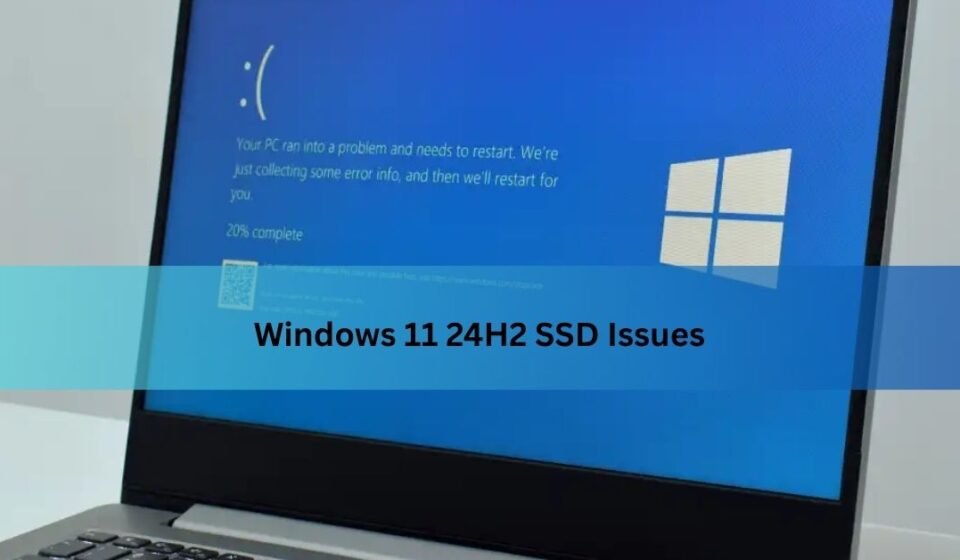

If your solid-state drive has suddenly vanished from File Explorer, thrown strange errors, or stopped responding after a Windows update, you are not imagining things. Since mid-2025, a wave of reports has connected certain Windows 11 24H2 SSD issues to a specific security update, leaving everyday users, gamers, and IT professionals worried about losing important files. What started as a handful of complaints on tech forums in Japan quickly turned into a global conversation, with major hardware manufacturers and Microsoft itself stepping in to investigate.
This guide breaks the problem down in plain, everyday language. You will learn exactly what triggered the issue, which drives seem to be at the highest risk, the warning signs to watch for, and most importantly the practical steps you can take right now to keep your data safe. Whether you are a casual laptop user, a PC builder, or someone managing machines for a small business, this article will help you understand what is really going on with Windows 11 24H2 SSD issues and how to respond calmly rather than panicking.
What Is the Windows 11 24H2 SSD Issue?
At its core, the Windows 11 24H2 SSD issue refers to a pattern where solid-state drives (and in some cases traditional hard drives) become unreadable or completely disappear from the operating system after a particular Windows update is installed. Instead of showing up normally in File Explorer or Disk Management, the drive simply stops responding. In many cases, the drive’s SMART data — the built-in health monitoring information every storage device reports — also becomes unreadable, making it harder to diagnose what went wrong.
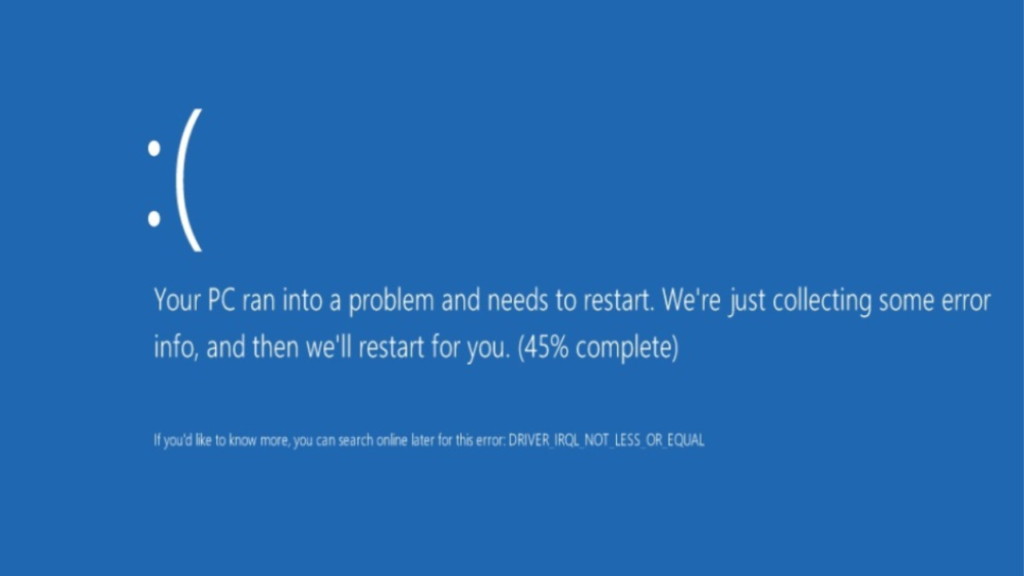
The problem first gained widespread attention in August 2025, shortly after Microsoft rolled out that month’s Patch Tuesday updates. Reports began appearing on Japanese hardware forums before spreading to Reddit, X (formerly Twitter), and enthusiast communities such as TechPowerUp and Neowin. Within days, thousands of users were comparing notes, trying to figure out whether their own systems were at risk.
Which Update Caused the Problem?
The update most closely associated with these Windows 11 24H2 SSD issues is KB5063878, released as part of the August 2025 Patch Tuesday cycle, alongside a related preview update known as KB5062660.
The original purpose of this update had nothing to do with storage hardware at all — it was primarily a security patch designed to address vulnerabilities, including protection against the Lumma stealer malware that had been found bundled in some unofficial Windows installation images.
Ironically, the rollout itself was rocky from the start. Some users initially could not even install the update, running into an installation error code, 0x80240069, which Microsoft acknowledged and patched fairly quickly. It was only after that installation hiccup was resolved that the more serious storage-related complaints began surfacing, as more machines successfully applied the update and then encountered problems during everyday use.
Symptoms to Watch For
Recognizing the early warning signs of this issue can save you a lot of stress. Below are the most commonly reported symptoms tied to Windows 11 24H2 SSD issues:
- Drive disappearing suddenly: The SSD vanishes from File Explorer, Disk Management, or even the BIOS/UEFI boot menu, as though it was never connected.
- Unreadable SMART data: Monitoring tools that normally show drive health and temperature return blank or error results.
- File and data corruption: Files being copied or written at the time of the failure may become damaged or unreadable, even if the drive later reappears.
- System freezes during transfers: The computer becomes unresponsive partway through a large copy or installation process.
- Blue Screen of Death (BSOD) errors: Some affected systems, particularly those with certain Western Digital drives, have shown crash messages referencing a “critical process has died.”
- Drive not returning after reboot: In more severe cases, simply restarting does not bring the drive back, and it stays inaccessible until further troubleshooting or, in rare instances, permanently.
If you notice more than one of these symptoms happening around the same time as a Windows update, it is worth pausing any further large file operations and investigating before continuing.
What Triggers the Bug
One of the more useful discoveries to come out of community testing is that this problem does not appear to strike randomly. Instead, it tends to follow a fairly consistent pattern. According to independent testers, the failures are most likely to happen under a specific combination of conditions rather than during normal, everyday computer use.
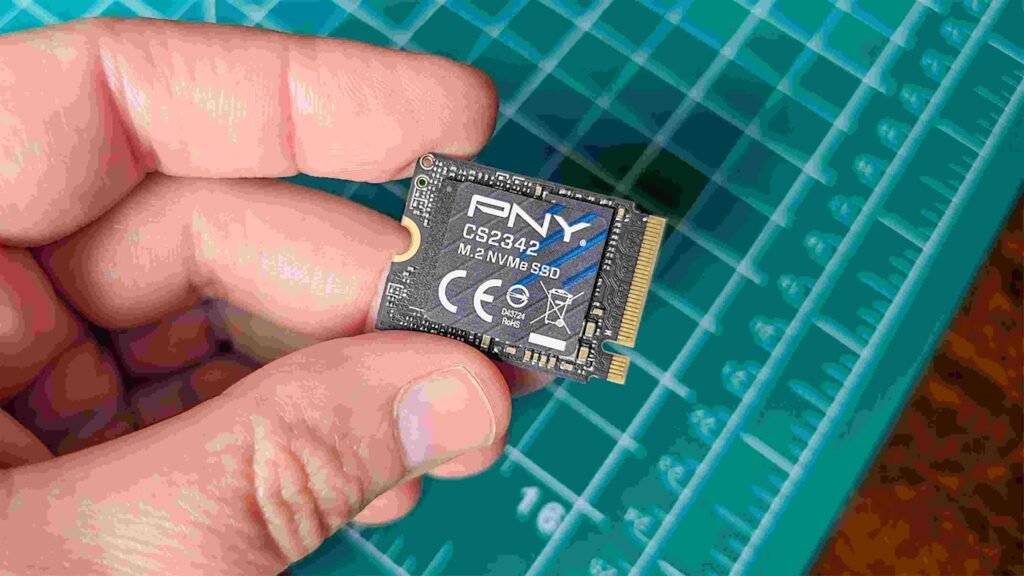
The conditions most frequently linked to Windows 11 24H2 SSD issues include:
- Large, sustained file transfers — typically writes of 50GB or more happening continuously, such as copying a large game library or extracting a big compressed archive.
- Drives that are already fairly full — specifically, storage devices that are over 60 percent of their total capacity.
- Heavy, uninterrupted write activity — the bug appears connected to how the drive’s cache and controller handle sustained writing rather than short bursts.
- Certain controller types — SSDs using particular NAND flash controllers, especially budget-friendly DRAM-less models, seem to run into trouble at lower data thresholds than higher-end drives.
In simple terms, if you rarely move large files and keep your drive under 60 percent capacity, your day-to-day risk is considerably lower than someone who regularly transfers huge folders onto a nearly full drive.
Which SSDs and Brands Are Affected
Community researchers, most notably a Japanese tester known as NichePCGamer, ran a detailed testing matrix across a range of popular SSD models to see which ones were vulnerable. Out of 21 drives tested, 12 displayed the failure pattern under the specific write conditions described above. The table below summarizes what has been reported so far.
| Category | Findings |
| Drives tested | 21 popular consumer SSD models |
| Drives showing failure symptoms | 12 out of 21 |
| Most severely affected | Western Digital SA510 2TB (could not be recovered in testing) |
| Controller type most affected | Phison-based, especially DRAM-less designs |
| Drives that recovered | Some became accessible again after a system restart |
| Drives that stayed broken | A smaller number remained unusable even after reboot |
| Traditional hard drives (HDDs) | A few enterprise-grade HDD models showed similar symptoms, though this is less confirmed |
It is worth stressing that not every SSD from an affected brand is guaranteed to have this problem, and testing results have varied between labs and individual users. Still, if you own a budget or mid-range SSD, particularly one using a Phison controller without dedicated DRAM cache, it is reasonable to be a little more cautious with large transfers until the situation is fully resolved.
Is It Confirmed to Be Windows’s Fault?
This is where the story gets genuinely complicated, and honesty matters more than a simple “yes” or “no.” When the reports first broke, most coverage pointed squarely at the KB5063878 update as the direct cause. Microsoft opened an investigation alongside SSD controller manufacturers, including Phison, to determine whether there was a real, reproducible link between the update and the drive failures.
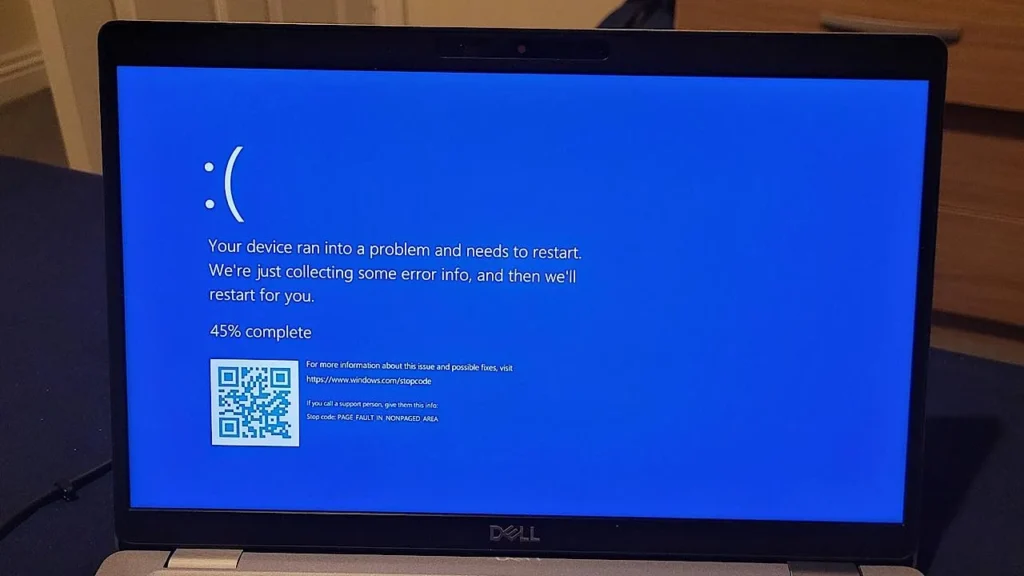
However, as more testing was done, the picture became murkier. Later reporting suggested that at least some of the affected systems used in early testing may have been running beta or test versions of their motherboard BIOS and SSD firmware, obtained outside of official distribution channels rather than through standard manufacturer updates. Microsoft’s own statement noted that no concrete evidence had been found directly tying the Windows update itself to permanent drive damage.
So, at this stage, the honest answer is that the cause remains genuinely disputed. It could be a combination of factors: an imperfect interaction between the Windows update and how certain SSD controllers manage cached writes, unofficial firmware confusing that interaction further, or some mixture of both. What is not in dispute is that a real number of users experienced real drive failures around the same time as this update, which is exactly why caution is still recommended.
How to Check If You’re at Risk
Before assuming the worst, it helps to do a quick, calm risk assessment of your own system. Ask yourself the following questions:
- What SSD brand and model am I using, and does it use a Phison or DRAM-less controller?
- Is my drive currently more than 60 percent full?
- Do I regularly transfer very large files, such as game installations, video footage, or big backups?
- Have I installed the KB5063878 update or a later cumulative update on Windows 11 24H2?
- Is my SSD’s firmware up to date through official manufacturer tools, rather than a beta build downloaded from an unofficial source?
If you answered “yes” to several of these, you are not in immediate danger, but it is a sensible moment to take some precautions, which we will cover next.
How to Protect Your Data (Prevention Tips)
Protecting yourself from Windows 11 24H2 SSD issues does not require advanced technical skill — it mostly comes down to good habits that are smart practice anyway, update bug or not.
First, avoid moving unusually large batches of files, especially anything above the 50GB range, onto a drive that is already close to full. If possible, free up space first, or split large transfers into smaller chunks with short breaks in between rather than one continuous multi-hour copy.
Second, keep both your Windows installation and your SSD’s firmware current, but stick to official channels only. Manufacturer tools like Samsung Magician, Western Digital Dashboard, or Crucial Storage Executive are far safer than downloading firmware from unofficial forums or file-sharing sites.
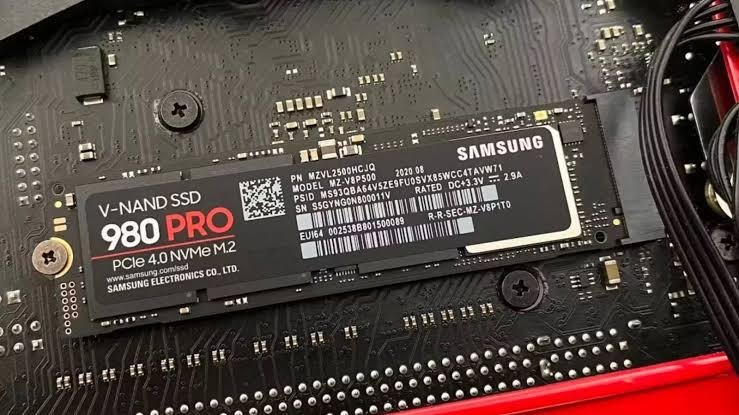
Third, back up your important files regularly regardless of what update version you are running. This single habit protects you not just from this specific bug, but from hardware failures, accidental deletions, and countless other everyday risks.
Fourth, consider using a free monitoring tool such as CrystalDiskInfo to periodically check your drive’s SMART health status. Catching early warning signs, like rising reallocated sector counts, gives you time to react before a serious failure happens.
What to Do If Your SSD Disappears
If you do experience a drive suddenly disappearing, try not to panic — many users found that their drive returned to normal after these steps:
- Stop what you are doing immediately. Cancel any ongoing file transfer or installation to avoid further writes to the drive.
- Restart your computer. In a meaningful number of reported cases, a simple reboot was enough to make the drive reappear and become readable again.
- Check the BIOS/UEFI. Enter your system’s BIOS setup screen to see whether the drive is detected at the hardware level, which helps confirm whether this is a Windows-side or hardware-side problem.
- Avoid further large writes until confirmed stable. Even if the drive comes back, give it a rest from heavy write activity for a while.
- Look into data recovery options if needed. If files were mid-transfer when the failure happened, specialized data recovery software, or a professional recovery service for critical data, may be able to help.
- Contact the manufacturer’s support team. If the drive remains undetected after these steps, reach out to the SSD manufacturer directly, as they may have specific diagnostic tools or replacement policies for affected models.
Has Microsoft Fixed It? (Current Status)
Since the initial reports, Microsoft has continued rolling out subsequent cumulative updates and has worked alongside Phison and other storage partners to narrow down the root cause. As of the most recent guidance available, no single definitive fix has been publicly confirmed as resolving the issue completely, and the investigation has leaned toward a mixture of contributing factors rather than one clear culprit.
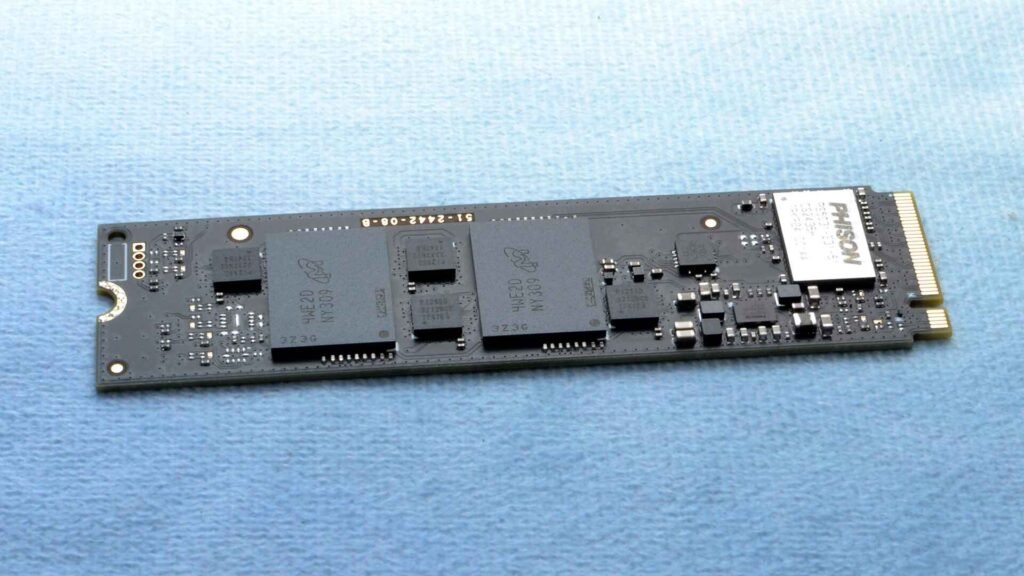
Given that uncertainty, the most widely repeated safety advice from the community and tech outlets covering this story remains the same: users with drives over 60 percent full should be cautious about downloading, copying, or writing very large files until Microsoft or the relevant SSD manufacturers issue firm, confirmed guidance. If you are running a business environment or managing multiple machines, it is worth checking your SSD vendor’s official support page periodically, since firmware updates addressing this exact scenario may be released over time.
Frequently Asked Questions (FAQ)
Is it safe to update to Windows 11 24H2 now?
For most everyday users with modern, well-maintained drives running official firmware, the update is generally safe. The added risk mainly applies to those with budget DRAM-less SSDs, drives that are nearly full, or systems using unofficial beta firmware.
Does this issue affect all SSDs?
No. Testing so far suggests it affects a subset of drives, particularly certain Phison-controller and DRAM-less models, rather than every SSD on the market.
Can corrupted data be recovered?
Sometimes. If the corruption is limited to files that were actively being written during the failure, data recovery tools may help. However, recovery is never guaranteed, which is exactly why regular backups matter so much.
Should I roll back to Windows 10?
For most users, a full rollback is not necessary. Simply following the precautions in this guide, keeping backups current, and staying updated on official firmware should be enough for the vast majority of everyday use cases.
Will this happen again with future Windows updates?
It is impossible to guarantee, but Microsoft’s increased scrutiny following this incident, along with closer coordination with SSD manufacturers, makes it somewhat less likely that a similar issue would go unnoticed for as long next time.
Conclusion
Windows 11 24H2 SSD issues have understandably worried a lot of users since they first came to light in mid-2025, and the mixed, sometimes contradictory findings around the cause have not made things easier to understand. What we do know is that the risk is concentrated around specific conditions: large sustained file transfers, drives that are more than 60 percent full, and certain budget SSD controllers, particularly when combined with unofficial firmware.
The good news is that protecting yourself does not require deep technical expertise. Keeping your drive firmware updated through official channels, avoiding massive file transfers on nearly full drives, monitoring your SSD’s health periodically, and maintaining regular backups will cover you against this issue and countless other everyday storage risks. Stay informed through official Microsoft and manufacturer channels, and you can continue using Windows 11 24H2 with confidence.
Related Post:
NVMe SSD USB Enclosure Issues: Why They Happen and How to Fix Them
Are 2230 SSDs Compatible With 2280 M.2 Slots?
How Much Free Space Should You Leave on Your SSD?
SSD Showing as Unallocated? What It Means and How to Fix It Safely
How to Copy an SSD to a Larger SSD Without Reinstalling Windows