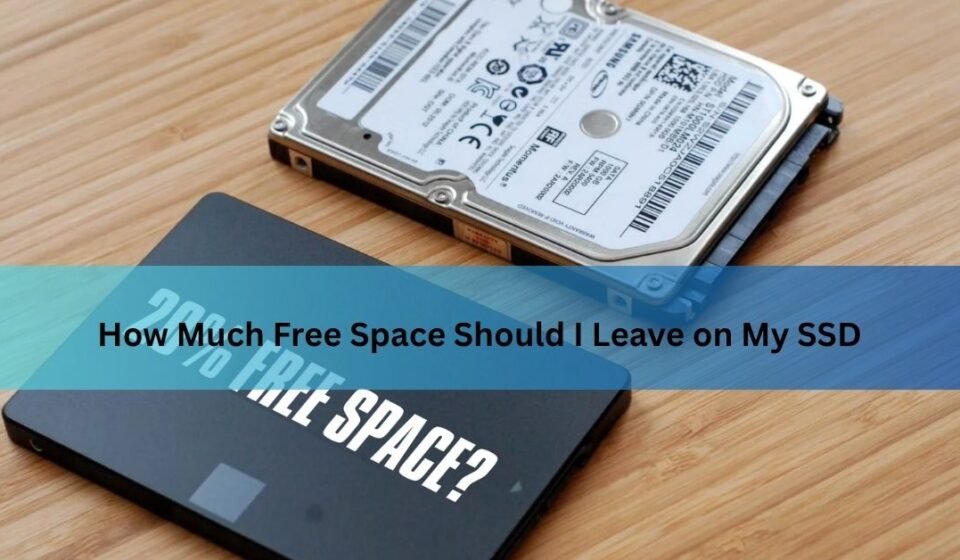

Leave about 10 to 20 percent of your SSD free, and try never to let it fall below 10 percent. On a 1TB drive that means keeping roughly 100 to 200 GB open. That headroom keeps the drive fast, helps it last longer, and gives your operating system room to update. You do not need to obsess over the exact number, but you do want to avoid running it right up to the edge.
The short version is easy. The interesting part is why the number lands where it does, and how it shifts depending on your drive size and what you use it for. Let’s go through it.
Why free space matters on an SSD
An SSD stores your data in flash memory chips, with no moving parts. That is why it is so much faster than an old spinning hard drive. But flash has one quirk: it cannot simply overwrite data in place the way a hard drive can. Before a used block can take new data, the drive has to erase it first.
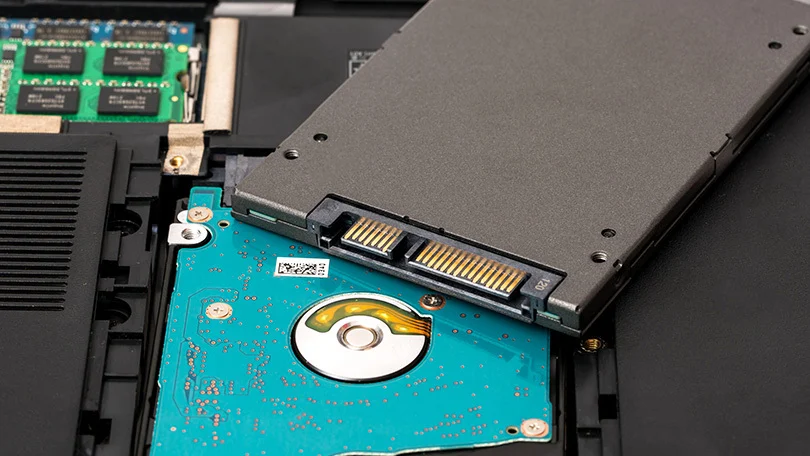
To handle this, the drive constantly shuffles data behind the scenes. It gathers the still-useful bits from partly used blocks, moves them together, and wipes the leftover blocks clean so they are ready for new writes. This housekeeping is called garbage collection. It works best when there is spare room to move things around.
When the drive gets close to full, that spare room shrinks. The controller has to work harder for every write, shuffling more data to free up each block. That extra effort is known as write amplification, which is basically the gap between the data you asked to save and the much larger amount of internal work the drive did to save it. More internal writing means slower speeds today and more wear on the flash over the years.
Free space is not wasted space. It is the working room your SSD uses to stay quick and healthy.
What over-provisioning already does for you
Here is the part that trips a lot of people up. Your SSD already sets aside hidden space that you never see, and it uses that space for exactly this kind of housekeeping. This reserved slice is called over-provisioning.
Every drive ships with some of it. Flash chips include at least about 7 percent more raw capacity than the size printed on the box, and the controller keeps that portion for itself. It uses this space for garbage collection, for spreading writes evenly across the chips so no single area wears out early, and for swapping in fresh blocks when old ones start to fail. You can read the full technical picture on Kingston’s over-provisioning explainer if you want the deep version.
This matters for one reason: the drive is not helpless just because you filled it up. Wear leveling and basic garbage collection keep running even at high capacity. So the free space you keep visible is not there to rescue a drive that has no reserves. It is there to give garbage collection extra elbow room, which keeps write speeds steady and cuts down on wear. Think of the built-in reserve as the minimum the drive needs to function, and your own free space as the comfort buffer on top.
How much to leave, by drive size
A flat percentage sounds tidy, but it can lead you astray at the extremes. Twenty percent of a 256 GB drive is about 51 GB, which is reasonable. Twenty percent of a 2 TB drive is 400 GB, which is a lot of storage to leave sitting empty forever. Once you have a decent chunk of free space, adding more brings very little extra benefit.
So use the percentage as a guide, then sanity-check it against real numbers:
| Drive size | Free at 20% (roomy) | Free at 10% (minimum) | Everyday target |
| 256 GB | ~51 GB | ~26 GB | Keep 30 GB+ |
| 500 GB | ~100 GB | ~50 GB | Keep 50 GB+ |
| 1 TB | ~200 GB | ~100 GB | Keep 100 GB |
| 2 TB | ~400 GB | ~200 GB | Keep 100 GB+ |
The pattern is simple. On small drives, aim for the percentage. On large drives, a fixed cushion of around 100 GB is plenty, and you can happily use the rest. Below 10 percent free is where you start to notice problems, and below a few gigabytes is where things can genuinely break.
Does the drive’s job change the number?
Yes, a little. The right cushion depends on what the drive actually does day to day.

The drive that runs Windows
If your SSD holds the operating system, give it more breathing room. Windows needs free space to install updates, and it stores temporary files while it works. A clean Windows 11 install uses roughly 27 to 30 GB before you add anything, and it sets aside a hidden pool of around 7 GB called reserved storage just for updates.
Feature updates are the hungry ones. According to Microsoft’s own guidance, a feature update typically needs 6 to 11 GB of free space or more, while smaller quality updates want 2 to 3 GB. For an OS drive, keeping at least 20 to 50 GB free is a safe habit, on top of whatever the percentage rule suggests.
The drive full of games
Games are large and they update often. A single title can need tens of gigabytes free just to patch itself, because the updater often unpacks new files before deleting the old ones. If your SSD is a game library, keep enough room for your biggest game to update comfortably. Around 100 GB free on a 1TB gaming drive is a sensible floor.
The drive that only stores files
A secondary SSD used mostly for photos, videos, or documents that rarely change can run fuller than your main drive. Writes are infrequent, so garbage collection is not under constant pressure. You can comfortably let this kind of drive sit at 90 percent full. Just keep a little slack, say 5 to 10 percent, so the controller still has somewhere to work.
What happens when an SSD gets too full
Fill a drive past about 90 percent and a few things start to show up, usually in this order.
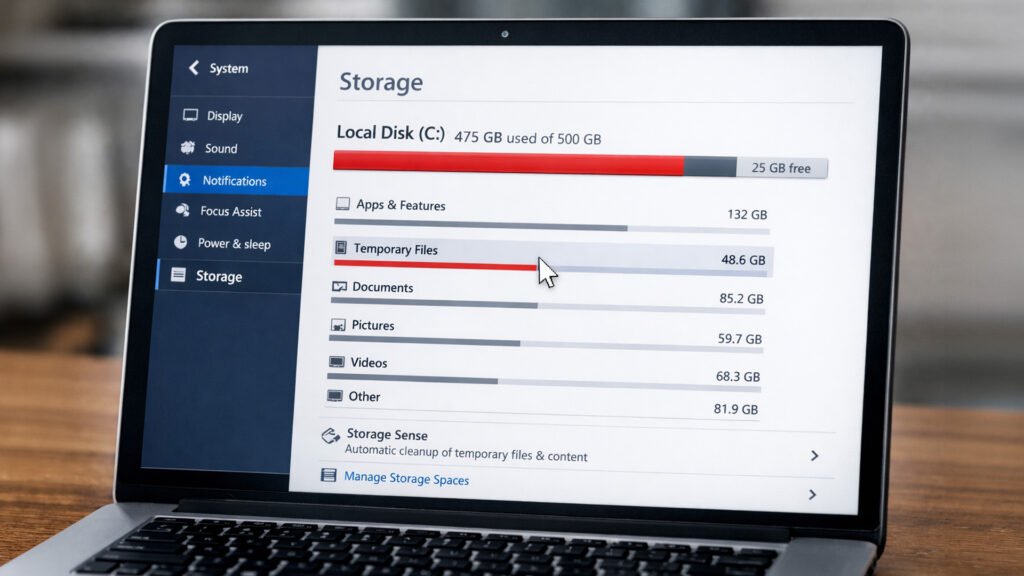
First, write speeds drop. Copying large files, installing games, or saving big video projects slows down, because the controller is spending its time freeing blocks instead of writing your data. Many drives also use a fast cache that shrinks as the drive fills, so once that cache is gone, sustained writes fall to the flash’s slower base speed.
Second, wear climbs. Higher write amplification means more physical writes for the same amount of data, which chips away at the flash’s lifespan a little faster. On a modern drive this is rarely the thing that kills it, but it is real.
Third, and most annoying, your system can start failing at basic tasks. Windows updates stall for lack of room. Apps that need temporary space misbehave. This is the point where a nearly full drive stops being a performance question and becomes a working one.
Even a 99 percent full SSD is still far faster than a hard drive. Full does not mean broken. It means slower, warmer, and worth cleaning up.
It is worth keeping perspective. There is no cliff where the drive suddenly falls apart at a magic percentage. The slowdown is gradual, and a temporary spell of high fullness will not harm anything. The habit worth building is simply not living permanently at the edge.
How to free up space the right way
If your drive is creeping toward full, here is where to look, roughly in order of easy wins.

- Empty the obvious junk. Clear the Recycle Bin, downloads folder, and browser cache. Run the built-in Disk Cleanup or Storage Sense on Windows to sweep up temporary files.
- Remove old update leftovers. After a big Windows update, a Windows.old backup folder can sit there eating tens of gigabytes. Storage cleanup can safely remove it once you are sure the update went fine.
- Uninstall what you do not use. Big games and creative apps are usually the largest single items. Sort your installed programs by size and be honest about what you still open.
- Move bulky files off the drive. Photo libraries, video projects, and archives can live on a second drive or in cloud storage, freeing your main SSD for the things that need speed.
- Check TRIM is on. TRIM is the command that tells your SSD which blocks are free after you delete files, so garbage collection can work ahead of time. It is on by default in modern Windows, and it is worth a quick check if your drive feels sluggish.
And if you find yourself fighting for space every week, that is the real signal. No amount of tidying beats a bigger drive. When cleanup becomes a chore rather than a rare event, upgrading capacity is the honest fix.
Frequently asked questions
Is it bad to fill an SSD to 100 percent?
It is not damaging, but it is not ideal. A full SSD writes slower and wears a little faster, and it can block system updates. Try to keep at least 10 percent free so the drive has room to manage itself.
Does leaving free space really make my SSD faster?
Yes, especially for large or sustained writes. Free space gives garbage collection room to work, so the drive keeps up higher write speeds instead of stalling to clear blocks. The effect is biggest once a drive passes about 90 percent full.
Do I need to set up over-provisioning myself?
Usually no. Every SSD reserves hidden space at the factory, and simply leaving some of your drive free acts as extra headroom. Manual over-provisioning is mostly for heavy write workloads, not everyday use.
How much space does Windows itself need free?
Keep 20 to 50 GB free on your Windows drive. A clean install uses around 27 to 30 GB, and feature updates can need 6 to 11 GB or more of working room on top of that.
Is 90 percent full too much for an SSD?
For a main drive, yes, it is worth cleaning up around there. For a secondary drive used mostly for storing files you rarely change, 90 percent full is fine since writes are infrequent.
Conclusion
Keep 10 to 20 percent of your SSD free, lean toward the higher end on the drive that runs your operating system, and never sit below 10 percent for long. On a 1TB drive, aim to keep around 100 GB open. The drive handles its own hidden housekeeping, so your job is just to leave a sensible buffer on top. Do that and you get steady speeds, a longer lifespan, and no update headaches. When cleaning up stops working, buy more storage.
Related Post:
NVMe SSD USB Enclosure Issues: Why They Happen and How to Fix Them
Are 2230 SSDs Compatible With 2280 M.2 Slots?
What to Do After Installing a New SSD
SSD Showing as Unallocated? What It Means and How to Fix It Safely
How to Copy an SSD to a Larger SSD Without Reinstalling Windows