
When a motherboard disconnects an external SSD, the most likely culprit is Windows power management. A feature called USB selective suspend puts the port into a low-power state when the drive sits idle, and sometimes the port does not come back cleanly, making the drive disappear from the system. Disabling that feature takes about two minutes and fixes most cases.
If the drive still drops out after that, the problem usually comes down to one of a handful of other causes: a cable that is not data-rated or rated for the right speed, a front-panel USB port delivering less power than the drive needs, an outdated chipset driver, or old BIOS firmware that does not handle the drive’s USB protocol properly. In a small number of cases the SSD itself is beginning to fail.
Work through the steps below from top to bottom. Each step takes only a few minutes, and most people find the fix before reaching step four.
Why does a motherboard disconnect an external SSD?
External SSDs connect through the USB controller on the motherboard. When the connection drops, it means something interrupted the link between the drive and that controller. The interruption can come from the software side, the hardware side, or both.
The software side covers power management settings, USB drivers, and BIOS firmware. Windows can be configured to cut power to a USB port during idle periods. If the driver that handles the USB controller has a bug or is out of date, it can fail to re-establish the connection after a sleep cycle. And if the motherboard BIOS predates the USB specification your drive uses, the controller may not handle the handshake correctly.
The hardware side covers the cable, the port, and the drive itself. A cable that is rated for charging only and lacks the internal conductors for high-speed data is one of the most common causes of intermittent drops, and it is easy to overlook because it looks identical to a proper data cable. Front-panel USB ports go through an internal header and cable before reaching the motherboard controller, which adds resistance and can reduce the power available to the drive. Unpowered USB hubs share a fixed amount of power across all connected devices, which may not be enough for a drive under load. And a drive that is beginning to fail can drop off the bus during sustained reads or writes.
Quick rule: start with software fixes. They are free, take minutes, and cover the majority of cases. Hardware fixes come next if the software changes do not hold.
Step 1: Check the cable and the port
Before changing any settings, rule out the two physical causes that take only seconds to test. A bad cable or the wrong port accounts for a surprisingly large share of external SSD drop-outs.
- Use a data-rated cable. Many USB-C cables are charging-only and lack the wiring for high-speed data. Swap in a cable rated for USB 3.2 Gen 1 (5 Gbps) or better, keep it under one meter, and avoid cables with multiple adapters in the chain. If a different cable stops the disconnections, the original cable was the problem.
- Use a rear motherboard port. Front-panel USB ports connect to the motherboard through an internal ribbon or pin header, which introduces extra resistance and can reduce available power. Rear ports are soldered directly to the board and deliver cleaner power and signal. Connect the SSD to a rear USB 3.0 or USB 3.1 port and test for at least 30 minutes.
- Skip unpowered hubs. An unpowered hub splits the power budget of a single USB port across every device connected to it. An external SSD under load can draw close to the full power budget of a USB 3.0 port on its own, leaving nothing for other devices and causing the drive to reset. Use a powered hub with its own power adapter if you need a hub, or connect the SSD directly.
If moving to a rear port and swapping the cable stops the disconnections, you are done. If the problem continues, move to step 2.
Step 2: Turn off USB power management in Windows
USB selective suspend is a Windows feature that puts USB ports into a low-power state during idle periods to save energy. When it works correctly the device wakes back up as soon as you access it. When it does not wake cleanly the drive vanishes from File Explorer and Device Manager until you unplug and replug it. Disabling this feature resolves the majority of external SSD disconnections on Windows 10 and 11.
There are two places to turn it off, and you should do both.
Disable USB selective suspend in Power Option
- Open Control Panel and go to Hardware and Sound, then Power Options.
- Click Change plan settings next to your active power plan.
- Click Change advanced power settings.
- Expand USB settings, then expand USB selective suspend setting.
- Set both On battery and Plugged in to Disabled.
- Click Apply and OK, then restart your PC.
Note: if you do not see a USB settings section in Power Options, your system may be using a power plan that hides advanced options. Create a new balanced plan from scratch and the section should appear.
Turn off power saving in Device Manager
- Press Win + X and choose Device Manager.
- Expand Universal Serial Bus controllers.
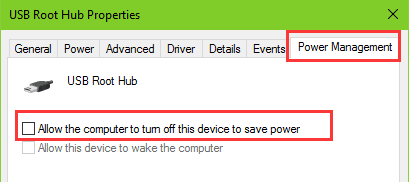
- Right-click each entry labeled USB Root Hub or Generic USB Hub and choose Properties.
- Go to the Power Management tab and uncheck Allow the computer to turn off this device to save power.
- Click OK and repeat for every hub in the list.
Restart after making these changes. Use the SSD for 30 to 60 minutes and see whether the disconnections continue. If they stop, you have found the fix. If they come back, move to step 3.
Step 3: Update chipset and USB drivers
The USB controller on your motherboard talks to Windows through a chipset driver. When that driver is outdated it can mishandle power events, particularly on AMD-based systems and on older Intel boards with USB 3.0 ports. Updating it often fixes disconnections that persist after the power management changes.
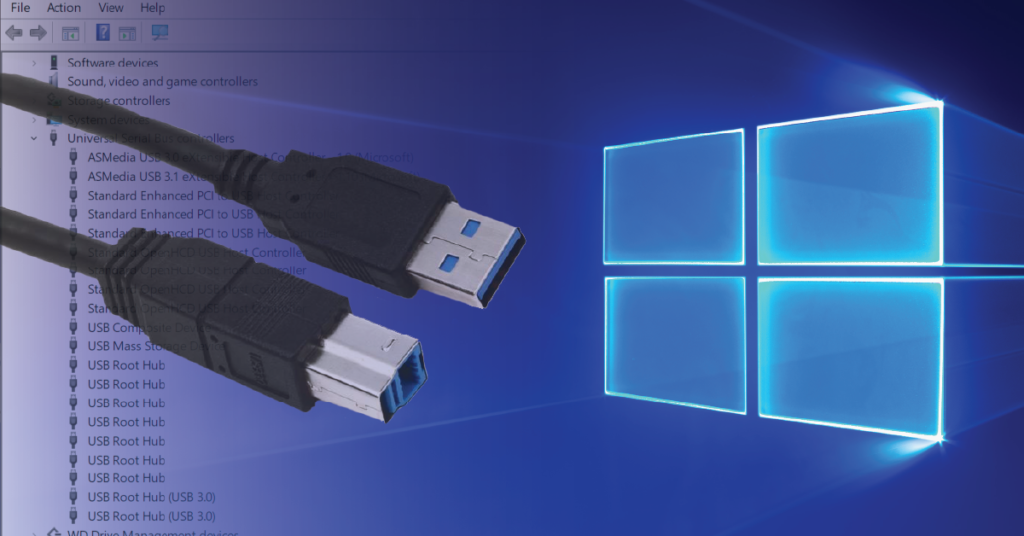
Go to your motherboard manufacturer’s support page, find your exact board model, and download the latest chipset driver package. For AMD boards, AMD’s chipset driver page has unified packages that cover USB, storage, and power management in a single install. For Intel boards, the chipset driver is on Intel’s support site. Avoid downloading drivers through Windows Update or generic third-party tools; the manufacturer’s own page is always more current.
After installing the chipset driver, also check Device Manager for any USB-related entries showing a yellow warning triangle. Right-click those entries and choose Update driver, then search automatically. If Windows cannot find an update that way, download the driver directly from the motherboard maker’s site and install it manually.
Restart after every driver install before testing again. Drivers sometimes require a full restart to take effect, and testing before restarting can give a misleading result.
Step 4: Update BIOS firmware
Motherboard BIOS updates often include fixes for USB controller behavior, especially for newer SSD enclosures that use USB bridge chips released after the board shipped. If your board is more than a year old and you have never updated the BIOS, this step is worth doing.
Check your current BIOS version first. Press Win + R, type msinfo32, and press Enter. The BIOS Version/Date line shows what you have. Then visit your motherboard manufacturer’s support page, find your board model, and check the release notes for any update that mentions USB stability, storage, or SSD compatibility. If an update is available, download it and follow the manufacturer’s flashing instructions precisely.
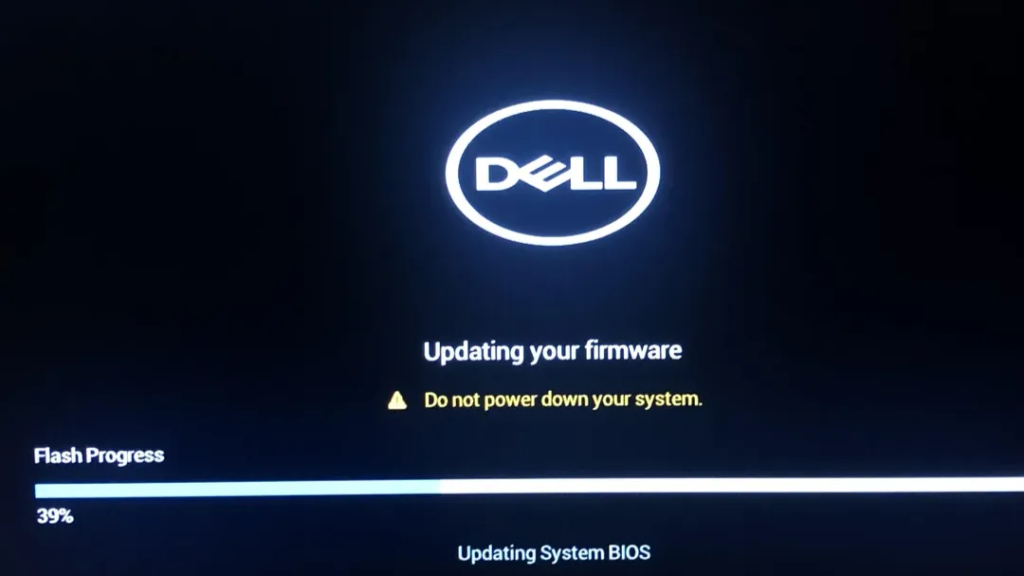
Flashing BIOS firmware is low-risk on modern boards, but a power failure mid-flash can cause problems. Plug into a UPS or a reliable wall outlet rather than a power strip, and do not run the update on battery if you are on a laptop. Most boards have a recovery mode that can restore a failed flash, but it is easier to avoid the situation.
If you use an NVMe SSD inside a USB enclosure, the enclosure’s own bridge chip (often an RTL9210 or JMicron chipset) can also have firmware updates. Check the enclosure manufacturer’s website for a firmware tool, since outdated bridge firmware is a known cause of random disconnections with certain SSD and host combinations.
Step 5: Check SSD health
If the drive keeps disconnecting after all of the above changes, the problem may be the drive itself. SMART (Self-Monitoring, Analysis, and Reporting Technology) data gives you a direct look at the drive’s internal health counters, including error rates, reallocated sectors, and unsafe shutdown counts.
Download CrystalDiskInfo, a free Windows utility that reads SMART data from internal and external drives. Open it with the SSD connected and look at the health status at the top of the window. A blue “Good” rating means the drive’s health counters are within normal limits. A yellow “Caution” or red “Bad” rating means one or more attributes have crossed a threshold, and the drive should be treated as unreliable.
Even with a Good rating, look at the raw values for Reallocated Sectors Count and Current Pending Sector Count. If either is above zero, the drive has started remapping bad memory cells, which is normal in small amounts on some drives but worth noting. A count climbing over time is a warning sign. Also check the temperature: NVMe drives in enclosures can run hot, and sustained temperatures above 70 C can cause the controller to throttle or shut down the drive to protect itself.
If SMART shows a problem, back up your data immediately and plan to replace the drive. If SMART looks clean and the drive is still dropping out, the issue is almost certainly in the host system rather than the drive, and you can return to checking the USB controller, the PSU, or the motherboard itself.
Step 6: When nothing else works
If you have worked through all five steps above and the disconnections continue, there are a few remaining things to try before calling it a hardware fault.
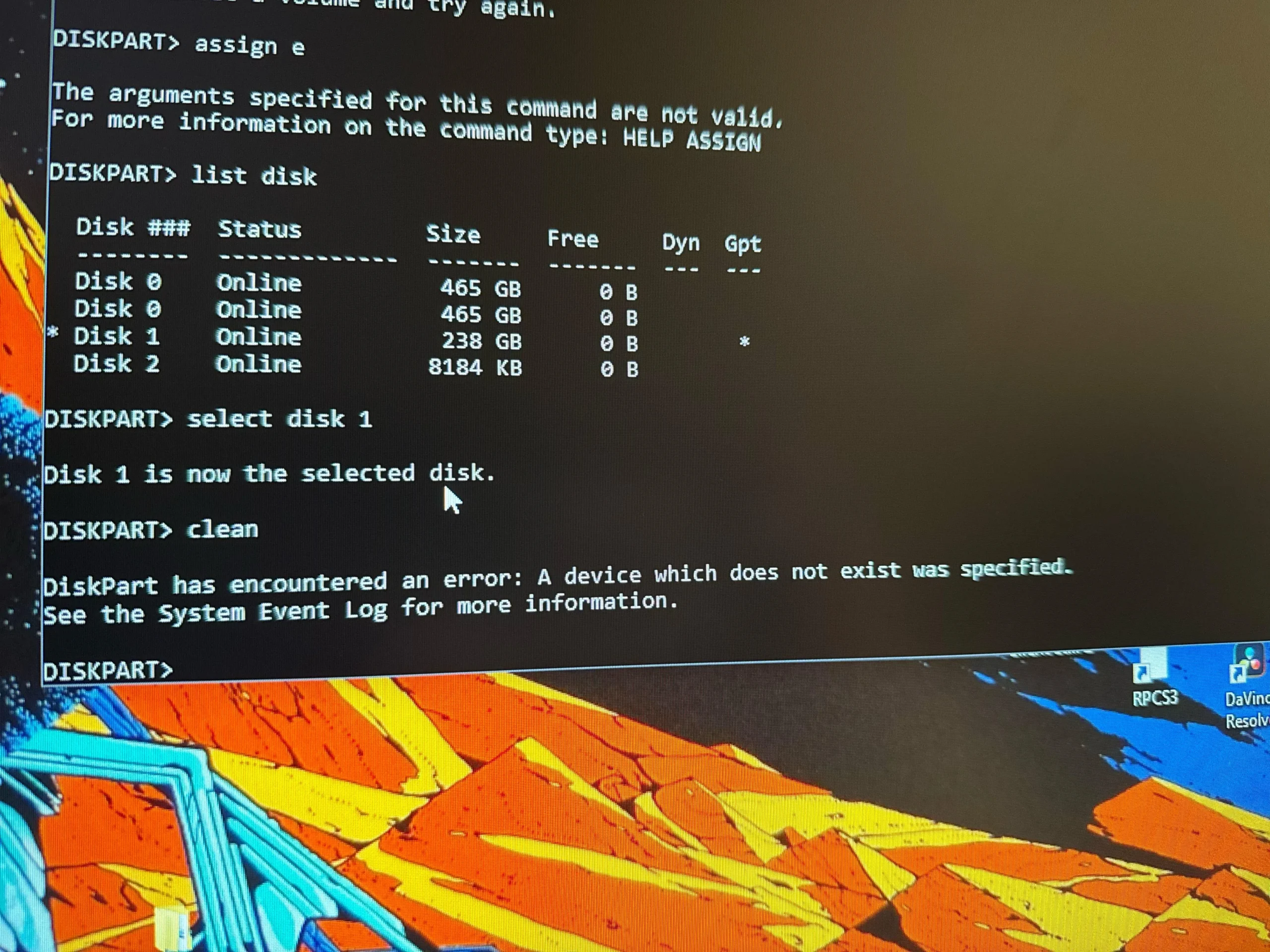
Test on a different computer. Plug the SSD into another PC using a good cable and a rear port. If the drive is stable for 30 to 60 minutes on the second machine, the problem is specific to your original system. That points to the USB controller, the power supply, or a driver conflict rather than the drive.
Check Event Viewer. Open Event Viewer (Win + R, type eventvwr), go to Windows Logs and then System, and filter by the sources Kernel-PnP, USBHUB, and Kernel-Power. Log entries timestamped at the moment of each disconnection often show whether the cause was a power event, a driver reset, or an enumeration failure. That narrows down which layer of the system is at fault.
Replace the USB cable one more time. Even a cable that looks fine can have a broken conductor inside the shielding. Cables fail internally from bending near the connector, and the damage is invisible. A high-quality USB-C or USB-A cable under one meter from a reputable brand costs very little and rules out the most common physical cause for good.
Check PSU output. An underpowered or aging power supply can cause voltage drops on the 5V rail that the USB controller draws from. If your system is heavily loaded (a high-end GPU, multiple drives, and several USB devices all drawing power at once), the PSU may be running close to its limit. Tools like HWMonitor can show 5V rail readings under load; a value below 4.75V under stress is worth investigating.
If the drive fails on the second computer as well, it is most likely a drive fault and the right move is to contact the manufacturer about a replacement under warranty.
Frequently asked questions
Why does my external SSD keep disconnecting every few minutes?
Disconnections that happen on a regular idle cycle are almost always caused by USB selective suspend. Windows powers down the port after a set period of inactivity and the drive does not wake back up cleanly. Disabling USB selective suspend in Power Options and in Device Manager stops this in most cases.
Does it matter which USB port I use on my PC?
Yes. Rear motherboard USB ports are soldered directly to the board and deliver more stable power and signal than front-panel ports, which go through an internal header cable. For an external SSD, always use a rear USB 3.0 or USB 3.1 port when stability matters.
Can a bad USB cable cause an SSD to disconnect?
Yes, and it is one of the most common causes. Charging-only USB-C cables lack the internal conductors for high-speed data. Even data-rated cables can develop broken wires inside the shielding from repeated bending near the connector. Swapping the cable is one of the first things to try.
Conclusion
A motherboard disconnecting an external SSD nearly always comes down to USB power management, a cable problem, or a driver that needs updating. Start by disabling USB selective suspend in Power Options and in Device Manager, then switch to a rear motherboard port and try a data-rated cable. If the drive still drops out, update the chipset driver, check for a BIOS update, and run a SMART health check in CrystalDiskInfo. Work through the steps in order and most people find the fix before reaching step four.
Related Post:
Advantages of SSD: Speed, Reliability, and More
How to Install an SSD in a PC: Step-by-Step for M.2 NVMe and SATA Drives
Macrium Reflect Cyclic Redundancy Check Error on SSD: How to Fix It
How to Repair an SSD Drive: Step-by-Step Fixes That Actually Work