
Checking your RAM speed is simple, and you can do it in just a few seconds on Windows or Mac. On Windows, open Task Manager, click the Performance tab, and select Memory. The number displayed next to “Speed” shows how fast your RAM is currently running. On a Mac, you can find memory information by clicking the Apple menu and selecting About This Mac. These quick methods help you check your RAM speed without installing any additional software.
But the number you see can be confusing, and it does not always match the speed printed on the box your RAM came in. Here is how to check it on any computer, and how to read the result correctly.
The fastest way: check RAM speed in Task Manager (Windows)
Task Manager gives you your RAM speed in about ten seconds, with nothing to install.
- Press Ctrl + Shift + Esc to open Task Manager.
- Click the Performance tab.
- Click Memory in the left column.
- Look at the Speed value near the bottom right.
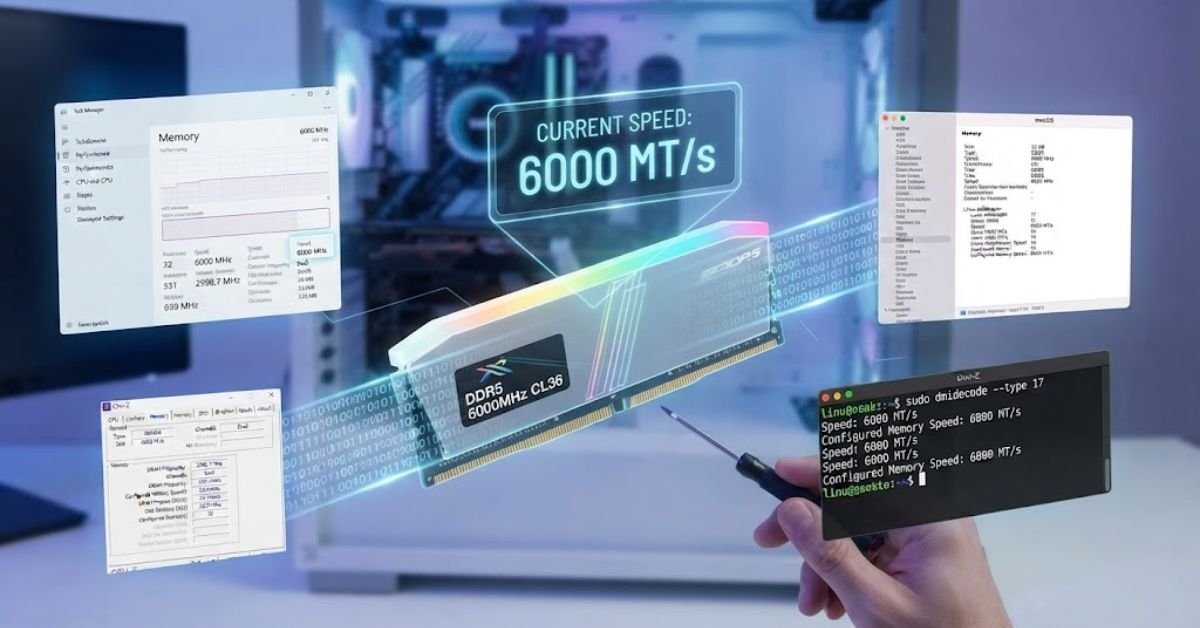
That Speed figure is how fast your memory runs right now. On newer Windows 11 builds it shows up in MT/s (megatransfers per second); older builds label it MHz. Either way, it is the number most people mean when they ask how fast their RAM is.
The same page also shows how much RAM you have, how many slots are in use, and the form factor (DIMM for desktops, SODIMM for laptops). If Task Manager shows nothing next to Speed, which happens on some laptops and virtual machines, use one of the methods below.
How to determine ram speed with PowerShell (and spot a slow setup)
PowerShell shows two speeds at once, and that is what makes it useful: the speed your memory is rated for, and the speed it is actually running at.
Open PowerShell (right-click Start, pick Terminal or Windows PowerShell) and paste this:
Get-CimInstance Win32_PhysicalMemory | Format-Table Manufacturer, PartNumber, Capacity, Speed, ConfiguredClockSpeed
You get one row per stick. Two columns matter. Speed is the top speed the module is rated for. ConfiguredClockSpeed is the speed it runs at today.
When those two numbers match, your RAM is running at full speed. When ConfiguredClockSpeed is lower, your memory is running slower than it could, usually because a speed profile is switched off in the BIOS. More on fixing that below.
On current Windows 11, the older wmic memorychip command may not be installed anymore, so PowerShell is the built-in way to pull these details.
Confirm the real number with CPU-Z
CPU-Z is a small free tool that reads your memory straight from the hardware, and it is the one most PC builders reach for as a second opinion. Download it from the official CPU-Z page at CPUID, install it, and open the Memory tab.
Here is the part that trips people up. The DRAM Frequency in CPU-Z is usually about half the speed you expect to see. That is not a fault. Modern memory is DDR, short for double data rate, which means it moves data twice per clock cycle. So you double the DRAM Frequency to get the speed on the label.
A reading of 1600 MHz means your RAM is running at DDR4-3200. A reading of 3000 MHz means DDR5-6000. The SPD tab is handy too: it lists what each stick is rated for, so you can compare the rating against the speed you are actually getting.
Read the speed off the RAM stick itself
If the computer will not boot, or you are checking memory before you install it, the sticker on the module tells you most of what you need.
Look for a line like DDR4-3200 or DDR5-6000. The number after the dash is the rated speed. You may also see a code like PC4-25600. That is the bandwidth version of the same rating, and Dell’s guide to the PCxxxx label explains how the two line up. For DDR4 and DDR5 you can roughly divide the PC number by 8 to get the DDR speed, so PC4-25600 works out to DDR4-3200.
The sticker usually lists the part number and the timings as well, which is useful when you want to buy a second stick that matches what you already have.
How to check RAM speed on a Mac
On a Mac, click the Apple menu and choose About This Mac. You will see how much memory you have at a glance.
For the speed and type, open the Apple menu, hold the Option key, and click System Information (or search for it in Spotlight). Under Hardware, click Memory. There you will find the speed in MHz, the type such as DDR4, and the status of each slot.
One thing to know: Apple Silicon Macs (the M1, M2, M3 and newer chips) use unified memory built into the processor. It is not a removable stick, and its speed is set by the chip, so About This Mac shows the amount but not a separate speed line. On those machines the memory speed is simply whatever Apple specs for that chip.
What the speed number actually means
RAM speed gets written a few different ways, and that is where the confusion starts. You will see MHz, MT/s, and a DDR label, and they all describe the same stick.
The clock itself runs at one rate, which is what CPU-Z calls DRAM Frequency. Because DDR memory transfers data twice per tick, the data rate is double that, and the doubled figure is what the label uses. MT/s (megatransfers per second) is the accurate name for it, which is why newer tools and Windows builds have switched to MT/s instead of MHz.
Speed is not the whole story, though. Timings matter too. You might see numbers like 16-18-18-38 on a kit. The first one is CAS latency (often written CL), and it measures the small delay before the memory responds. Lower timings mean a quicker response. A fast kit with loose timings and a slower kit with tight timings can feel closer in real use than the headline speed suggests.
Is your RAM running at full speed?
Here is the common surprise: you bought DDR5-6000 memory, but your computer reports it running at 4800. That is normal out of the box, and it is fixable.
Memory ships at a safe default speed set by a standard called JEDEC. To reach the rated speed, you turn on the memory’s performance profile in the BIOS or UEFI. On most boards this is called XMP (Intel) or EXPO (AMD).
To check and fix it:
- Run the PowerShell command above, or open CPU-Z, and compare the running speed to the rated speed.
- If they differ, restart and enter the BIOS (usually Delete or F2 at startup).
- Find the memory or overclocking section and enable the XMP or EXPO profile.
- Save, reboot, and check again.
Turning on that profile is the single biggest free speed gain most people get from their RAM. If the numbers still do not match afterward, your motherboard or CPU may cap the maximum supported speed, so check what your board officially supports.
Frequently asked questions
What is a good RAM speed?
For DDR4, 3200 to 3600 MT/s is a solid sweet spot. For DDR5, 6000 MT/s pairs well with most current systems. Faster helps some games and creative work, but the gains shrink once you go past the sweet spot.
Why does CPU-Z show half my RAM speed?
Because RAM is DDR (double data rate), it moves data twice per clock cycle. CPU-Z shows the base clock, so you double the DRAM Frequency. A reading of 1600 MHz there means DDR4-3200.
My RAM runs slower than its rating. How do I fix it?
It is running at the default JEDEC speed. Restart into your BIOS or UEFI, turn on the XMP (Intel) or EXPO (AMD) profile, then save and reboot. Recheck in Task Manager or CPU-Z.
Can I mix RAM sticks with different speeds?
You can, but every stick runs at the speed of the slowest one, and mixed sets are more likely to be unstable. For the best result, use a matched kit bought together.
Is MT/s the same as MHz for RAM?
They describe the same memory from different angles. MHz is the clock; MT/s is the data rate, which is double the clock on DDR. So DDR4-3200 is 3200 MT/s, coming from a 1600 MHz clock.
Conclusion
To find your RAM speed, open Task Manager on Windows or About This Mac on a Mac, and read the Speed value. For a second opinion, CPU-Z shows the real clock, which you double because memory is DDR. A good result is simple: the running speed matches the speed printed on your RAM. If it falls short, turn on the XMP or EXPO profile in your BIOS, and you will usually get back the rest of the speed you paid for.
Relevant Articles:
Does Having More SSDs Make Your Computer Faster? What Really Changes
How to Install a Solid State Drive in a Laptop: A Step-by-Step Guide
A Technician Is Installing an Internal HDD: Which Connector?
Are SSDs Compatible With All Motherboards? Proven 2026 Guide
SSD Shows Up in BIOS But Not Windows: How to Fix It Safely
Related guides